
Archive | Aralık, 2019

10+ examples for killing a process in Linux

In this tutorial, we will talk about killing a process in Linux with multiple examples. In most cases, it’s as simple as typing “kill” command followed by the process ID (commonly abbreviated as PID).
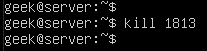
In the screenshot above, we’ve killed a process with the ID of 1813. If you are a Windows user, it may help to think of the ‘kill’ command as Linux’s equivalent of the ‘End task’ button inside of the Windows task manager. The “ps -e” command will list everything running on your system. Even with a minimal installation, the command will probably output more than 80 results, so it’s much easier to pipe the command to ‘grep’ or ‘more’.

Continue Reading →

ps -e | grep name-of-process

In the screenshot below, we check to see if SSH is running on the system.
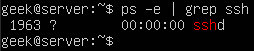
Check if process is running

This also gives us the PID of the SSH daemon, which is 1963.

Pipe to ‘more’ if you want to look through your system’s running processes one-by-one.
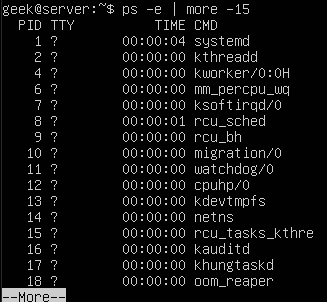
List running processes

You can also make use of the ‘top’ command in order to see a list of running processes. This is useful because it will show you how many system resources that each process is using.
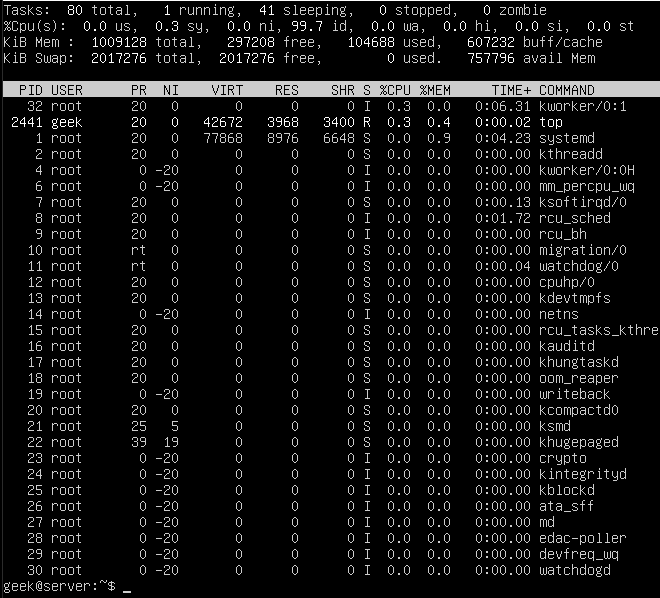
List processes using top command

The PID, User, and name of the resource are all identified here, which is useful if you decide to kill any of these services later.

Pay attention to the %CPU and %MEM columns, because if you notice an unimportant process chewing up valuable system resources, it’s probably beneficial to kill it!

Another very efficient away of obtaining the corresponding process ID is to use the ‘pgrep’ command. The only argument you need to supply is the name (or part of the name) of the running process.

Here’s what it looks like when we search for SSH. As you can see, it returns a process ID of 2506.
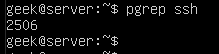
Using pgrep

Kill a process by PID

Now that we know the PID of the SSH daemon, we can kill the process with the kill command.

sudo kill 1963
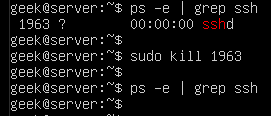
Kill process by ID

You can issue a final ‘ps’ command, just to ensure that the process was indeed killed.

ps -e | grep ssh

The results come up empty, meaning that the process was shut down successfully. If you notice that the process is continuing to run – which should not normally happen – you can try sending a different kill signal to the process, as covered in the next session.

Note: It’s not always necessary to use ‘sudo’ or the root user account to end a process. In the former example, we were terminating the SSH daemon, which is run under the root user, therefore we must have the appropriate permissions to end the process.

Default signal sent by the kill command

By default, the kill command will send a SIGTERM signal to the process you specify.

This should allow the process to terminate gracefully, as SIGTERM will tell the process to perform its normal shutdown procedures – in other words, it doesn’t force the process to end abruptly.

This is a good thing because we want our processes to shut down the way they are intended.

Sometimes, though, the SIGTERM signal isn’t enough to kill a process. If you run the kill command and notice that the process is still running, the process may still be going through its shutdown process, or it may have become hung up entirely.

Force killing

To force the process to close and forego its normal shutdown, you can send a SIGKILL signal with the -9 switch, as shown here:

kill -9 processID
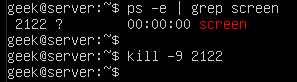
Force process killing

It can be tempting to always append the -9 switch on your kill commands since it always works. However, this isn’t the recommended best practice. You should only use it on processes that are hung up and refusing to shut down properly.

When possible, use the default SIGTERM signal. This will prevent errors in the long run, since it gives the process a chance to close its log files, terminate any lingering connections, etc.

Apart from the SIGTERM and SIGKILL signals, there is a slew of other signals that kill can send to processes, all of which can be seen with the -l switch.
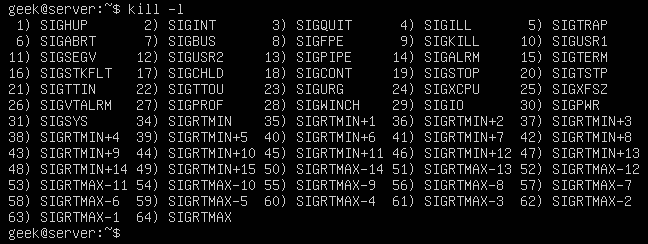
Kill signals

The numbers next to the names are what you would specify in your ‘kill’ command. For example, kill -9 is SIGKILL, just like you see in the screenshot above.

For everyday operations, SIGTERM and SIGKILL are probably the only signals you will never need to use. Just keep the others in mind in case you have a weird circumstance where a process recommends terminating it with a different signal.

How to kill all processes by name?

You can also use the name of a running process, rather than the PID, with the pkill command. But beware, this will terminate all the processes running the under the specified name, since kill won’t know which specific process you are trying to terminate.

pkill name-of-process

Check out the example below where we terminate five processes with a single pkill command.
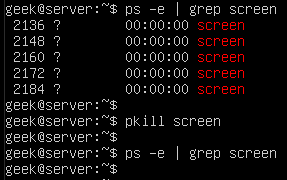
Kill a process using pkill

In this example, we had wanted to only terminate one of those screen sessions, it would’ve been necessary to specify the PID and use the normal ‘kill’ command. Otherwise, there is no way to uniquely specify the process that we wish to end.

How to kill all processes by a user?

You can also use the pkill command to terminate all processes that are running by a Linux user. First, to see what processes are running under a specific user, use the ps command with a -u switch.

ps -u username
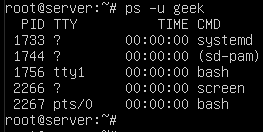
List processes running by a user

That screenshot shows us that there are currently 5 services running under the user ‘geek’. If you need to terminate all of them quickly, you can do so with pkill.

pkill -u username

pkill command

How to kill a nohup process?

The nohup process is killed in the same way as any other running process. Note that you can’t grep for “nohup” in the ps command, so you’ll need to search for the running process using the same methods as shown above.

In this example, we find a script titled ‘test.sh’ which has been executed with the nohup command. As you’ll see, finding and ending it is much the same as the examples above.
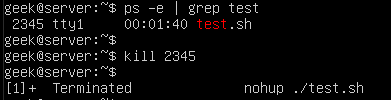
Kill nohup process

The only difference with the output is that we are notified that the process was terminated. That’s not part of kill, but rather a result from running the script in the background (the ampersand in this example) and being connected to the same tty from which the script was initiated.

nohup ./test.sh &

How to run a process in the background?

The kill command is an efficient way to terminate processes you have running in the background. You’ve already learned how to kill processes in this tutorial, but knowing how to run a process in the background is an effective combination for use with kill command.

You can append an ampersand (&) to your command in order to have it executed in the background. This is useful for commands or scripts that will take a while to execute, and you wish to do other tasks in the meantime.
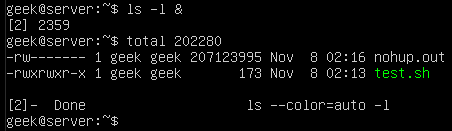
Run a process in background using ampersand

Here we have put a simple ‘ls’ command into the background. Since it’s the type of command which takes very little time to execute, we’re given more output about it finishing its job directly after.

The output in our screenshot says “Done”, meaning that the job in the background has completed successfully. If you were to kill the job instead, it would show “terminated” in the output.

You can also move a job to the background by pressing Ctrl+Z on your keyboard. The ^Z in this screenshot indicates that Ctrl+Z was pressed and the test.sh script has been moved into the background.

Run a process in background using CTRL+Z

You can see test.sh continuing to run in the background by issuing a ps command.

ps -e | grep test.sh
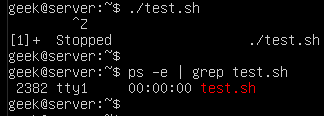
List background processes

Using screen command

Another way to run a process in the background is to use the ‘screen’ command. This works by creating what basically amounts to a separate terminal window (or screen… hence the name).

Each screen that you create will be given its own process ID, which means that it’s an efficient way of creating background processes that can be later ended using the kill command.

Screen isn’t included on all Linux installs by default, so you may have to install it, especially if you’re not running a distribution meant specifically for servers.

On Ubuntu and Debian-based distributions, it can be installed with the following command:

sudo apt-get install screen

Once screen command is installed, you can create a new session by just typing ‘screen’.

screen

But, before you do that, it’s good to get in the habit of specifying names for your screens. That way, they are easy to look up and identify later. All you need in order to specify a name is the -S switch.

screen -S my-screen-name

Let’s make a screen called “testing” and then try to terminate it with the ‘kill’ command. We start like this:

Screen command

After typing this command and pressing enter, we’re instantly taken to our newly created screen. This is where you could start the process that you wish to have running in the background.

This is especially handy if you are SSH’d into a server and need a process to continue running even after you disconnect.

With your command/script running, you can disconnect from the screen by pressing Ctrl+A, followed by D (release the Ctrl and A key before pressing the D key).
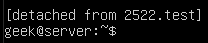
Disconnect from screen

As you can see, screen command has listed the process ID as soon as we detached the screen. Of course, we can terminate this screen (and the command/script running inside of it), by using the kill command.

You can easily look up the process ID of your screen sessions by using this command:

screen -ls

List screen sessions

If we hadn’t named our screen session by using the -S switch, only the process ID itself would be listed. To reattach to the any of the screens listed, you can use the -r switch:

screen -r name-of-screen
or
screen -r PID

Reattach screen process

In the screenshot below, we are killing the screen session we created (along with whatever is being run inside of it), and then issuing another screen -ls command in order to verify that the process has indeed ended.
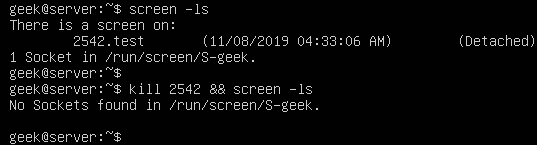
Kill screen session

How to kill a background process?

In one of our examples in the previous section, we put our tesh.sh script to run in the background. Most background processes, especially simple commands, will terminate without any hassle.

However, just like any process, one in the background may refuse to shut down easily. Our test.sh script has a PID of 2382, so we’ll issue the following command:

kill 2383

In the screenshot, though, you’ll notice that the script has ignored our kill command:
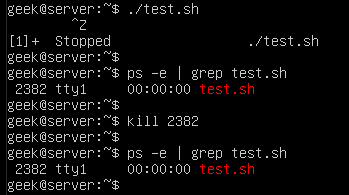
Process killing ignored

As we’ve learned already, kill -9 is the best way to kill a process that is hung up or refusing to terminate.

Force killing

How to kill stopped processes?

It can be useful to kill all your stopped background jobs at once if they have accumulated and are no longer useful to you. For the sake of example, we’re running three instances of our test.sh script in the background and they’ve been stopped:

./test.sh &
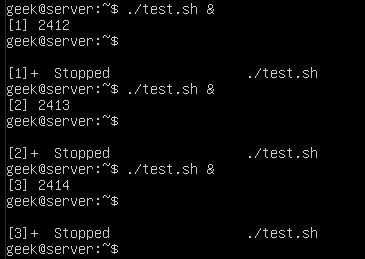
Stop a process

You can see these processes with the ps command:

ps -e | grep test.sh
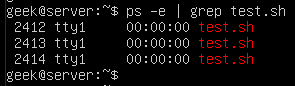
List processes

Or, to just get a list of all the stopped jobs on the system, you can run the jobs command:

jobs
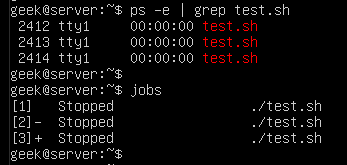
List stopped processes

The easiest way to kill all the stopped jobs is with the following command:

kill `jobs -ps`

Or use the -9 switch to make sure the jobs terminate immediately:

kill -9 `jobs -ps`
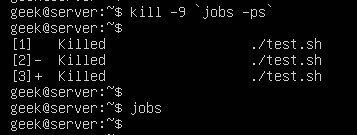
Kill stopped processes

The jobs -ps command will list all jobs’ PIDs running in the background, which is why we’re able to combine its output with the kill command in order to end all the stopped processes.

Kill operation not permitted

If you are getting an “operation not permitted” error when trying to kill a process, it’s because you don’t have the proper permissions. Either log in to the root account or use ‘sudo’ (on Debian distributions) before your kill command.

sudo kill PID
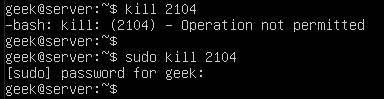
sudo kill permission

I hope you find the tutorial useful. Keep coming back.

0

15+ examples for listing users in Linux

In this post, you will learn about listing users in Linux. Besides this, you will know other tricks about Linux users’ characteristics. There are 2 types of users in Linux, system users who are created by default with the system. On the other hand, there are regular users who are created by system administrators and can log in to the system and use it. Before we start listing users, we need to know where are these users saved on Linux? The users are stored in a text file on the system called the passwd file. This file is located in the /etc directory. The file is located on the following path:
Continue Reading →

/etc/passwd

In this file, you can find all the information about the users in the system.

List all users

Listing users is a the first step to manage them. This way we will know how many they are and who they are. In Linux, almost everything can be done in various ways and this is no exception.

To list all users, you can use the cat command:

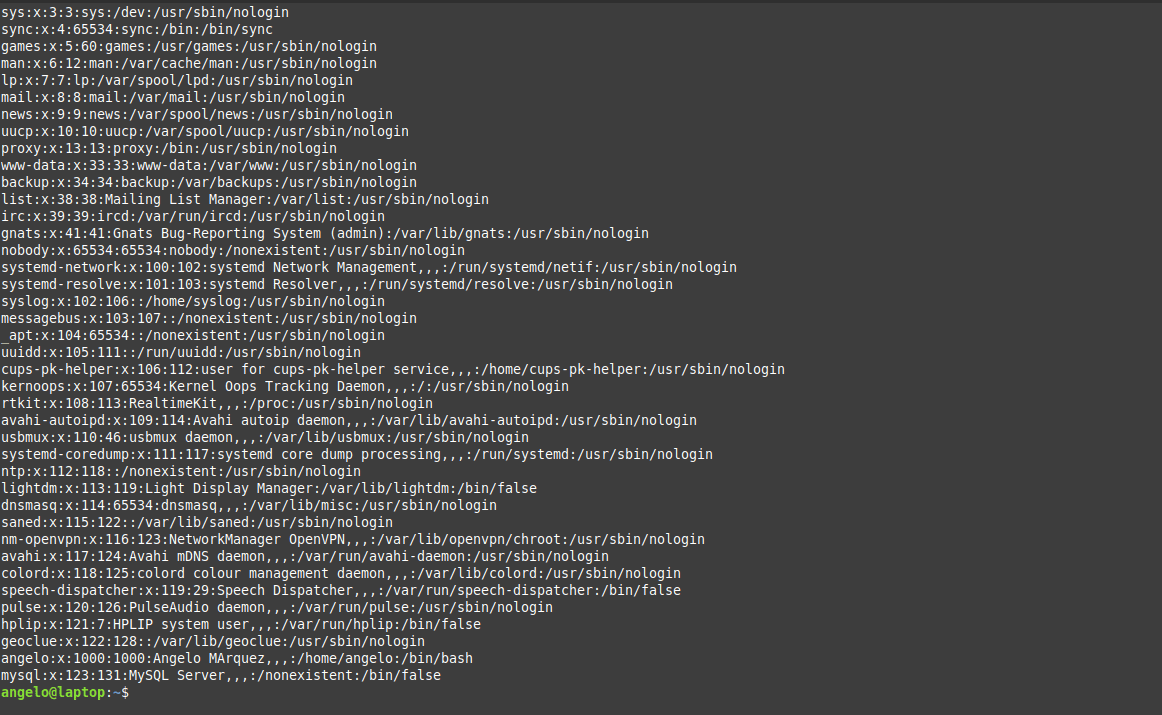
cat /etc/passwd

list all users in Linux

As you can see in the image, there is all the information about the users.

1- In the first field, you will see the user name.

2- Then, a representation of the encrypted password (The x character). The encrypted password is stored in /etc/shadow file.

3- The UID or the user ID.

4- The next field refers to the primary group of the user.

5- Then, it shows user ID info such as the address, email, etc.

6- After this, you will see the home directory of the user.

7- The last field is the shell used by that user.

However, although the information is quite useful but if you only want to list users’ names in a basic way, you can use this command:

cut -d: -f1 /etc/passwd

Listing users in Linux

Now we have the names only by printing the first field of te file only.

List & sort users by name

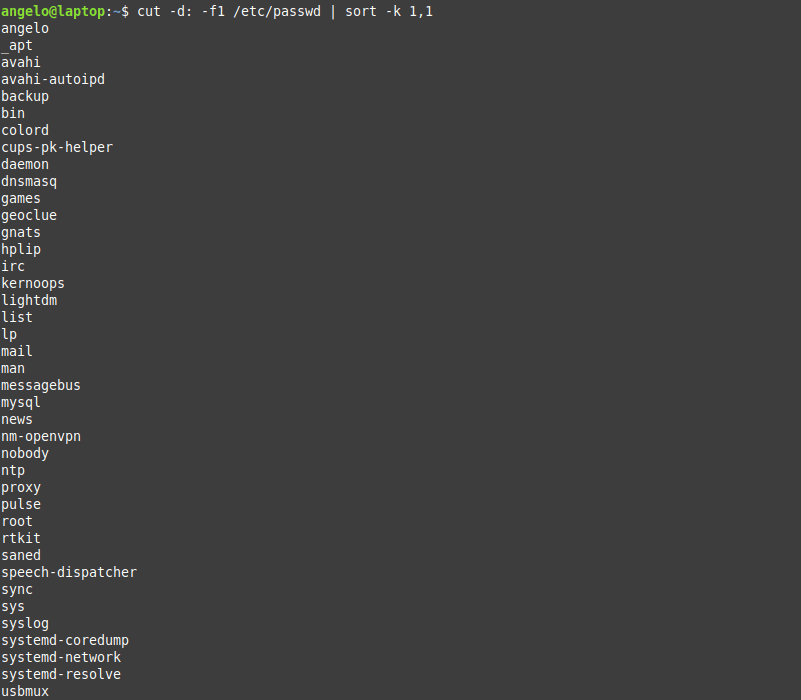
The above command serves the purpose of listing users on Linux. But what about listing the users in alphabetical order?

To do this, we will use the previous command, but we will add the sort command.

So, the command will be like this:

cut -d: -f1 /etc/passwd | sort

Sort by name

As you can see in the image, the users are shown sorted.

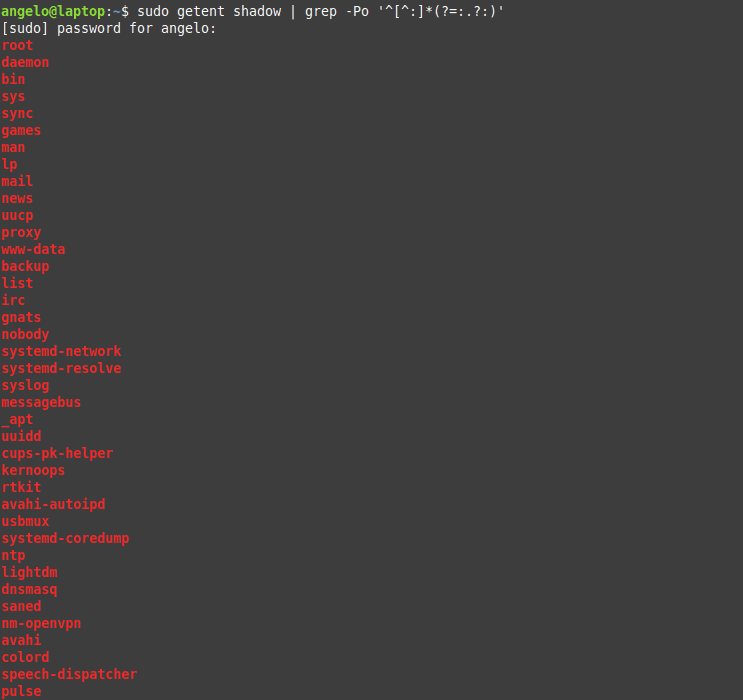
Linux list users without password

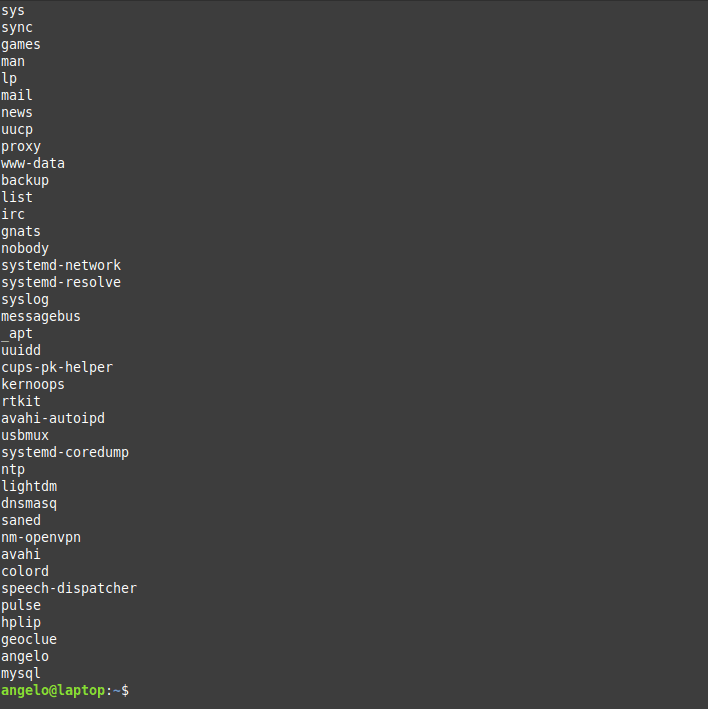
It is important to know users who have no password and to take appropriate action. To list users who do not have a password, just use the following command:

sudo getent shadow | grep -Po '^[^:]*(?=:.?:)'

User with no password

The used regex will list all users with no password.

List users by disk usage

If you have a big directory and you want to know which user is flooding it, you can use the du command to get the disk usage.

With this, you can detect which of these users are misusing the disk space.

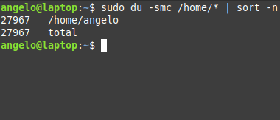
For it, it is enough to use the following command:

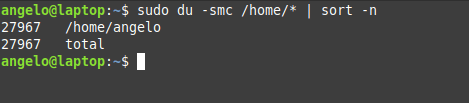
sudo du -smc /home/* | sort -n

List users by disk usage

In this way, you will have the users ordered by the disk usage for the /home directory.

We used the -n for the sort command to sort the output by numbers.

List the currently logged users

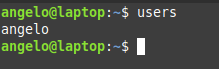
To list the currently logged in users, we have several ways to do it. The first method we can use the users command:

users

Users currently logged

It will list the users with open sessions in the system.

But this information is a little basic however, we have another command that gives more details. The command is simply w.

w

Using the w command to list users currently logged

With this command, we can have more information such as the exact time when the session was started and the terminal session he has available.

Finally, there is a command called who. It is available to the entire Unix family. So you can use it on other systems like FreeBSD.

who

The who command

With who command, we also have some information about currently logged in users. Of course, we can add the option -a and show all the details.

who -a

The who command with options

So, this way you know everything about the logged in users.

Linux list of users who recently logged into the system

We saw how to get the currently logged in users, what about listing the login history of users?

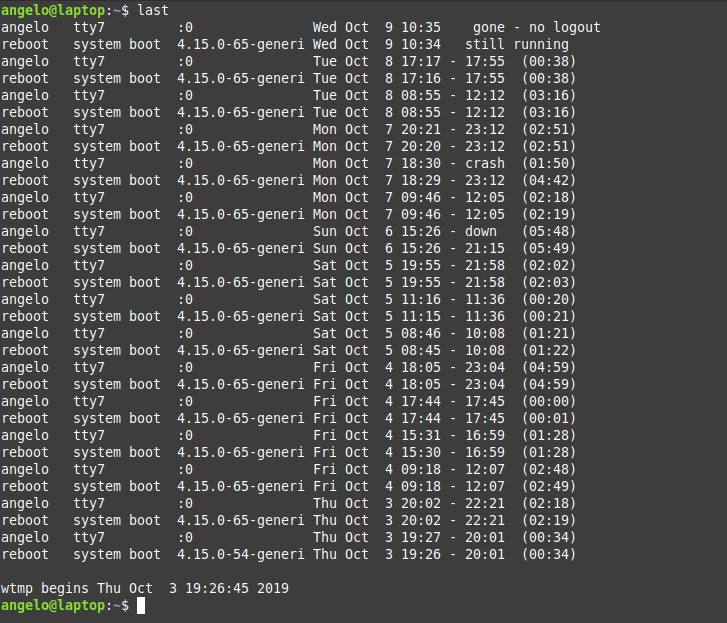
You can use the last command to get more info about the logins that took place:

last

The last command

Or the logins of a particular user

last [username]

For example:

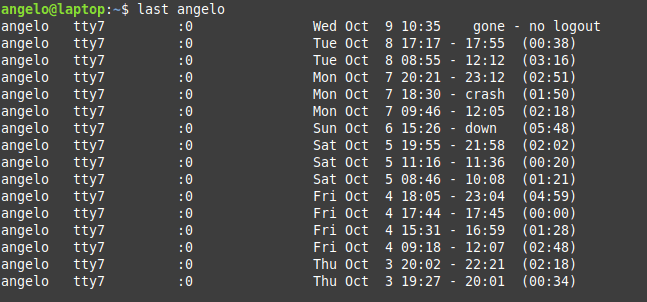
last angelo

last command with specific user

These are the user login activity and when it was started and how long it took.

List users’ logins on a specific date or time

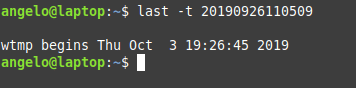
What about listing users’ logins on a specific date or time? To achieve this, we use the last command but with the -t parameter:

last -t YYMMDDHHMMSS
For example:
last -t 20190926110509

List users by a specific date

And now all you have to do is choose an exact date & time to list who logged on that time.

List all users in a group

There are 2 ways to list the members of a group in Linux, the easiest and most direct way is to get the users from the /etc/group file like this:

cat /etc/group | grep likegeeks

This command will list users in the likegeeks group.

The other way is by using commands like the members command in Debian based distros. However, it is not installed by default in Linux distributions.

To install it in Ubuntu / Linux Mint 19, just use APT:

sudo apt install members

Or in the case of CentOS:
sudo dnf install members

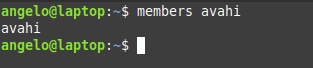
Once it’s installed, you can run the command then the name of the group you want to list the users to:

members [group_name]

For example:
members avahi

Using the members command

This way you can list users for a group in a Debian based distro. What about a RedHat based distro like CentOS?

You can use the following command:

getent group likegeeks

List users with UID

In Unix systems, each user has a user identifier or ID. It serves to manage and administer accounts internally in the operating system.

Generally, UIDs from 0 to 1000 are for system users. And thereafter for regular users. Always on Unix systems, UID zero belongs to the root users (You can have more than one user with UID of zero).

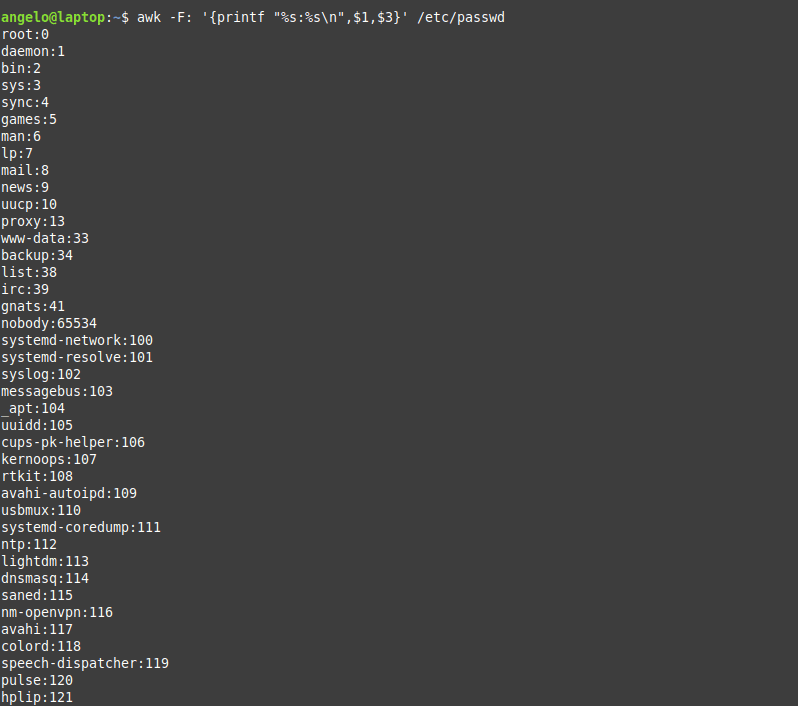
So now we will list the users with their respective UID using awk.

The command that performs the task is the following:

awk -F: '{printf "%s:%s\n",$1,$3}' /etc/passwd

List users with the UID

As you can see, each user with his UID.

List root users

In a Unix-like system like Linux, there is usually only one root user. If there are many, how to list them?

To do this, we can use this command:

grep 'x:0:' /etc/passwd

root users in the system

Here we are filtering the file to get users with UID of zero (root users).

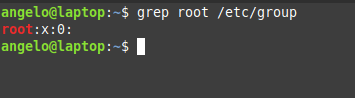
Another way by checking the /etc/group file:

grep root /etc/group

The root users in Linux

Here we are getting users in the group root from the /etc/group file.

Also, you can check if any user can execute commands as root by checking the /etc/sudoers file:

cat /etc/sudoers

Get the total number of users

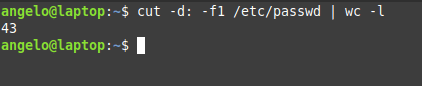
To get the total number of users in Linux, you can count lines in /etc/passwd file using the wc command like this:

cut -d: -f1 /etc/passwd | wc -l

List total number of users in Linux

Great! 43 users. But this includes system and regular users. What about getting the number of regular users only?

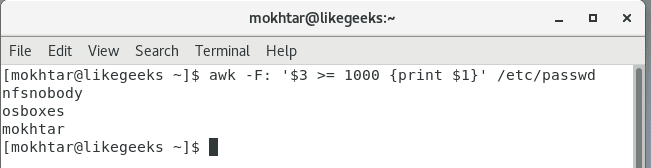
Easy! Since we know from above that regular users have UID of 1000 or greater, we can use awk to get them:

awk -F: '$3 >= 1000 {print $1}' /etc/passwd

List regular users

Cool!

List sudo users

Linux systems have a utility called sudo that allows you to execute commands as if you were another user who is usually the root user.

This should be handled with care in a professional environment.

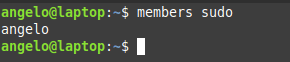
Also, it is very important to know which users can run the sudo command. For this, it is enough to list the users that belong to the sudo group.

members sudo

sudo group users

Users in this group can execute commands as super users.

List users who have SSH access

SSH allows users to access remote computers over a network. It is quite secure and was born as a replacement for Telnet.

On Linux by default, all regular users can log in and use SSH. If you want to limit this, you can use the SSH configuration file (/etc/ssh/ssh_config) and add the following directive:

AllowUsers user1 user2 user3
Also, you can allow groups instead of allowing users only using the AllowGroups directive:
AllowGroups group1 group2 group3

These directives define who can access the service. Don’t forget to restart the SSH service.

List users who have permissions to a file or directory

We can give more than one user permission to access or modify files & directories in two ways.

The first method is by adding users to the group of the file or the directory.

This way, we can list the group members using the members utility as shown above.

Okay, but what if we just want this user to have access to this specific file only (Not all the group permissions)?

Here we can set the ACL for this file using setfacl command like this:

setfacl -m u:newuser:rwx myfile

Here we give the user called newser the permission for the file called myfile the permissions of read & write & execute.

Now the file can be accessed or modified by the owner and the user called newuser. So how to list them?

We can list them using the getfacl command like this:

getfacl myfile

This command will list all users who have permissions for the file with their corresponding permissions.

List locked (disabled) users

In Linux, as a security measure, we can lock users. This as a precaution if it is suspected that the user is doing things wrong and you don’t want to completely remove the user and just lock him for investigation.

To lock a user, you can use the following command:

usermod -L myuser

Now the user named myuser will no longer to able to login or use the system.

To list all locked users of the system, just use the following command:

cat /etc/passwd | cut -d : -f 1 | awk '{ system("passwd -S " $0) }' | grep locked

This will print all locked users including system users. What about listing regular users only?

As we saw above, using awk we can get locked regular users like this:

awk -F: '$3 >= 1000 {print $1}' /etc/passwd | cut -d : -f 1 | awk '{ system("passwd -S " $0) }' | grep locked

Very easy!

Listing remote users (LDAP)

Okay, now can list all system users (local users), but what about remote users or LDAP users? Well, we can use a tool like ldapsearch, but is there any other way?

Luckily yes! You can list local & remote users with one command called getent

getent passwd

This command lists both local system users and LDAP or NIS users or any other network users.

You can pipe the results of this command to any of the above-mentioned commands the same way.

Also, the getent command can list group accounts like this:

getent group

You can check the man page of the command to know the other databases the command can search in.

Conclusion

Listing users in the Linux system was fun! Besides this, we have learned some tips about users and how to manage them in different ways.

Finally, this knowledge will allow a better administration of the users of the system.

I hope you find the tutorial useful. keep coming back.

0

GNU nano 4.7 duyuruldu

GNU/Linux altında çalışan pico editörünün bir benzetimi (emülatörü) olan metin düzenleme yazılımı GNU Nano‘nun “Havikskruid” kod adlı 4.7 sürümü, Benno Schulenberg tarafından duyuruldu. Nanorc dosyalarındaki anahtar kelimeler küçük harfle yazıldığı ifade ediliyor. nanorc dosyasındaki tüm anahtar kelimelerin küçük harf olması gerektiği belirtilirken, ‘lang’ özelliğinin doğru yere iki HTML sayfasına eklendiği söyleniyor. SSH üzerinde metinleri düzenlemeye yarayan Nano; Unix benzeri işletim sistemlerinde yaygın olarak kullanılan, kullanıcı dostu bir metin editörüdür. İlk olarak Haziran 2000 yılında yayınlanan nano, Pico metin editörüne özenerek ek işlevselliklerle yüklü olarak kullanıma sunuluyor. nano komutundan sonra dosya yolu ve dosya adı birlikte kullanılarak dosyanın istenen dizin içerisine oluşturulması veya istenen adresten açılması sağlanabiliyor. GNU nano 4.7 hakkında bilgi edinmek için şu an için haberler sayfası ya da sürüm duyurusu  incelenebilir.

Continue Reading →

GNU nano 4.7 edinmek için aşağıdaki linklerden yararlanabilirsiniz.

0

AMDVLK 2019.Q4.5 Vulkan sürücü duyuruldu

AMD’nin resmi Vulkan sürücü ekibi, açık kaynaklı Linux “AMDVLK” türevinin yeni bir sürümünü duyurdu. AMDVLK 2019.Q4.5’in sürpriz bir sürüm olduğu ifade edilirken, böylelikle Vulkan 1.1.129 API’si ortaya çıkarılmış olduğu söyleniyor. VertexAttributeInstanceRateZeroDivisor’un da etkinleştirildiği bildiriliyor. Vkcube/Vkmark ile ilgili bir performans sorunununun giderildiği belirtiliyor. VK_KHR_shader_float_controls uzantısı ile VK_KHR_separate_depth_stencil_layouts uzantısı etkinleştirilmiş bulunuyor. AMDVLK 2019.Q4.5 Vulkan sürücü hakkında ayrıntılı bilgi edinmek için sürüm duyurusunu inceleyebilirsiniz.

Continue Reading →

AMDVLK 2019.Q4.5 Vulkan sürücü edinmek için aşağıdaki linkten yararlanabilirsiniz.

0

GNU Parallel 20191222 “Impeachment” duyuruldu

Bir veya daha fazla bilgisayar kullanarak işleri paralel olarak yürütmek için bir kabuk aracı olarak kullanılan GNU Parallel‘in “Impeachment” kod adlı 20191222 sürümü, Ole Tange tarafından duyuruldu. Tange; gelecek yıl 22 Nisan 2020 tarihinde 10 yaşına basacak olan GNU Parallel için 17 Nisan 2020 tarihinde verilecek resepsiyona herkesin davetli olduğunu hatırlattı. Çok güçlü ve esnek bir araç olan GNU Parallel, yeni sürümünde hata düzeltmeleri ve man sayfa güncellemeleriyle geliyor. Bir iş, girişteki her satır için çalıştırılması gereken tek bir komut veya küçük bir komut dosyası olabileceği gibi, bir borudan okuyan bir komut da olabilir. GNU Parallel; girişi bölebilir ve bunu paralel olarak komutlara iletebilir. Kabuklarda döngüler yazılırsa, GNU Parallel’in döngülerin çoğunu değiştirebileceği ve birkaç işi paralel olarak çalıştırarak daha hızlı çalışmasını sağlayabileceği görülebilir. GNU Parallel 20191222 hakkında ayrıntılı bilgi edinmek için sürüm duyurusunu inceleyebilirsiniz.

Continue Reading →

GPLv3 lisansı altında kullanıma sunulan GNU Parallel; GNU/Linux ve diğer Unix benzeri işletim sistemleri için komut satırında çalıştırılan bir yardımcı programdır ve kabuk betiklerini paralel olarak yürütür. Perl programlama diliyle Ole Tange tarafından yazılan GNU Parallel; özgür bir yazılımdır. GNU Parallel 20191222 “Impeachment” edinmek için aşağıdaki linklerden yararlanabilirsiniz.

0

LinuxConsole 2019 duyuruldu

Masaüstü bilgisayarlar, sunucular, oyun konsolları ve eski bilgisayarlar için tasarlanmış farklı sürümlere sahip, bağımsız olarak geliştirilen bir GNU/Linux canlı CD’si olan LinuxConsole‘un 2019 sürümü duyuruldu. Temel olarak kolay kurulum, modüller yazılım seçimi ve mükemmel donanım algılama özellikleriyle gelen sistem; çeşitli yerel dillere ilişkin güncellemeler içeriyor. 5.4.5 Linux çekirdeği üzerine yapılandırılan sistem, Virtualbox ve Vmware üzerinde test edilmek üzere tasarlanmıştır. Bu sürümde; İngilizce, Fransızca, Almanca, İspanyolca, Arapça, Japonca, Portekizce, İtalyanca, Polska, Çekçe, Çince, Rusça, Bretonca, Quebec dili ile ilgili güncellemeler var. Mate 1.22 masaüstü ortamı ile gelen sistem; Wine 4.0.3 gibi güncel yazılımlar içeriyor. LinuxConsole 2019 hakkında ayrıntılı bilgi edinmek için sürüm duyurusunu inceleyebilirsiniz.

Continue Reading →

LinuxConsole 2019 edinmek için aşağdıdaki linklerden yararlanabilirsiniz.

0