
Archive | GNU/Linux

Daylight Linux 4 duyuruldu

“Ne kadar hafif olursan o kadar çok koşabilirsin.” sloganıyla kullanıma sunulan ve esasen Raspberry 4 ve Raspberry Pi’nin sürümleriyle uyumlu olan Daylight Linux‘un 4 no’lu sürümü duyuruldu. PC’ler için aynı zamanda AMD64 live versiyonuyla gelen sistemin, 5.3 Linux çekirdeği üzerine yapılandırılmış olduğu söyleniyor. Bu versiyon Debian 10 Buster’a dayalı olarak geliyor. Ancak, Raspberry Pi için hazırlanan versiyonlar, 4.19.68 5.3 Linux çekirdeği üzerine yapılandırılmışlar. Mevcut tüm yazılımlar için tüm paketlerin Debian 10’a veya deneysel olarak en son versiyona yükseltilebileceği söyleniyor. Daylight linux, hafif bir araç olan Fluxbox pencere yöneticisini tercih ediyor. Daylight Linux 4 hakkında ayrıntılı bilgi edinmek için haberler sayfasını inceleyebilirsiniz.

Continue Reading →

Daylight Linux 4 edinmek için projenin önsürümler sayfasına gidilebilir.

Ayrıca, nasıl kullanılır sayfasını incelemek isteyebilirsiniz.

0

4MLinux 30.0 duyuruldu

Bir bakım (bir sistem kurtarma live CD’si gibi), multimedya, (inetd daemon kullanarak) bir miniserver gibi temel unsurlara odaklanan ve bazı küçük GNU/Linux oyunları sağlayan , 32 bit bir GNU/Linux dağıtımı olan 4MLinux’un 30.0 sürümü duyuruldu. 4.19.63 Linux çekirdeği üzerine yapılandırılan sürümün yeni bir kararlı sürüm olduğu bildiriliyor. Sistem; LibreOffice 6.2.6.2, AbiWord 3.0.2, GIMP 2.10.12, Gnumeric 1.12.44, DropBox 79.4.143, Firefox 68.0.2, Chromium 76.0.3809.100, Thunderbird 60.8.0, Audacious 3.10.1, VLC 3.0.7.1, mpv 0.29.1, Mesa 19.0.5, Wine 4.14, Apache 2.4.39, MariaDB 10.4.7, PHP 5.6.40, PHP 7.3.8, Perl 5.28.1, Python 2.7.16, Python 3.7.3 gibi güncel paketler içeriyor. 4MLinux 30.0 hakkında ayrıntılı bilgi edinmek üzere sürüm duyurusunu inceleyebilirsiniz.

Continue Reading →

4MLinux 30.0 edinmek için aşağıdaki linkten yararlanabilirsiniz.

0

Linux Lite 4.6 duyuruldu

Kullanıcı dostu, Ubuntu tabanlı, düşük kaynak tüketimi ile gelen, hafif bir GNU/Linux dağıtımı olan ve Xfce masaüstü ortamıyla gelen Linux Lite’in 4.6 sürümü, Jerry Bezencon tarafından duyuruldu. Ubuntu 18.04.3 LTS’ye (uzun süreli destek) dayalı olarak gelen sistem; yeni bir CPU monitör widget’i içeriyor. Pek çok değişiklikle gelen sistem, yeni bir tema seçicisi olarak Lite Welcome içeriyor. 4.15.0-58 Linux çekirdeği üzerine yapılandırılan sistem; Firefox: 68.0.2 Quantum, Thunderbird: 60.8.0, LibreOffice: 6.0.7.3, VLC: 3.0.7.1, Gimp: 2.10.12, Timeshift 19.08.1, Base: 18.04.3 gibi pek çok güncel paketle geliyor. Linux Lite 4.6 hakkında ayrıntılı bilgi edinmek için sürüm duyurusunu inceleyebilirsiniz.

Continue Reading →

Linux Lite 4.6 edinmek için aşağıdaki linklerden yararlanalabilirsiniz.

0

exFAT sürücüsü 5.4 Linux çekirdeği için sıraya alındı

Hatırlanacağı gibi, birkaç gün önce, Microsoft‘un 2006’da flash sürücüler ve SD kartlar için kullanılan bir dosya sistemi olarak tasarladığı exFAT’i Linux çekirdeğine eklemek istediğini duyurmuştuk. Microsoft, exFAT’in Linux çekirdeğine eklenmesini desteklediğini ve exFAT için teknik özelliklerin yayınlandığını açıklamıştı. exFAT sürücüsü, 5.4 Linux çekirdeği için sıraya alınmış bulunuyor. Microsoft, exFAT dosya sisteminin özellikleri için buradan yararlanılabileceğini belirtiyor. Linux geliştiricileri bu exFAT sürücü kodunu “korkunç” ve “ıvır zıvır yığını” olarak adlandırırken, Greg Kroah-Hartman, sürücüyü kısa sürede temizleyeceklerini umduğunu söylüyor. Bu neredeyse on bir bin satırlık yeni kod anlamına geliyor ve Microsoft’un imzasını almış bulunuyor. Bu, 5.3 Linux çekirdeği yayınlandıktan sonra, 5.4 Linux çekirdeği ana kod kod tabanına dahil edilmek üzere ayarlanacak.

Continue Reading →

Microsoft, exFAT’in Linux çekirdeğinin bir parçası olmasını istemenin yanı sıra, exFAT teknik özelliklerinin Open Invention Network’un Linux tanımının bir parçası olacağını umduğunu da söylemişti. exFAT kodunun durumunu görmek üzere git.kernel.org üzerinde bu sayfa gözden geçirilebilir.

0

Snapd 2.41 duyuruldu

GNU/Linux sistemler için geliştirilmiş daha hızlı kurulum,uygulamaların daha güvenli çalışması,güncellemeler gibi işlemlerin yapildığı paket yoneticisi olan Snapd’nin 2.41 sürümü, Michael Vogt tarafından duyuruldu. Snapd 2.41 sürümünü kullanıma sunmaktan mutluluk duyduklarını söyleyen Vogt; bunun Gadget varlık güncellemeleri içerdiğini söyledi. Daemon kullanıcı desteği ile gelen sürüm, çeşitli iyileştirmeler getiriyor. Ubuntu’da yıllardır uygulama yüklemek, yükseltmek ve kaldırmak için kullanılan “apt-get” komutu yerine, Ubuntu 16.04 sürümüyle birlikte kullanıma sunulan Snap paketleme sistemi, “.deb” paketleri yerine, “.snap” paketlerini kullanıyor. Böylelikle hem masaüstü bilgisayarın, hem de Ubuntu telefon veya tabletlerin ortak yazılım kullanabilmesi amacı güdülüyor. Ayrıca snap, paket bağımlılığı sorununu ortadan kaldıracak. Yani uygulamalar, sistem sürümünden bağımsız olarak çalışacak. Bir uygulama indirildiğinde, aslında o uygulamanın çalışması için gerekli paket bağımlılıkları da indirilmiş olacak. Uygulamaların tamamen yalıtılmış olarak çalışacak olmaları, sistem geneli için daha az sorun ve daha az güvenlik açığı anlamına geliyor. Snapd 2.41 hakkında ayrıntılı bilgiyi GitHub sayfasında bulabilirsiniz.

Continue Reading →

Snapd 2.41 edinmek için aşağıdaki linkten yararlanabilirsiniz.

0

Regex tutorial for Linux (Sed & AWK) examples

In order to successfully work with the Linux sed editor and the awk command in your shell scripts, you have to understand regular expressions or in short regex. Since there are many engines for regex, we will use the shell regex and see the bash power in working with regex. First, we need to understand what regex is, then we will see how to use it. For some people, when they see the regular expressions for the first time they said what are these ASCII pukes !! Well, A regular expression or regex, in general, is a pattern of text you define that a Linux program like sed or awk uses it to filter text. We saw some of those patterns when introducing basic Linux commands and saw how the ls command uses wildcard characters to filter output.

Continue Reading →

Types of regex

There are many different applications use different types of regex in Linux, like the regex included in programming languages (Java, Perl, Python,,,) and Linux programs like (sed, awk, grep,) and many other applications.

A regex pattern uses a regular expression engine which translates those patterns.

Linux has two regular expression engines:

  • The Basic Regular Expression (BRE) engine.
  • The Extended Regular Expression (ERE) engine.

Most Linux programs work well with BRE engine specifications, but some tools like sed understand some of the BRE engine rules.

The POSIX ERE engine is shipped with some programming languages. It provides more patterns like matching digits, and words. The awk command uses the ERE engine to process its regular expression patterns.

Since there are many regex implementations, it’s difficult to write patterns that work on all engines. Hence, we will focus on the most commonly found regex and demonstrate how to use it in the sed and awk.

Define BRE Patterns

You can define a pattern to match text like this:

echo "Testing regex using sed" | sed -n '/regex/p'

echo "Testing regex using awk" | awk '/regex/{print $0}'

Linux regex tutorial

You may notice that the regex doesn’t care where the pattern occurs or how many times in the data stream.

The first rule to know is that regular expression patterns are case sensitive.

echo "Welcome to LikeGeeks" | awk '/Geeks/{print $0}'

echo "Welcome to Likegeeks" | awk '/Geeks/{print $0}'

regex character case

The first regex succeeds because the word “Geeks” exists in the upper case, while the second line fails because it uses small letters.

You can use spaces or numbers in your pattern like this:

echo "Testing regex 2 again" | awk '/regex 2/{print $0}'

space character

Special Characters

regex patterns use some special characters. And you can’t include them in your patterns and if you do so, you won’t get the expected result.

These special characters are recognized by regex:

.*[]^${}\+?|()

You need to escape these special characters using the backslash character (\).

For example, if you want to match a dollar sign ($), escape it with a backslash character like this:

cat myfile

There is 10$ on my pocket

awk '/\$/{print $0}' myfile

dollar sign

If you need to match the backslash (\) itself, you need to escape it like this:

echo "\ is a special character" | awk '/\\/{print $0}'

special character

Despite the forward slash isn’t a special character, you still get an error if you use it directly.

echo "3 / 2" | awk '///{print $0}'

regex slash

So you need to escape it like this:

echo "3 / 2" | awk '/\//{print $0}'

escape slash

Anchor Characters

To locate the beginning of a line in a text, use the caret character (^).

You can use it like this:

echo "welcome to likegeeks website" | awk '/^likegeeks/{print $0}'

echo "likegeeks website" | awk '/^likegeeks/{print $0}'

anchor begin character

The caret character (^) matches the start of text:

awk '/^this/{print $0}' myfile

caret anchor

What if you use it in the middle of the text?

echo "This ^ caret is printed as it is" | sed -n '/s ^/p'

caret character

It’s printed as it is like a normal character.

When using awk, you have to escape it like this:

echo "This ^ is a test" | awk '/s \^/{print $0}'

escape caret

This is about looking at the beginning of the text, what about looking at the end?

The dollar sign ($) checks for the end a line:

echo "Testing regex again" | awk '/again$/{print $0}'

end anchor

You can use both the caret and dollar sign on the same line like this:

cat myfile
this is a test
This is another test
And this is one more

awk '/^this is a test$/{print $0}' myfile

combine anchors

As you can see, it prints only the line that has the matching pattern only.

You can filter blank lines with the following pattern:

awk '!/^$/{print $0}' myfile

Here we introduce the negation which is done by the exclamation mark !

The pattern searches for empty lines where nothing between the beginning and the end of the line and negates that to print only the lines have text.

The dot Character

The dot character is used to match any character except newline (\n).

Look at the following example to get the idea:

cat myfile
this is a test
This is another test
And this is one more
start with this

awk '/.st/{print $0}' myfile

dot character

You can see from the result that it prints only the first two lines because they contain the st pattern while the third line does not have that pattern and fourth line start with st so that also doesn’t match our pattern.

Character Classes

You can match any character with the dot special character, but what if you match a set of characters only, you can use a character class.

The character class matches a set of characters if any of them found, the pattern matches.

The chracter classis defined using square brackets [] like this:

awk '/[oi]th/{print $0}' myfile

character classes

Here we search for any th characters that have o character or i before it.

This comes handy when you are searching for words that may contain upper or lower case and you are not sure about that.

echo "testing regex" | awk '/[Tt]esting regex/{print $0}'

echo "Testing regex" | awk '/[Tt]esting regex/{print $0}'

upper and lower case

Of course, it is not limited to characters; you can use numbers or whatever you want. You can employ it as you want as long as you got the idea.

Negating Character Classes

What about searching for a character that is not in the character class?

To achieve that, precede the character class range with a caret like this:

awk '/[^oi]th/{print $0}' myfile

negate character classes

So anything is acceptable except o and i.

Using Ranges

To specify a range of characters, you can use the (-) symbol like this:

awk '/[e-p]st/{print $0}' myfile

regex ranges

This matches all characters between e and p then followed by st as shown.

You can also use ranges for numbers:

echo "123" | awk '/[0-9][0-9][0-9]/'

echo "12a" | awk '/[0-9][0-9][0-9]/'

number range

You can use multiple and separated ranges like this:

awk '/[a-fm-z]st/{print $0}' myfile

non-continuous range

The pattern here means from a to f, and m to z must appear before the st text.

echo "abc" | awk '/[[:alpha:]]/{print $0}'

echo "abc" | awk '/[[:digit:]]/{print $0}'

echo "abc123" | awk '/[[:digit:]]/{print $0}'

special character classes

The Asterisk

The asterisk means that the character must exist zero or more times.

echo "test" | awk '/tes*t/{print $0}'

echo "tessst" | awk '/tes*t/{print $0}'

asterisk

This pattern symbol is useful for checking misspelling or language variations.

echo "I like green color" | awk '/colou*r/{print $0}'

echo "I like green colour " | awk '/colou*r/{print $0}'

asterisk example

Here in these examples whether you type it color or colour it will match, because the asterisk means if the “u” character existed many times or zero time that will match.

To match any number of any character, you can use the dot with the asterisk like this:

awk '/this.*test/{print $0}' myfile

asterisk with dot

It doesn’t matter how many words between the words “this” and “test”, any line matches, will be printed.

You can use the asterisk character with the character class.

echo "st" | awk '/s[ae]*t/{print $0}'

echo "sat" | awk '/s[ae]*t/{print $0}'

echo "set" | awk '/s[ae]*t/{print $0}'

asterisk with character classes

All three examples match because the asterisk means if you find zero times or more any “a” character or “e” print it.

Extended Regular Expressions

The following are some of the patterns that belong to Posix ERE:

The question mark

The question mark means the previous character can exist once or none.

echo "tet" | awk '/tes?t/{print $0}'

echo "test" | awk '/tes?t/{print $0}'

echo "tesst" | awk '/tes?t/{print $0}'

question mark

The question mark can be used in combination with a character class:

echo "tst" | awk '/t[ae]?st/{print $0}'

echo "test" | awk '/t[ae]?st/{print $0}'

echo "tast" | awk '/t[ae]?st/{print $0}'

echo "taest" | awk '/t[ae]?st/{print $0}'

echo "teest" | awk '/t[ae]?st/{print $0}'

question mark with character classes

If any of the character class items exists, the pattern matching passes. Otherwise, the pattern will fail.

The Plus Sign

The plus sign means that the character before the plus sign should exist one or more times, but must exist once at least.

echo "test" | awk '/te+st/{print $0}'

echo "teest" | awk '/te+st/{print $0}'

echo "tst" | awk '/te+st/{print $0}'

plus sign

If the “e” character not found, it fails.

You can use it with character classes like this:

echo "tst" | awk '/t[ae]+st/{print $0}'

echo "test" | awk '/t[ae]+st/{print $0}'

echo "teast" | awk '/t[ae]+st/{print $0}'

echo "teeast" | awk '/t[ae]+st/{print $0}'

plus sign with character classes

if any character from the character class exists, it succeeds.

Curly Braces

Curly braces enable you to specify the number of existence for a pattern, it has two formats:

n: The regex appears exactly n times.

n,m: The regex appears at least n times, but no more than m times.

echo "tst" | awk '/te{1}st/{print $0}'

echo "test" | awk '/te{1}st/{print $0}'

curly braces

In old versions of awk, you should use –re-interval option for the awk command to make it read curly braces, but in newer versions you don’t need it.

echo "tst" | awk '/te{1,2}st/{print $0}'

echo "test" | awk '/te{1,2}st/{print $0}'

echo "teest" | awk '/te{1,2}st/{print $0}'

echo "teeest" | awk '/te{1,2}st/{print $0}'

curly braces interval pattern

In this example, if the “e” character exists one or two times, it succeeds; otherwise, it fails.

You can use it with character classes like this:

echo "tst" | awk '/t[ae]{1,2}st/{print $0}'

echo "test" | awk '/t[ae]{1,2}st/{print $0}'

echo "teest" | awk '/t[ae]{1,2}st/{print $0}'

echo "teeast" | awk '/t[ae]{1,2}st/{print $0}'

interval pattern with character classes

If there are one or two instances of the letter “a” or “e” the pattern passes, otherwise, it fails.

Pipe Symbol

The pipe symbol makes a logical OR between 2 patterns. If one of the patterns exists, it succeeds, otherwise, it fails, here is an example:

echo "Testing regex" | awk '/regex|regular expressions/{print $0}'

echo "Testing regular expressions" | awk '/regex|regular expressions/{print $0}'

echo "This is something else" | awk '/regex|regular expressions/{print $0}'

pipe symbol

Don’t type any spaces between the pattern and the pipe symbol.

Grouping Expressions

You can group expressions so the regex engines will consider them one piece.

echo "Like" | awk '/Like(Geeks)?/{print $0}'

echo "LikeGeeks" | awk '/Like(Geeks)?/{print $0}'

grouping expressions

The grouping of the “Geeks” makes the regex engine treats it as one piece, so if “LikeGeeks” or the word “Like” exist, it succeeds.

Practical examples

We saw some simple demonstrations of using regular expression patterns, it’s time to put that in action, just for practicing.

Counting Directory Files

Let’s look at a bash script that counts the executable files in a folder from the PATH environment variable.

echo $PATH

To get a directory listing, you must replace each colon with space.

echo $PATH | sed 's/:/ /g'

Now let’s iterate through each directory using the for loop like this:

mypath=$(echo $PATH | sed 's/:/ /g')

for directory in $mypath; do

done

Great!!

You can get the files on each directory using the ls command and save it in a variable.

You may notice some directories doesn’t exist, no problem with this its OK.

count files

Cool!! This is the power of regex. These few lines of code count all files in all directories. Of course, there is a Linux command to do that very easy, but here we discuss how to employ regex on something you can use. You can come up with some more useful ideas.

Validating E-mail Address

There are a ton of websites that offer ready to use regex patterns for everything including e-mail, phone number, and much more, this is handy but we want to understand how it works.

[email protected]

The username can use any alphanumeric characters combined with dot, dash, plus sign, underscore.

The hostname can use any alphanumeric characters combined with a dot and underscore.

For the username, the following pattern fits all usernames:

^([a-zA-Z0-9_\-\.\+]+)@

The plus sign means one character or more must exist followed by the @ sign.

Then the hostname pattern should be like this:

([a-zA-Z0-9_\-\.]+)

There are special rules for the TLDs or Top-level domains, and they must be not less than 2 and five characters maximum. The following is the regex pattern for the top-level domain.

\.([a-zA-Z]{2,5})$

Now we put them all together:

^([a-zA-Z0-9_\-\.\+]+)@([a-zA-Z0-9_\-\.]+)\.([a-zA-Z]{2,5})$

Let’s test that regex against an email:

echo "[email protected]" | awk '/^([a-zA-Z0-9_\-\.\+]+)@([a-zA-Z0-9_\-\.]+)\.([a-zA-Z]{2,5})$/{print $0}'

echo "[email protected]" | awk '/^([a-zA-Z0-9_\-\.\+]+)@([a-zA-Z0-9_\-\.]+)\.([a-zA-Z]{2,5})$/{print $0}'

validate email

Awesome!! Works great.

This was just the beginning of regex world that never ends. I hope after this post you understand these ASCII pukes 🙂 and use it more professionally.

I hope you like the post.

Thank you.

0

30 Examples for Awk Command in Text Processing

In the previous post, we talked about sed command and we saw many examples of using it in text processing and we saw how it is good in this, but it has some limitations. Sometimes you need something powerful, giving you more control to process data. This is where awk command comes in. The awk command or GNU awk in specific provides a scripting language for text processing. With awk scripting language, you can make the following: Define variables, use string and arithmetic operators, use control flow and loops, generate formatted reports, actually, you can process log files that contain maybe millions of lines to output a readable report that you can benefit from.

Continue Reading →

Awk Options

The awk command is used like this:

awk options program file

Awk can take the following options:

-F fs To specify a file separator.

-f file To specify a file that contains awk script.

-v var=value To declare a variable.

We will see how to process files and print results using awk.

Read AWK Scripts

To define an awk script, use braces surrounded by single quotation marks like this:

awk '{print "Welcome to awk command tutorial "}'

awk command

If you type anything, it returns the same welcome string we provide.

To terminate the program, press The Ctrl+D. Looks tricky, don’t panic, the best is yet to come.

Using Variables

With awk, you can process text files. Awk assigns some variables for each data field found:

  • $0 for the whole line.
  • $1 for the first field.
  • $2 for the second field.
  • $n for the nth field.

The whitespace character like space or tab is the default separator between fields in awk.

Check this example and see how awk processes it:

awk '{print $1}' myfile

awk command variables

The above example prints the first word of each line.

Sometimes the separator in some files is not space nor tab but something else. You can specify it using –F option:

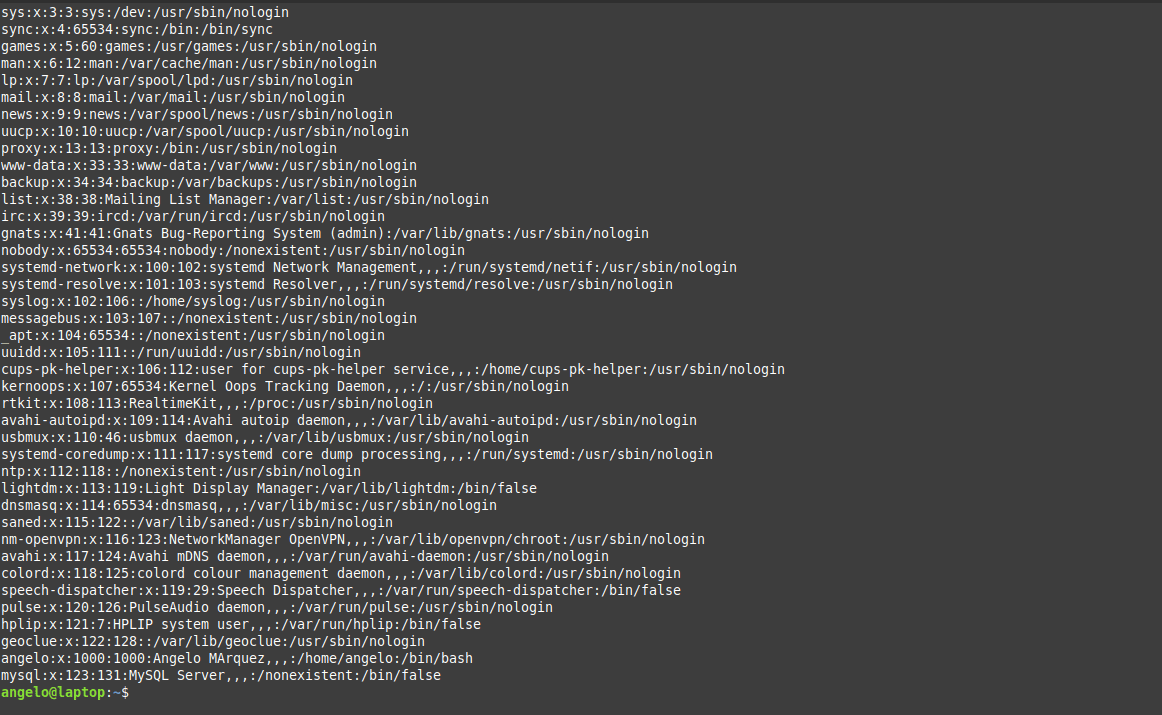
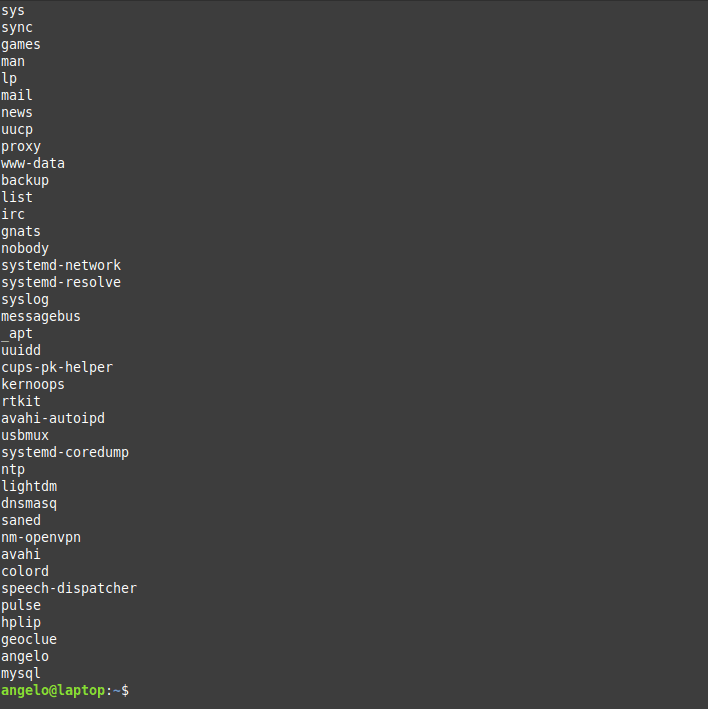
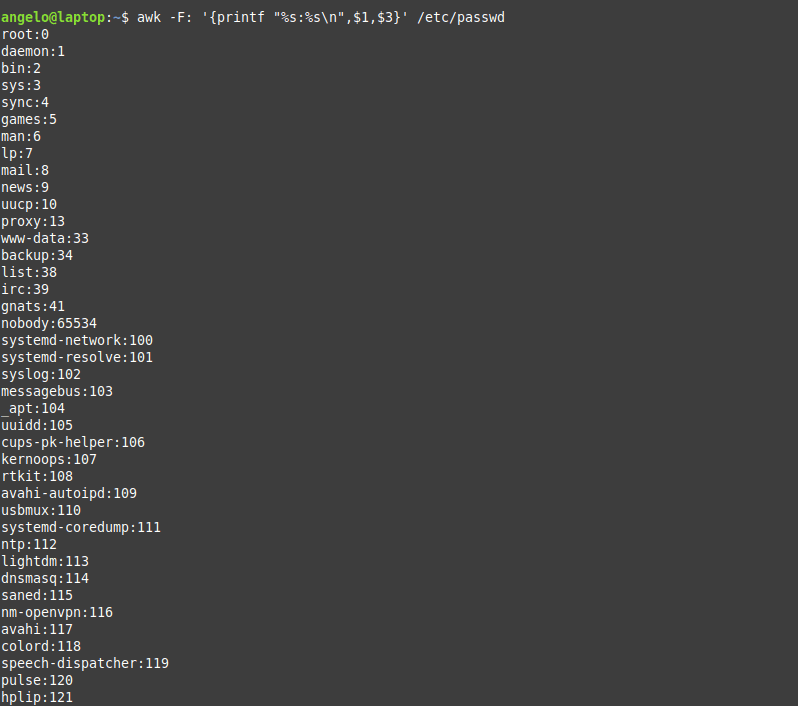
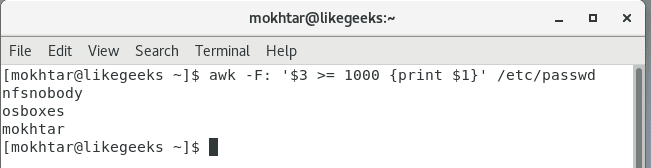
awk -F: '{print $1}' /etc/passwd

awk command passwd

This command prints the first field in the passwd file. We use the colon as a separator because the passwd file uses it.

Using Multiple Commands

To run multiple commands, separate them with a semicolon like this:

echo "Hello Tom" | awk '{$2="Adam"; print $0}'

awk multiple commands

The first command makes the $2 field equals Adam. The second command prints the entire line.

Reading The Script From a File

You can type your awk script in a file and specify that file using the -f option.

Our file contains this script:

{print $1 " home at " $6}

awk -F: -f testfile /etc/passwd

read from file

Here we print the username and his home path from /etc/passwd, and surely the separator is specified with capital -F which is the colon.

You can your awk script file like this:

{

text = $1 " home at " $6

print text

}

awk -F: -f testfile /etc/passwd

multiple commands

Awk Preprocessing

If you need to create a title or a header for your result or so. You can use the BEGIN keyword to achieve this. It runs before processing the data:

awk 'BEGIN {print "Report Title"}'

Let’s apply it to something we can see the result:

awk 'BEGIN {print "The File Contents:"}

{print $0}' myfile

begin command

Awk Postprocessing

To run a script after processing the data, use the END keyword:

awk 'BEGIN {print "The File Contents:"}

{print $0}

END {print "File footer"}' myfile

end command

This is useful, you can use it to add a footer for example.

Let’s combine them together in a script file:

BEGIN {

print "Users and thier corresponding home"

print " UserName \t HomePath"

print "___________ \t __________"

FS=":"

}

{

print $1 " \t " $6

}

END {

print "The end"

}

First, the top section is created using BEGIN keyword. Then we define the FS and print the footer at the end.

awk -f myscript /etc/passwd

complete script

Built-in Variables

We saw the data field variables $1, $2 $3, etc are used to extract data fields, we also deal with the field separator FS.

But these are not the only variables, there are more built-in variables.

The following list shows some of the built-in variables:

FIELDWIDTHS     Specifies the field width.

RS     Specifies the record separator.

FS     Specifies the field separator.

OFS  Specifies the Output separator.

ORS  Specifies the Output separator.

By default, the OFS variable is the space, you can set the OFS variable to specify the separator you need:

awk 'BEGIN{FS=":"; OFS="-"} {print $1,$6,$7}' /etc/passwd

builtin variables

Sometimes, the fields are distributed without a fixed separator. In these cases, FIELDWIDTHS variable solves the problem.

Suppose we have this content:

1235.96521

927-8.3652

36257.8157

awk 'BEGIN{FIELDWIDTHS="3 4 3"}{print $1,$2,$3}' testfile

field width

Look at the output. The output fields are 3 per line and each field length is based on what we assigned by FIELDWIDTH exactly.

Suppose that your data are distributed on different lines like the following:

Person Name

123 High Street

(222) 466-1234

Another person

487 High Street

(523) 643-8754

In the above example, awk fails to process fields properly because the fields are separated by newlines and not spaces.

You need to set the FS to the newline (\n) and the RS to a blank text, so empty lines will be considered separators.

awk 'BEGIN{FS="\n"; RS=""} {print $1,$3}' addresses

field separator

Awesome! we can read the records and fields properly.

More Variables

There are some other variables that help you to get more information:

ARGC     Retrieves the number of passed parameters.

ARGV     Retrieves the command line parameters.

ENVIRON     Array of the shell environment variables and corresponding values.

FILENAME    The file name that is processed by awk.

NF     Fields count of the line being processed.

NR    Retrieves total count of processed records.

FNR     The record which is processed.

IGNORECASE     To ignore the character case.

You can review the previous post shell scripting to know more about these variables.

Let’s test them.

awk 'BEGIN{print ARGC,ARGV[1]}' myfile

awk command arguments

The ENVIRON variable retrieves the shell environment variables like this:

$ awk '

BEGIN{

print ENVIRON["PATH"]

}'

data variables

You can use bash variables without ENVIRON variables like this:

echo | awk -v home=$HOME '{print "My home is " home}'

awk shell variables

The NF variable specifies the last field in the record without knowing its position:

awk 'BEGIN{FS=":"; OFS=":"} {print $1,$NF}' /etc/passwd

awk command NF

The NF variable can be used as a data field variable if you type it like this: $NF.

Let’s take a look at these two examples to know the difference between FNR and NR variables:

awk 'BEGIN{FS=","}{print $1,"FNR="FNR}' myfile myfile

awk command FNR

In this example, the awk command defines two input files. The same file, but processed twice. The output is the first field value and the FNR variable.

Now, check the NR variable and see the difference:

awk '

BEGIN {FS=","}

{print $1,"FNR="FNR,"NR="NR}

END{print "Total",NR,"processed lines"}' myfile myfile

awk command NR FNR

The FNR variable becomes 1 when comes to the second file, but the NR variable keeps its value.

User Defined Variables

Variable names could be anything, but it can’t begin with a number.

You can assign a variable as in shell scripting like this:

awk '

BEGIN{

test="Welcome to LikeGeeks website"

print test

}'

user variables

Structured Commands

The awk scripting language supports if conditional statement.

The testfile contains the following:

10

15

6

33

45

awk '{if ($1 > 30) print $1}' testfile

if command

Just that simple.

You should use braces if you want to run multiple statements:

awk '{

if ($1 > 30)

{

x = $1 * 3

print x

}

}' testfile

multiple statements

You can use else statements like this:

awk '{

if ($1 > 30)

{

x = $1 * 3

print x

} else

{

x = $1 / 2

print x

}}' testfile

awk command else

Or type them on the same line and separate the if statement with a semicolon like this:

else one line

While Loop

You can use the while loop to iterate over data with a condition.

cat myfile

124 127 130

112 142 135

175 158 245

118 231 147

awk '{

sum = 0

i = 1

while (i < 5)

{

sum += $i

i++

}

average = sum / 3

print "Average:",average

}' testfile

while loop

The while loop runs and every time it adds 1 to the sum variable until the i variable becomes 4.

You can exit the loop using break command like this:

awk '{

tot = 0

i = 1

while (i < 5)

{

tot += $i

if (i == 3)

break

i++

}

average = tot / 3

print "Average is:",average

}' testfile

awk command break

The for Loop

The awk scripting language supports the for loops:

awk '{

total = 0

for (var = 1; var < 5; var++)

{

total += $var

}

avg = total / 3

print "Average:",avg

}' testfile

for loop

Formatted Printing

The printf command in awk allows you to print formatted output using format specifiers.

The format specifiers are written like this:

%[modifier]control-letter

This list shows the format specifiers you can use with printf:

c              Prints numeric output as a string.

d             Prints an integer value.

e             Prints scientific numbers.

f               Prints float values.

o             Prints an octal value.

s             Prints a text string.

Here we use printf to format our output:

awk 'BEGIN{

x = 100 * 100

printf "The result is: %e\n", x

}'

awk command printf

Here is an example of printing scientific numbers.

We are not going to try every format specifier. You know the concept.

Built-In Functions

Awk provides several built-in functions like:

Mathematical Functions

If you love math, you can use these functions in your awk scripts:

sin(x) | cos(x) | sqrt(x) | exp(x) | log(x) | rand()

And they can be used normally:

awk 'BEGIN{x=exp(5); print x}'

math functions

String Functions

There are many string functions, you can check the list, but we will examine one of them as an example and the rest is the same:

awk 'BEGIN{x = "likegeeks"; print toupper(x)}'

string functions

The function toupper converts character case to upper case for the passed string.

User Defined Functions

You can define your function and use them like this:

awk '

function myfunc()

{

printf "The user %s has home path at %s\n", $1,$6

}

BEGIN{FS=":"}

{

myfunc()

}' /etc/passwd

user defined functions

Here we define a function called myprint, then we use it in our script to print output using printf function.

I hope you like the post.

Thank you.

0