

 Debian GNU/Linux tabanlı bir dağıtım olan ve özelleştirilmiş Enlightenment 17 pencere yöneticisiyle yapılandırılmış bir live DVD olarak gelip, kolay bir sistem ve masaüstü yönetimi için bir kontrol merkezi sunan Elive‘in 2.9.14 sürümünün betası, Elive geliştirme ekibi tarafından duyuruldu. Bunun bir test sürümü olduğunun unutulmaması ve yalnızca test etmek amacıyla kullanılması gerektiğini hatırlatılırken, test eden kullanıcıların tespit ettikleri hataları rapor etmeleri rica edildi. Sistemi daha verimli ve kullanışlı hale getirmek için bir dizi değişiklik sunan yeni sürüm, bellek kullanımını 100 MB’a kadar düşürme imkanı sağlıyor. Daha sezgisel ve kullanışlı bir arayüz ile gelen yazılım; kullanışlı araçlara doğrudan erişimle ilgili olarak çok daha iyi hale getirildiği ifade ediliyor. Elive 2.9.14 beta hakkında ayrıntılı bilgi edinmek için sürüm duyurusunu inceleyebilirsiniz.
Archive | GNU/Linux

16 Useful Linux Command Line Tricks
 We use the Linux command line every day, and due to the little practicing, we may forget some of the Linux command line tricks. In this post, I’m going to show you some of these Linux command line tricks that you might forget or maybe new to you, so let’s get started. Sometimes it’s painful to read the output well due to the overcrowded strings, for example, the result of the mount command, what about viewing the output like a table? It is an easy job.
mount | column –t
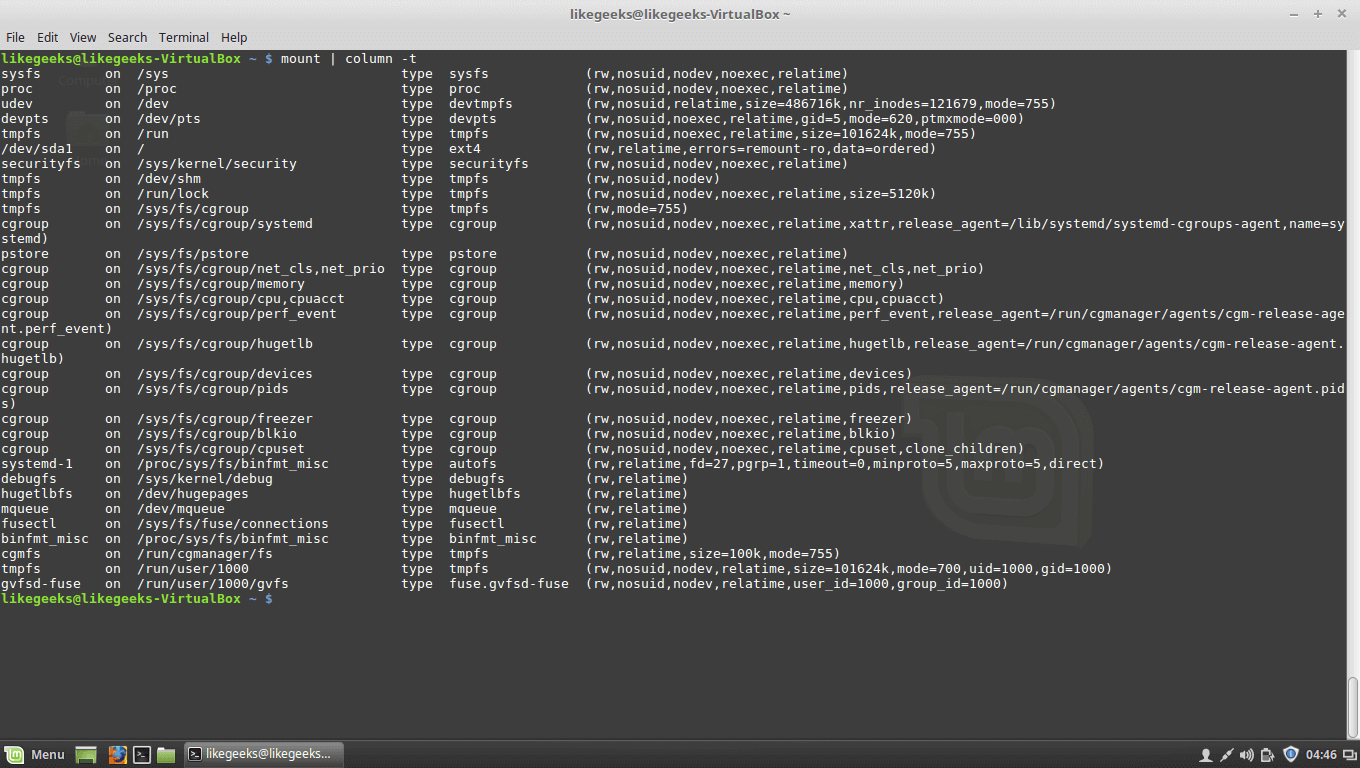
OK, in this example, we see the output is well formatted because the separator between them is spaces.
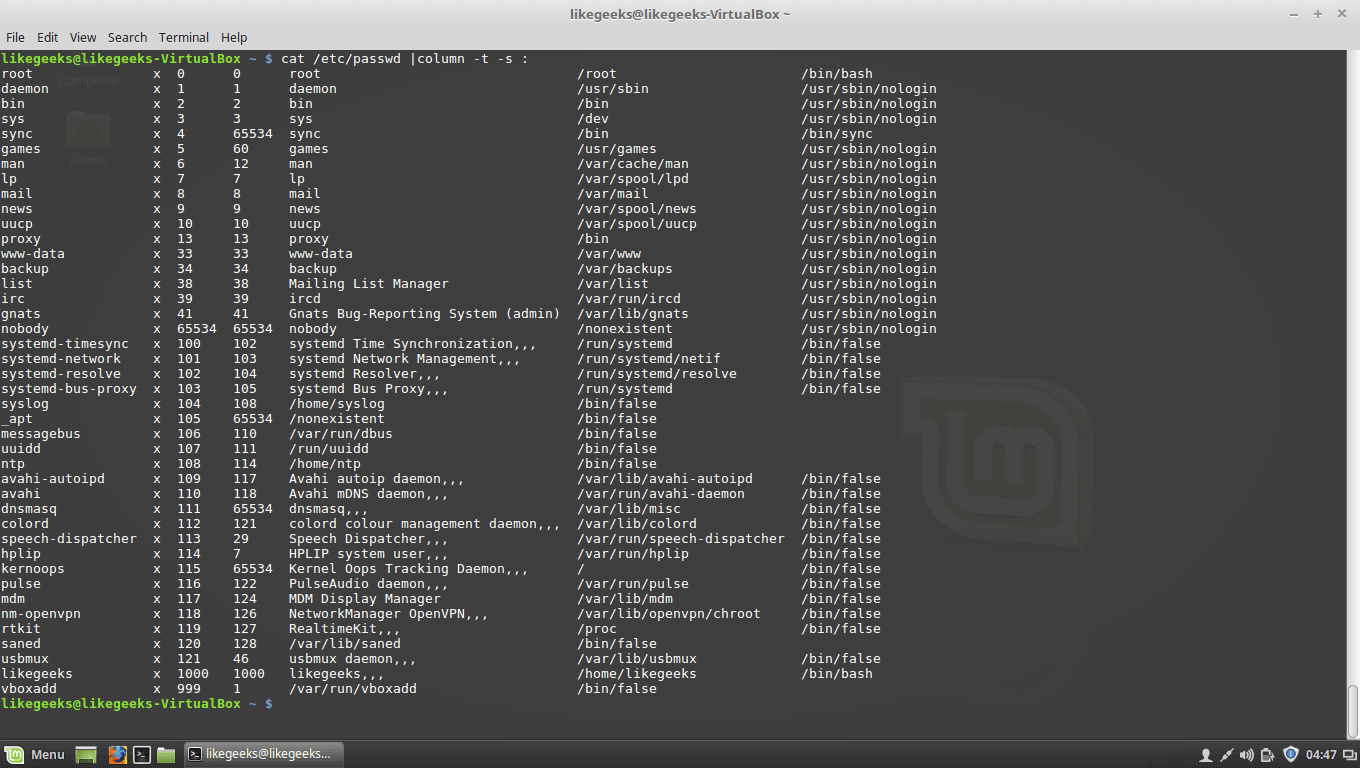
What if the separators are something else, like colons :
The /etc/passwd file is a good example.
Just specify the separator with -s parameter like this:
cat /etc/passwd | column -t -s :
Run Until Success
If you search google about that trick, you will find a lot of questions about people asking how to repeat the command till it returns success and runs properly, like ping the server till it becomes alive or check if a file with a specific extension is uploaded at specific directory or maybe check if a specific URL becomes available or maybe any geeky thing, the list is very long.
You can use the while true loop to achieve that:
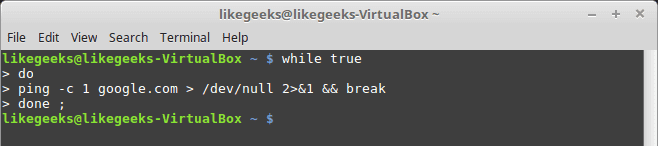
We use > /dev/null 2>&1 to redirect normal output and errors to /dev/null.
Actually, this is one of coolest Linux Command Line Tricks for me.
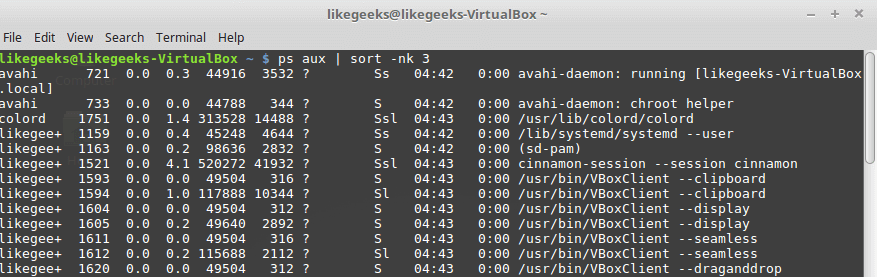
Sort Processes by (Memory – CPU) Usage
To sort by memory usage:
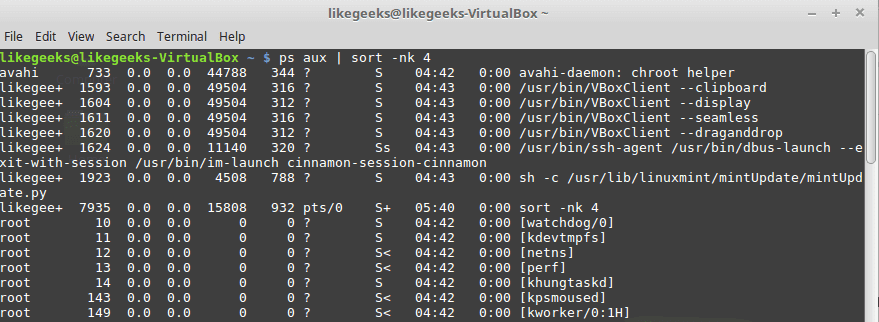
To sort by CPU usage:
Check Your Architecture
getconf LONG_BIT
Monitor Multiple Log Files Concurrently
You can use the tail command to watch your logs and that’s fine, but sometimes you may need to monitor multiple log files simultaneously to take some actions.
Using multitail command which supports text highlighting, filtering, and many other features that you may need.
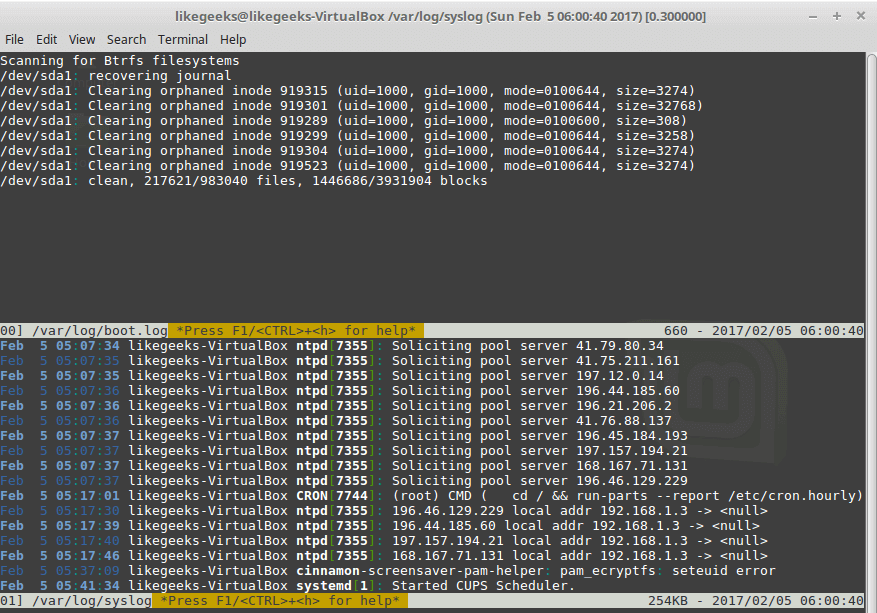
You can install it if it is not found on your system like this:
apt–get install multitail
Return to Your Previous Directory
It’s not a trick but some people forget it, others use it every minute.
Just type cd – and you will return back to the previous directory.
Make Non-Interactive as Interactive Shell Session
To do this, put our settings in ~/.bashrc from ~/.bash_profile.
Watch Command Output
By using watch command, you can watch any output of any command, for example, you can watch the free space and how it is growing:
watch df –h
You can imagine what you can do with any variant data that you can watch using watch command.
Run Your Program After Session Killing
When you run any program in the background and close your shell, definitely it will be killed, what about if it continues running after closing the shell.
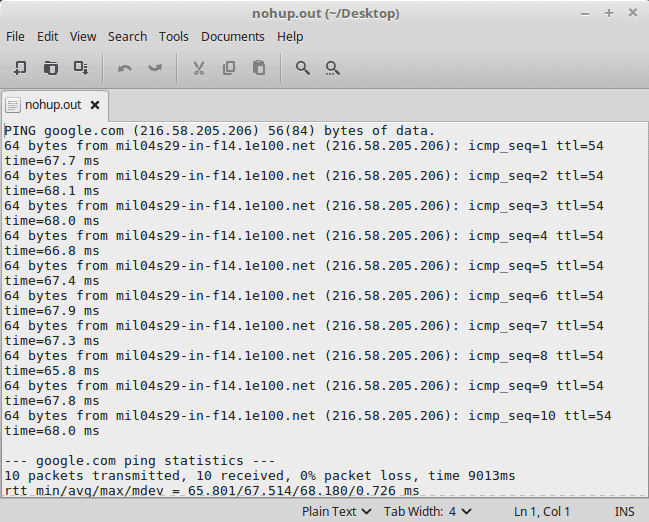
This can be done using the nohup command which stands for no hang up.
nohup wget site.com/file.zip
This command is really one of the most useful Linux command line tricks for most webmasters.

A file will be generated in the same directory with the name nohup.out contains the output of the running program.
Cool command right?
Answer bot Using Yes & No Commands
It’s like an answer bot for those commands whose require the user to say yes.
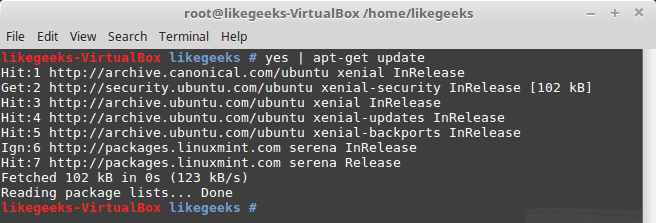
That can be done using the yes command:
yes | apt–get update
Or maybe you want to automate saying no instead, this can be done using the following command:
yes no | command
Create a File With a Specific Size
Use the dd command to create a file with a specific size:
dd if=/dev/zero of=out.txt bs=1M count=10
This will create a file with 10-megabyte size filled with zeros.

Run Last Command as Root
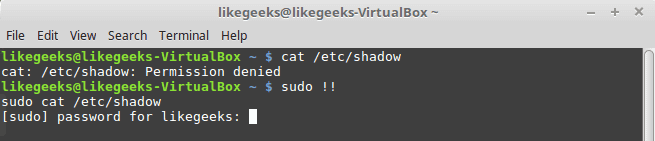
Sometimes you forget to type sudo before your command that requires root privileges to run, you don’t have to rewrite it, just type:
sudo !!
Record your Command Line Session
If you want to record what you’ve typed in your shell screen, you can use the script command which will save all of your typings to a file named typescript.
script
Once you type exit, all of your commands will be written to that file so you can review them later.
Replacing Spaces with Tabs
You can replace any character with any other character using tr command which is very handy.
cat geeks.txt | tr ‘:[space]:’ ‘\t’ > out.txt
This command will replace the spaces with tabs.

Convert Character Case
cat my_file | tr a–z A–Z > output.txt
This command converts the content of the file to upper case using the tr command.
Powerful xargs Command
We can say that xargs command is one of the most important Linux command line tricks, you can use this command to pass outputs between commands as arguments, for example, you may search for png files and compress them or do anything with them.
find . –name “*.png” –type f –print | xargs tar –cvzf pics.tar.gz
Or maybe you have a list of URLs in a file and you want to download them or process them in a different way:
cat links.txt | xargs wget

The cat command result is passed to the end of xargs command.
What if your command needs the output in the middle?
Just use {} combined with –i parameter to replace the arguments in the place where the result should go like this:
ls /etc/*.conf | xargs –i cp {} /home/likegeeks/Desktop/out
This is only some of the Linux command line tricks, but there are some more geeky things that you can do using other commands like awk command and sed command.
If you know any geeky command I didn’t mention, you can type it in a comment and share it with others.
I’m going to make another post about those Linux command line tricks so we can remember all what we’ve forgotten.
Thank you.
Ubuntu 18.04 daily builds indirilebilir
 Ubuntu’nun bir sonraki sürümü 18.04’ün 2018 yılının başında çıkarılacak olan beta sürümü yayınlanmadan önce çıkarılan daily builds versiyonu kullanıma sunuldu. Test etme ve geliştirme amacıyla tasarlanmış olan sürümün son kullanıcılar için kesinlikle uygun olmadığı belirtiliyor. Ubuntu 18.04 daily builds’in yüklenip kullanılması, hataların tespit edilmesi ve rapor edilmesinin beklendiği ifade ediliyor. Ubuntu geliştiricileri ve test edenler açısından test sürecinin devam ettiği bildirilirken, sürümü mevcut durumuyla denemek isteyenlerin aşağıdaki linkten edinebilecewkleri ifade ediliyor. Ancak, indirilecek ISO kalıbının 32 değil, 64 bit olduğu hatırlatılıyor. Bilindiği gibi, Ubuntu 17.10 geliştirme döngüsü sırasında 32 bit üzerinde çalışmayı bırakmıştı. Ubuntu 18.04 daily builds hakkında ayrıntılı bilgi edinmek için sürüm duyurusunu inceleyebilirsiniz.
KDE neon 20171108 duyuruldu

KDE Plasma desktop ve KDE topluluğu yazılımlarıyla bir live DVD olarak yapılandırılan Kubuntu tabanlı dağıtım KDE neon‘un yeni çıkan ve KDE Plasma 5.11.3 ile donatılan 20171108 sürümü duyuruldu. Masaüstünü daha pürüzsüz hale getirmek için pek çok yeni özellikle dolu olarak gelen sürüm, görev çubuğundaki pencereleri gruplamaya olanak sağlıyor. Yeni sürümün bir hata düzeltme sürümü olduğu belirtiliyor. KDE neon kullanıcılarına en yeni KDE uygulamalarıyla birlikte, en yeni KDE Framework sürümü sunuluyor. KDE neon 20171108 hakkında ayrıntılı bilgi edinmek için sürüm duyurusunu inceleyebilirsiniz.
KDE neon 20171108 edinmek için aşağıdaki linklerden yararlanabilirsiniz.
Özgür Web Teknolojileri Günleri 2017 başlıyor
 Daha önce duyurduğumuz, Özgür Web Teknolojileri Günleri 2017 birkaç gün sonra başlayacak. Linux Kullanıcıları Derneği (LKD) tarafından 2010 yılında düzenlemeye başlanan ve yılda bir kez düzenlenen Özgür Web Teknolojileri Günleri; bu yıl, Yeditepe Üniversitesi‘nin ev sahipliğinde 11-12 Kasım 2017 tarihlerinde yapılacak. Özgür web teknolojileri ile ilgilenen herkesin buluşma yeri olarak tanımlanan etkinlikte, organizasyonlar, kamu kuruluşları ve özel sektörden ilgili şirketler stand açıyor. Geniş bir kitleye yararlı olabilecek konunun dinleyicilere tüm yönleriyle anlatıldığı oturumlardan oluşacak seminerlerin 45 dakikadan oluşacağı, incelemelerle proje ve kavramların tanıtımına ilişkin sunulardan oluşacak kısa bildirilerin ise 20 dakikayı geçmeyecek şekilde hazırlanması gerektiği belirtiliyor. Bunun dışında hızlıca ve kısa biçimde dinleyicilere aktarılabilir olması gereken 5 dakikalık hızlı konuşma oturumları ve web teknolojileri konusunda çalışma yapan sivil toplum kuruluşu, proje ve ilgili gruplar aracılığıyla gerçekleştirilecek çalışma toplantıları yapılacak.

Etkinliklere katılımda bir sınırlama olmamasına karşın, kayıt gerektiğini hatırlatalım. Özgür Web Teknolojileri Günleri 2017 hakkında daha ayrıntılı bilgi edinmek için projenin ilgili web sayfasını inceleyebilirsiniz.
Arch Linux’un 32 bit x86 desteği sona erdi
 Arch Linux’un 32 bit x86 desteği bugün sona erdi. i686 paket desteğini bitireceğini yaklaşık 9 ay önce yapılan bir duyuru ile bildiren Arch Linux; bugünden itibaren 32 bit x86 desteği sona erdiriyor. i686 paketlerin ayın sonuna kadar yansılardan kaldırılacağı ve daha sonra da paket arşivinden tamamen kaldırılacağı bildiriliyor. Donanımlarını x86_64 seviyesine yükseltemeyen kullanıcılar için, bugüne değin, Arch Linux 32 adlı bir topluluk çatallamasının kullanıldığı hatırlatılıyor. Arch Linux’un 32 bit x86 desteğinin sona ermesine ilişkin olarak Bartłomiej Piotrowski’nin duyurusunu inceleyebilirsiniz.
Learn Linux Environment Variables Step-By-Step Easy Guide
 In the previous posts, we talked about some of the basic Linux commands, today we continue our journey, and we will talk about something very important in Linux which is Linux Environment Variables. So what are Environment Variables and what is the benefit of knowing them? Environment Variables are used to store some values which can be used by scripts from the shell. You are not limited to the shell environment variables, you can create your own. The bash shell has two types of environment variables: 1.Local variables, 2.Global variables. The local variable is visible in the shell where it was defined only. The global variable is visible for any running process that runs from the shell.
Global variables
The Linux system sets some global environment variables when you log into your system and they are always CAPITAL LETTERS to differentiate them from user-defined environment variables.
To see these global variables, type printenv command:
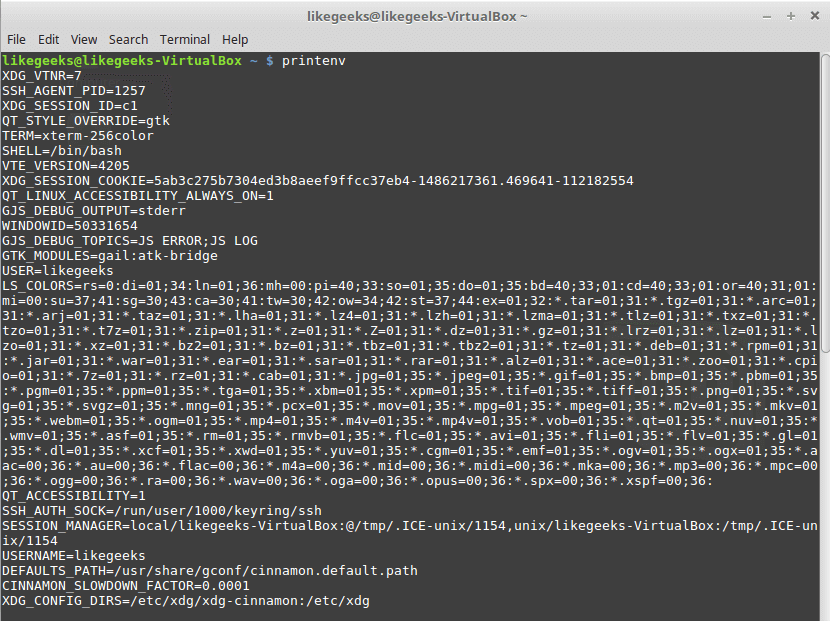
As you can see, there are a lot of global environment variables, to print only one of them, type echo command followed by $VariableName. Ex: to print HOME variable type echo $HOME.

Local variables
Actually, the Linux system also defines some standard local environment variables for you by default.
To view the global and local variables for the shell you are running and available to that shell, type the set command.
Setting Local Environment Variables
To declare your own environment variables directly from the shell, type variableName you want, followed by an equal sign and the variable value WITHOUT any spaces:
mysite=likegeeks
And to print the variable value, use the echo command:
echo $mysite
Sure enough, it prints likegeeks.

OK, what if your variable is more than one word; may be a long string, you can put the string between single quotations:
mysite=’likegeeks is a website that offers tech tutorials for geeks’
And if we type echo $mysite

If you forget the single quotation, the shell will assume that the second word is another command and will show an error.
As you can see, I use lower case characters for my variable not upper case and this is recommended NOT required, this helps you distinguishing your environment variables from the system environment variables.
Once you have set your local variable, it will be visible in the currently running shell scope and that means if you start another shell window the variable will not be available in that new window.
Declare Global Environment Variables
To declare a global environment variable, you have to declare a local environment variable then use the export command like this:
myvar=’I will do it likegeeks’
echo $myvar
export myvar
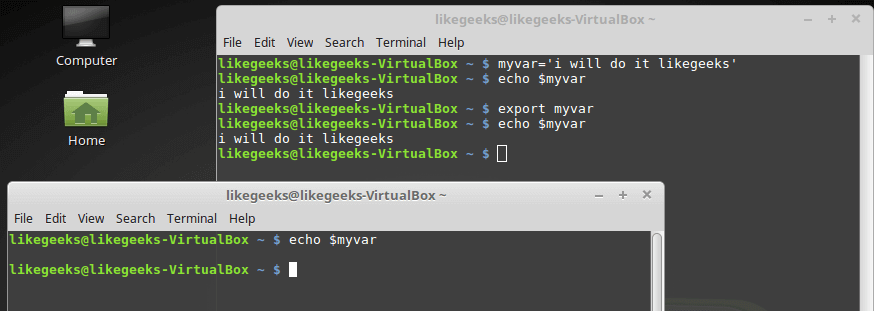
As you can see I don’t use dollar sign with the export command so make sure of that.
But there is something, when I close the shell and open it again the variable is gone, so how to make it persistent?
Persisting Environment Variables
Just edit $HOME/.bashrc and type export myvar=‘welcome to likegeeks’ and save the file:

Removing Environment Variables
This can be done by using the unset command:

Default Environment Variables
As we know, the system defines some variables for us, one of those variables is the PATH variable, this variable holds some paths.
These paths are the default paths that the shell uses to look for a command when you type it in the shell.
Modifying the PATH Environment Variable
If you add a folder path to the PATH variable, the shell will look in that folder for any executable to run when you type any command.
Just append the path variable followed by a colon and the new directory like this:
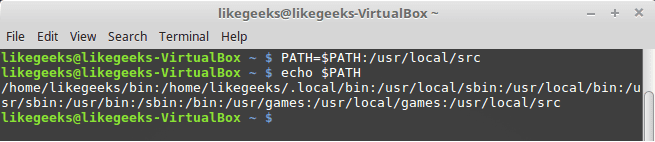
And if you want to persist the PATH variable, you have to edit the .bashrc file and add type it like this:
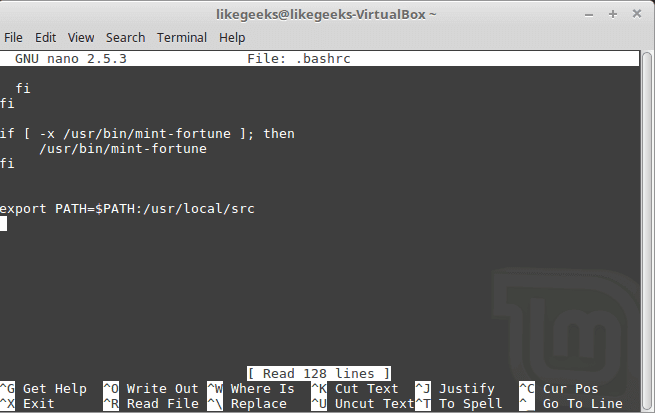
There is a useful trick but RISKY that some sysadmins do which is adding a period . to the path variable. By doing this, the shell will search for executables in the current directory you are in wherever you are.
This is relatively risky, you might give the attacker the opportunity to run a malicious script or malware in his current directory, so if you do this trick, you should know what you are doing.
System Environment Variables Paths
You can start a bash shell with one of the following ways:
- Login shell.
- The interactive shell.
- The non-interactive shell.
login shell
When you log onto the system, the search for those startup files to process the commands from them:
- /etc/profile
- $HOME/.bash_login
- $HOME/.bash_profile
- $HOME/.profile
/etc/profile runs on every startup with every user, the other 3 files run for every specific user, you can call them user specific environment variables.
Interactive shell
When you go to the rescue mode, this is the interactive shell.
If you start an Interactive shell, the system will not look for /etc/profile but instead will look for .bashrc in your HOME directory.
Non-interactive shell
This shell runs by the system itself to run a shell script.
Users can customize the above-mentioned files to include environment variables, just edit the desired file and type the variable you want and save it.
Variable Arrays
You can store many values as you want in one environment variable which is called array.
myvar=(first second third fourth)
Now if you check the value of that array using echo command, you will find it returns the first element only.
To get a specific element, just reference it by its position, and the positions start from zero so to get the third one, type it like this:
echo ${myvar[2]}
To display the entire array type asterisk instead of a number:
echo ${mytest[*]}
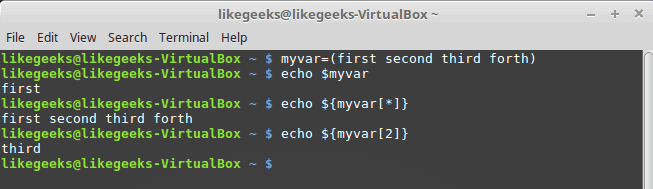
You can remove an element of the array using unset command:
unset mytest[2]
Or you can remove the whole array:
unset myvar