Beta sürümü 18 Ekim 2017‘de duyurulan Debian GNU/Linux tabanlı, penetrasyon testleri için güvenliğe odaklanmış bir koleksiyonla gelen ve adli tıp, tersine mühendislik, hack, gizlilik, anonimlik, şifreleme çözümleri sunan İtalyan kökenli dağıtım Parrot Security OS‘un 3.9 final sürümü çıktı. Resmi duyurusu henüz yapılmamış olan sürüm, indirilmek üzere yansılarda yerini aldı. Tüm güncellemeleri ve son sürümden bu yana piyasaya sürülen yeni özellikleri içeren “intruder” kod adlı yeni sürüm, 4.13 Linux çekirdeği üzerine yapılandırılmış bulunuyor. Debian 10 Buster tabanlı sürüm, MATE 1.18 masaüstü ortamıyla kullanıma sunuluyor. LibreOffice 5.4, Firefox 56 gibi güncel yazılımlarla gelen sistem, AnonSurf, TOR Browser, Cryptographic tolls, güvenlik Pentesting araçları, Digital adli araçlar, geliştirme araçları, Electrum Bitcoin cüzdan, Wine ve UEFI desteği içeriyor. Sürüm hakkında daha ayrıntılı bilgi edinmek için sürüm notlarını inceleyebilirsiniz.
As we’ve talked about Linux on the previous post and we have chosen the best Linux distro, also we’ve learned how to install Linux. Today we will discuss the Linux file system. What Is Linux File System? Linux File System or any file system generally is a layer which is under the operating system that handles the positioning of your data on the storage, without it; the system cannot knows which file starts from where and ends where. Even if you find any unsupported file system type. You can even download a software that can deal with it. So what are Linux file system types? When you try to install Linux you will see that Linux offers many file systems like these:
Ext: old one and no longer used due to limitations.
Ext2: first Linux file system that allows 2 terabytes of data allowed.
Ext3: came from Ext2, but with upgrades and backward compatibility.
The only problem about it that the servers don’t use this kind of file system because this file system doesn’t support file recovery or disk snapshots.
Ext4: faster and allow large files with significant speed.
It is a very good option for SSD disks and you notice when you try to install any Linux distro that this one is the default file system that Linux suggests.
JFS: old file system made by IBM. It works very well with small and big files, but it failed and files corrupted after long time use, reports say.
XFS: old file system and works slowly with small files.
Btrfs: made by Oracle. It is not stable as Ext in some distros, but you can say that it is a replacement for it if you have to. It has a good performance.
You may notice From the comparison above that Ext4 is the best Linux File System
Top Level Explanation
Now you know what file system Linux is and its types. So what is inside that filesystem, I mean from the top level.
You may come from Windows, and Windows has partitions like C:\ and D:\, you can install Windows on any of these partitions, usually C:\.
What about Linux File System Structure?
Well, if you navigate to the root partition which is / you’ll see the Linux File System hierarchy.
Most distros have the same structure with some little difference between distros.
Linux File System Directories
/bin: Where Linux core commands reside like ls, mv.
/boot: Where boot loader and boot files are located.
/dev: Where all physical drives are mounted like USBs DVDs.
/etc: Contains configurations for the installed packages.
/home: Where every user will have a personal folder to put his folders with his name like /home/likegeeks.
/lib: Where the libraries of the installed packages located since libraries shared among all packages
unlike windows, you may find duplicates in different folders.
/media: Here is the external devices like DVDs and USB sticks are mounted and you can access their files from here.
/mnt: Where you mount other things Network locations and some distros you may find your mounted USB or DVD.
/opt: Some optional packages are located here and this is managed by the package manager.
/proc: Because everything on Linux is a file, this folder for processes running on the system,
and you can access them and see much info about the current processes.
/root: The home folder for the root user.
/sbin: Like /bin, but binaries here are for root user only.
/tmp: Contains the temporary files.
/usr: Where the utilities and files shared between users on Linux.
/var: Contains system logs and other variable data.
Now you have a good idea about what the Linux file system is.
Choosing the right file system can lead you to the best performance, so choose the best.
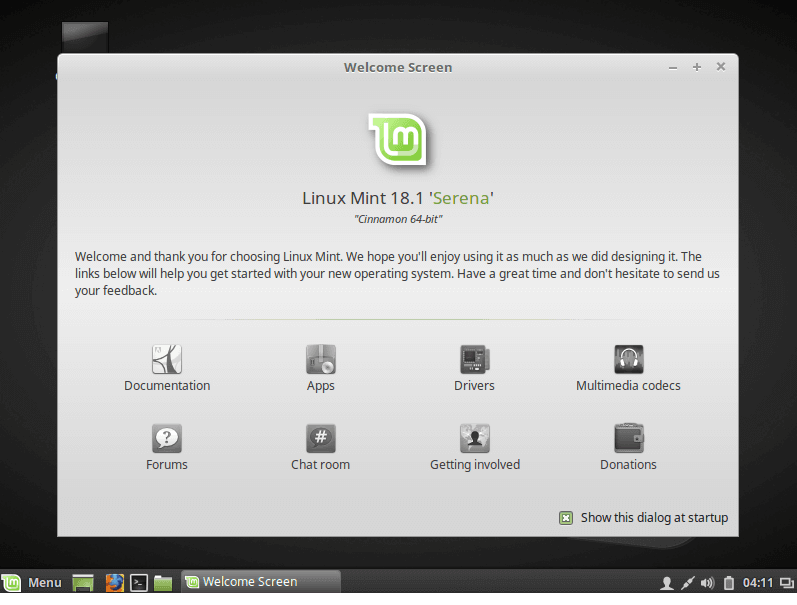
After you’ve chosen the Best Linux Distro, now it’s the time to know how to install Linux. If you want to install Linux, there are 2 ways to do that: The first way is to download the Linux distribution you want and burn it into a DVD or USB stick and boot your machine with it and complete the installation process. The second way is to install it virtually on a virtual machine like VirtualBox or VMware without touching your Windows or Mac system, so your Linux system will be contained in a window you can minimize and continue working on your real system. For me, I prefer VirtualBox, it’s free and runs very fast on my PC than VMware, and support installing Windows, Linux and Mac OS with all versions. Let’s choose any Linux distro and install it using both 2 ways. I’m going to choose Linux mint, they call it the Mac OS of Linux. It is a good distro for personal use. The version we are going to install is 18.1 “Serena” at the time of writing that article.
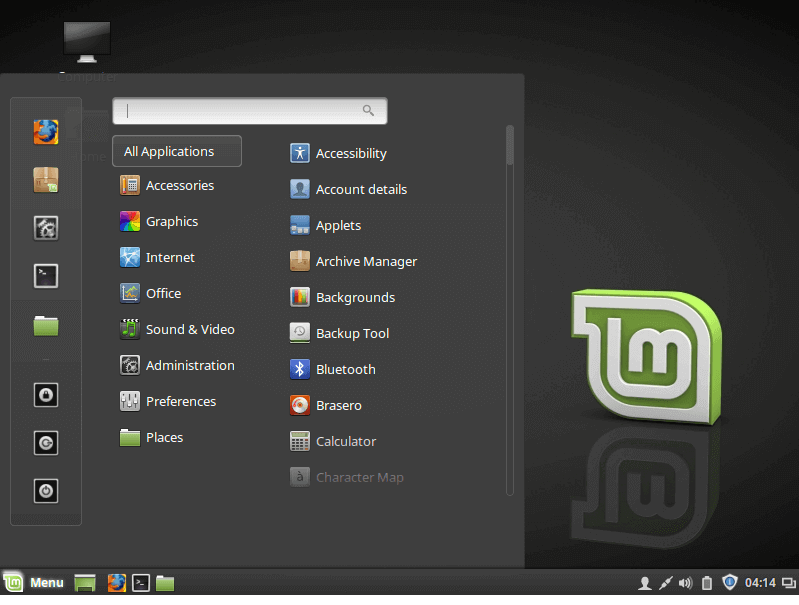
I prefer the Cinnamon desktop version it is promising and elegant.
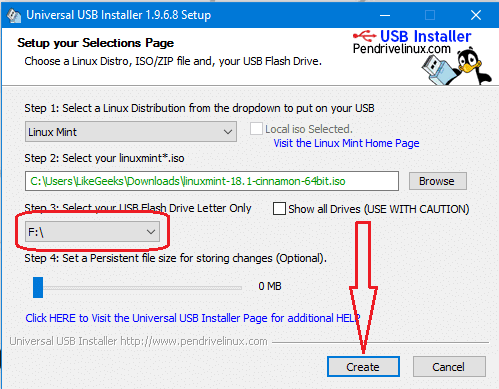
Once you download the ISO file, you will have to burn it on DVD or the easy way, copying it on a USB stick using a program called universal USB installer, you can download this program from this link:
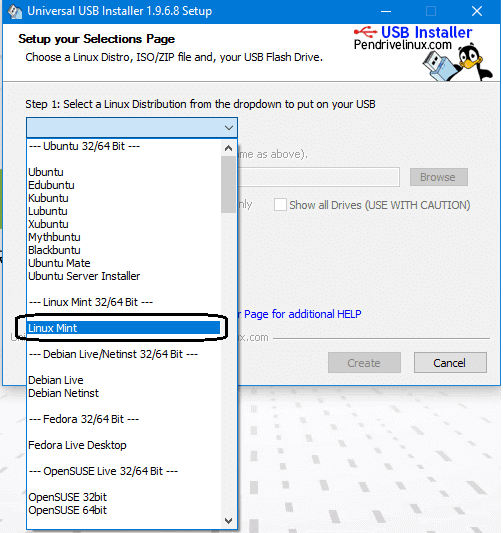
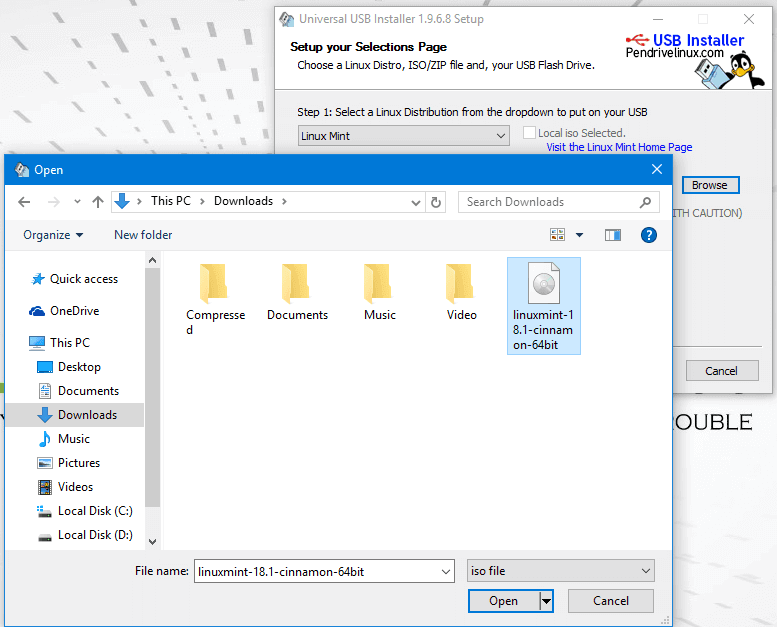
After downloading the program, open it and choose from the list the distro you want to install, in our case we will choose Linux mint.
Make sure that you put your memory stick on the computer and click next and wait till the copying process is finished.
how to install Linux using USB
Now Finally we click create to create bootable USB
And now you can boot with this memory stick.
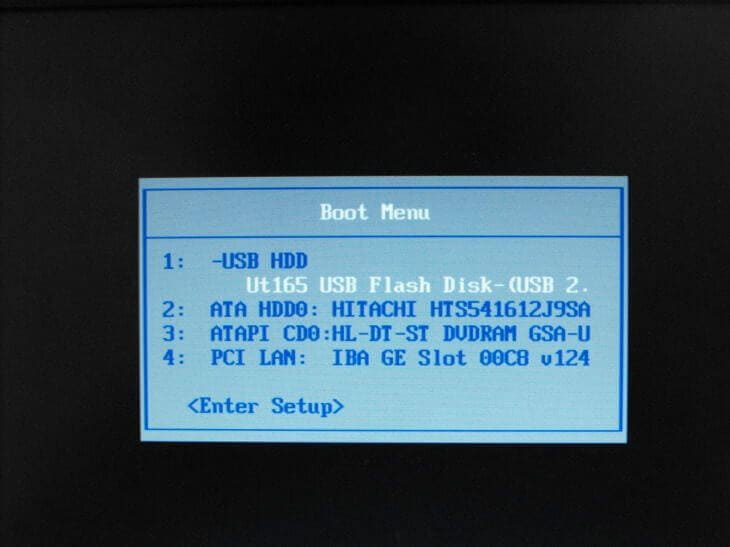
Then Restart your PC and go to BIOS settings and select boot options and make sure that the USB is the first option, then save your BIOS settings and reboot.
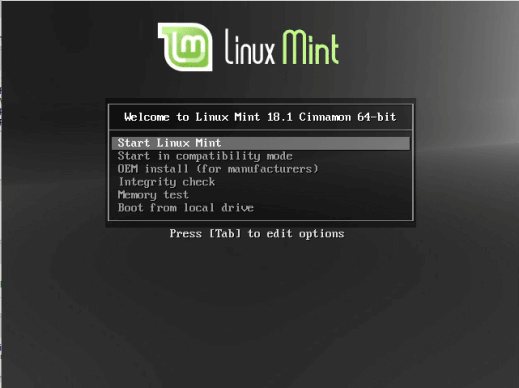
Then it will show the installation screen, press Enter and it will load the live CD content.
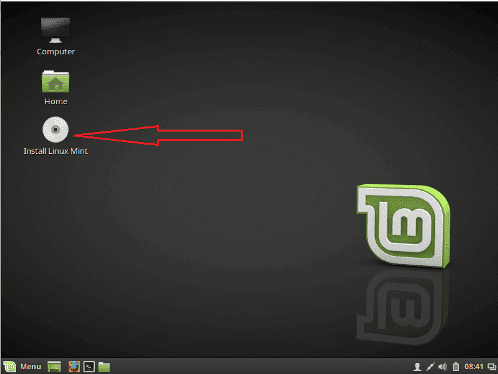
Now the desktop should appear like that:
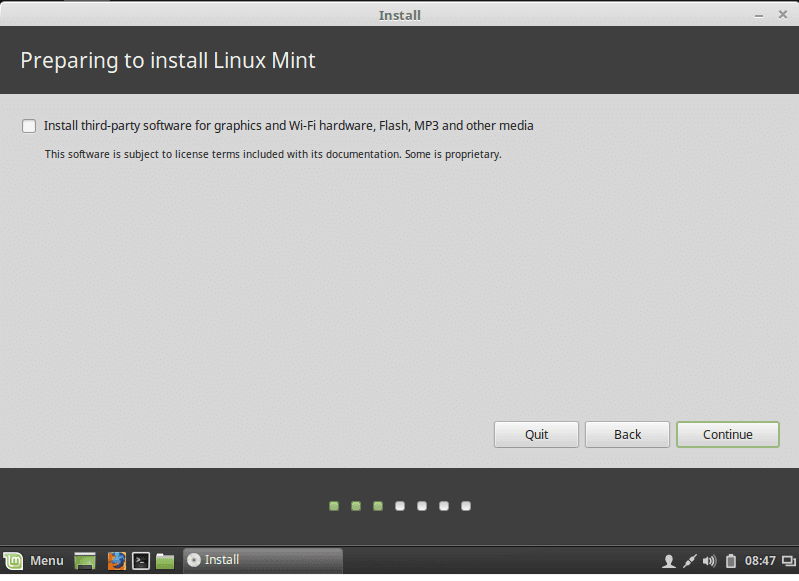
Click install Linux mint
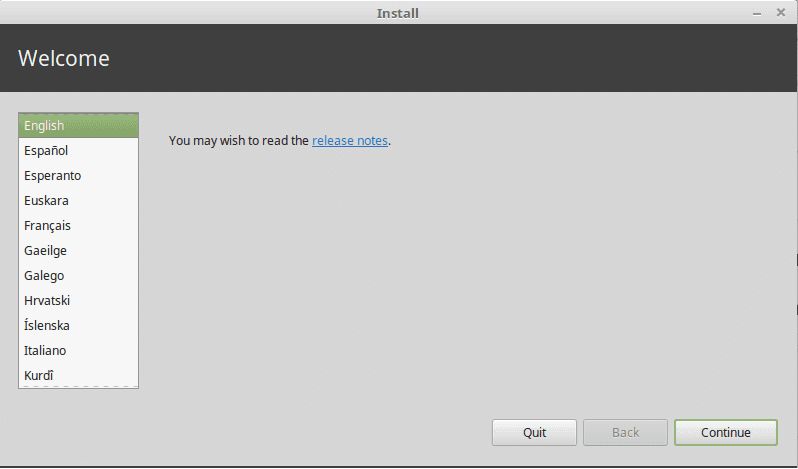
Then choose the language used for installation.
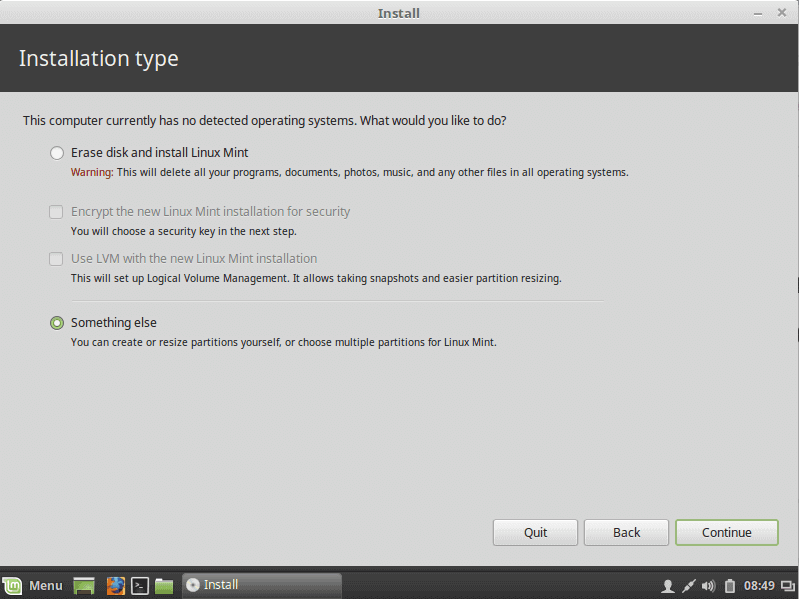
Then choose the installation type, and TAKE CARE if you are installing Linux on a disk that contains other operating systems, you MUST choose the option called something else.
If you are installing it on a new disk, choose the option Erase disk.
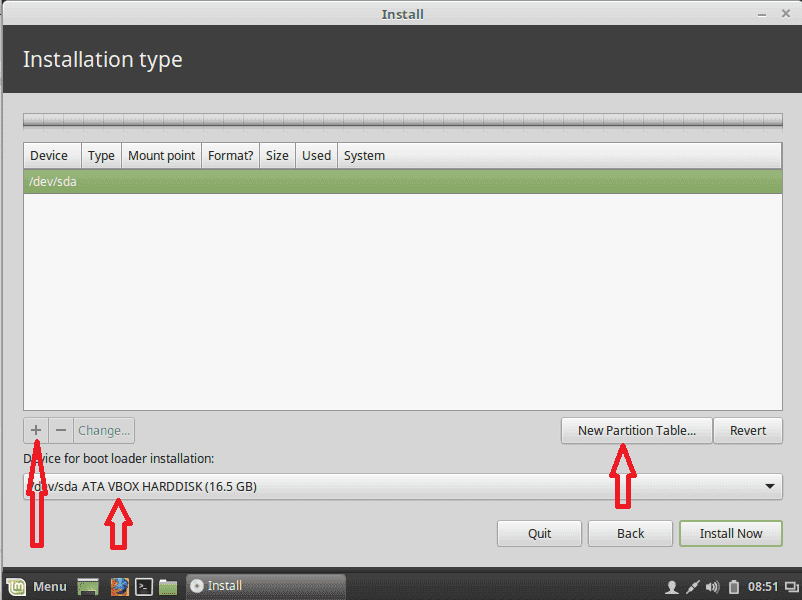
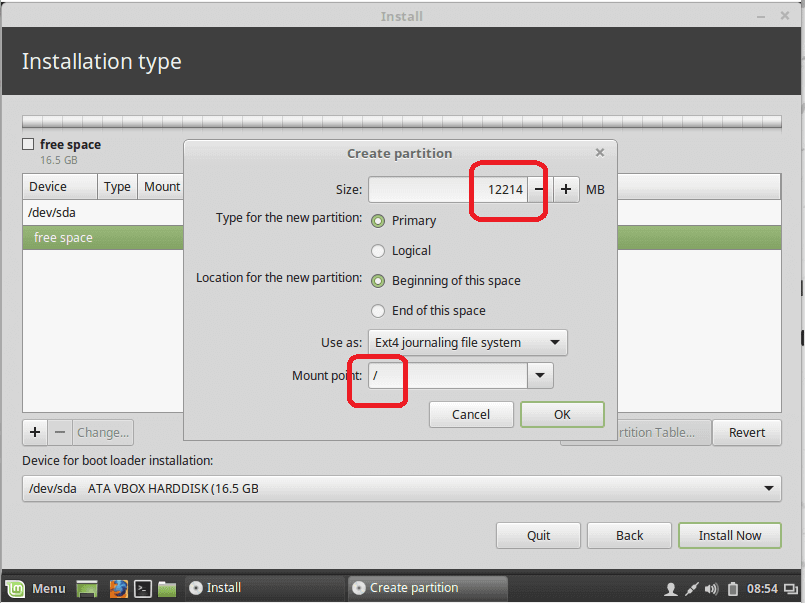
Linux requires 2 partitions to work, the root partition and the swap partition.
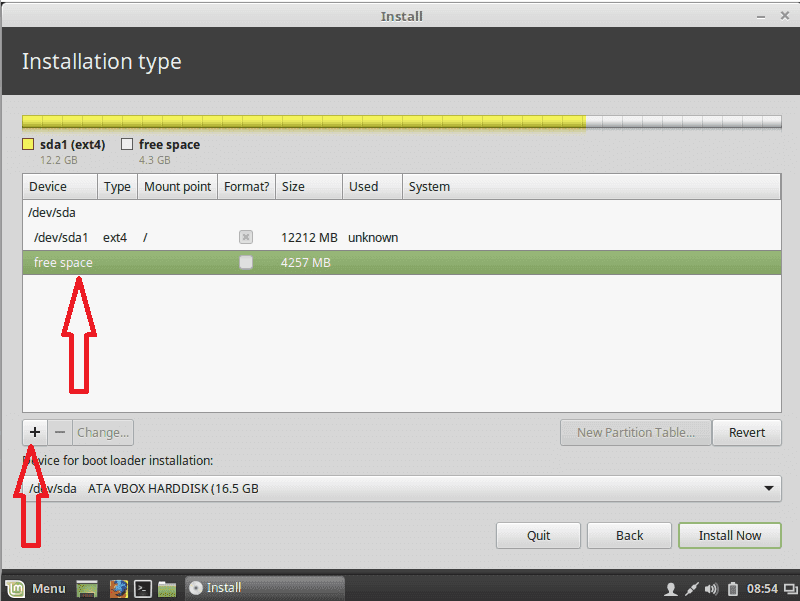
Now we will create them by clicking the plus button and choose about 12 GB or more as you need but not less than that for root partition, and choose mount type as / which stands for root and of course format will be Ext4.
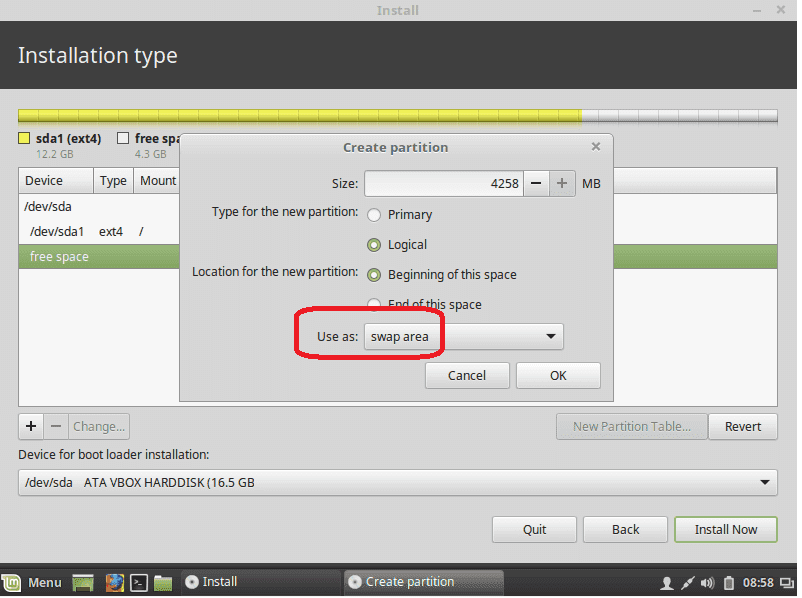
Now we create a swap partition, choose the remaining free space and click the plus button and choose swap area as shown:
Then Create the swap area:
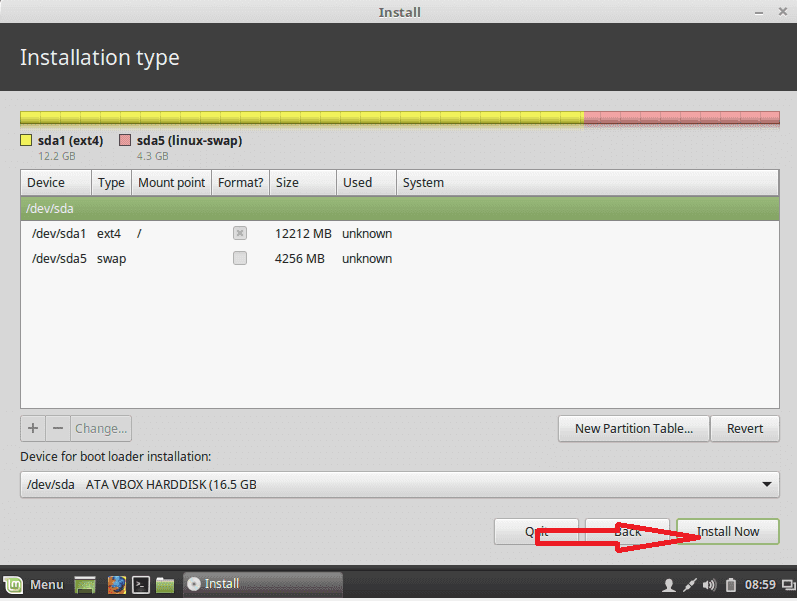
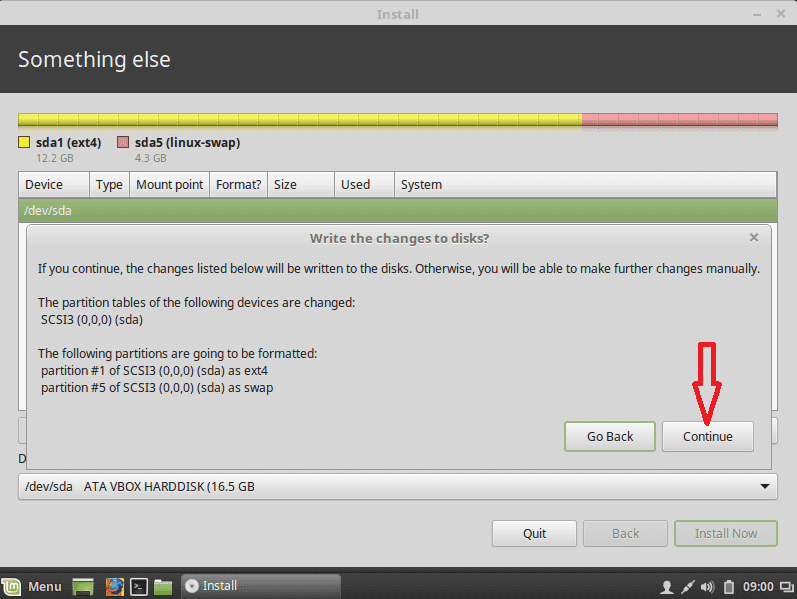
Then click install now and agree about writing changes to disk:
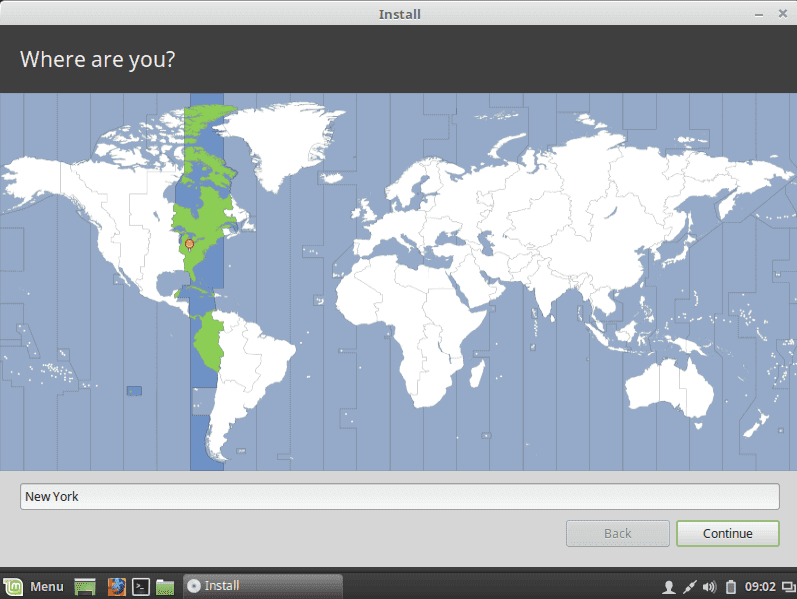
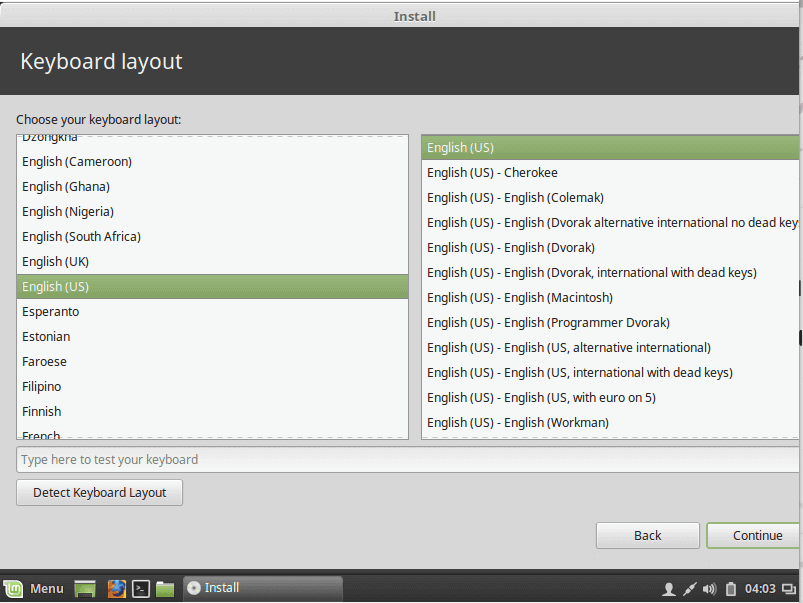
Now you choose the time zone and click continue the choose the language:
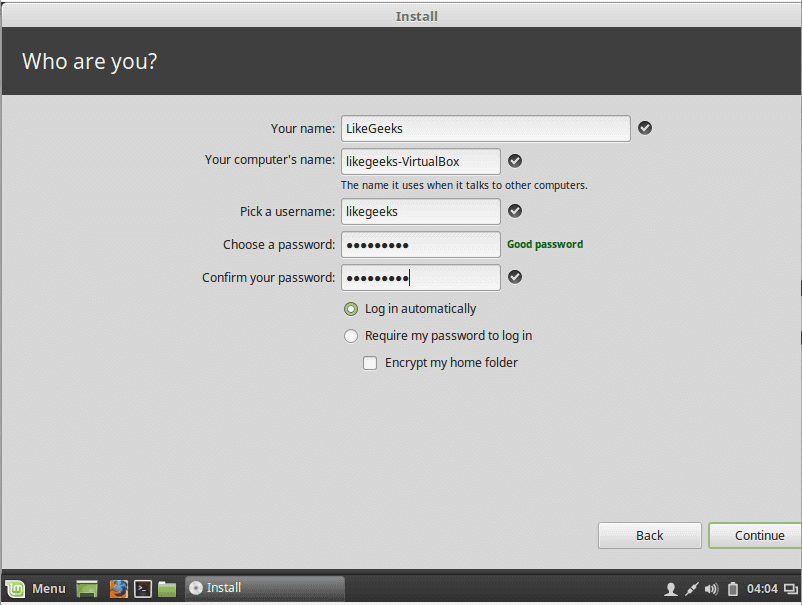
Now you write your username and password and click continue:
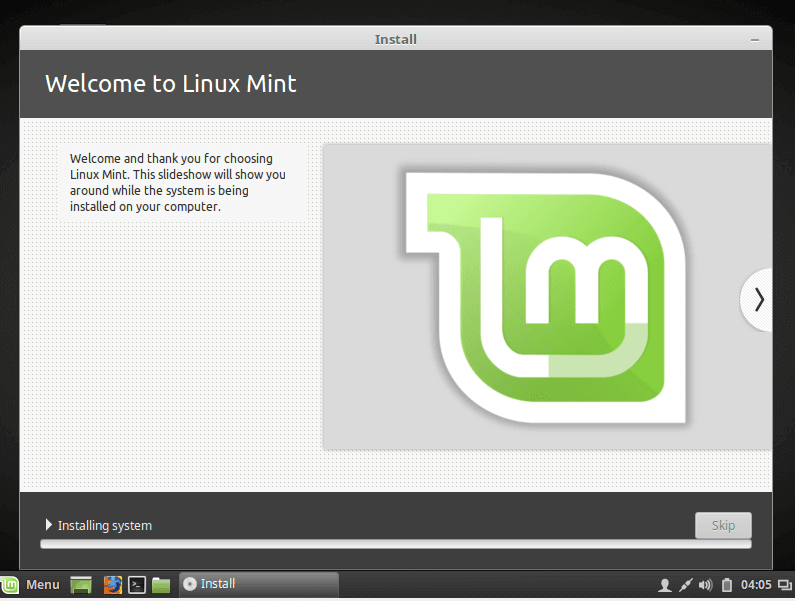
Finally, installation started:
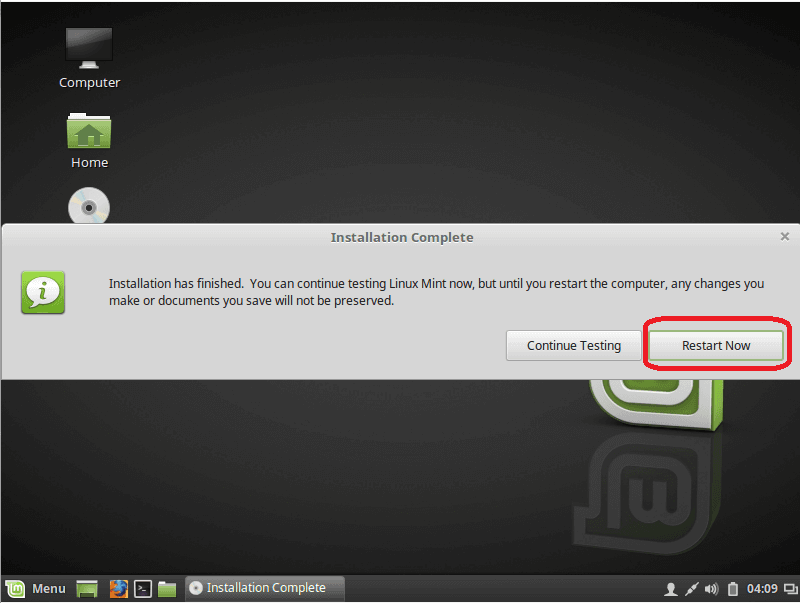
After finishing the installation, it will prompt you to reboot the machine and remove the installation media whether it is a DVD or USB.
And yes, this is how to install Linux on Physical machine.
The second way it to install Linux is to install it on VirtualBox First download VirtualBox from here:
The first way is easy, it like the normal installation process
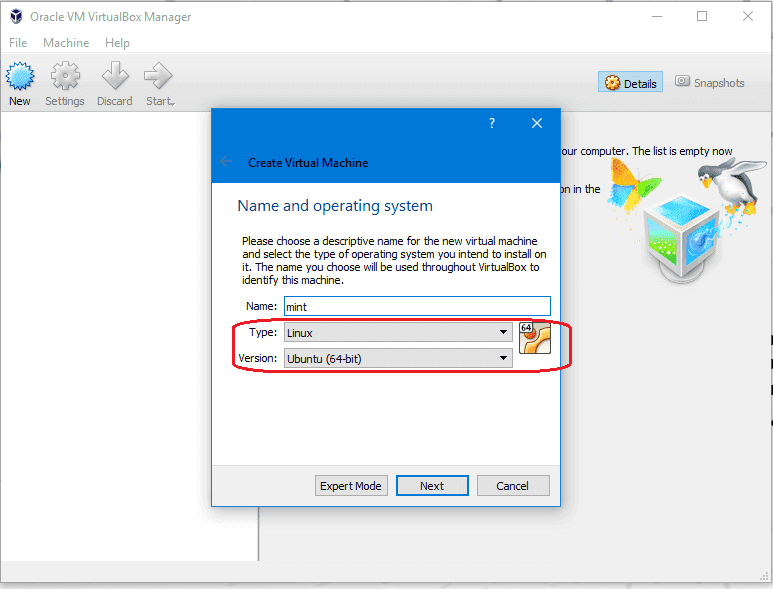
Open VirtualBox and click new and choose Linux and Ubuntu 64:
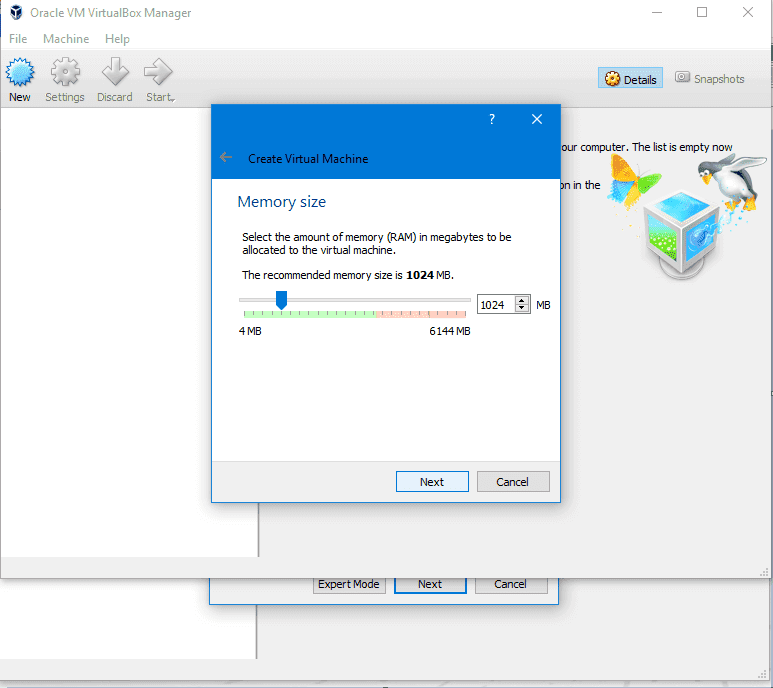
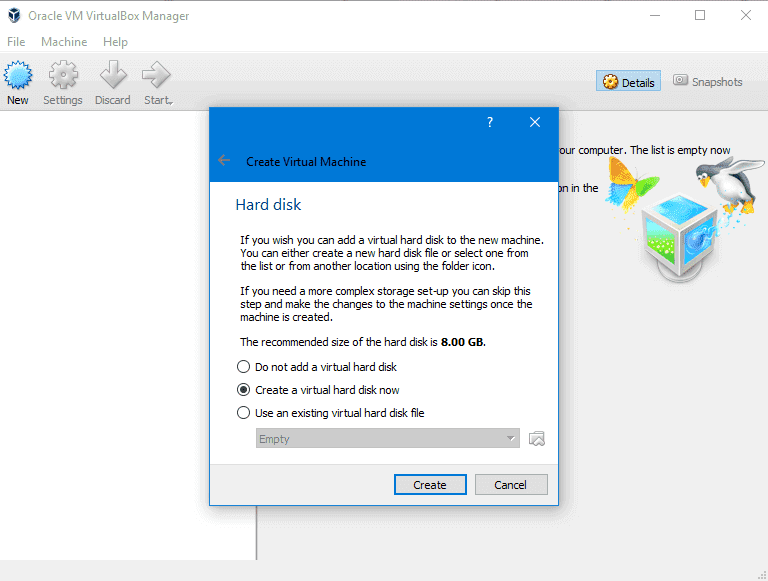
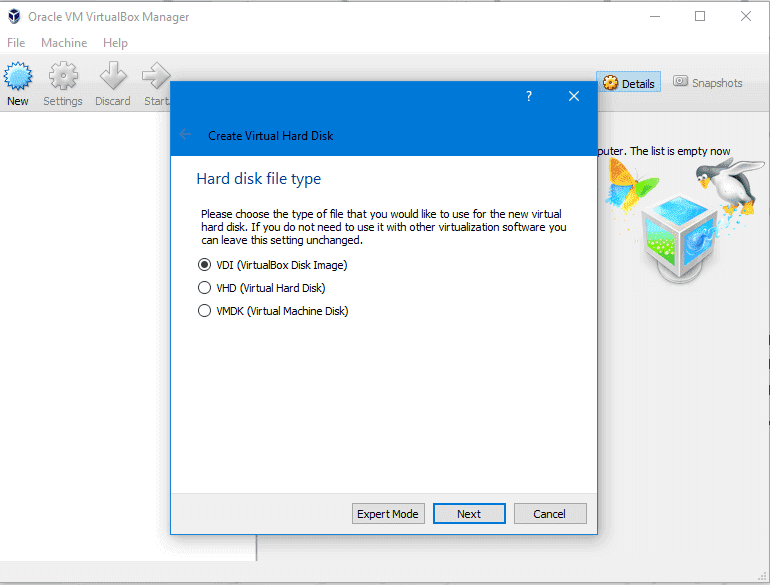
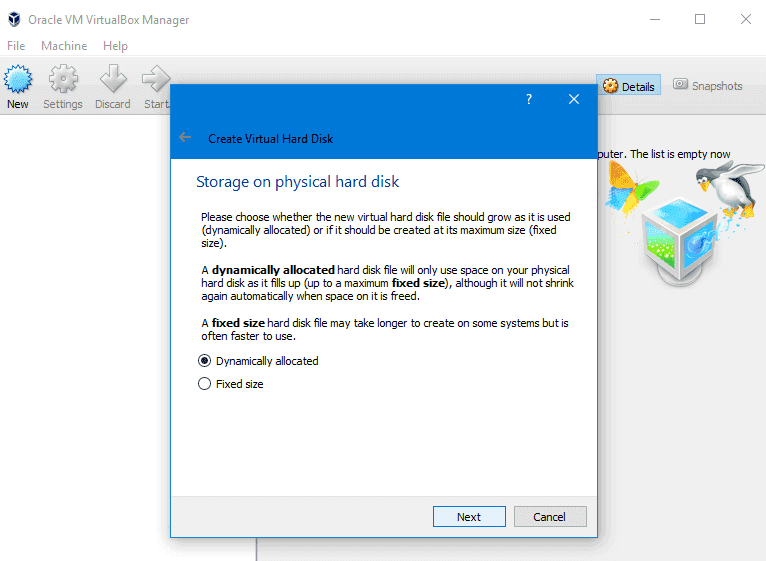
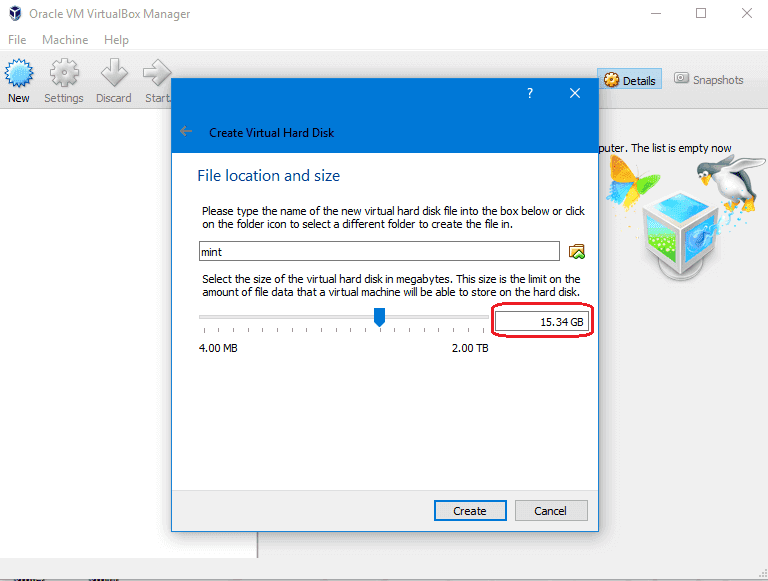
Then choose the RAM required not less than 1 GB and choose the disk file type or leave it as VDI and dynamically allocated and the size not less than 12 GB and hit ok.
Then file location for disk to be used
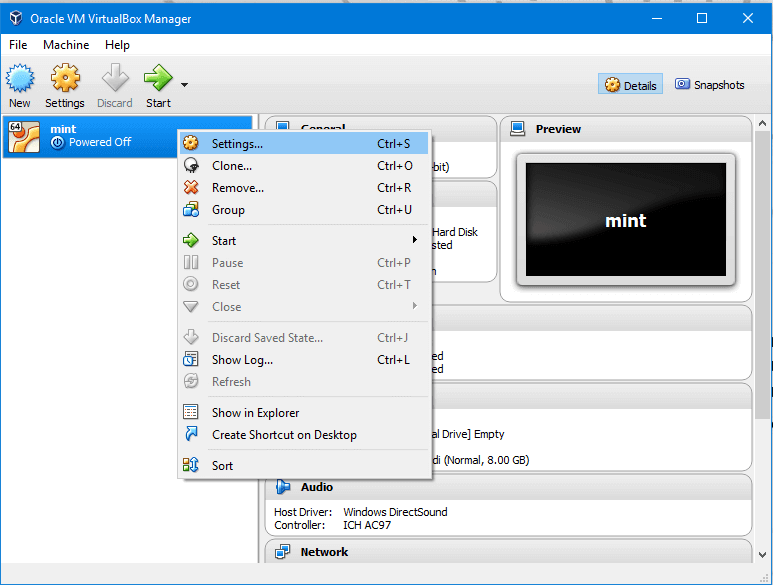
So now the VirtualBox is created, we just need to make it boot from the DVD that we’ve downloaded.
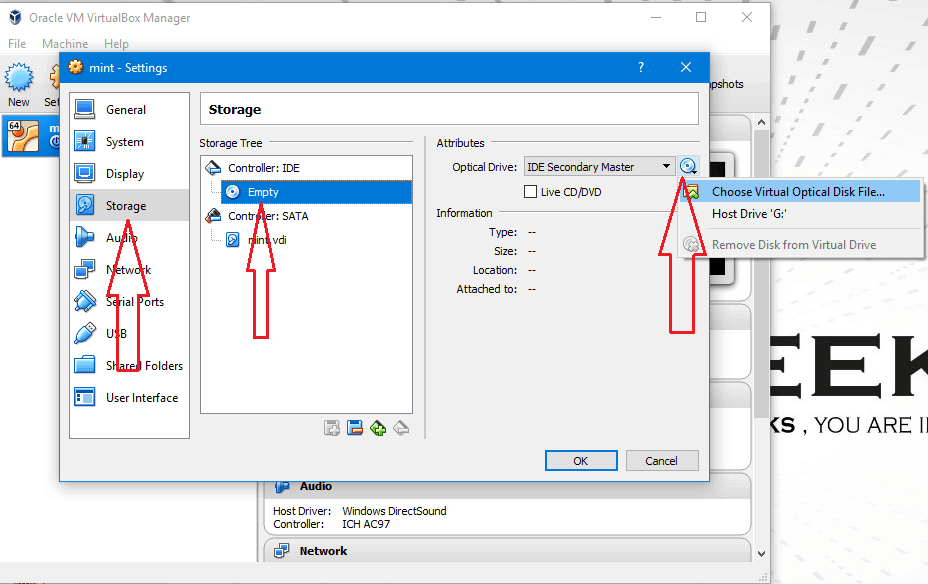
Choose from settings > Storage and choose the ISO image and click OK.
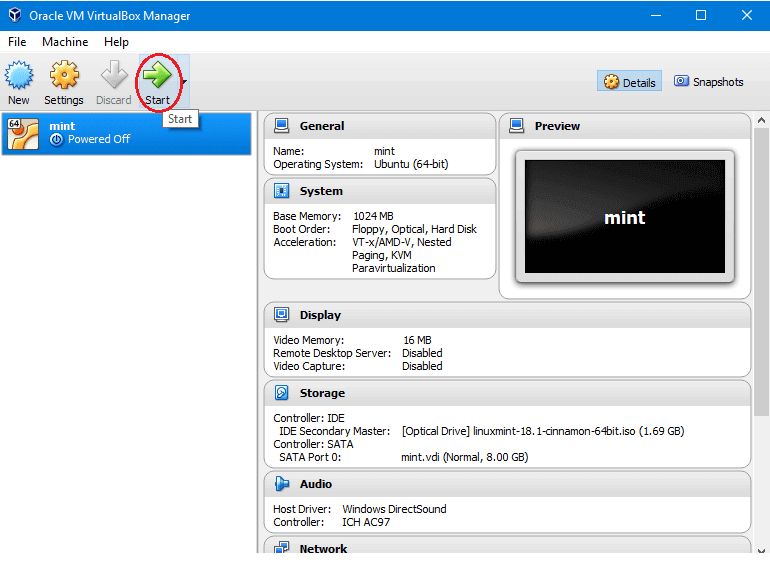
Then choose the iso imageThen Click start
After loading the desktop, click install Linux mint and the rest of the steps are the same as the above mentioned without any change, And this is how to install Linux on a virtual machine.
What Is The Best Linux Distro For 2017? If you know Linux, you may know that there are a lot and a lot of Linux distros out there, you can check most of them from the distro watch website: distrowatch.com. You may have tried a few of them, so what is the difference between them and which one of them is suitable for you, and what is the best Linux distro? Well, that question needs you to explore some of them and see what those distros provide and Pros and Cons of every distro. It might be painful to try many distros and check everyone to see what is suitable for you. That’s why I’ve gathered some information from the web about the most used and loved distros that you might use, hope you find the one that fits your needs.
Elementary OS is a Linux distro based on Ubuntu Linux. It uses the Pantheon desktop environment which gives the distro the beautiful looking and lightweight on your PC.
So if you need the best looking, this is the best Linux distro for you.
This distro is the best Linux distro for laptops and desktops.
Some people might say that they do not prefer it because of the desktop environment which is called Cinnamon, But it becomes more stable than ever and developers of that desktop spend a lot of time to make it better.
This distro is suitable for desktop computers since they need a good and easy graphical interface.
Arch Linux is the one of the simplest Linux distro.
Experts categorize this distro as the most customizable Linux distro on the web, it has a rich documentation on their website which makes it the best one for geeks.
Öğretmenlerden oluşan küçük bir ekip tarafından geliştirilen ve modern bilgisayarlardan çok zayıf donanımlı olanları hedefleyen Debian GNU/Linux tabanlı, Fransa kökenli dağıtım PrimTux‘un yeni sürümü çıktı. Henüz resmi duyurusu yapılmamış olan sürüm kullanılmak üzere yansılarda yerini aldı. Sistemin çeşitli iyileştirmeler ve değişiklikler içerdiği söyleniyor. Ubuntu Radiance türevi Fluxbox teması, Numix circle simge temasıyla gelen sistem; ESR sürümü olmasa da Firefox’un en son sürümünü içeriyor. Handylinux‘un Handy menü özelliklerini taşıyan dağıtım, eğitim ortamı içinde kullanılmak için yayınlanmış bulunuyor.
Yerli bir dağıtım olarak kullanıcıların karşısına değişik biçimlerde çıkan Pardus‘un 17.1 sürümü duyuruldu. Sürümün pek çok yeni özellikle geldiği ve birtakım geliştirmeler içerdiği söyleniyor. XFCE 4.12 masaüstü ortamıyla kullanıma sunulan sistem; LibreOffice, Firefox, Thunderbird, VLC Media Player, OpenJDK Java RE gibi güncel yazılımlar içeriyor. Pardus 17.1; Xfce, DDE (Deepin Masaüstü Ortamı) ve sunucu versiyonlarıyla kullanıma sunuluyor. “Downloads” olarak gelen öntanımlı dizinin artık “İndirilenler” olarak geldiği belirtilirken, sistem ayarları menüsünün zenginleştirildiği ifade ediliyor. Yeni masaüstü duvar kağıtları eklenen sistem, yenilenmiş simge temasıyla geliyor. Deepin Masaüstü Ortamı desteği eklenen sisteme pek çok güvenlik ve sistem performansı yaması eklenmiş bulunuyor. Pardus 17.1 hakkında bilgi edinmek için sürüm duyurusunu ve sürüm notlarını inceleyebilirsiniz.
Kolay kurulum ve kullanım konusuna odaklanmış olan ve üst düzey güvenlik bakımından oldukça titiz bir GNU/Linux dağıtımı olan IPFire‘in 2.19 – Core Update 115 sürümü, Michael Tremer tarafından duyuruldu. Web tabanlı bir arayüz aracılığıyla yönetilebilen sistem, performans iyileştirmeleriyle kullanıma sunuluyor. Bazı heyecan verici yeni özelliklerin yanı sıra, çeşitli hata düzeltmeleri ve güvenlik güncellemeleriyle gelen sürüm, isteğe bağlı olarak IPsec VPN’leri yapılandırmaya izin veriyor. Sistem; logrotate 3.13.0, openvpn 2.3.18, unbound 1.6.7 gibi güncellenmiş paketlerle geliyor. IPFire 2.19 – Core Update 115 hakkında ayrıntılı bilgi edinmek için sürüm duyurusunu inceleyebilirsiniz.


 Beta sürümü 18 Ekim 2017‘de duyurulan Debian GNU/Linux tabanlı, penetrasyon testleri için güvenliğe odaklanmış bir koleksiyonla gelen ve adli tıp, tersine mühendislik, hack, gizlilik, anonimlik, şifreleme çözümleri sunan İtalyan kökenli dağıtım Parrot Security OS‘un 3.9 final sürümü çıktı. Resmi duyurusu henüz yapılmamış olan sürüm, indirilmek üzere yansılarda yerini aldı. Tüm güncellemeleri ve son sürümden bu yana piyasaya sürülen yeni özellikleri içeren “intruder” kod adlı yeni sürüm, 4.13 Linux çekirdeği üzerine yapılandırılmış bulunuyor. Debian 10 Buster tabanlı sürüm, MATE 1.18 masaüstü ortamıyla kullanıma sunuluyor. LibreOffice 5.4, Firefox 56 gibi güncel yazılımlarla gelen sistem, AnonSurf, TOR Browser, Cryptographic tolls, güvenlik Pentesting araçları, Digital adli araçlar, geliştirme araçları, Electrum Bitcoin cüzdan, Wine ve UEFI desteği içeriyor. Sürüm hakkında daha ayrıntılı bilgi edinmek için sürüm notlarını inceleyebilirsiniz.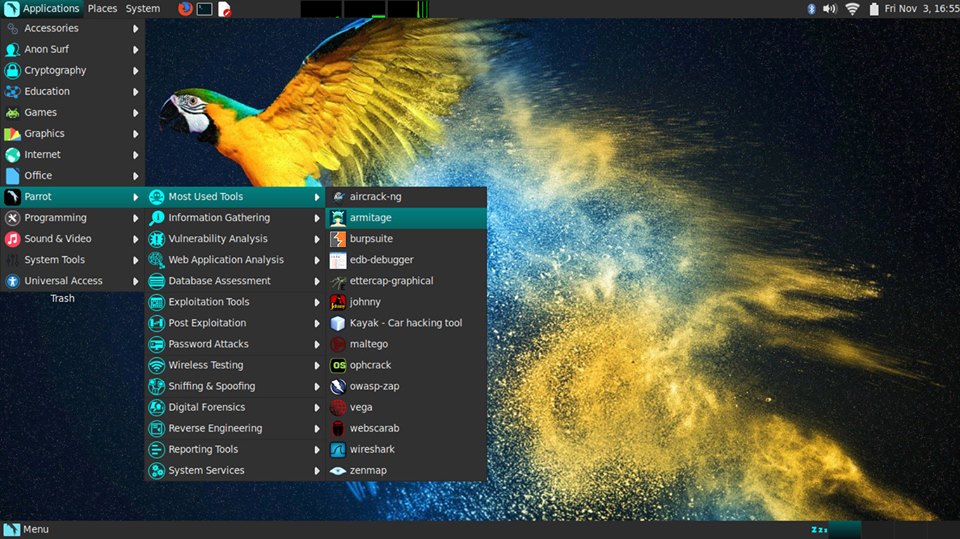
 As we’ve talked about Linux on the previous post and we have chosen the
  After you’ve chosen the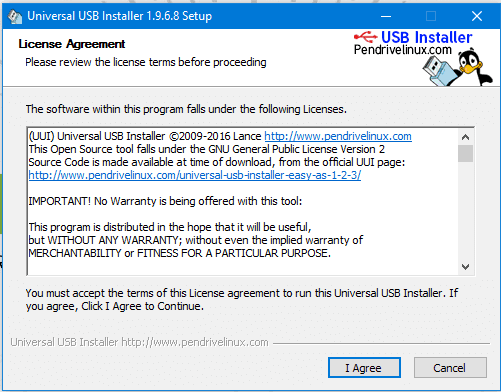
 What Is The Best Linux Distro For 2017? If you know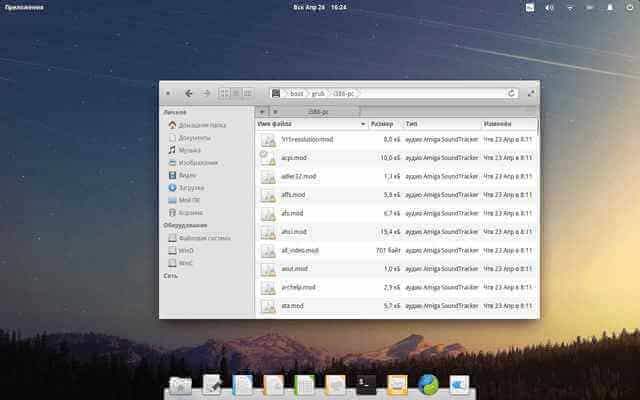
 Öğretmenlerden oluşan küçük bir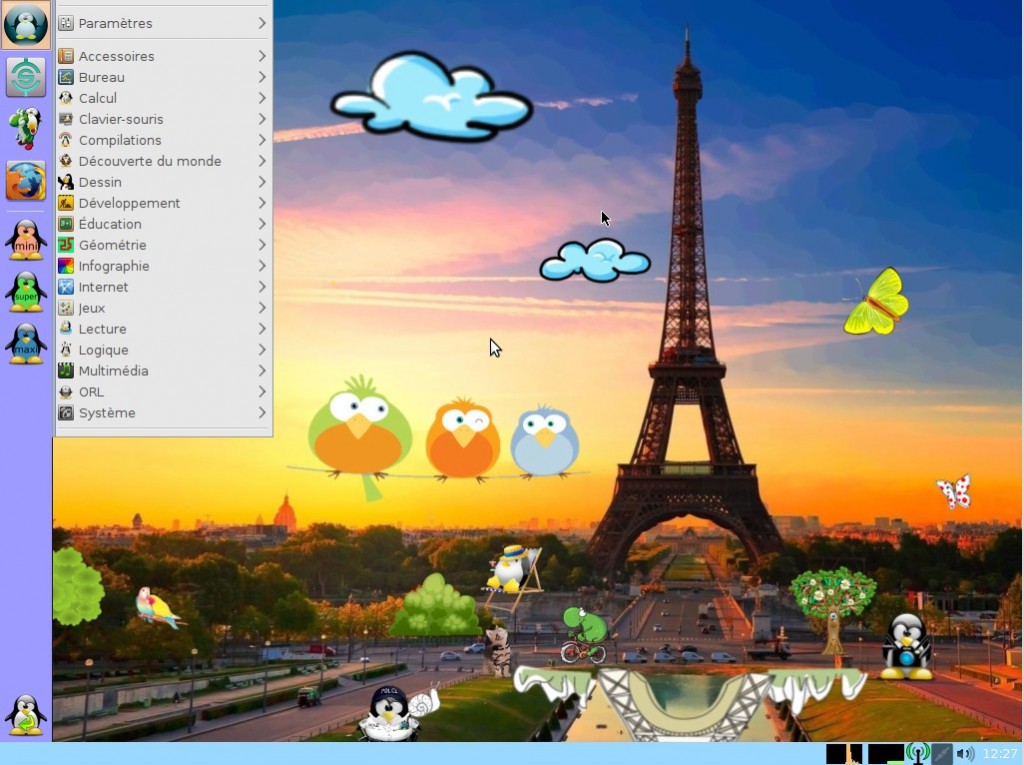
 Yerli bir dağıtım olarak kullanıcıların karşısına değişik biçimlerde çıkan
  Kolay kurulum ve kullanım konusuna odaklanmış olan ve üst düzey