Endless OS 3.6.3 duyuruldu

GNOME 3’ten çatallanmış özelleştirilmiş bir masaüstü ortamını kullanarak, basitleştirilmiş ve düzenli bir kullanıcı deneyimi sunmayı amaç edinen Debian GNU/Linux tabanlı Endless OS‘nin 3.6.3 sürümü, Endless OS ekibi tarafından duyuruldu.  3.6 serisi için yeni bir güncelleme olarak gelen yeni sürüm, bilgisayar sahibinin sistemi kilitlemesine yardımcı olmak için birkaç yeni temel özellik sunuyor ve aynı zamanda önyükleme ve masaüstünde oturum açma ile ilgili bazı sorunları düzeltiyor. Artık kullanıcıların web tarayıcılarına ebeveyn denetimleriyle erişimlerini kısıtlamak olanağı olduğu bildiriliyor. 3.6.0 ve 3.6.2 arasında, önyükleme ve bilgisayarda oturum açmayı önleyebilecek bilinen iki sorun olduğu, her ikisinin de bu sürümde düzeltildiği ifade ediliyor. Debian 10 “Buster” tabanlı olarak gelen sistemde, pek çok paket en güncel sürümleriyle geliyor. Endless OS 3.6.3 hakkında ayrıntılı bilgi edinmek için sürüm duyurusunu inceleyebilirsiniz.

Continue Reading →

Endless OS 3.6.3 edinmek için aşağıdaki linklerden yararlanabilirsiniz.

0

Wine-Staging 4.16 duyuruldu

Wine’in 4.16 sürümünün duyurulmasından sonra, Wine-Staging’in 4.16 sürümü de, Alistair Leslie-Hughes tarafından duyuruldu. Henüz geliştirme aşamasına gelmemiş hata düzeltmelerini ve özellikleri ele alan ve winehq.org‘un bir test alanı olan Wine Staging‘in yeni sürümünde, 2 değişiklik, 3 ekleme ve 3 silme işlemi gerçekleştirilmiş bulunuyor. Wine-Staging 4.16, Direct3D 9 görüntü oluşturma sorunları hakkında uzun süredir var olan bir hata raporu için geçici bir düzeltme getiriyor. İşlevsellik, Final Fantasy XIV, The Witcher 2, Darkness II, Speed Shift 2, Resident Evil 4 ve diğer oyunlarla ilgili sorunları çözmek için yeni bir “multiply_special” kayıt defteri anahtarıyla etkinleştirilebiliyor. Yeni sürüm; 800’den fazla düzeltme ekine sahip ve mevcut bazı özellik düzeltme ekleri için bir dizi yeni düzeltme eki ve güncelleme işlevi de içeriyor. Wine-Staging belgelerine ise buradan ulaşabilirsiniz. Wine-Staging 4.16 hakkında daha ayrıntılı bilgi edinmek için GitHub üzerindeki değişiklikler sayfasını inceleyebilirsiniz.

Continue Reading →

Wine-Staging 4.16 edinmek için aşağıdaki linkten yararlanabilirsiniz.

0

KDE Frameworks 5.62.0 duyuruldu

KDE topluluğu, Qt eklenti kütüphanelerinin en yeni sürümü olan KDE Frameworks 5.62.0’ı duyurdu. Geliştirme ekibinin KDE Frameworks 5.62.0’ı duyurmaktan çok mutlu olduğu belirtilirken, dost lisans şartları ile kütüphanelerin test edildiği, KDE Frameworks’un Qt için işlevselliği geniş bir yelpazede 70 eklenti kütüphanesi içerdiği ifade edildi. KWayland ile the zwp_linux_dmabuf_v1 Wayland protokolü için destek sağlanan sürümde, KFileMetaData şimdi kalıpların yazılmasını destekliyor. Birçok KIO düzeltmesi ile gelen yeni sürümde, C++, JavaScript ve diğer diller etrafında özdizimi vurgulama desteğinin düzeltme ve iyileştirmeleri bulunuyor. Bu sürümün, geliştiriciler için hızlı ve öngörülebilir bir şekilde iyileştirmeler sağlayan, iyileştirme amaçlı bir dizi çalışmasının bir parçası olduğu söyleniyor. KDE Frameworks 5.62.0 hakkında ayrıntılı bilgi edinmek için sürüm duyurusunu inceleyebilirsiniz.

Continue Reading →

Çeşitli dağıtımlar için paketlerin yüklenmesine yönelik yönergeleri burada bulabilirsiniz. KDE Frameworks 5.62.0 edinmek için buradan yararlanabilirsiniz.

0

PyCharm 2019.3 EAP 1 duyuruldu

PyCharm’ın PyCharm 2019.3 EAP 1 sürümü, Joaquin Treviño tarafından duyuruldu. Yazılıma Python çalıştırması yapılandırmasında parametre olarak ayarlanabilecek komut dosyası çalıştırma işlemlerini kişiselleştirmek için şimdi yeni bir seçenek eklediklerini belirten Treviño; Jupyter notebooklarda bazı düzeltmeler yapıldığını söyledi. IPython için hata ayıklayıcının düzgün çalışmamasına neden olan bazı sorunlar da çözülmüş bulunuyor. Daha fazla bilgi için sürüm notlarının incelenebileceğini ifade ediliyor. Bunun bir test sürümü olduğunun unutulmaması ve yalnızca test etmek amacıyla kullanılması gerektiği hatırlatılırken, test eden kullanıcıların tespit ettikleri hataları rapor etmeleri rica ediliyor. PyCharm 2019.3 EAP 1 hakkında ayrıntılı bilgi edinmek için sürüm duyurusunu inceleyebilirsiniz.

Continue Reading →

PyCharm 2019.3 EAP 1 edinmek için aşağıdaki linkten yararlanabilirsiniz.

0

Slax 9.11.0 duyuruldu

Debian’ın kararlı versiyonuna dayanan minimalist bir masaüstü live CD’si olarak kullanıma sunulan Slax‘ın 9.11.0 sürümü, Tomáš Matějíček tarafından duyuruldu. Yeni okul yılının başladığını söyleyen Matějíček; yeni Slax sürümünün de kullanıma hazır olduğunu belirtti. Sürümün, Debian 9.11 Jessie’den gelen tüm hata düzeltmelerini ve güvenlik güncellemelerini içerdiğini söyleyen Matějíček; konsol boşluğunun varsayılan olarak devre dışı olduğunu hatırlattı. Slax projesinin kararlı sürümün onbirinci güncellemesini duyurmaktan mutluluk duyduğunu söyleyen Matějíček; paralel indirme özelliği kullanılarak TFTP sunucusundan PXE önyüklemesinin şimdi 3 kat daha hızlı indirilebildiğini söyledi. Matějíček; Debian 10’a dayanan Slax için çalışmaların devam ettiğini, ancak henüz hazır olmadığını, hazır olması için en azından birkaç hafta gerektiğini söyledi. Slax 9.11.0 hakkında ayrıntılı bilgi edinmek için sürüm duyurusunu inceleyebilirsiniz.

Continue Reading →

Slax 9.11.0 edinmek için aşağıdaki linklerden yararlanabilirsiniz.

0

Expect command and how to automate shell scripts like magic

In the previous post, we talked about writing practical shell scripts and we saw how it is easy to write a shell script. Today we are going to talk about a tool that does magic to our shell scripts, that tool is the Expect command or Expect scripting language. Expect command or expect scripting language is a language that talks with your interactive programs or scripts that require user interaction. Expect scripting language works by expecting input, then the Expect script will send the response without any user interaction. You can say that this tool is your robot which will automate your scripts.

Continue Reading →

If Expect command if not installed on your system, you can install it using the following command:

$ apt-get install expect

Or on Red Hat based systems like CentOS:

$ yum install expect

Expect Command

Before we talk about expect command, Let’s see some of the expect command which used for interaction:

spawn                  Starting a script or a program.

expect                  Waiting for program output.

send                      Sending a reply to your program.

interact                Allowing you in interact with your program.

  • The spawn command is used to start a script or a program like the shell, FTP, Telnet, SSH, SCP, and so on.
  • The send command is used to send a reply to a script or a program.
  • The Expect command waits for input.
  • The interact command allows you to define a predefined user interaction.

We are going to type a shell script that asks some questions and we will make an Expect script that will answer those questions.

First, the shell script will look like this:

#!/bin/bash

echo "Hello, who are you?"

read $REPLY

echo "Can I ask you some questions?"

read $REPLY

echo "What is your favorite topic?"

read $REPLY

Now we will write the Expect scripts that will answer this automatically:

#!/usr/bin/expect -f

set timeout -1

spawn ./questions

expect "Hello, who are you?\r"

send -- "Im Adam\r"

expect "Can I ask you some questions?\r"

send -- "Sure\r"

expect "What is your favorite topic?\r"

send -- "Technology\r"

expect eof

The first line defines the expect command path which is #!/usr/bin/expect.

On the second line of code, we disable the timeout. Then start our script using spawn command.

We can use spawn to run any program we want or any other interactive script.

The remaining lines are the Expect script that interacts with our shell script.

The last line if the end of file which means the end of the interaction.

Now Showtime, let’s run our answer bot and make sure you make it executable.

$ chmod +x ./answerbot

$./answerbot
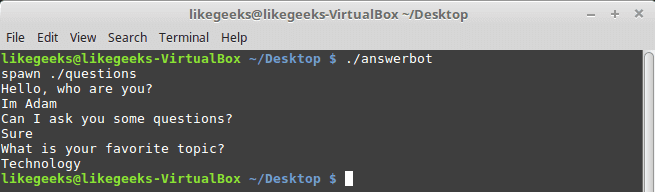
expect command

Cool!! All questions are answered as we expect.

If you get errors about the location of Expect command you can get the location using the which command:

$ which expect

We did not interact with our script at all, the Expect program do the job for us.

The above method can be applied to any interactive script or program.Although the above Expect script is very easy to write, maybe the Expect script little tricky for some people, well you have it.

Using autoexpect

To build an expect script automatically, you can the use autoexpect command.

autoexpect works like expect, but it builds the automation script for you. The script you want to automate is passed to autoexpect as a parameter and you answer the questions and your answers are saved in a file.

$ autoexpect ./questions
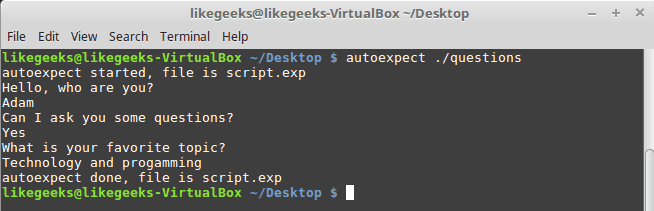
autoexpect command

A file is generated called script.exp contains the same code as we did above with some additions that we will leave it for now.
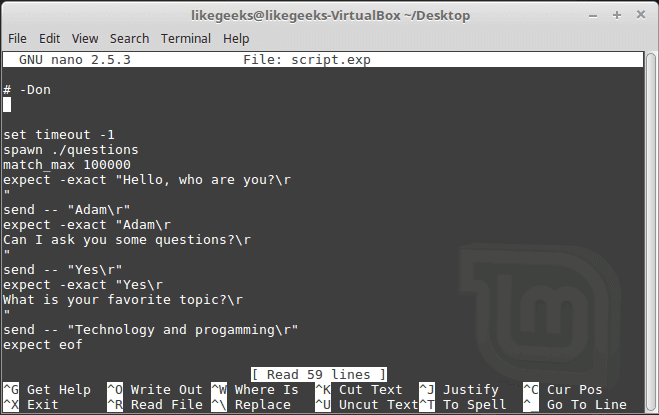
autoexpect script

If you run the auto generated file script.exp, you will see the same answers as expected:
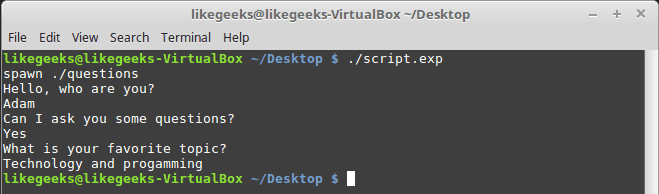
autoexpect script execution

Awesome!! That super easy.

There are many commands that produce changeable output, like the case of FTP programs, the expect script may fail or stuck. To solve this problem, you can use wildcards for the changeable data to make your script more flexible.

Working with Variables

The set command is used to define variables in Expect scripts like this:

set MYVAR 5

To access the variable, precede it with $ like this $VAR1

To define command line arguments in Expect scripts, we use the following syntax:

set MYVAR [lindex $argv 0]

Here we define a variable MYVAR which equals the first passed argument.

You can get the first and the second arguments and store them in variables like this:

set my_name [lindex $argv 0]

set my_favorite [lindex $argv 1]

Let’s add variables to our script:

#!/usr/bin/expect -f

set my_name [lindex $argv 0]

set my_favorite [lindex $argv 1]

set timeout -1

spawn ./questions

expect "Hello, who are you?\r"

send -- "Im $my_name\r"

expect "Can I ask you some questions?\r"

send -- "Sure\r"

expect "What is your favorite topic?\r"

send -- "$my_favorite\r"

expect eof

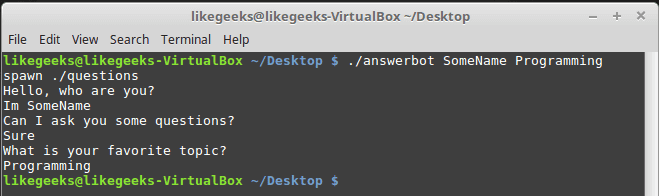
Now try to run the Expect script with some parameters to see the output:

$ ./answerbot SomeName Programming
expect command variables

Awesome!! Now our automated Expect script is more dynamic.

Conditional Tests

You can write conditional tests using braces like this:

expect {

"something" { send -- "send this\r" }

"*another" { send -- "send another\r" }

}

We are going to change our script to return different conditions, and we will change our Expect script to handle those conditions.

We are going to emulate different expects with the following script:

#!/bin/bash

let number=$RANDOM

if [ $number -gt 25000 ]; then

echo "What is your favorite topic?"

else

echo "What is your favorite movie?"

fi

read $REPLY

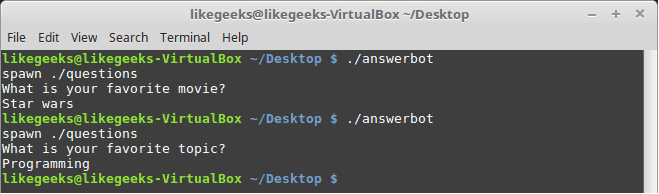
A random number is generated every time you run the script and based on that number, we put a condition to return different expects.

Let’s make out Expect script that will deal with that.

#!/usr/bin/expect -f

set timeout -1

spawn ./questions

expect {

"*topic?" { send -- "Programming\r" }

"*movie?" { send -- "Star wars\r" }

}

expect eof
expect command conditions

Very clear. If the script hits the topic output, the Expect script will send programming and if the script hits movie output the expect script will send star wars. Isn’t cool?

If else Conditions

You can use if/else clauses in expect scripts like this:

#!/usr/bin/expect -f

set NUM 1

if { $NUM < 5 } {

puts "\Smaller than 5\n"

} elseif { $NUM > 5 } {

puts "\Bigger than 5\n"

} else {

puts "\Equals 5\n"

}

if command

Note: The opening brace must be on the same line.

While Loops

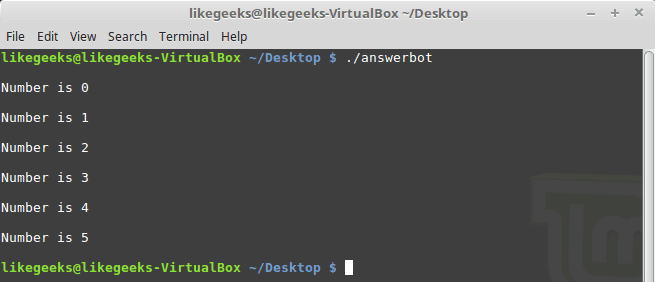
While loops in expect language must use braces to contain the expression like this:

#!/usr/bin/expect -f

set NUM 0

while { $NUM <= 5 } {

puts "\nNumber is $NUM"

set NUM [ expr $NUM + 1 ]

}

puts ""
while loop

For Loops

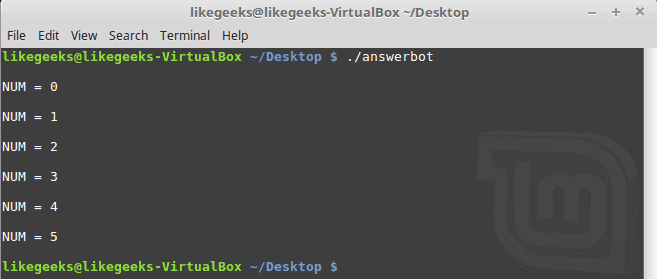
To make a for loop in expect, three fields must be specified, like the following format:

#!/usr/bin/expect -f

for {set NUM 0} {$NUM <= 5} {incr NUM} {

puts "\nNUM = $NUM"

}

puts ""
for loop

User-defined Functions

You can define a function using proc like this:

proc myfunc { TOTAL } {

set TOTAL [expr $TOTAL + 1]

return "$TOTAL"

}

And you can use them after that.

#!/usr/bin/expect -f

proc myfunc { TOTAL } {

set TOTAL [expr $TOTAL + 1]

return "$TOTAL"

}

set NUM 0

while {$NUM <= 5} {

puts "\nNumber $NUM"

set NUM [myfunc $NUM]

}

puts ""
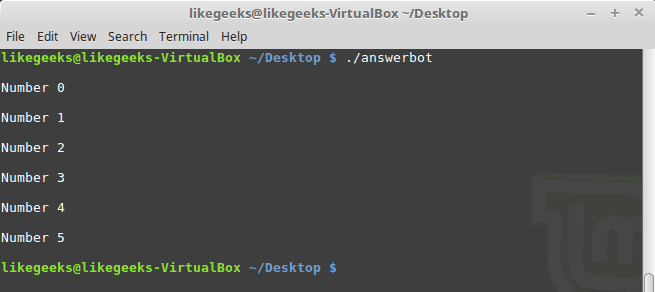
user-defined functions

Interact Command

Sometimes your Expect script contains some sensitive information that you don’t want to share with other users who use your Expect scripts, like passwords or any other data, so you want your script to take this password from you and continuing automation normally.

The interact command reverts the control back to the keyboard.

When this command is executed, Expect will start reading from the keyboard.

This shell script will ask about the password as shown:

#!/bin/bash

echo "Hello, who are you?"

read $REPLY

echo "What is you password?"

read $REPLY

echo "What is your favorite topic?"

read $REPLY

Now we will write the Expect script that will prompt for the password:

#!/usr/bin/expect -f

set timeout -1

spawn ./questions

expect "Hello, who are you?\r"

send -- "Hi Im Adam\r"

expect "*password?\r"

interact ++ return

send "\r"

expect "*topic?\r"

send -- "Technology\r"

expect eof
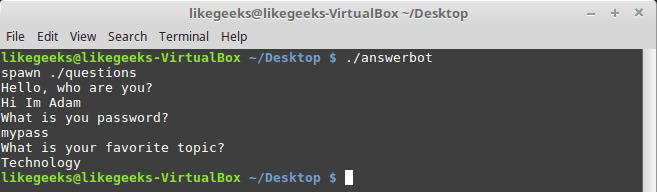
interact command

After you type your password type ++ and the control will return back from the keyboard to the script.

Expect language is ported to many languages like C#, Java, Perl, Python, Ruby and Shell with almost the same concepts and syntax due to its simplicity and importance.

Expect scripting language is used in quality assurance, network measurements such as echo response time, automate file transfers, updates, and many other uses.

I hope you now supercharged with some of the most important aspects of Expect command, autoexpect command and how to use it to automate your tasks in a smarter way.

Thank you.

0

How to write practical shell scripts

In the last post, we talked about regular expressions and we saw how to use them in sed and awk for text processing, and we discussed before Linux sed command and awk command. During the series, we wrote small shell scripts, but we didn’t mix things up, I think we should take a small step further and write a useful shell script. However, the scripts in this post will help you to empower your scriptwriting skills. You can send messages to someone by phone or email, but one method, not commonly used anymore, is sending a message directly to the user’s terminal. We are going to build a bash script that will send a message to a user who is logged into the Linux system. For this simple shell script, only a few functions are required. Most of the required commands are common and have been covered in our series of shell scripting; you can review the previous posts.
Continue Reading →

Sending Messages

First, we need to know who is logged in. This can be done using the who command which retrieves all logged in users.

who

shell scripts who command

To send a message you need the username and his current terminal.

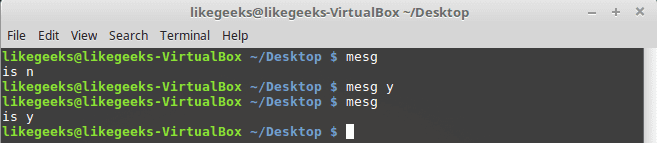
You need to know if messages are allowed or not for that user using the mesg command.

mesg

mesg command

If the result shows “is y” that means messaging is permitted. If the result shows “is n”, that means messaging is not permitted.

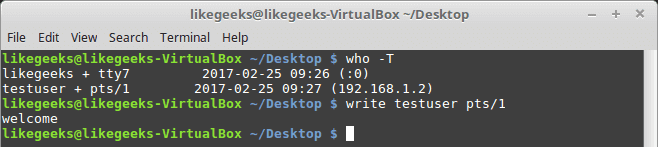
To check any logged user message status, use the who command with -T option.

who -T

If you see a dash (-) that means messages are turned off and if you see plus sign (+) that means messages are enabled.

To allow messages, type mesg command with the “y” option like this

mesg y

allow messages

Sure enough, it shows “is y” which means messages are permitted for this user.

Of course, we need another user to be able to communicate with him so in my case I’m going to connect to my PC using SSH and I’m already logged in with my user, so we have two users logged onto the system.

Let’s see how to send a message.

Write Command

The write command is used to send messages between users using the username and current terminal.

For those users who logged into the graphical environment (KDE, Gnome, Cinnamon or any), they can’t receive messages. The user must be logged onto the terminal

We will send a message to testuser user from my user likegeeks like this:

write testuser pts/1

write command

Type the write command followed by the user and the terminal and hit Enter.

When you hit Enter, you can start typing your message. After finishing the message, you can send the message by pressing the Ctrl+D key combination which is the end of file signal. I recommend you to review the post about signals and jobs.

Receive message

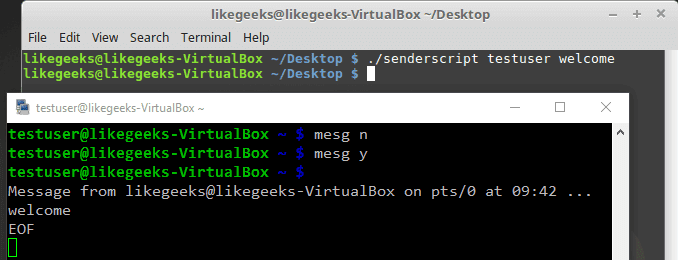
The receiver can recognize which user on which terminal sends the message. EOF means that the message is finished.

I think now we have all the parts to build our shell script.

Creating The Send Script

Before we create our shell script, we need to determine whether the user we want to send a message to him is currently logged on the system, this can be done using the who command to determine that.

logged=$(who | awk -v IGNORECASE=1 -v usr=$1 '{ if ($1==usr) { print $1 }exit }')

We get the logged in users using the who command and pipe it to awk and check if it is matching the entered user.

The final output from the awk command is stored in the variable logged.

Then we need to check the variable if it contains something or not:

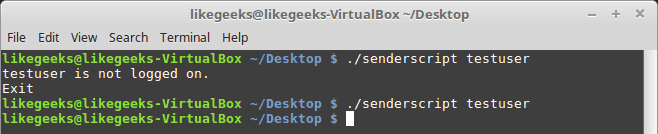
if [ -z $logged ]; then

echo "$1 is not logged on."

echo "Exit"

exit

fi

I recommend you to read the post about the if statement and how to use it Bash Script.

Check logged user

The logged variable is tested to check if it is a zero or not.

If it is zero, the script prints the message, and the script is terminated.

If the user is logged, the logged variable contains the username.

Checking If The User Accepts Messages

To check if messages are allowed or not, use the who command with -T option.

check=$(who -T | grep -i -m 1 $1 | awk '{print $2}')

if [ "$check" != "+" ]; then

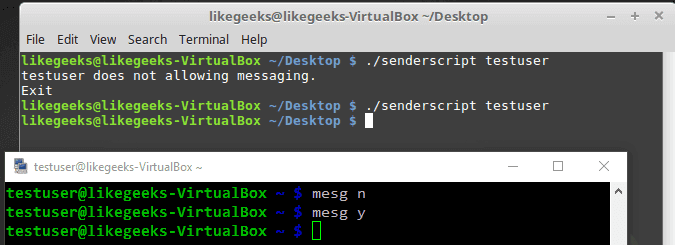
echo "$1 disable messaging."

echo "Exit"

exit

fi

Check message allowed

Notice that we use the who command with -T. This shows a (+) beside the username if messaging is permitted. Otherwise, it shows a (-) beside the username, if messaging is not permitted.

Finally, we check for a messaging indicator if the indicator is not set to plus sign (+).

Checking If Message Was Included

You can check if the message was included or not like this:

if [ -z $2 ]; then

echo "Message not found"

echo "Exit"

exit

fi

Getting the Current Terminal

Before we send a message, we need to get the user current terminal and store it in a variable.

terminal=$(who | grep -i -m 1 $1 | awk '{print $2}')

Then we can send the message:

echo $2 | write $logged $terminal

Now we can test the whole shell script to see how it goes:

$ ./senderscript likegeeks welcome

Let’s see the other shell window:

Send message

Good!  You can now send simple one-word messages.

Sending a Long Message

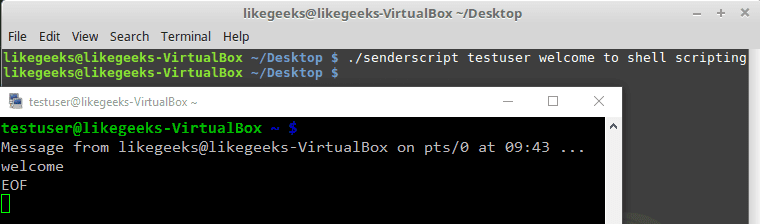
If you try to send more than one word:

$ ./senderscript likegeeks welcome to shell scripting

One word message

It didn’t work. Only the first word of the message is sent.

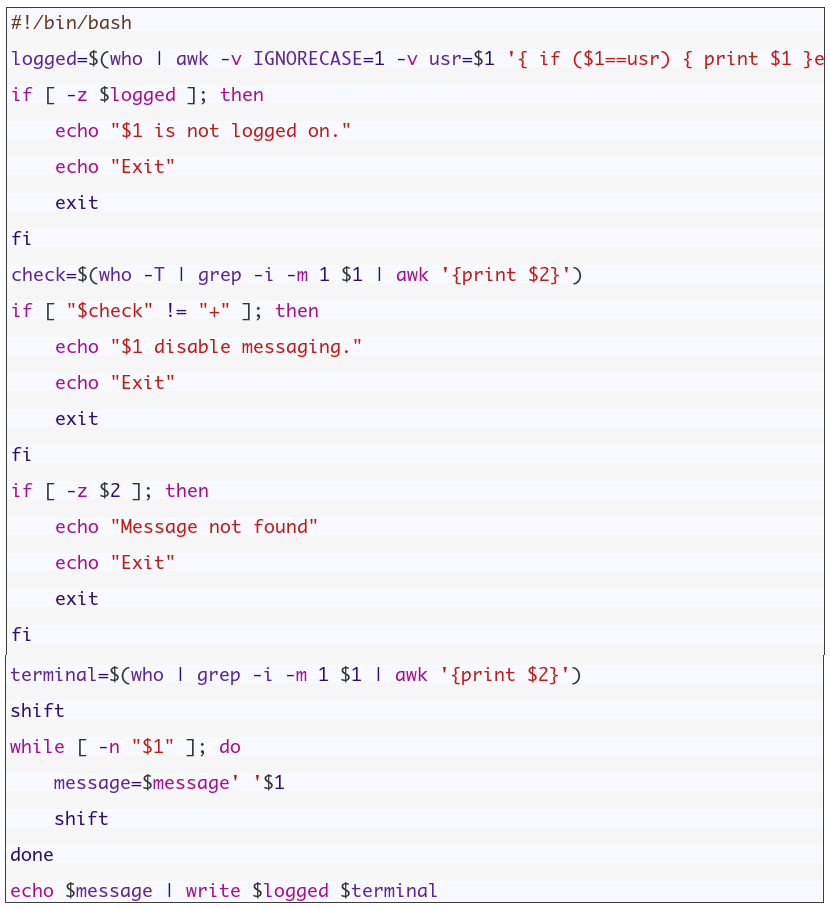
To fix this problem, we will use the shift command with the while loop.

shift

while [ -n "$1" ]; do

message=$message' '$1

shift

done

And now one thing needs to be fixed, which is the message parameter.

echo $whole_message | write $logged $terminal

So now the whole script should be like this:

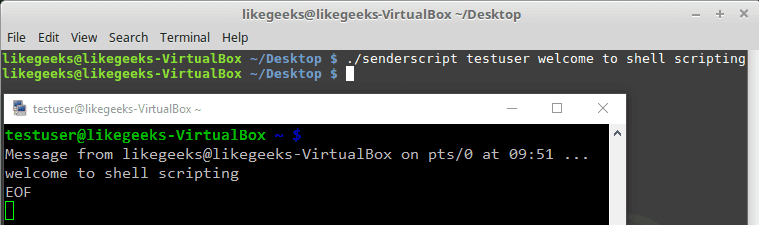
If you try now:

$ ./senderscript likegeeks welcome to shell scripting

Complete message

Awesome!! It worked. Again, I’m not here to make a script to send the message to the user, but the main goal is to review our shell scripting knowledge and use all the parts we’ve learned together and see how things work together.

Monitoring Disk Space

Let’s build a script that monitors the biggest top ten directories.

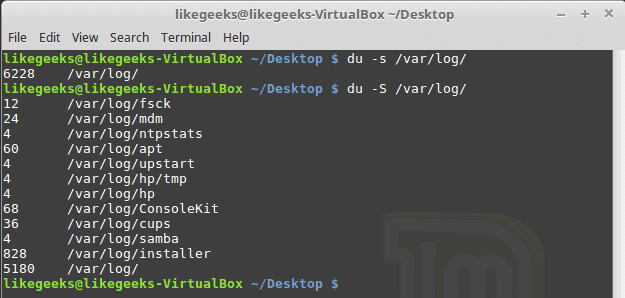
If you add -s option to the du command, it will show summarized totals.

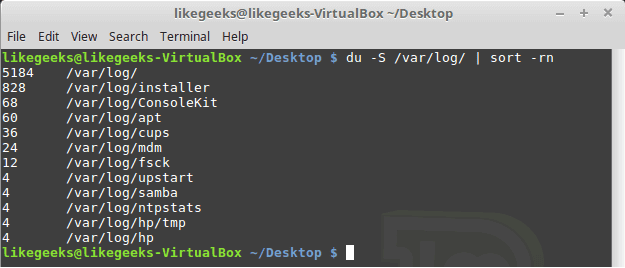
$ du -s /var/log/

The -S option is used to show the subdirectories totals.

$ du -S /var/log/

du command

You should use the sort command to sort the results generated by the du command to get the largest directories like this:

$ du -S /var/log/ | sort -rn

sort command

The -n to sort numerically and the -r option to reverse the order so it shows the bigger first.

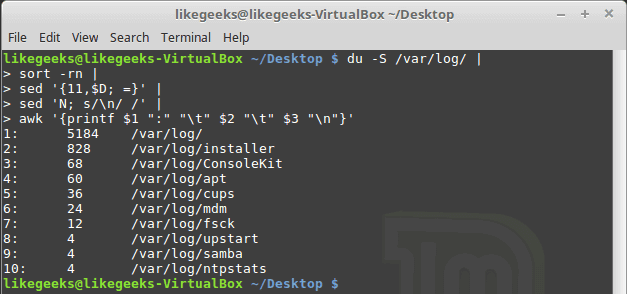
The N command is used to label each line with a number:

sed '{11,$D; =}' |

sed 'N; s/\n/ /' |

Then we can clean the output using the awk command:

awk '{printf $1 ":" "\t" $2 "\t" $3 "\n"}'

Then we add a colon and a tab so it appears much better.

$ du -S /var/log/ |

sort -rn |

sed '{11,$D; =}' |

# pipe the first result for another one to clean it

sed 'N; s/\n/ /' |

# formated printing using printf

awk '{printf $1 ":" "\t" $2 "\t" $3 "\n"}'

Format output with sed and awk

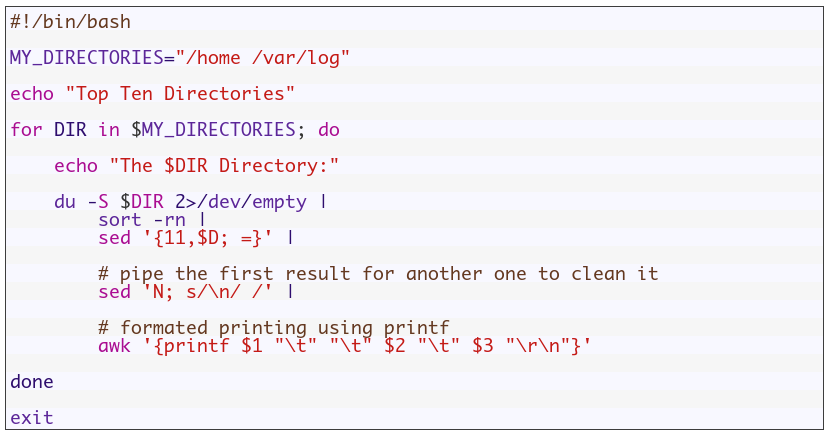
Suppose we have a variable called  MY_DIRECTORIES that holds 2 folders.

MY_DIRECTORIES=”/home /var/log”

We will iterate over each directory from MY_DIRECTORIES variable and get the disk usage using du command.

So the shell script will look like this:

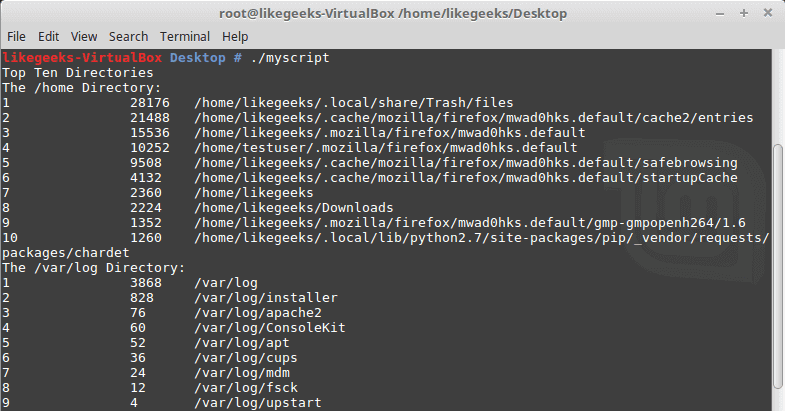
Monitor disk usage

Good!! Both directories /home and /var/log are shown on the same report.

You can filter files, so instead of calculating the consumption of all files, you can calculate the consumption for a specific extension like *.log or whatever.

One thing I have to mention here, in production systems, you can’t rely on disk space report instead, you should use disk quotas.

Quota package is specialized for that, but here we are learning how bash scripts work.

Again the shell scripts we’ve introduced here is for showing you how shell scripting work, there are a ton of ways to implement any task in Linux.

My post is finished! I tried to reduce the post length and make everything as simple as possible, hope you like it.

Keep coming back. Thank you.

0