

Archive | Kasım, 2017

Main Linux Commands Easy Guide

In the previous post, we discussed how to install Linux, now we are going to talk about the most powerful features in Linux which is Linux commands or shell commands. For the whole documentation of Linux Commands, you can check Linux Documentation. The power of Linux is in the power of commands that you can use. I’m going to talk about the main Linux commands with their main parameters that you might use daily.


Continue Reading →

ls Command

List file and folders of the current directory.

Parameters

–l

to list the content as a detailed list.

-a

Display all files (hidden + non-hidden).

You can combine parameters like this:

ls -la
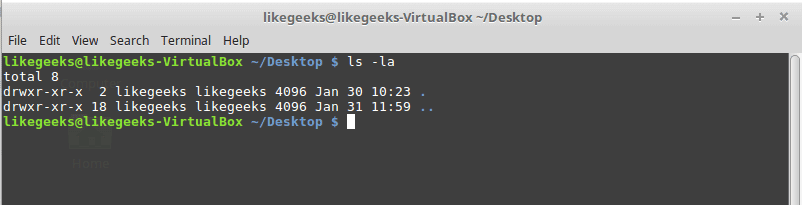
linux ls command

cd Command

Change directory from the current directory to another one.

cd /home

Will go to home directory
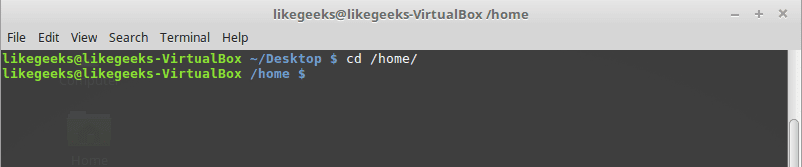
linux cd command

cp Command

Copy the source to target.

Parameters

-i

Interactive mode means wait for the confirmation if there are files on the target will be overwritten.

-r

Recursive copy means include subdirectories if they found.

Example

cp –ir sourcedir targetdir

linux cp command

mv Command

Move the source to target and remove the source.

Parameters

-i

Interactive mode means wait for the confirmation if there are files on the target will be overwritten.

Example

mv –i sourceFile targetFile

linux mv command

rm Command

Delete file or directory and you must use –r in case you want to delete a directory.

Parameters

-r

Recursive delete means delete all subdirectories if found.

-i

Interactive means wait till confirmation

linux rm command

mkdir Command

Create a new directory.

mkdir newDir

linux mkdir command

rmdir Command

Delete a directory

linux rmdir command

chown Command

Change the owner of a file or directory.

Parameters:

-R

Capital R here means to change ownership of all subdirectories if found and you must use this parameter if you use the command against a directory.

chown –R root:root myDir

linux chown command

chmod Command

Change the permission of a file or directory.

Parameters

The mode which consists of 3 parts, owner, group, and others means what will be the permissions for these modes, and you must specify them.

The permission is one of the followings:

Read =4

Write = 2

Execute =1

Every permission represented by a number as shown and you can combine permissions.

Example

chmod 755 myfile

That means set permission for the file named myfile as follows:

owner: set it to 7 which means 4+2+1 means read+write+execute.

group: set it to 5 which means 4+1 means read+execute.

other: set it to 5 which means 4+1 means read+execute.

Note: execute for a folder permission means opening it.

linux chmod command

locate Command

To find a file in your system, the locate command will search the system for the pattern you provide.

locate myfile
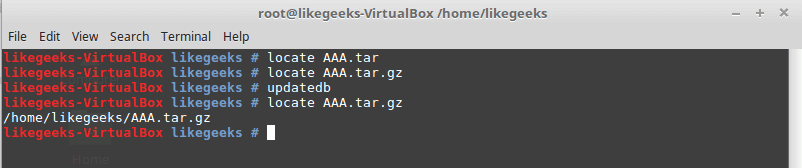
linux locate command

updatedb Command

updates the database used by the locate command.

date Command

Simply prints today’s date. Just type date on the shell.

tar Command

Combines several files into archive and compression if you want.

Parameters

-c

Create new archive.

-z

Compress the archive using gzip package.

-j

Compress the archive using bzip2 package.

-v

Verbose mode means show the processed files.

-f

Write the output to a file and not to screen.

-x

Unpack files from archive.

Example

tar –czvf myfiles.tar.gz myfiles

linux tar command create

This command will pack and compress all files in folder myfiles to a compressed archive named myfiles.tar.gz.

tar-xzvf myfiels.tar.gz

linux tar command extract

This command will decompress the archive.

cat Command

Display file content to screen without limits.

Example

cat myfile.txt
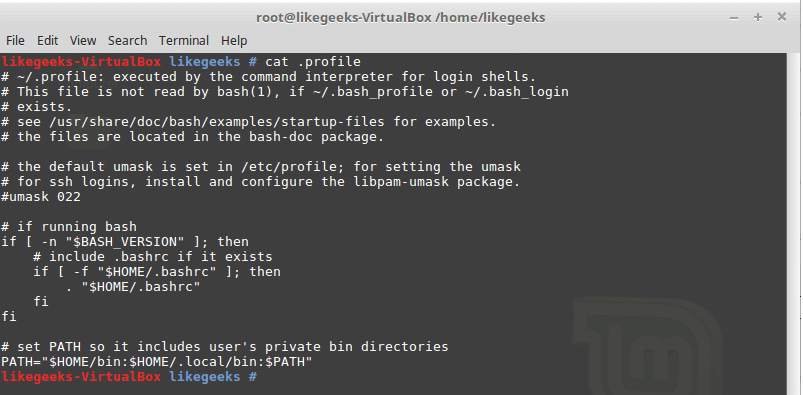
linux cat command

less Command

Displays file content with scroll screen so you can navigate between pages using PgUp, PgDn, Home, and End.

less myfile

grep Command

Searches for a string in the specified files and displays which line contains the matched string.

Parameters

-R

Recursive search inside subdirectories if found.

-i

Insensitive search and ignore case.

-l

Display file name, not the text lines.

Example

grep –Ril mystring /home

linux grep command

passwd Command

Used to change your user password.

linux passwd command

du Command

Calculates the disk usage of a file or a directory.

Parameters

-h

Display human readable form.

-s

Summarize the output total size.

Example

du –hs /home

linux du command

reboot Command

Reboot the system immediately. Just type reboot.

halt Command

Shuts down the system, but make sure to close all of your files to avoid data loss.

That was just some of the main Linux commands.

Notice that, if you forget any command parameters,  just type the command with – -help as a parameter and it will list the used parameters so you don’t have to remember all those parameters at the beginning.

cat --help

likegeeks.com

0

LibreOffice 5.4.3 RC2 çıktı

İlk sürüm adayı 18 Ekim 2017‘de çıkarılan LibreOffice’in 5.4.3 serisinin ikinci sürüm adayı The Document Foundation (TDF) tarafından sürüm takvimine uygun biçimde çıkarılarak kullanıma sunuldu. The Document Foundation (TDF), henüz resmi duyuruyu yapmadı ama paketler test edilmek üzere yansılardaki yerini aldı. Bunun, yalnızca test etmek amacıyla kullanıma sunulan bir sürüm olduğunun unutulmaması ve yalnızca test etmek amacıyla kullanılması gerektiği hatırlatılıyor. LibreOffice 5.4.3 RC2’yi var olan LibreOffice kurulumuna paralel kurabilirsiniz. Farklı dağıtımlar için ayrıntılı kurulum yönergelerini incelemeniz önerilir. Sürüme ilişkin hataları Bugzilla üzerinden bildirebilirsiniz. LibreOffice 5.4.3 RC2 hakkında ayrıntılı bilgi edinmek için yayımlandıktan sonra sürüm notlarını inceleyebileceksiniz.

Continue Reading →

LibreOffice 5.4.3 RC2 edinmek için aşağıdaki linklerden yararlanabilirsiniz. Resmi duyuru yapılana kadar:

Resmi duyuru yapıldıktan sonra:

0

LXTerminal 0.3.1 duyuruldu

LXDE masaüstü ortamı bünyesinde kullanıma sunulan bir terminal emülatörü olan LXTerminal’in 0.3.1 sürümü duyuruldu. Bunun bir güvenlik ve hata düzeltme güncellemesi olduğu belirtilirken, kullanılabilirliği artırmak için eklenen küçük bir özelliğin de içerikte yer aldığı ifade ediliyor. 0.3.0 sürümünden bu yana yapılan değişiklikler değişiklikler için git günlüğünün incelenebileceği belirtiliyor. 0.3.0 sürümünden bu yana devam etmekte olan sekmenin adını değiştirmeyi engeleyen bir problem de düzeltilmiş bulunuyor. LXTerminal, Lubuntu gibi varsayılan olarak LXDE masaüstü ortamını kullanan sistemlerde varsayılan varsayılan terminal konsolu olarak geliyor. LXTerminal 0.3.1 hakkında ayrıntılı bilgi edinmek için sürüm duyurusunu inceleyebilirsiniz.

Continue Reading →

LXTerminal 0.3.1 edinmek için aşağıdaki linkten yararlanabilirsiniz.

0

Tor Browser 7.5a7 duyuruldu

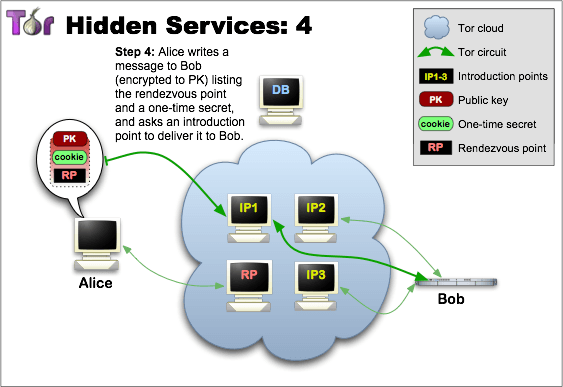
İnternet üzerinde kişisel bilgileri gizleyebilme ve anonim olma olanağı sağlayan ünlü güvenlik aracı Tor Browser’in 7.5a7 sürümü duyuruldu. Bunun yalnız macOS ve Linux kullanıcıları için bir güvenlik ve düzeltme sürümü olduğu belirtilirken, bir Firefox hatası nedeniyle ihtiyaç duyulan sürümün, IP adreslerini sızdırma problemini giderdiği ifade ediliyor. Böylelikle 26 Ekim Perşembe günü Filippo Cavallarin tarafından bildirilen problemin çözümlenmiş olduğu vurgulanırken, yardımcı olan herkese teşekkür edildiği bildirildi. Konuyu merak eden kullanıcıların değişiklikler sayfasını inceleyebilecekleri belirtildi. Tor Browser 7.5a7 hakkında ayrıntılı bilgi edinmek için sürüm duyurusunu inceleyebilirsiniz.
Continue Reading →

Kuşkusuz, bu trafiğin şöyle bir dezavantajı da vardır. Birçok sitenin açılması çok uzun sürebilmektedir. Ancak, kullanıcı .onion uzantılı web sitesini yayınlayarak bu sayede Tor Browser üzerinden yayınladığı siteye girişin hızlı olmasını sağlayabilir. Ayrıca bu siteye normal browserlar ile erişilemeyecektir, siteye yalnızca Tor Browser kullananlar ulaşabileceklerdir. Yani mükemmel bir şekilde gizlenmiş bir web sayfasıdır söz konusu olan. Tor Browser 7.5a7 edinmek için aşağıdaki linklerden yararlanabilirsiniz.

0

Parrot Security OS 3.9 çıktı

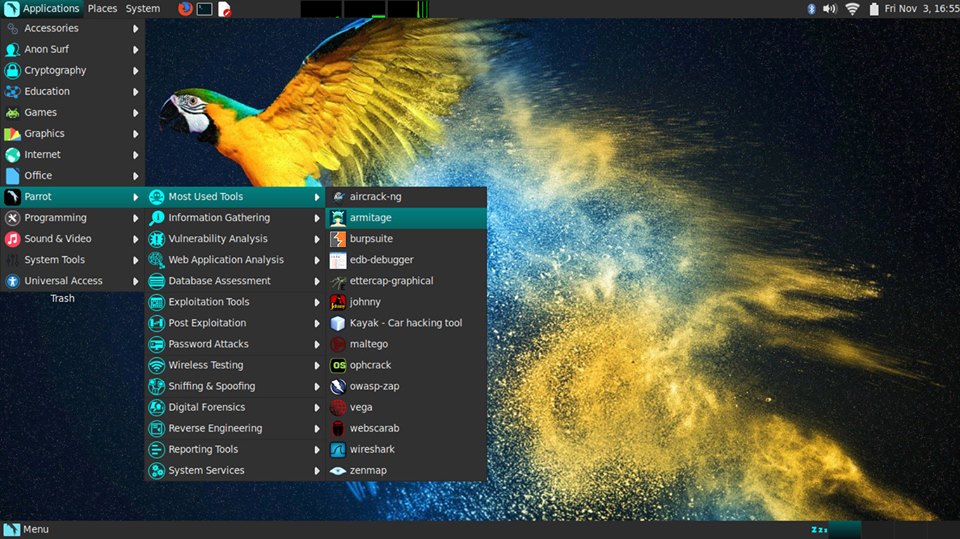
Beta sürümü 18 Ekim 2017‘de duyurulan Debian GNU/Linux tabanlı, penetrasyon testleri için güvenliğe odaklanmış bir koleksiyonla gelen ve adli tıp, tersine mühendislik, hack, gizlilik, anonimlik, şifreleme çözümleri sunan İtalyan kökenli dağıtım Parrot Security OS‘un 3.9 final sürümü çıktı. Resmi duyurusu henüz yapılmamış olan sürüm, indirilmek üzere yansılarda yerini aldı. Tüm güncellemeleri ve son sürümden bu yana piyasaya sürülen yeni özellikleri içeren “intruder” kod adlı yeni sürüm, 4.13 Linux çekirdeği üzerine yapılandırılmış bulunuyor. Debian 10 Buster tabanlı sürüm, MATE 1.18 masaüstü ortamıyla kullanıma sunuluyor. LibreOffice 5.4, Firefox 56 gibi güncel yazılımlarla gelen sistem, AnonSurf, TOR Browser, Cryptographic tolls, güvenlik Pentesting araçları, Digital adli araçlar, geliştirme araçları, Electrum Bitcoin cüzdan, Wine ve UEFI desteği içeriyor.  Sürüm hakkında daha ayrıntılı bilgi edinmek için sürüm notlarını inceleyebilirsiniz.

Continue Reading →


Parrot Security OS 3.9 edinmek için aşağıdaki linklerden yararlanabilirsiniz.

0

What is Linux File System? Easy Guide

As we’ve talked about Linux on the previous post and we have chosen the best Linux distro, also we’ve learned how to install Linux. Today we will discuss the Linux file system. What Is Linux File System? Linux File System or any file system generally is a layer which is under the operating system that handles the positioning of your data on the storage, without it; the system cannot knows which file starts from where and ends where. Even if you find any unsupported file system type. You can even download a software that can deal with it. So what are Linux file system types? When you try to install Linux you will see that Linux offers many file systems like these:

Continue Reading →

Ext, Ext2, Ext3, Ext4, JFS, XFS, btrfs and swap

So what are these file systems that Linux offers?

Ext: old one and no longer used due to limitations.

Ext2: first Linux file system that allows 2 terabytes of data allowed.

Ext3: came from Ext2, but with upgrades and backward compatibility.

The only problem about it that the servers don’t use this kind of file system because this file system doesn’t support file recovery or disk snapshots.

Ext4: faster and allow large files with significant speed.

It is a very good option for SSD disks and you notice when you try to install any Linux distro that this one is the default file system that Linux suggests.

JFS: old file system made by IBM. It works very well with small and big files, but it failed and files corrupted after long time use, reports say.

XFS: old file system and works slowly with small files.

Btrfs: made by Oracle. It is not stable as Ext in some distros, but you can say that it is a replacement for it if you have to. It has a good performance.

You may notice From the comparison above  that Ext4 is the best Linux File System

 Top Level Explanation

Now you know what file system Linux is and its types. So what is inside that filesystem, I mean from the top level.

You may come from Windows, and Windows has partitions like C:\ and D:\, you can install Windows on any of these partitions, usually C:\.

What about Linux File System Structure?

Well, if you navigate to the root partition which is / you’ll see the Linux File System hierarchy.

Most distros have the same structure with some little difference between distros.

Linux File System Directories

/bin: Where Linux core commands reside like ls, mv.

/boot: Where boot loader and boot files are located.

/dev: Where all physical drives are mounted like USBs DVDs.

/etc: Contains configurations for the installed packages.

/home: Where every user will have a personal folder to put his folders with his name like /home/likegeeks.

/lib: Where the libraries of the installed packages located since libraries shared among all packages

unlike windows, you may find duplicates in different folders.

/media: Here is the external devices like DVDs and USB sticks are mounted and you can access their files from here.

/mnt: Where you mount other things Network locations and some distros you may find your mounted USB or DVD.

/opt: Some optional packages are located here and this is managed by the package manager.

/proc: Because everything on Linux is a file, this folder for processes running on the system,

and you can access them and see much info about the current processes.

/root: The home folder for the root user.

/sbin: Like /bin, but binaries here are for root user only.

/tmp: Contains the temporary files.

/usr: Where the utilities and files shared between users on Linux.

/var: Contains system logs and other variable data.

Now you have a good idea about what the Linux file system is.

Choosing the right file system can lead you to the best performance, so choose the best.

likegeeks.com

0

How To Install Linux Step-By-Step

After you’ve chosen the Best Linux Distro, now it’s the time to know how to install Linux. If you want to install Linux, there are 2 ways to do that: The first way is to download the Linux distribution you want and burn it into a DVD or USB stick and boot your machine with it and complete the installation process. The second way is to install it virtually on a virtual machine like VirtualBox or VMware without touching your Windows or Mac system, so your Linux system will be contained in a window you can minimize and continue working on your real system. For me, I prefer VirtualBox, it’s free and runs very fast on my PC than VMware, and support installing Windows, Linux and Mac OS with all versions. Let’s choose any Linux distro and install it using both 2 ways. I’m going to choose Linux mint, they call it the Mac OS of Linux. It is a good distro for personal use. The version we are going to install is 18.1 “Serena” at the time of writing that article.
Continue Reading →

Go to this link and download it:

https://www.linuxmint.com/download.php

I prefer the Cinnamon desktop version it is promising and elegant.

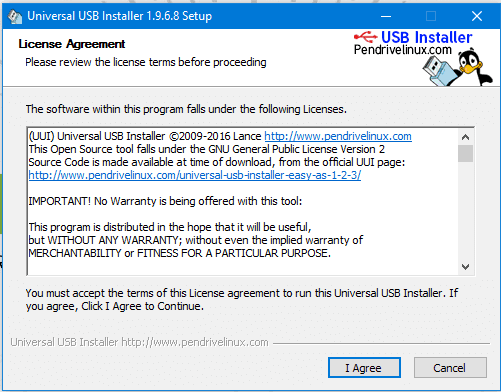
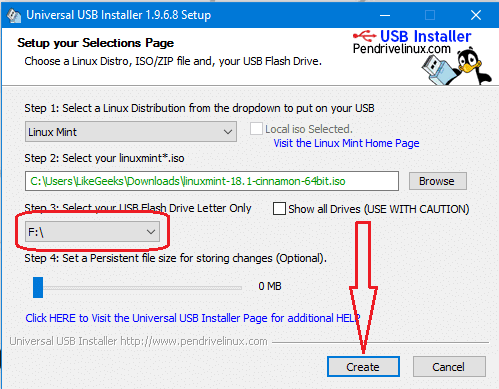
Once you download the ISO file, you will have to burn it on DVD or the easy way, copying it on a USB stick using a program called universal USB installer, you can download this program from this link:

https://www.pendrivelinux.com/universal-usb-installer-easy-as-1-2-3/

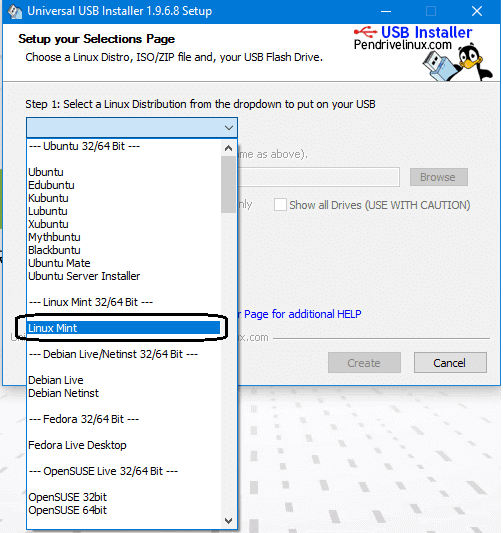
After downloading the program, open it and choose from the list the distro you want to install, in our case we will choose Linux mint.

Make sure that you put your memory stick on the computer and click next and wait till the copying process is finished.

how to install linux using usb
how to install Linux using USB

how to install linux mint

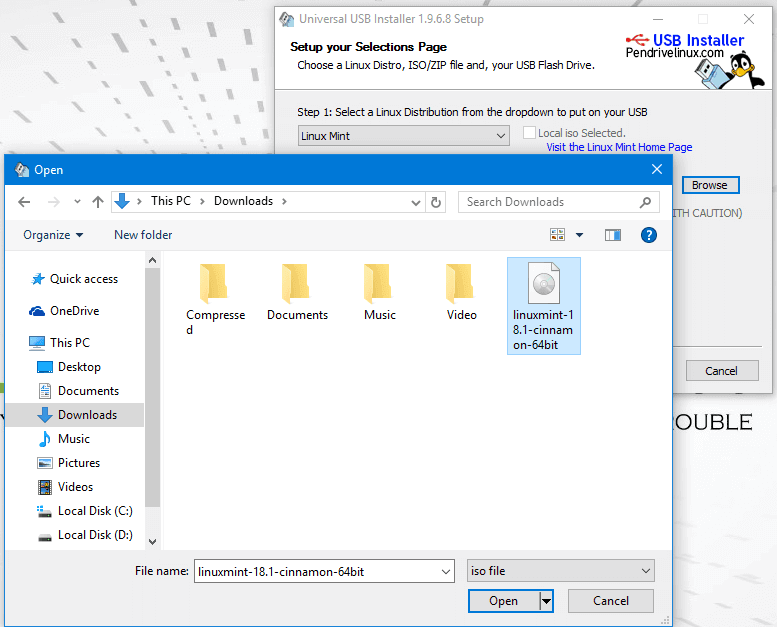
install linux choose iso

Now Finally we click create to create bootable USB

create bootable usb install linux

And now you can boot with this memory stick.

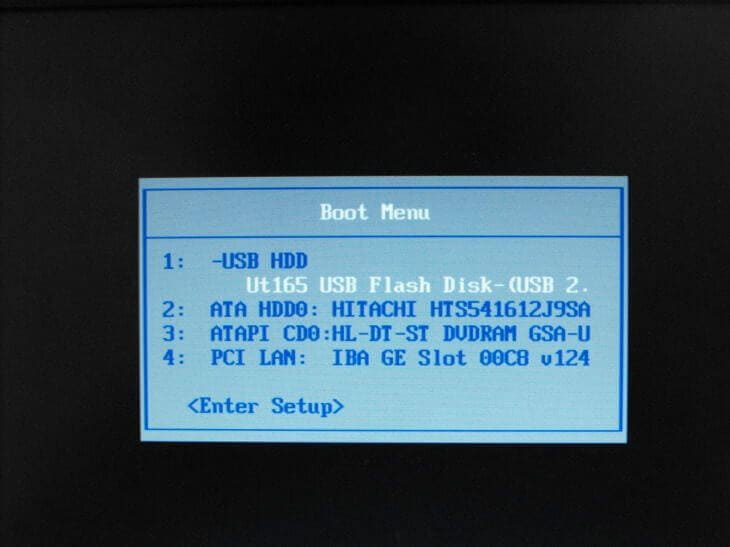
Then Restart your PC and go to BIOS settings and select boot options and make sure that the USB is the first option, then save your BIOS settings and reboot.

boot linux

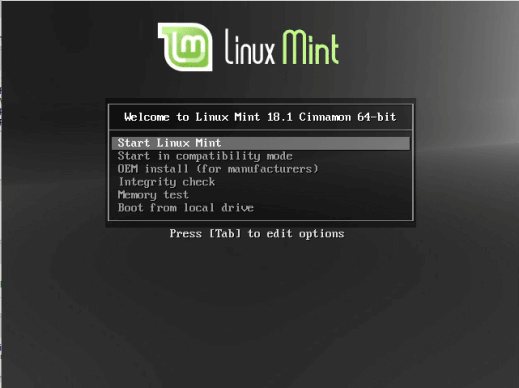
Then it will show the installation screen, press Enter and it will load the live CD content.

install linux boot menu

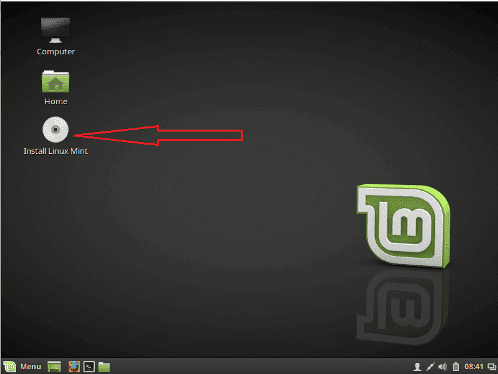
Now the desktop should appear like that:

linux boot complete

Click install Linux mint

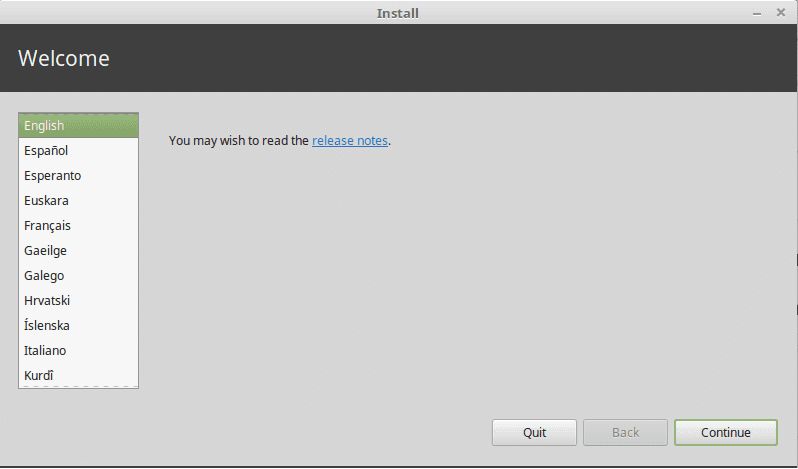
Then choose the language used for installation.

choose language

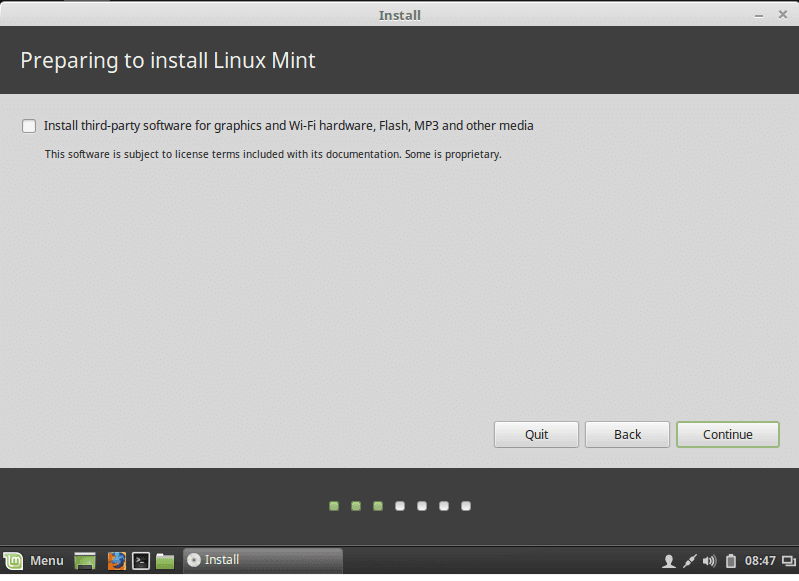
install third party

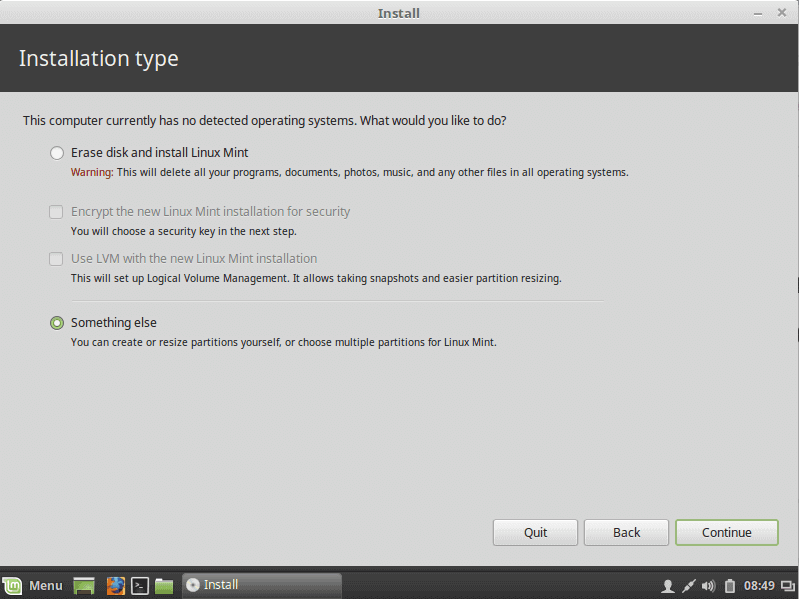
Then choose the installation type, and TAKE CARE if you are installing Linux on a disk that contains other operating systems, you MUST choose the option called something else.

delete partitions

If you are installing it on a new disk, choose the option Erase disk.

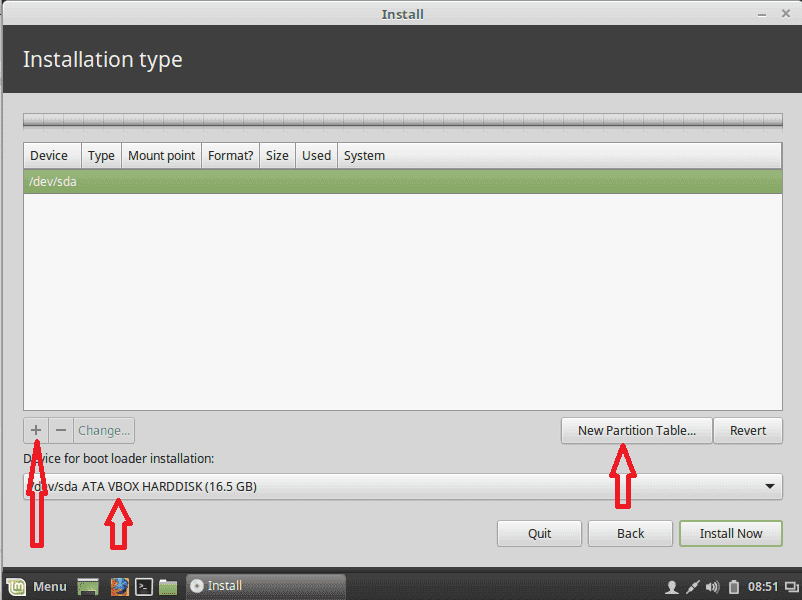
Linux requires 2 partitions to work, the root partition and the swap partition.

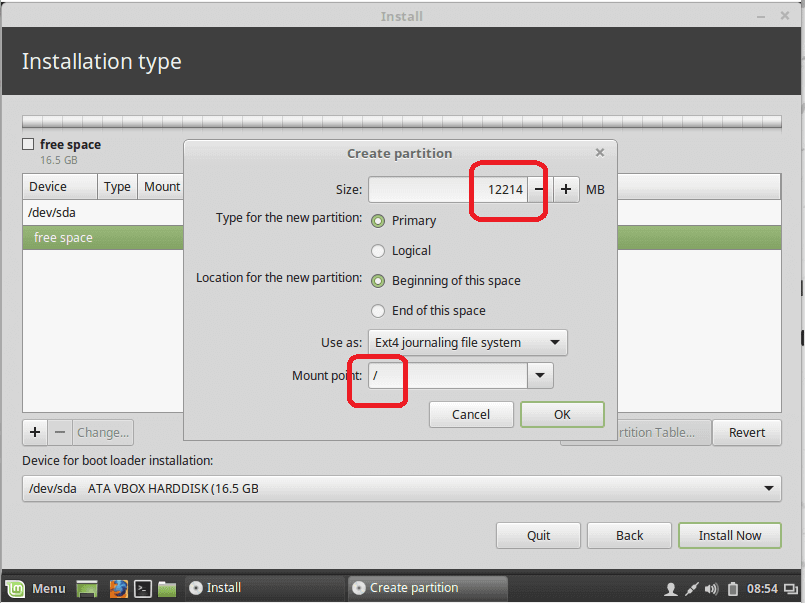
Now we will create them by clicking the plus button and choose about 12 GB or more as you need but not less than that for root partition, and choose mount type as / which stands for root and of course format will be Ext4.

linux create partitions

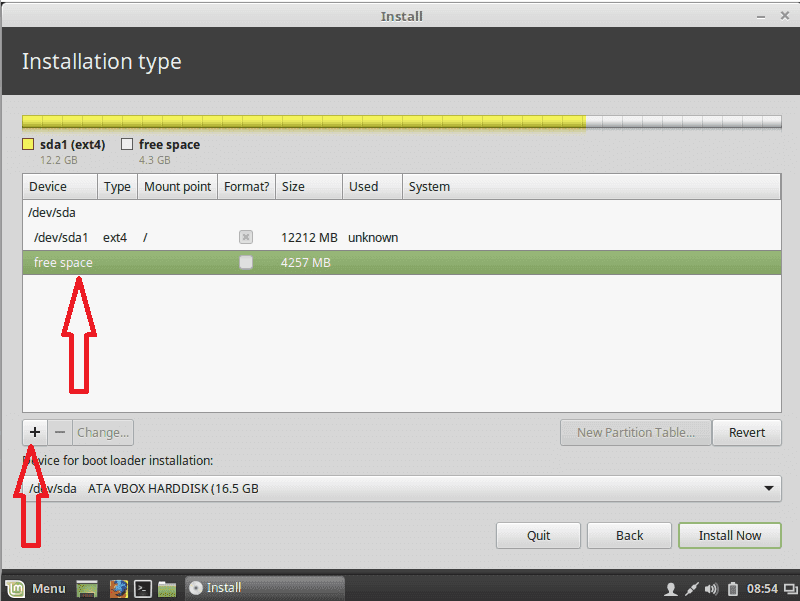
Now we create a swap partition, choose the remaining free space and click the plus button and choose swap area as shown:

create root partition

choose free space

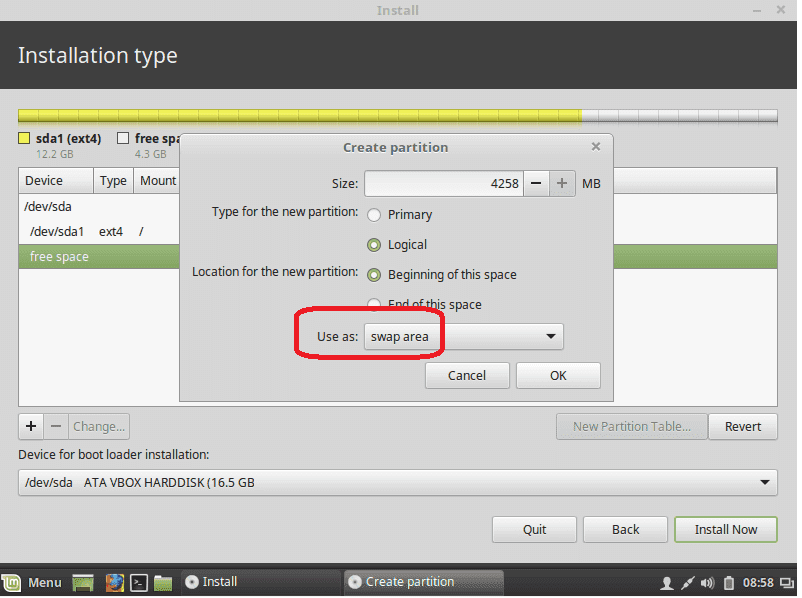
Then Create the swap area:

create swap area

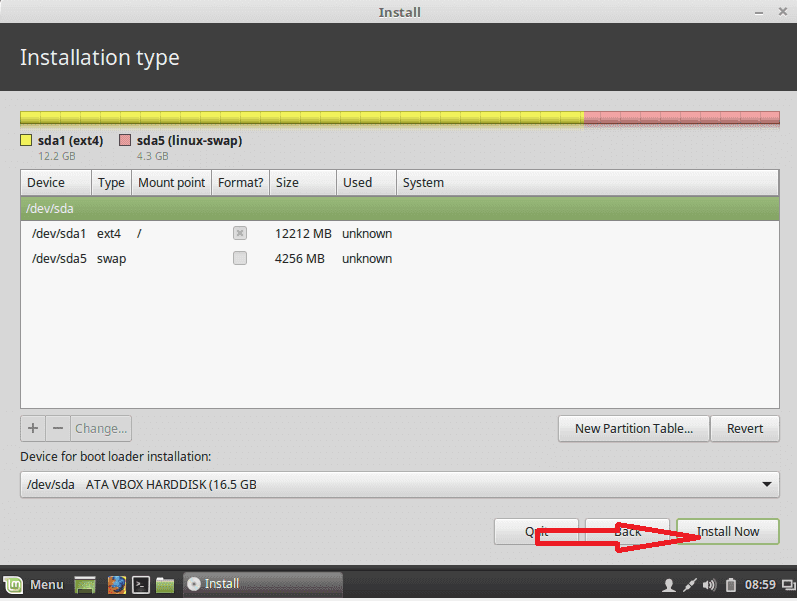
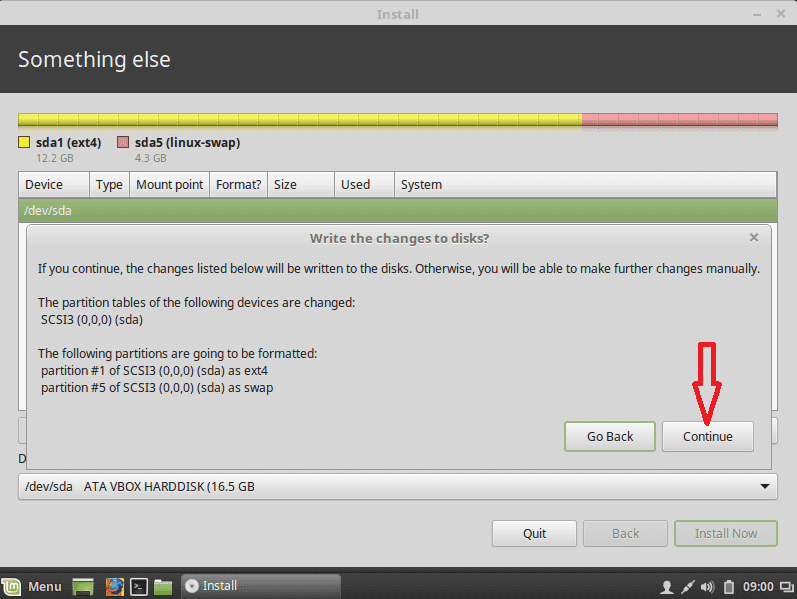
Then click install now and agree about writing changes to disk:

click install linux

confirm install

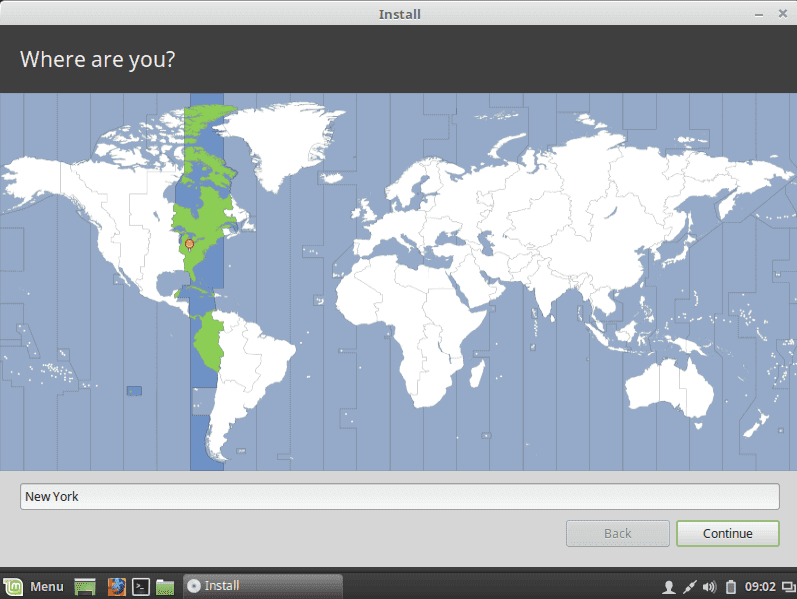
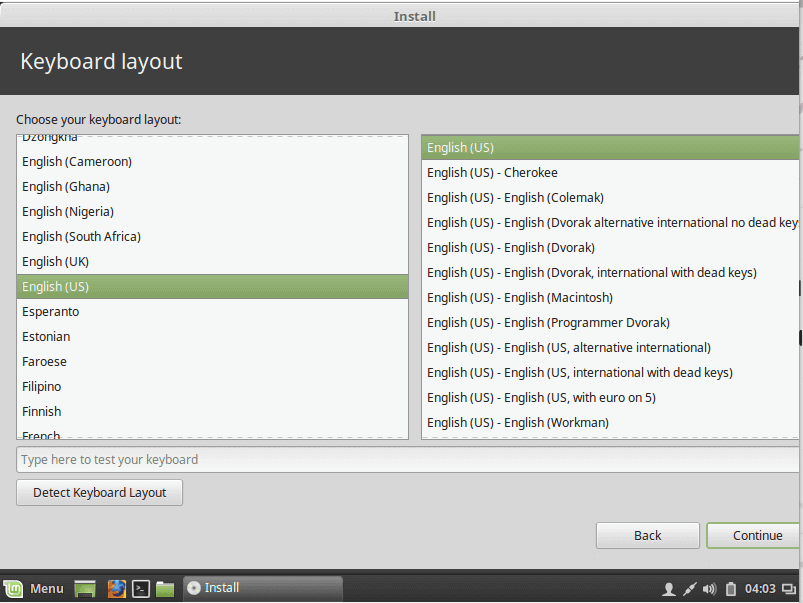
Now you choose the time zone and click continue the choose the language:

choose timezone

choose linux language

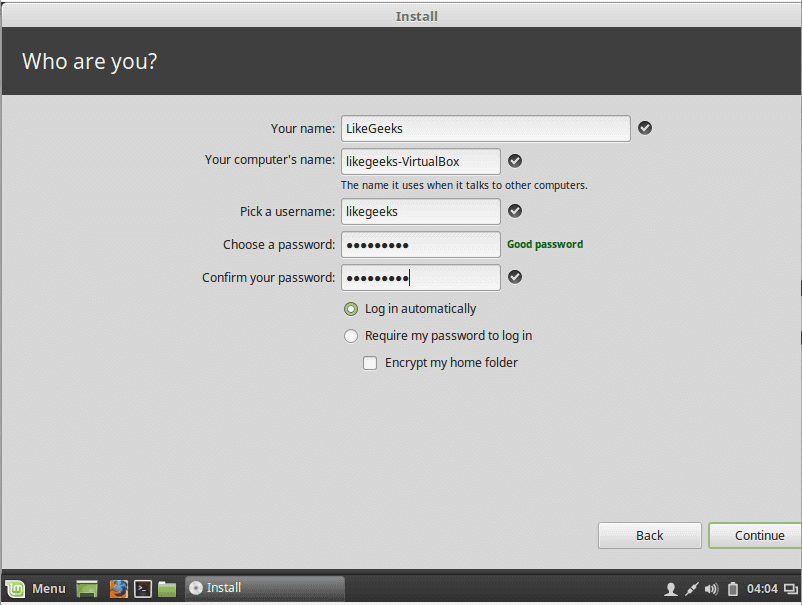
Now you write your username and password and click continue:

choose username

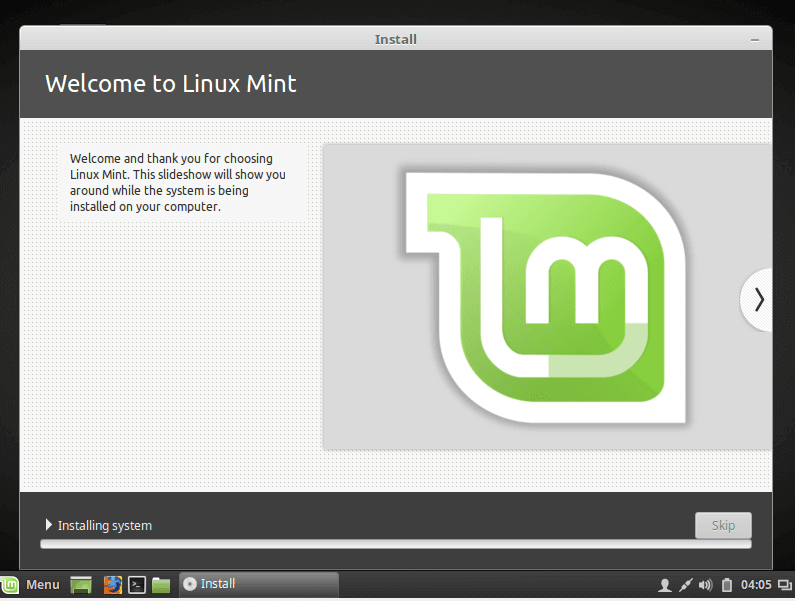
Finally, installation started:

linux installlation started

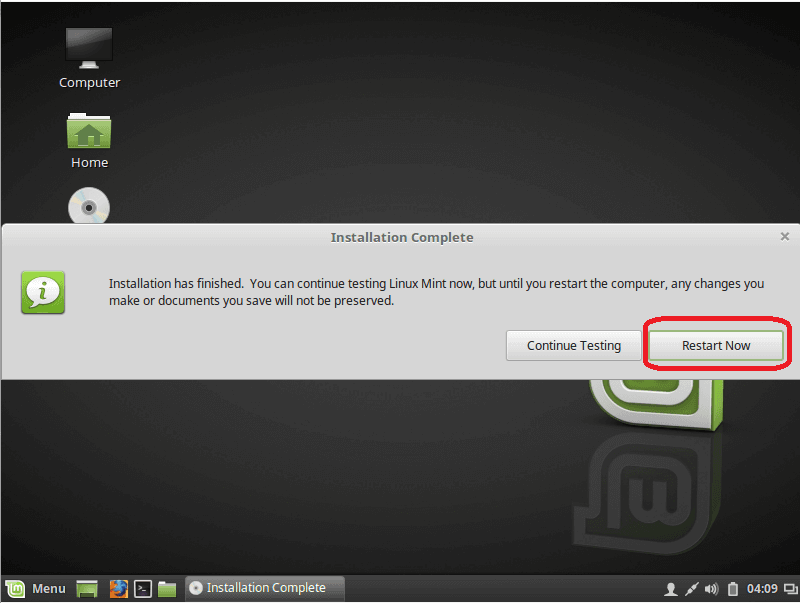
After finishing the installation, it will prompt you to reboot the machine and remove the installation media whether it is a DVD or USB.

linux installation finished

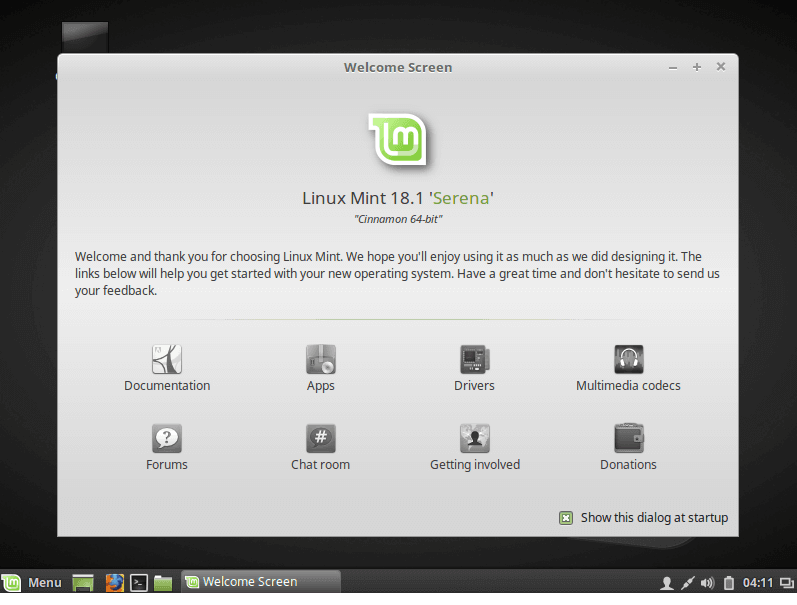
And yes, this is how to install Linux on Physical machine.

linux welcome screen

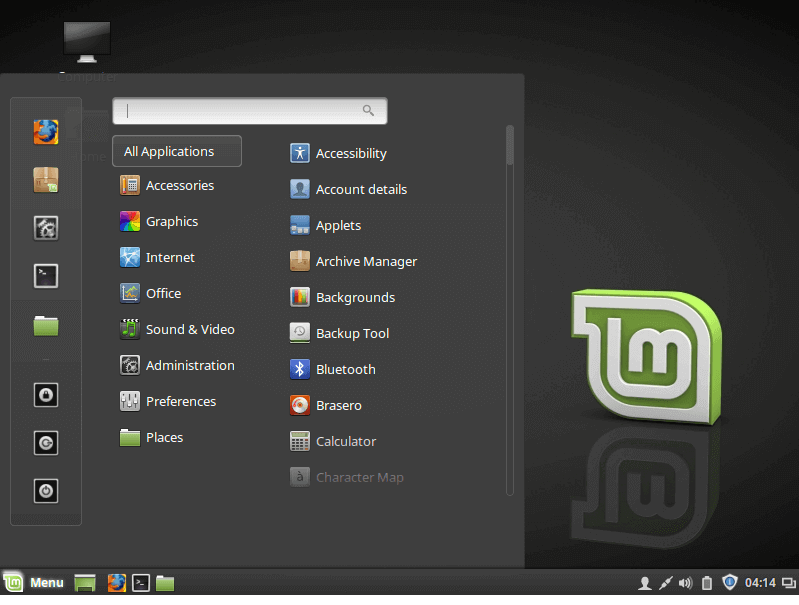
linux start menu

The second way it to install Linux is to install it on VirtualBox First download VirtualBox from here:

https://www.virtualbox.org/wiki/Downloads

There are 2 ways to use Linux on VirtualBox:

The first way is easy, it like the normal installation process

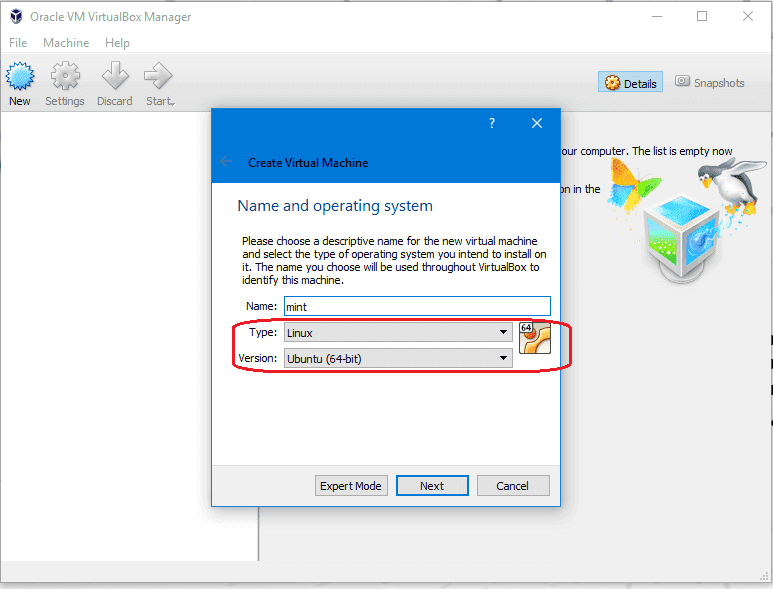
Open VirtualBox and click new and choose Linux and Ubuntu 64:

linux virtualbox create vm

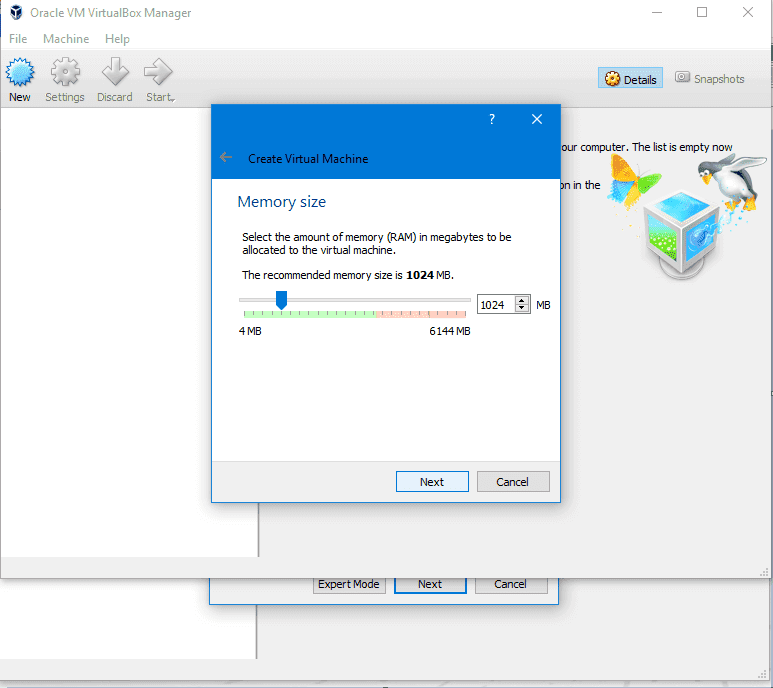
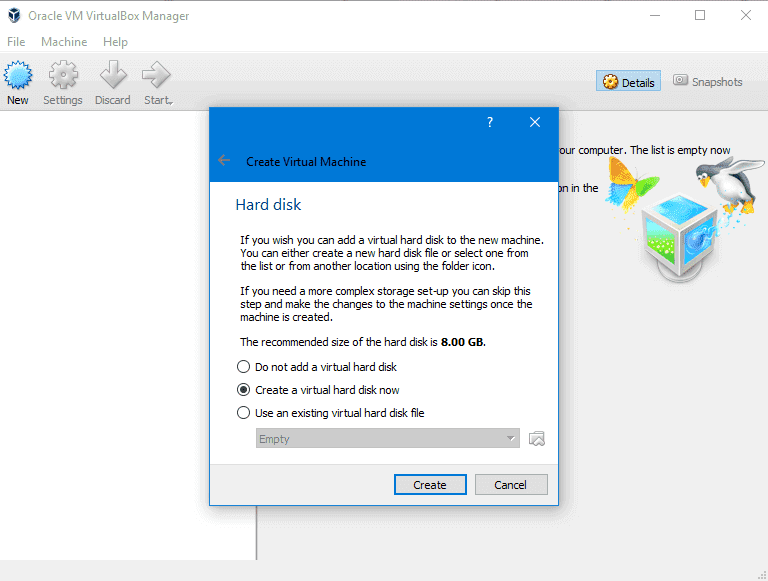
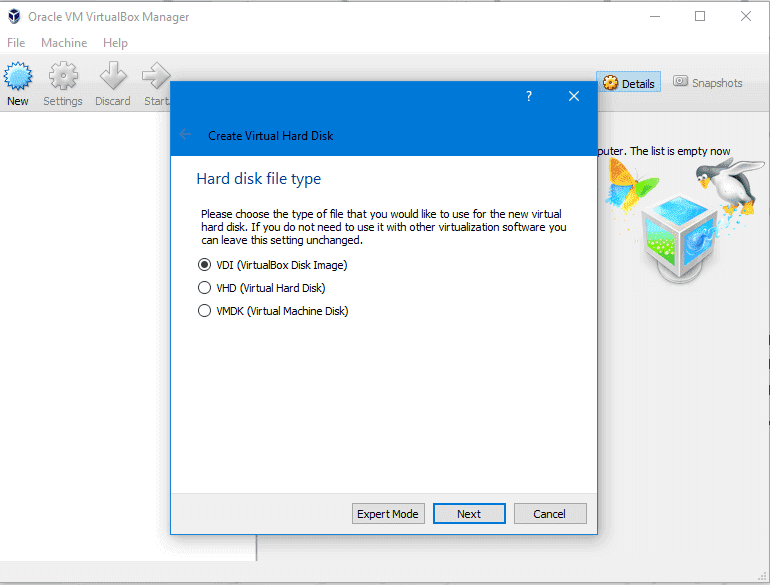
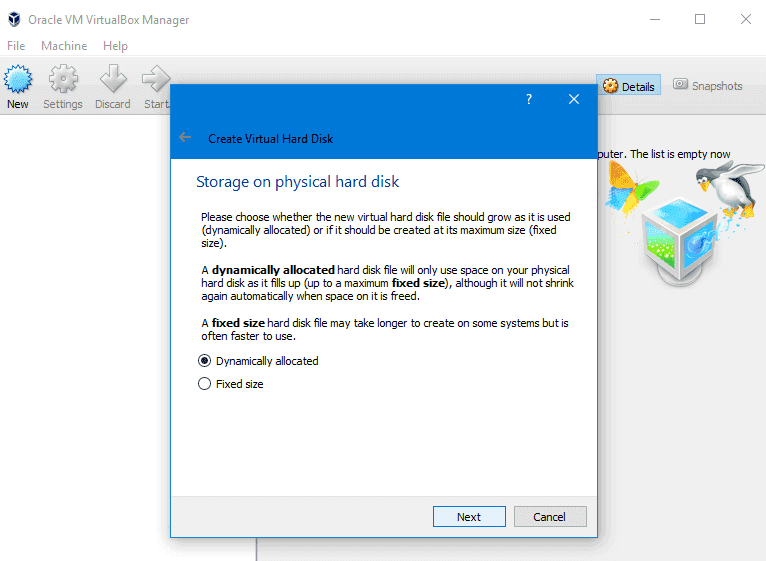
Then choose the RAM required not less than 1 GB and choose the disk file type or leave it as VDI and dynamically allocated and the size not less than 12 GB and hit ok.

linux virtualbox assign ram

linux virtualbox hdd type

linux virtualbox hdd file

linux virtualbox dynamic allocated
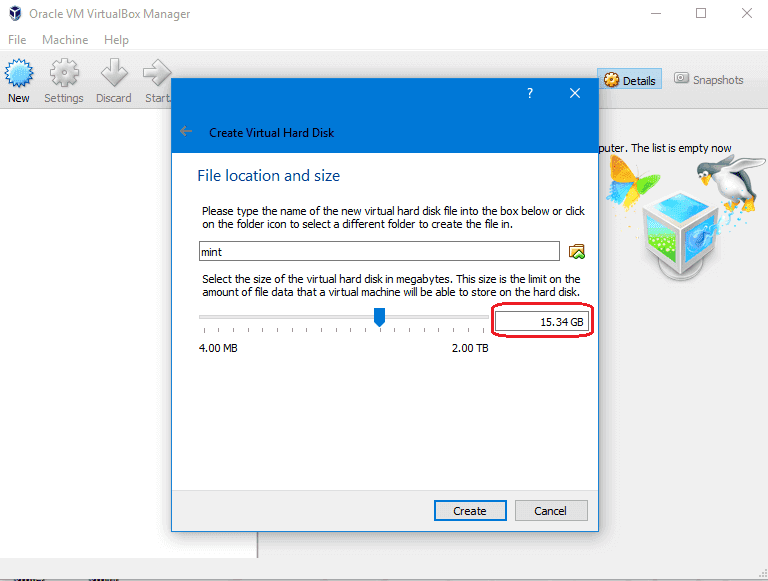
Then file location for disk to be used

linux virtualbox hdd size

So now the VirtualBox is created, we just need to make it boot from the DVD that we’ve downloaded.

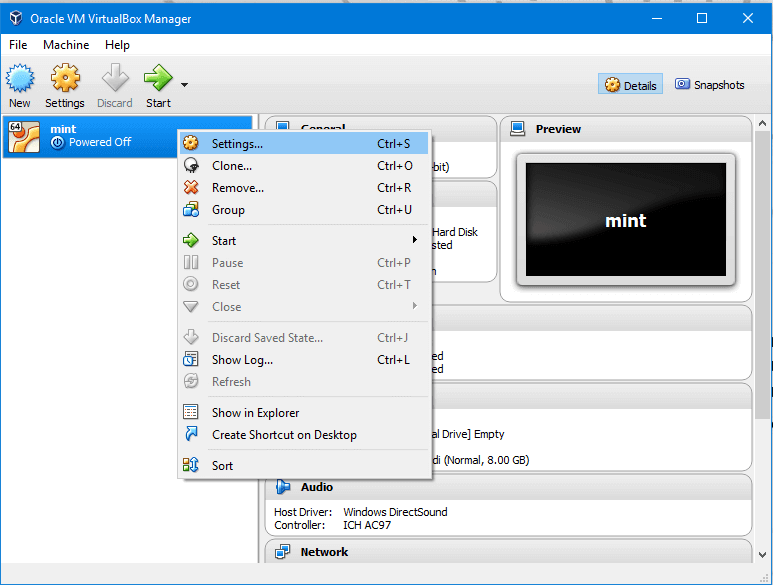
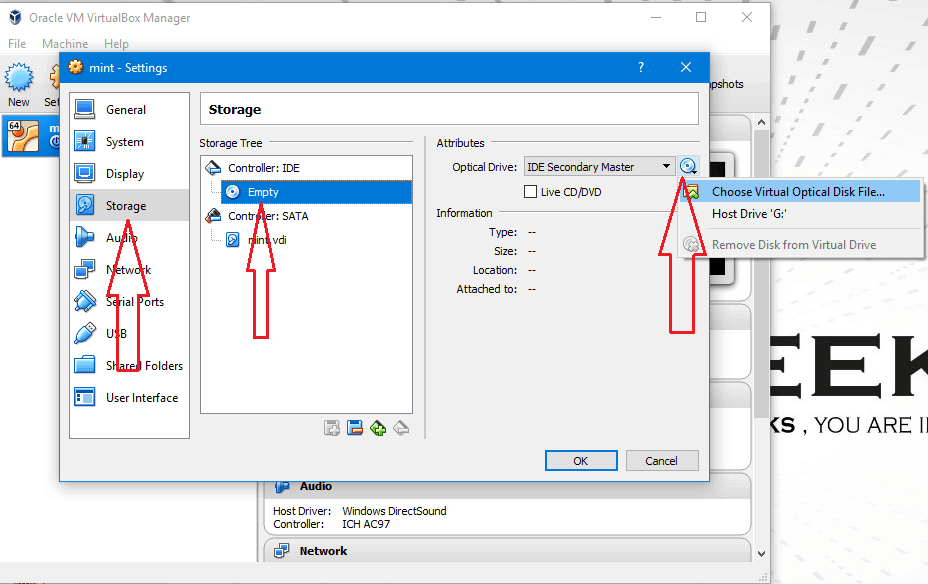
Choose from settings > Storage and choose the ISO image and click OK.

linux virtualbox settings
Then choose the iso image
linux virtualbox boot iso
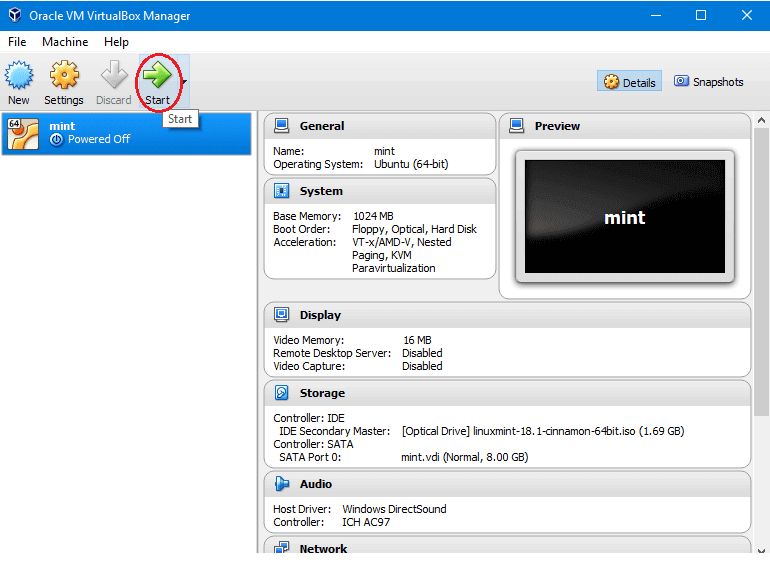
Then Click start

linux virtualbox start

After loading the desktop, click install Linux mint and the rest of the steps are the same as the above mentioned without any change, And this is how to install Linux on a virtual machine.

likegeeks.com

0