
Archive | GNU/Linux İpuçları

How to Budget for Web Hosting

We’d all like to save money with shared hosting, but for some websites, VPS or even dedicated plans are unavoidable. If you do end up having to spring for a more advanced plan, it probably means your site is getting bigger and receiving more traffic – so the financial cost will be worth the rewards. But how can you plan for that financial cost, and minimize it as much as possible? To start, you need to know where your site is headed. To figure out the best budget for your web hosting plan, it’s important to first identify the specific goals that you have for your site. You don’t want to end up committing to a plan that doesn’t fit those goals, whether it’s too complex or not scalable enough.

Continue Reading →

What are your site goals?

To figure out the best budget for your web hosting plan, it’s important to first identify the specific goals that you have for your site. You don’t want to end up committing to a plan that doesn’t fit those goals, whether it’s too complex or not scalable enough.

If you’re aiming for your website to…

  • Attract a small following among family and friends
  • Serve as a point of contact for a local business
  • Promote an individual portfolio or CV

…then shared hosting ($2.75 – $15.00/month) will be more than sufficient. But if you want that website to:

  • Handle the traffic demands of a medium-sized business
  • Be secure enough to handle electronic card payments
  • Accommodate the files of a successful and active blog
  • Maintain good page speed and image loading times as traffic increases

…you’ll need to upgrade to VPS ($5 – $80/month).

The only websites that will need to shell out for a dedicated plan ($80 – $730/month) are:

  • Pages for companies with a huge, multinational audience that generates a lot of traffic
  • Sites with particularly large ecommerce demands, like storing lots of high-res product images

If you’re running a small website with only a few pages right now, but the goal is to eventually scale up and become a high-traffic, content-heavy platform, then it’s possible to keep that ambition while saving your money – after all, you can always upgrade to a VPS or dedicated plan later.

Basically, you can think of shared, VPS, and dedicated hosting as the respective options for small, medium, and large websites. Once you’ve chosen between these types, the real budgeting work begins.

Planning costs by the year

The most important factor in a web hosting budget is time commitment. When you sign up to a hosting plan, you’ll have the option to pay for anywhere between one month and four years in advance.

The incentive to pay for four years up front is that the price per month becomes much lower when you do so. For example, HostGator’s most basic shared plan costs $6.95/month when purchased for three years, $7.95/month for two years, and $8.95/month for one year. It costs $10.95 to purchase one month at a time.

In short, here’s how much you’d pay initially by plan, and how much you’d end up paying after three years:

By paying for a year up front rather than by the month, you’ll already save $24 after one year, and $72 after three years.

We’d recommend purchasing a plan for one year in advance. That way, you still save on the monthly price, but you’re not sacrificing the opportunity to reach a growth goal and upgrade your plan within a year or two.     

Most hosting providers offer money-back guarantee periods that last for the first 30 or so days after purchase, so regardless of how many years you commit to in advance, you’ll still get that initial window risk-free.

It’s also important to note that most hosting providers offer tempting introductory prices for the first purchase period, which then renew at a much higher rate.

For example, buying HostGator’s basic shared plan for one year costs $5.95/month the first year, and then renews at $8.95/month. To buy the same plan for three years costs $2.75/month for the first three years, and then renews at $6.95/month for the following three years.

Choosing a provider

You don’t have to pay top dollar for good service. There are plenty of cheap hosting providers that can support your site without breaking the bank.

If you’re looking for dirt cheap hosting, then Hostinger’s $0.80/month introductory shared price is a good place to start, as is iPage’s $1.99/month shared plan. But if you’re looking to get the most value for your money, then it’s worth taking a closer look.

We’ve talked about how most hosting providers offer introductory prices and free trial periods. But the top providers also have their differences. Firstly, you want to choose a provider that has a good reputation for your chosen hosting type.

For example, while DreamHost offers great features on its shared plans, its VPS plans don’t allow you root access, and you’d be better served elsewhere.

And while Hostinger’s shared plans are secure and user-friendly, it doesn’t offer any dedicated plans, which immediately limits your potential to scale.

Providers also differ in their more general strengths and weaknesses. If you value customer service above all, then DreamHost’s lack of phone support will be a major mark in your “cons” column. If uptime is your top priority, then HostGator’s 99.99% guarantee will be a big draw.

Additional costs

Saving money is important. But it’s also important to make room in your budget for the hosting features that matter most to you. Here are three add-ons that we think are worth paying for:

  1. Security tools
  2. Email
  3. Automated backups

The most important security cost you’ll incur is that of an SSL certificate. You can’t really host a successful website without this coveted padlock icon, because it’s an immediate signal to visitors that their data is safe.

Many hosting providers include a basic version of SSL for free on some plans, or you can up your game and purchase a premium SSL certificate for about $50. If you want to take security a step further, you can also budget for SiteLock security at about $2/month, which offers daily malware scans and increased protection from DDoS attacks.

Adding advanced email functionalities to your website will typically cost between $6 and $15/month. Many web hosts will let you purchase business accounts for G Suite or Office 365, which you can then use to set up addresses @yourdomain.com.

This is an especially attractive feature for anyone looking to host a business or eCommerce site.

You can always back up your site yourself. But if you have room in your budget for the convenience of automatic backups, most hosting providers offer this service for around $2/month.

The Wrap-Up

It’s important to have clear goals in mind when you choose a hosting plan. If you’re making a small blog to update family and friends, then there’s no need to overpay for a VPS plan.

But if you’re looking to get an eCommerce business off the ground, then the lack of security on a shared server will be too limiting. Once you know what you want from your site, it will be easy to select a plan that will give you the most value for your money.

Lastly, don’t forget to budget your time wisely, too! You’ll save the most money by purchasing a hosting plan for three or four years upfront, but for most of us, committing to one provider for that long is a lot to ask.

Take a look at monthly and yearly payment options before you make your decision.

Now that you know what to look out for, you’ll be able to get the most bang for your buck. Happy hosting!

0

15+ examples for yum update command

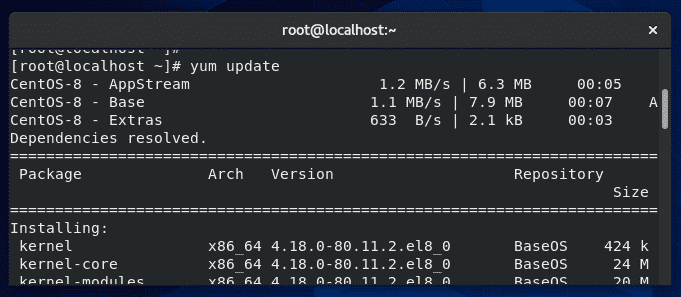
Yum is a package manager used on Red Hat, CentOS, and other Linux distributions that use RPM Package Manager. Yum is used to install, update, delete, or otherwise manipulate the packages installed on these Linux systems. In this tutorial, we will cover the yum update command – what it is, how to use it, and all the different commands you may need to know when you wish to upgrade the installed packages on your system. Yum update is the command used to update applications installed on a system. If the command is run without any package names specified, it will update every currently installed package on the system. When running this command, yum will begin by checking its repositories for updated version of the software your system currently has installed. The screenshot below shows the type of output you’ll typically see when first issuing the yum update command.
Continue Reading →

How does yum update work?

Yum update is the command used to update applications installed on a system. If the command is run without any package names specified, it will update every currently installed package on the system.

yum update

When running this command, yum will begin by checking its repositories for updated version of the software your system currently has installed. The screenshot below shows the type of output you’ll typically see when first issuing the yum update command.

yum update command

As you can see, the output from yum first lists the repositories it’s querying, which are the default ones for CentOS: AppStream, Base, and Extras. Below that, yum lists the various packages which it has found updates for.

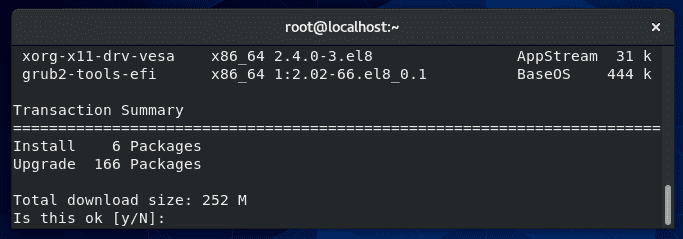
At the tail end of this output, yum will display the “Transaction Summary,” which shows the total number of packages that are to be installed and upgraded.

yum update summary

In this example, 166 packages are being upgraded, and 6 new packages are being installed.

In case you’re wondering why new packages are being installed when we are only supposed to be upgrading applications, some new software packages may have become part of this Linux distribution, or some upgraded applications may rely on extra packages that are not yet installed.

Once you review the list of software that yum plans to upgrade, you can confirm these changes by typing “y” and hitting enter.

Yum will then perform the upgrades, which may take some time depending on the speed of your connection and the system itself.

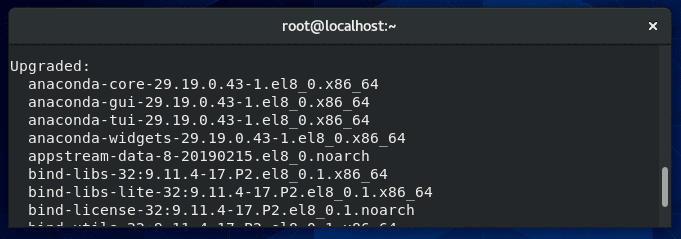
Once it has finished, you’ll get a final summary which will list all the packages that were successfully upgraded, as well as any errors that may have been encountered.

yum update complete

Update without gpg checking

GPG keys are used to verify the authenticity of an RPM package. The –nogpgcheck option in yum will instruct it to skip checking GPG signatures on packages. This is useful in cases where you have an unsigned package or you just don’t have the GPG key.

yum update --nogpgcheck

This is a quick solution if you encounter an error like “Package NameOfPackage.rpm is not signed .. install failed!” when running the normal yum update command. The –nogpgcheck option will ignore this warning and proceed with upgrading the package anyway.

Update from a local repo

It’s possible to set up local repositories for yum to query when it does an update. This is often done if you want to use yum to update packages that aren’t included in the default repos, or if you need to upgrade an offline system.

First, place all your updated RPM files in a new folder. In this example, we’ll use /root/rpms.

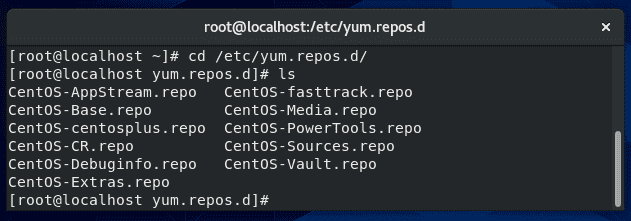
Next, navigate to the following directory where you can see all the repo files for yum:

cd /etc/yum.repos.d

Local repo files

To set up a local repo, create a new file in this directory.

vi MyRepo.repo

Inside your repo file, configure it in this format, changing the lines as necessary:

[MyRepo]

name=My Local Repo

baseurl=file:///root/rpms

enabled=1

gpgcheck=0

The big difference between a local repo and a remote repo is in the “baseurl” line, where the file:// protocol is specifying a local file, as opposed to the remote protocols http:// or ftp://

Once the file has been saved, apply the correct permissions:

chmod 644 MyRepo.repo

The repository should now be ready to use. Be sure clear yum’s cache before attempting a yum update command:

yum clean all

Show patches

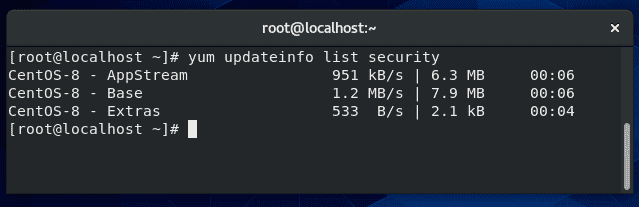
Yum can display available security patches, without installing them, with this command:

yum updateinfo list security

List specific patches

If no output is returned, like in the screenshot above, this means there are no security patches available for any installed software on your system.

Update a single package

If you need to update a certain package without running an update for every application installed, just specify the name of the package in your yum update command.

yum update name-of-package

Multiple packages can be specified, separated by a space. You need to have the name of the package typed perfectly in order for yum to find it in its repositories; if you’re not sure of a package name, first check what packages are currently eligible for updates:

yum check-update

Update all but one package

If you need to run the yum update command but you wish to exclude a package from being updated, you can specify the –exclude option.

A common situation where administrators may find this necessary is with kernel updates, since these are major updates that could cause unpredictable errors on a production server. However, they may still want to run the command to update less sensitive applications.

To exclude a package (in this example, those related to the kernel):

yum update --exclude=kernel*

The asterisk acts as a wildcard, in case there are multiple related packages or you don’t know the full name of the package.

Alternatively:

yum update -x 'kernel*'

Exclude multiple packages

You can exclude multiple packages with more –exclude flags.

yum update --exclude=kernel* --exclude=httpd

Use this flag as in the example above, or the -x flag, as many times as needed.

Check when last yum update ran

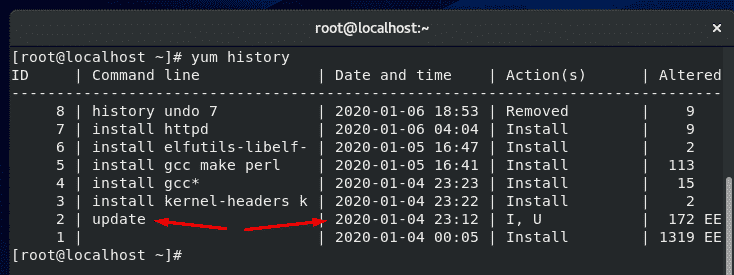
To see a list of yum transactions, with the date and time they were ran, use the yum history command.

yum history

Check yum update history

In the screenshot above, you can see that the last time yum updated software was on January 4th.

Rollback (revert) update

A great feature of yum is that it allows you to undo a recent update, thus restoring the upgraded packages to their previous versions.

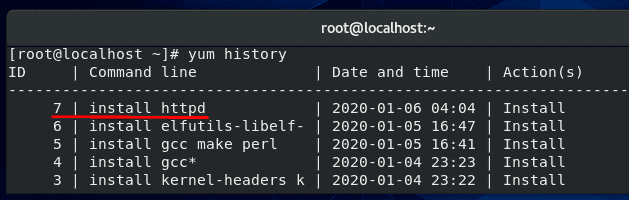
Each yum action (install, update, erase, etc) is assigned a transaction ID, and this ID must be specified when undoing a yum update. To see a list of transaction IDs for recent yum operations, use this command:

yum history

List yum history

In the screenshot above, you can see the last operation run with yum was to install the httpd package. Undoing an installation or an update works the same way, so in this example, we will undo this recent installation of httpd. As shown in the screenshot, this transaction has an ID of 7.

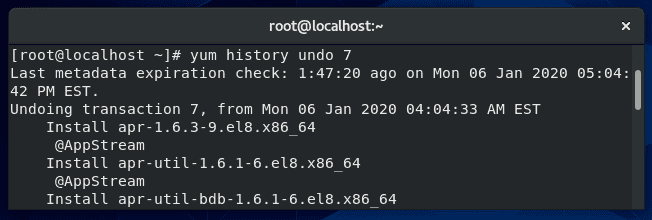
To undo this change and roll back the program to its previous version, issue this command:

yum history undo 7

Undo yum update

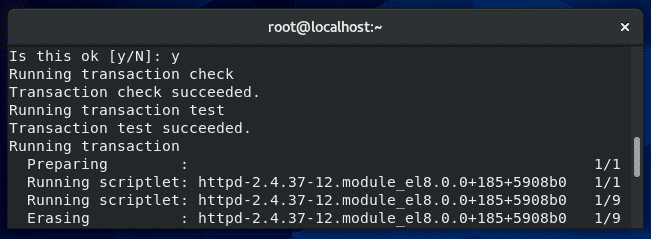
As usual, yum will summarize the changes to be made and ask if you’d like to proceed with a Y/N prompt. Enter Y and the specified transaction will be undone.

yum undo report

Clean up a failed yum update (Troubleshooting)

If one or more packages fail to upgrade successfully when you run the yum update command, the system can end up with duplicate packages installed (2 versions of the same program).

Sometimes, following the rollback instructions in the section above can fix the problem. If that doesn’t work, you can remove duplicate packages on your system with this command:

package-cleanup --dupes

Yum stores a cache of information for packages, metadata, and headers. If you encounter an error, clearing yum’s cache is a good first step in troubleshooting. Use the following command to do that:

yum clean all

yum clean command

Skip errors

When updating or installing a package, that package may require additional software in order to run correctly. Yum is aware of these dependencies and will try to resolve them during updates by installing or upgrading the extra packages that are needed.

If yum has trouble installing the necessary dependencies, it produces an error and doesn’t proceed further. This is a problem if you have other packages that need to be updated.

To instruct yum to proceed with updating other packages and skipping the ones with broken dependencies, you can specify the –skip-broken command in your yum update command.

yum update --skip-broken

Get a list of packages that need an update

Running the yum update command as normal, with no additional options, will output a list of available updates.

yum update

If you’d like to see some additional information about the package updates available, type this command:

yum updateinfo

To see information about security updates that are available for the system, type this command:

yum updateinfo security

Difference between yum check updates and list update

Although the two commands sound similar, so there is a difference between checking for updates and listing updates in yum.

yum list updates

The command to list updates, shown above, will list all the packages in the repositories that have an update available. Keep in mind that some of the packages in the repositories may not even be installed on your system.

yum check-update

The command to check for updates, seen above, is a way to check for updates without prompting for interaction from the user. This is the command you would opt for if you were coding a script to check for updates, for example.

The check-update command will return an exit value of 100 if there are packages that have updates available, and it will return an exit value of 0 if there are no available updates.

A value of 1 is returned if an error is encountered. Use these exit codes to code your script accordingly.

Notify when updates are available

There are a few packages that can help manage yum updates on your system. Some can even notify administrators when yum has updates that are available to be installed. One such service is called yum-cron.

Install yum-cron using yum:

yum install yum-cron

Set the yum-cron service to start at boot:

systemctl enable yum-cron.service

systemctl start yum-cron.service

Configure the settings for yum-cron inside the configuration file using vi or your preferred text editor:

vi /etc/yum/yum-cron.conf

In this file, you can specify if the updates should be automatically applied or not. If you’d only like to receive notifications, fill out the email information inside the configuration file. Yum-cron will then send you an email anytime there are updates available for your system.

apply_updates = no #don’t apply updates automatically

email_from = root@localhost

email_to = [email protected]

email_host = localhost

What port does yum update use

Yum uses port 80 when checking for updates. If you look inside the repository files on your system, you’ll see that all of the links inside begin with http.

If you need to create a rule in your firewall to allow yum to function, you need to allow port 80.

Yum update vs upgrade

So far, we have only talked about the yum update command in this tutorial, but there’s another very similar command: yum upgrade.

yum upgrade

There is a small difference between these two commands. Yum update will update the packages on your system, but skip removing obsolete packages.

Yum upgrade will also update all the packages on your system, but it will also remove the obsolete packages.

This inherently makes yum update the safer option, since you don’t have to worry about accidentally removing a necessary package when updating your software.

Use some discretion when issuing the yum upgrade command, since it may not preserve some packages that you are still using.

At last, I hope you find the tutorial useful.

keep coming back.

0

Matplotlib tutorial (Plotting Graphs Using pyplot)

Matplotlib is a library in python that creates 2D graphs to visualize data. Visualization always helps in better analysis of data and enhance the decision-making abilities of the user. In this matplotlib tutorial, we will plot some graphs and change some properties like fonts, labels, ranges, etc. First, we will install matplotlib, then we will start plotting some basics graphs. Before that, let’s see some of the graphs that matplotlib can draw. There are a number of different plot types in matplotlib. This section briefly explains some plot types in matplotlib. A line plot is a simple 2D line in the graph.

Continue Reading →

Plot Types

There are a number of different plot types in matplotlib. This section briefly explains some plot types in matplotlib.

Line Plot

A line plot is a simple 2D line in the graph.

Contouring and Pseudocolor

We can represent a two-dimensional array in color by using the function pcolormesh() even if the dimensions are unevenly spaced. Similarly, the contour()  function does the same job.

Histograms

To return the bin counts and probabilities in the form of a histogram, we use the function hist().

Paths

To add an arbitrary path in Matplotlib we use matplotlib.path module.

Streamplot

We can use the streamplot() function to plot the streamlines of a vector. We can also map the colors and width of the different parameters such as speed time etc.

Bar Charts

We can use the bar() function to make bar charts with a lot of customizations.

Other Types

Some other examples of plots in Matplotlib include:

  • Ellipses
  • Pie Charts
  • Tables
  • Scatter Plots
  • GUI widgets
  • Filled curves
  • Date handling
  • Log plots
  • Legends
  • TeX- Notations for text objects
  • Native TeX rendering
  • EEG GUI
  • XKCD-style sketch plots

Installation

Assuming that the path of Python is set in environment variables, you just need to use the pip command to install matplotlib package to get started.

Use the following command:

pip install matplotlib

In my system, the package is already installed. If the package isn’t already there, it will be downloaded and installed.

To import the package into your Python file, use the following statement:

import matplotlib.pyplot as plt

Where matplotlib is the library, pyplot is a package that includes all MATLAB functions to use MATLAB functions in Python.

Finally, we can use plt to call functions within the python file.

Vertical Line

To plot a vertical line with pyplot, you can use the axvline() function.

The syntax of axvline is as follows:

plt.axvline(x=0, ymin=0, ymax=1, **kwargs)

In this syntax: x is the coordinate for x axis. This point is from where the line would be generated vertically. ymin is the bottom of the plot, ymax is the top of the plot. **kwargs are the properties of the line such as color, label, line style, etc.

import matplotlib.pyplot as plt

plt.axvline(0.2, 0, 1, label='pyplot vertical line')

plt.legend()

plt.show()

In this example, we draw a vertical line. 0.2 means the line will be drawn at point 0.2 on the graph. 0 and 1 are ymin and ymax respectively.

label one of the line properties. legend() is the MATLAB function which enables label on the plot. Finally, show() will open the plot or graph screen.

Horizontal Line

The axhline() plots a horizontal line along. The syntax to axhline() is as follows:

plt.axhline(y=0, xmin=0, xmax=1, **kwargs)

In the syntax: y is the coordinates along y axis. These points are from where the line would be generated horizontally. xmin is the left of the plot, xmax is the right of the plot. **kwargs are the properties of the line such as color, label, line style, etc.

Replacing axvline() with axhline() in the previous example and you will have a horizontal line on the plot:

import matplotlib.pyplot as plt

ypoints = 0.2

plt.axhline(ypoints, 0, 1, label='pyplot horizontal line')

plt.legend()

plt.show()

Multiple Lines

To plot multiple vertical lines, we can create an array of x points/coordinates, then iterate through each element of array to plot more than one line:

import matplotlib.pyplot as plt

xpoints = [0.2, 0.4, 0.6]

for p in xpoints:

plt.axvline(p, label='pyplot vertical line')

plt.legend()

plt.show()

The output will be:

The above output doesn’t look really attractive, we can use different colors for each line as well in the graph.

Consider the example below:

import matplotlib.pyplot as plt

xpoints = [0.2, 0.4, 0.6]

colors = ['g', 'c', 'm']

for p, c in zip(xpoints, colors):

plt.axvline(p, label='line: {}'.format(p), c=c)

plt.legend()

plt.show()

In this example, we have an array of lines and an array of Python color symbols. Using the zip() function, both arrays are merged together: the first element of xpoints[] with the first element of the color[] array. This way, first line = green, second line = cyan, etc.

The braces {} act as a place holder to add Python variables to printing with the help of the format() function. Therefore, we have xpoints[] in the plot.

The output of the above code:

Just replace the axvline() with axhline() in the previous example and you will have horizontal multiple lines on the plot:

import matplotlib.pyplot as plt

ypoints = [0.2, 0.4, 0.6, 0.68]

colors = ['b', 'k', 'y', 'm']

for p, c in zip(ypoints, colors):

plt.axhline(p, label='line: {}'.format(p), c=c)

plt.legend()

plt.show()

The code is the same, we have an array of four points of y axis and different colors this time. Both arrays are merged together with zip() function, iterated through the final array and axhline() plots the lines as shown in the output below:

Save Figure

After plotting your graph, how to save the output plot?

To save the plot, use savefig() of pyplot.

plt.savefig(fname, **kwargs)

Where fname is the name of the file. The destination or path can also be specified along with the name of the file. The kwargs parameter is optional. It’s used to change the orientation, format, facecolor, quality, dpi, etc.

import matplotlib.pyplot as plt

ypoints = [0.2, 0.4, 0.6, 0.68]

colors = ['b','k','y', 'm']

for p, c in zip(ypoints, colors):

plt.axhline(p, label='line: {}'.format(p), c=c)

plt.savefig('horizontal_lines.png')

plt.legend()

plt.show()

The name of the file is horizontal_lines.png, the file is saved where your python file is stored:

Multiple Plots

All of the previous examples were about plotting in one plot. What about plotting multiple plots in the same figure?

You can generate multiple plots in the same figure with the help of the subplot() function of Python pyplot.

matplotlib.pyplot.subplot(nrows, ncols, index, **kwargs)

In arguments, we have three integers to specify, the number of plots in a row and in a column, then at which index the plot should be. You can consider it as a grid and we are drawing on its cells.

The first number would be nrows the number of rows, the second would be ncols the number of columns and then the index. Other optional arguments (**kwargs) include, color, label, title, snap, etc.

Consider the following code to get a better understanding of how to plot more than one graph in one figure.

from matplotlib import pyplot as plt

plt.subplot(1, 2, 1)

x1 = [10, 20, 30, 40, 50, 60, 70, 80, 90, 100]

y1 = [5, 10, 15, 20, 25, 30, 35, 40, 45, 50]

plt.plot(x1, y1, color = "c")

plt.subplot(1, 2, 2)

x2 = [40, 50, 60, 70, 80, 90, 100]

y2 = [40, 50, 60, 70, 80, 90, 100]

plt.plot(x2, y2, color = "m")

plt.show()

The first thing is to define the location of the plot. In the first subplot, 1, 2, 1 states that we have 1 row, 2 columns and the current plot is going to be plotted at index 1. Similarly, 1, 2, 2 tells that we have 1 row, 2 columns but this time the plot at index 2.

The next step is to create arrays to plot integer points in the graph. Check out the output below:

This is how vertical subplots are drawn. To plot horizontal graphs, change the subplot rows and columns values as:

plt.subplot(2, 1, 1)

plt.subplot(2, 1, 2)

This means we have 2 rows and 1 column. The output will be like this:

Now let’s create a 2×2 grid of plots.

Consider the code below:

from matplotlib import pyplot as plt

plt.subplot(2, 2, 1)

x1 = [40, 50, 60, 70, 80, 90, 100]

y1 = [40, 50, 60, 70, 80, 90, 100]

plt.plot(x1, y1, color = "c")

plt.subplot(2, 2, 2)

x2 = [40, 50, 60, 70, 80, 90, 100]

x2 = [40, 50, 60, 70, 80, 90, 100]

plt.plot(x2, y2, color = "m")

plt.subplot(2, 2, 3)

x3 = [40, 50, 60, 70, 80, 90, 100]

y3 = [40, 50, 60, 70, 80, 90, 100]

plt.plot(x3, y3, color = "g")

plt.subplot(2, 2, 4)

x4 = [40, 50, 60, 70, 80, 90, 100]

y4 = [40, 50, 60, 70, 80, 90, 100]

plt.plot(x4, y4, color = "r")

plt.show()

The output is going to be:

In this example, 2,2,1 means 2 rows, 2 columns, and the plot will be at index 1. Similarly, 2,2,2 means 2 rows, 2 columns, and the plot will be at index 2 of the grid.

Font Size

We can change the font size of a plot with the help of a function called rc(). The rc() function is used to customize the rc settings. To use rc() to change font size, use the syntax below:

matplotlib.pyplot.rc('fontname', **font)

or

matplotlib.pyplot.rc('font', size=sizeInt)

The font in the syntax above is a user-defined dictionary, that specifies the weight, font family, font size, etc. of the text.

plt.rc('font', size=30)

This will change the font to 30, the output is going to be:

Axis Range

The range or limit of the x and y axis can be set by using the xlim() and ylim() functions of pyplot respectively.

matplotlib.pyplot.xlim([starting_point, ending_point])

matplotlib.pyplot.ylim([starting_point, ending_point])

Consider the example below to set x axis limit for the plot:

from matplotlib import pyplot as plt

x1 = [40, 50, 60, 70, 80, 90, 100]

y1 = [40, 50, 60, 70, 80, 90, 100]

plt.plot(x1, y1)

plt.xlim([0,160])

plt.show()

In this example, the points in the x axis will start from 0 till 160 like this:

Similarly, to limit y axis coordinates, you will put the following line of code:

plt.ylim([0,160])

The output will be:

Label Axis

The labels for x and y axis can be created using the xlabel() and ylabel() functions of pyplot.

matplotlib.pyplot.xlabel(labeltext, labelfontdict, **kwargs)

matplotlib.pyplot.ylabel(labeltext, labelfontdict, **kwargs)

In the above syntax, labeltext is the text of the label and is a string, labelfont describes the font size, weight, family of the label text and it’s optional.

from matplotlib import pyplot as plt

x1 = [40, 50, 60, 70, 80, 90, 100]

y1 = [40, 50, 60, 70, 80, 90, 100]

plt.plot(x1, y1)

plt.xlabel('Like Geeks X Axis')

plt.ylabel('Like Geeks Y Axis')

plt.show()

In the above example, we have regular x and y arrays for x and y coordinates respectively. Then plt.xlabel() generates a text for x axis and plt.ylabel() generates a text for y axis.

Clear Plot

The clf() function of the pyplot clears the plot.

matplotlib.pyplot.clf()

In the clf() function, we don’t have any arguments.

from matplotlib import pyplot as plt

x1 = [40, 50, 60, 70, 80, 90, 100]

y1 = [40, 50, 60, 70, 80, 90, 100]

plt.plot(x1, y1)

plt.xlabel('Like Geeks X Axis')

plt.ylabel('Like Geeks Y Axis')

plt.clf()

plt.show()

In this code, we created a plot and defined labels as well. After that we have used the clf() function to clear the plot as follows:

I hope you find the tutorial useful to start with matplotlib.

Keep coming back.

0

Why You Should Protect Your Research Papers in Linux

Writing a research paper is a huge task in itself. When you think about how easy it is for other people to copy or plagiarize the paper you worked hard on, this should encourage you to learn how to protect your research papers and other documents on your Linux computer. To do this, you should improve network security and even the physical security of the data stored on your computer. To ensure that hackers won’t get to your files, it’s recommended to have several security measures in place. From the research paper files themselves to the other files in your device, there’s a lot for you to keep secure. One of the most secure ways to protect your files is through encryption. This is a lot like keeping your files in a locked safe. You can even use encryption for safeguarding your website and other online data. Encrypting involves generating a password or encryption key. The only person who can access encrypted data is the one holding the password. In this case, that would be you.

Continue Reading →

Encrypting your research papers and other files

For Linux, there are several tools you can use to create a secure container called an “encrypted volume” to keep all of your files and research papers. Rather than encrypting your files individually, placing all of them in an encrypted volume makes it more convenient for you to find your files.

However, if you copy your files on a flash drive or on another computer, you would have to encrypt them again to guarantee their safety.

With all the software available for Linux, you have to choose the right one. Some of these software options offer important features that allow you to customize your security settings.

Some tools even allow you to permanently encrypt your computer’s entire disk along with all the files stored on it, temporary files, installed programs, and even operating system files.

Finding the right tools

Linux operates on three levels of access to files on your computer. Understand that on Linux, all stored content including programs are considered files and you might want to remember this when setting up access control.

Security levels consist of User, person who created file or owner of device, a user group collectively granted access to a specific file(s), and Other or open.

Access permission is also set at three levels. First up is Read permission by which you can open and read a file but cannot modify. Next is Write permission that allows you to modify contents in a file.

To protect your valuable research paper, do not leave this level open. The final permission level is Execute, which allows modification of program coding and by extension the possibility to corrupt your stored data. Credentials for Read and Execute levels must be seriously protected, and known to you only or other trusted person.

Properly applied, these levels of security in Linux OS will protect your data against hacking and corruption.

A corrupted assignment at the wrong time might leave you asking the inevitable question; can I pay to do my assignment? Well, it it come to this, EduBirdie a reputable online service can help you salvage your loss and provide you with professionally-written research papers and other documents.

If you believe that your research papers and all other files you save on your computer are important, then security should be your first priority. If a person successfully hacks into your computer and corrupts your files, it’s a disaster.

Of course, it’s better for you to protect the files you worked hard on too. Since there are several options for Linux to encrypt your files and keep them safe, you need to do a bit of research to find the right one.

Search for the features you need and when you find a tool, app or software with this feature, dig deeper. The key is to learn everything you can about the digital tool before downloading or purchasing it.

Finding the right tools

Safely using encryption on Linux

Encryption alone won’t do much good if system root access is not protected. Linux restricts what other systems call administrator access privileges to any user other than the authorized custodians.

This protects the system’s core and stored files from inadvertent attacks by worms and viruses through careless web browsing.

Next, you need to choose easy to use but highly secure tools for encrypting your files. One way is to create containers which are similar to zipped files and encrypt these using the VeraCrypt tool. The beauty of this container is that it is also portable and accessible on both Linux and Windows.

Alternatively, why not just encrypt the whole disk? This however presupposes that you won’t leave your computer on and unattended, as your files will be unprotected. Having encrypted containers or one containing all others is the best way to keep your data safe.

You can also encrypt on Linux using Files by choosing a compression format for your document, add password, and compress.

Another simple way to protect your research data is to secure your account in the first place using a strong password. All these are features of Linux operating system for security of your data

Storing research papers and other data is of the essence, especially if you placed a lot of effort and time into creating them.

While encryption helps reduce the safety risk greatly, this won’t eliminate the risk completely. Therefore, you should also learn how to protect the most sensitive information you have stored on your computer.

If you think that there is anything on your computer that can be potentially damaging to you that you don’t really need to store on your computer, delete and keep it clean.

For those who can’t delete, use the best encryption tool to keep them safe. While encryption isn’t completely safe, it’s still the best option. To increase your files’ safety even more, here are some tips to keep in mind:

  • If you plan to walk away from your computer, close all of your files. Even if it’s your home computer if you plan to leave it overnight, close all of your files to prevent remote intruders from accessing them.
  • Even when putting your computer to sleep or in hibernation mode, close all of your files.
  • Never allow other people to use your computer without closing your files first.
  • Also, close all of your files before you insert a flash disk or other external storage devices into your computer. This applies even if the storage device belongs to someone you know.
  • If you store encrypted volumes on a flash disk, never leave it lying around. Keep it in a secure place to ensure the safety of the data stored within it.

These practical tips are essential to ensure the safety of your files. Combining encryption with other safety features is the best way to protect your data in Linux.

Linux performance

Linux OS has more pluses over other operating systems that you stand to gain from besides security of your research data. It is an open source OS that you can modify and create a personalized version without license restrictions.

The General Public License that comes with Linux will save you a ton of dollars on fees and cost of software as it is compatible with many standard Unix packages and can process most file formats.

A Linux operating system is a smart option in many ways for storing your valuable data. Remember to work with a good programmer to set it right for you to enjoy maximum performance and security.

Conclusion

As a Linux user, the application and tool options grow each day. Now, you can find an app to help you encrypt your data and keep it safe from those who want to corrupt or copy them. Your research papers and all the other files stored on your computer belong to you and no one else.

If you want to keep it that way, learning how to protect your data is key. These days, the huge collection of Linux tools and apps has great potential.

Once you find the tool you need, you can install it then start using it right away. That way, you won’t have to worry about the safety of your digital data.

0

Debian 10’a 5.3 Linux çekirdeği nasıl yüklenir?

Bilindiği gibi, Debian 10, 4.19 Linux çekirdeği ile birlikte geliyor. Ancak siz, Linux çekirdeğinin en son kararlı sürümü olan 5.3 sürümünü edinmek isteyebilirsiniz. Böyle bir şeyi gerçekleştirmek için yapmanız gereken ilk iş Backports deposunu etkinleştirmek olacaktır. Debian Backports deposunu etkinleştirmek için /etc/apt/sources.list dosyası üzerinde işlem yapmak gerekiyor. Düzenleme yapmadan önce /etc/apt/sources.list dosyasının bir yedeğini almak oldukça akıllaca olacaktır. Bunun için sudo cp /etc/apt/sources.list /etc/apt/sources.list.yedek komutuyla dosyanın bir yedeğini alalım. Artık /etc/apt/sources.list dosyasını düzenleyebiliriz. Bunun için Nano metin editörünü kullanacağız. Sudo kullanmıyorsanız, terminal üzerinde su komutunu da kullanabilirsiniz.

Continue Reading →

sudo nano -w /etc/apt/sources.list

komutuyla /etc/apt/sources.list dosyasını açabilirsiniz. Sudo kullanmıyorsanız, terminal üzerinde su komutunu, ardından parolanızı girerek root olabilir, sonra;

nano -w /etc/apt/sources.list

komutuyla /etc/apt/sources.list dosyasını açabilirsiniz.Ardından;

# Debian Buster Backports.

Ardından, Debian 10 Buster için yeni backports deposunu ekleyelim:

deb http://deb.debian.org/debian buster-backports main

Depo satırını ekledikten sonra Nano’yu kaydedip kapatmamız gerekiyor. BUnun için sırasıyla Ctrl + O ve Ctrl + X tuşlarına basıyoruz. Artık depoları güncelleyerek kullanıma hazır hale getirmemiz gerek. Aşağıdaki komutu çalıştırın:

sudo apt update

Debian Backports sistemde etkinleştirildiğine göre, artık yazılım depolarında 5.3 Linux çekirdeğini bulabilmemiz gerekiyor. Şu komutu girelim:

apt search linux-image

Yukarıdaki komutu çalıştırınca terminalde Debian 10 kararlı sürüm için kullanılabilen Linux çekirdeğinin çeşitli sürümlerini görebilirsiniz.

Alternatif olarak, apt araması çalıştırılabilir ya da grep komutuyla “buster-backports” a filtre uygulanabilir.

apt search linux-image | grep buster-backports

Arama sonuçlarının içinde, 5.3 Linux çekirdeğinin iki varyasyonunu görebileceksiniz.

linux-image-5.3.0-0.bpo.2-amd64

linux-image-5.3.0-0.bpo.2-cloud-amd64

Debian 10 kararlı sürümünü bir masaüstü veya dizüstü bilgisayarda çalıştırıyorsanız, linux-image-5.3.0-0.bpo.2-amd64 paketini yüklemeniz uygun olacaktır; çünkü bu sürüm, sistemin çalışması için gereken çeşitli masaüstü Linux sürücülerinin tümünü içerir. Ancak, bir sunucuda Debian kullanıyorsanız, linux-image-5.3.0-0.bpo.2-cloud’u kurmanız daha uygun olabilir. Artık Debian 10’a 5.3 Linux çekirdeğini kendi yazılım depolarından yükleyebiliriz. Bunun için apt komutunu kullanacağız:

sudo apt install linux-image-5.3.0-0.bpo.2-amd64

Ayrıca linux-headers yüklediğinizden de emin olmalısınız:

sudo apt install linux-headers-5.3.0-0.bpo.2-amd64

Debian sunucu üzerinde Linux Kernel 5.3’ü çalıştırmanız mı gerekiyor? İlk olarak, 5.3 bulut çekirdeğine mi yoksa 5.3 masaüstü çekirdeğine mi ihtiyacınız olduğunu belirlemeniz gerekir. Bunun için:

sudo apt install linux-resim-5.3.0-0.bpo.2-bulut-amd64

ya da

sudo apt install linux-image-5.3.0-0.bpo.2-amd64

komutlarından birini verebilirsiniz. Yüklediğiniz sürüme göre linux-headers yüklediğinizden de emin olmalısınız. Bunun için:

sudo apt install linux-headers-5.3.0-0.bpo.2-cloud-amd64

ya da

sudo apt install linux-headers-5.3.0-0.bpo.2-amd64

komutlarını verebilirsiniz. Yükleme işlemini tamamladıktan sonra Debian 10 sistemi yeniden başlatın. ve terminalde:

uname -a

komutunu çalıştırın. Yeni çekirdeğinizi görebilirsiniz:

0

How to secure your internet activity with Linux system and VPN

Hackers can access, steal and sell your online activity data as well as manipulate it if you don’t use the right system and tools. The level of protection you want will largely influence which tools and systems to use. With a Linux system and VPN, it becomes possible to hide your browsing tracks, personal information, and various other online activities. When you have the right protection in place, not even the government can access your activity. Keep reading to learn how businesses and individuals alike can use a Linux system and VPN for ongoing protection of their online data. We will also explore why this is important and why you should care about your online data. Hackers steal data for a number of reasons. Sometimes, it’s’ for their own purposes. Other times, they sell it or give it to other entities. These entities may or may not have known about the data collection processes the hackers use to gather the data.

Continue Reading →

What Is a VPN?

VPN stands for virtual private network, which means it provides encryption, making it difficult for the bad guys to steal your data when visiting their sites. It also acts as an added layer of protection against the government from tracking your online activity.

In some areas, a VPN even grants users access to certain content that is not normally available in their geographical areas. Such forms of content often include video, international gaming, certain servers, etc.

The VPN works to protect your online activity by making it appear as if you are logged in from a different location. As soon as you connect to the VPN, you can set your location to anywhere in the world.

Additionally, with a Linux system, you can improve the safety and protection of your data thanks to advanced security measures. Fixes for Linux program exploits made by hackers are generally developed and released well before other operating systems develop and release fixes for their equivalent programs.

How Does a Linux System Make Online Activity More Secure?

Getting fixes to exploits is of the utmost importance in both personal and business settings, particularly those sitting on large amounts of data.

Hackers, crackers, and phreakers steal people’s online data all the time for multiple reasons. Some do it to fight a cause, some steal it unintentionally, some do it for fun, a few do it for commercial espionage or sabotage, and lastly, it’s not uncommon for disgruntled employees to steal data for whistle blowing purposes.

A Linux system helps avoid several types of attacks:

  • Reading data
  • Denial of service
  • Altering/manipulating data
  • Access to system

Tips for Increasing Data Protection With a Linux System

To increase data protection through the use of a Linux system, you must first pinpoint what you mean by “secure.” To do this, you must assess what you intend to do with the system and just how secure you need the data to be. In most cases, Linux systems need security, at a minimum, in the following areas:

  • Authorization: Do not allow ANYONE access to the system unless they NEED access
  • Verification: Make sure users have to go through a 2-step authentication process to verify their identity each time logging into the system
  • Integrity: All personal information must be protected and NEVER compromised
  • Non-repudiation: Must have proof of receipt of data; official receipt showing how you received the data and from whom
  • Privacy/confidentiality: You must abide by any privacy and confidentiality regulations such as the ISO 7984-2 International Standards Organization Security Standard
  • Availability: System must be able to perform its required function at all times during normal operating hours while maintaining security around the clock.

Choose a Native App

When installing a VPN on a Linux system, you will have two options: Open-source or native app. With a native app, you will get access to more features and less required configuration.

Because of this, it is highly suggested that any VPN you use at least comes in the form of a native client for Linux.

In addition to the dedicated app, users of a VPN that comes in the form of a native client enjoy sophisticated security, ultra-fast speeds, and the ability to run on a command-line interface. Additionally, the server list is always kept up to date, making it simple to download and switch between UDP to TCP over the Open VPN protocol.

Run Through Services and Customize Each of Them

When using Linux as a VPN, you will have several types of facilities to choose from, including mail and WWW. Linux handles some of these services through a system of ports.

Take for example Port 21, which controls FTP. You can check out service names in the /etc/services file for a map of port numbers.

It’s ideal to have most of your services running through a configuration file /etc/inetd.conf. You’ll also want to take a lot of time when running through this type of file as you will have the ability to customize how each of the available services is running and protected.

Keep Services in inetd.conf Turned OFF

Check the services in inetd.conf, and make sure they are not set to turn on by default. To achieve maximum security, you must turn them off. You can type the command netstat -vat to see which services are currently running on your Linux or alternatively, you can use ss command. For any services that you are unfamiliar with, make sure to look them up in /etc/inetd.conf.

Final Thoughts

There are numerous VPNs to choose from. The surfshark.com VPN is especially ideal for those who want to unblock lots of region-locked content from sources such as Netflix, Amazon Prime Video and Hulu.

Users of this VPN are also huge fans of their ability to connect to the VPN through an unlimited number of devices. This is an example of a VPN that has the features you should look for when researching for ways to use a Linux system to secure internet activity.

0

Anonymized Data Is Not Anonymous

We have all more or less accepted that we are living in some kind of dime-store George Orwell novel where our every movement is tracked and recorded in some way. Everything we do today, especially if there’s any kind of gadget or electronics involved, generates data that is of interest to someone. That data is constantly being gathered and stored, used by someone to build up a picture of the world around us. The average person today is much more aware of the importance of their own data security. We all understand that the wrong data in the wrong hands can be used to wreak havoc on both individuals and society as a whole. Now that there is a much greater general awareness of the importance of data privacy, it is much more difficult for malicious actors to unscrupulously gather sensitive data from us, as most people know not to hand it over.

Continue Reading →

Data Protection Laws

In most jurisdictions, there are laws and regulations in place that govern how personal data can be collected, stored, shared, and accessed.

While these laws are severely lacking in a number of areas, the trend in recent years has been to increasingly protect individuals from corporate negligence and excess, which has been welcomed by most consumers.

Probably the best-known data protection law is the famed GDPR, or the General Data Protection Regulation which came into force in 2018. Though in theory it has power only within the EU, in practice the law applies to every company that deals with EU citizens.

Its strict privacy requirements have made many businesses reconsider how they handle data, threatening misbehavers with fines that can climb into billions of euros (up to 4% of the company’s annual turnover).

Unlike the EU, the US has no single regulation on the federal level to protect the data of its citizens. Acknowledging that, some states have released their own privacy laws.

Probably the most extensive of them to date is the CCPA, or the California Consumer Privacy Act.

The act will come into power beginning with 2020 and grant the citizens of California many of the same rights that EU citizens have come to enjoy.

It will allow Californians to know what data is collected about them, where it is used, say no to selling their data, and request to delete it.

Anonymized Data

One common theme that has emerged in the regulations from different jurisdictions is the notion of anonymized data. As the name implies, this is data that cannot be tied to a specific individual.

A set of anonymized data might be presented as belonging to a particular individual, but the identity of the subject is not revealed in the data.

Data anonymization presents an attractive common ground between the rights of consumers and those that want to make use of their personal data.

After all, information about who we are and what we do has long been the driving force behind many of today’s largest companies, including Google, Facebook, and Amazon.

But private corporations are not the only beneficiaries of our data. Removing any personally identifiable information from a dataset and anonymizing it, researchers are able to work with large and detailed datasets that contain a wealth of information without having to compromise any individual’s privacy.

By anonymizing data, we are also able to encourage people to share data that they would otherwise hold on to. Businesses and governments can access and trade vast amounts of data without infringing anyone’s privacy, thanks to anonymization.

Meanwhile, users don’t have to worry about data they generate being recorded and revealing information about them personally.

Data Anonymization Techniques

There are many ways to anonymize data, varying in cost and difficulty.

Perhaps the easiest technique is simply to remove some of the user’s direct identifiers. This is basically your main personal information. For instance, an insurance company could delete a customer’s name, date of birth, and call the data as good as anonymized.

Another method is to generalize the data of multiple users to reduce their precision. For instance, you could remove the last digits of a postcode or present a person’s age in a range rather than the exact number.

It is one of the methods Google uses to achieve k-anonymity – this elaborate term simply means that a certain number of people (defined by the letter k) should share the same property, such as ZIP code.

One more way is to include noise into the dataset. By noise I mean swapping around the information about certain properties between individuals or groups.

For example, this method could switch your car ownership details with another person. Your profile would change, but the whole dataset would remain intact for statistical analysis.

Finally, you can further protect the anonymized data you need to share by sampling it – that is, releasing the dataset in small batches. In theory, sampling helps to reduce the risk of re-identification.

Even if the data is enough to identify you as an individual, statistically there should be at least several other people with the same characteristics as you. Without having the whole dataset, there is no way to tell which person it really is.

Other data anonymization techniques exist, but these are some of the main ones.

Deanonymization

So, anonymization makes everyone a winner, right? Well, not quite.

Anyone who has worked extensively with data can testify as to just how little information is needed to identify a specific individual out of a database of many thousands.

One of the consequences of the massive volumes of data that now exists on all of us is that different data sources can be cross-referenced to identify common elements.

In some cases, this cross-referencing can instantly deanonymize entire data sets, depending on how exactly they have been anonymized.

Researchers were able to recover surnames of US males from a database of genetic information by simply making use of publicly available internet resources.

A publicly available dataset of London’s bike-sharing service could be used not only to track trips but also who actually made them.

Anonymized Netflix movie ratings were mapped to individuals by cross-referencing them with IMDB data, thus revealing some very private facts about users. These are only a few of the many similar examples.

Since the introduction of the GDPR, a number of businesses have been looking for ways of continuing to handle large volumes of customer data without falling afoul of the new regulations.

Many organizations have come to view anonymized datasets as a means of potentially circumventing the regulations. After all, if data isn’t tied to specific individuals, it can’t infringe on their privacy.

No Such Thing as Anonymous

According to new research conducted by researchers from Imperial College London, along with their counterparts at Belgium’s Université Catholique de Louvain, it is incredibly hard to properly deanonymize data.

In order for data to be completely anonymous, it needs to be presented in isolation. You can use VPN or change your IP address (more information about proxy servers you can find on Proxyway), etc.

If enough anonymized data is given about an individual, all it takes is a simple cross-reference with other databases to ascertain who the data concerns.

Using their own prediction model, the researchers made a startling discovery: it would take only 15 pieces of demographic information to re-identify 99.98% of Americans.

What is more, only four base attributes (ZIP code, date of birth, gender, and number of children) would be needed to confidently identify 79.4% of the entire state of Massachusetts. According to the study, releasing data in small samples is not enough to protect an individual from detection.

Bearing in mind that researchers can deanonymize the records of an entire state, data brokers like Experian are selling anonymized data sets that contain hundreds of data points for each individual.

According to the researchers’ work, this data is anonymized in name only and anyone with the capacity to handle large datasets also has the resources to easily deanonymize them.

It doesn’t matter what methods are used to anonymize data. Even the more advanced techniques like k-anonymity might not be sufficient – not to mention that they are expensive.

In most cases, all that happens is that only immediately identifiable data like names and addresses are removed. This is far from enough.

The researchers’ findings urge us not to fall into a false sense of security. They also challenge the methods companies use to anonymize data in light of the strict regulatory requirements set forth by the GDPR and the forthcoming CCPA.

Wrap-Up

The long battle to get the average internet user to care about their data and privacy has been a tiring one. Anyone who has worked in cybersecurity over the last couple of decades can testify as to how much things have improved, but there is still a long way to go.

The notion that people’s data can be anonymized and rendered harmless is both incorrect and dangerous. It is important that people properly understand the implications of handing their data over. Don’t give up your data under the false impression that it can’t be tied to you.

0