

Archive | GNU/Linux İpuçları

Everything There Is To Know About Online Security

Online security is a major topic of discussion nowadays, with so many threats to your privacy (and even livelihood in some cases). Thanks to the ever-changing nature of technology, those dangers evolve right alongside it. So, while a truly “complete” guide isn’t achievable, we’ve done our best to cover all bases. Note that stuff like “use an antivirus” and “always update your software” should be common sense by now – so we won’t hammer on about those. HTTPS is the Secured version of the HyperText Transfer Protocol (HTTP) that lets you view pages in the first place. It uses SSL/TLS encryption to make sure the connection between you and the websites you browse remains private, including any passwords and sensitive data you transmit.

Continue Reading →

The Basics: HTTPS

HTTPS is the Secured version of the HyperText Transfer Protocol (HTTP) that lets you view pages in the first place. It uses SSL/TLS encryption to make sure the connection between you and the websites you browse remains private, including any passwords and sensitive data you transmit.

Despite all this fancy phrasing, it’s as simple as using websites that have a (usually) green padlock next to the address bar.

You don’t need to go to extreme lengths to have some basic protection. Just use HTTPS websites exclusively and you already have your first line of defense.

There’s even a browser add-on called HTTPS Everywhere from the Electronic Frontier Foundation that attempts to force an HTTPS connection where possible.

Websites that don’t use HTTPS are punished in search result rankings by Google, while Mozilla has been phasing out features for non-secure websites. All of this is an orchestrated effort by such organizations to encrypt the entire Internet and make it safer to browse.

Obviously, companies like Google don’t have the best track record when it comes to your online privacy – but we can appreciate them doing some good on every once in a while.

Their business model relies primarily on advertisements and mass data collection, so let’s see look at how those can affect you.

Ads Can Get You in Trouble

Let’s be honest, nobody really ‘likes’ ads – but we do love supporting content creators in any way we can. Don’t be in such a hurry to disable your ad-blocker on your favorite news site or while watching YouTube, though.

Why? Well, just take a look at what happened in 2016 to such major sites as the New York Times, BBC, and the NFL. In short, their ads contained a strain of ransomware that encrypted the victims’ hard drives in exchange for a Bitcoin ransom.

Keep in mind: these aren’t just some sketchy websites where you’d expect malware from a mile away.

The major stinger is that people didn’t even need to click the ads for the attack to happen, according to Malwarebytes. Sure, the targeted people had out of date software with security holes – but who’s to say when an “updated” program will be hit next?

If you haven’t already, be sure to get a good ad-blocking extension for your browser. Maybe a script-blocker as well, considering the number of malicious JavaScript attacks out there. A couple of great recommendations in the section below.

uBlock Origin and uMatrix

This duo of browser add-ons is a godsend to anyone who despises ads, pop-ups, auto-playing videos, and any other Internet nuisances.

They were both created by Raymond Hill, who not only works on and provides them for free, but he explicitly won’t accept donations of any kind.

Performance-wise, uBlock Origin (uBO) was benchmarked against AdBlock Plus (ABP) and it’s pretty clear who the winner is. Moreover, it has no “acceptable ads” program like ABP, where advertisers pay them to whitelist their ads.

Depending on which filter lists you use (and there are plenty of them), uBO will also block ad tracking scripts that, well, track your browsing habits.

uMatrix has much of the same functionality, though it also allows you to block anything a website might throw at you:

  • Cookies
  • Audio and video media, and even images
  • Scripts, XHR, CSS elements, and frames

The fact that it stops requests from the domains you blacklist, across all websites, means you can get around Facebook’s “unavoidable” tracking.

You know; the thing that knows your browsing habits even if you don’t have a Facebook account – just because a page has a Like/Share button. Just a neat example of how to use uMatrix to preserve your privacy.

As a word of warning, this extension is geared towards advanced users. Don’t worry though; once you use it for several websites it’ll become second nature.

Everyone’s out for Your Data

We wish this was an exaggeration, but just look at how many people want your browsing habits for various reasons:

  • Internet Service Providers have been selling your browsing and location data for a profit
  • Government surveillance is at an all-time high, and more people are recognizing it since the Snowden revelations in 2013
  • Hacker numbers are increasing, with over 4 billion records exposed in the first half of 2019 alone
  • Almost 80% of websites have some form of ad tracking installed (which you can block with the previously mentioned add-ons)

It’s no wonder that nearly 25% of total Internet users use a Virtual Private Network (VPN) nowadays. If you’re not up to speed, a VPN encrypts (i.e. obfuscates) your data, making it unreadable to anybody who does not have the cryptographic key.

This means none of the four “usual suspects” above can see what you’re doing online. Moreover, any sensitive operations such as online banking, payments, and logging in to various services will be safe from hacking attempts.

On a minor downside, using a VPN tends to slow down your connection due to multiple factors – the distance between you and the server, the encryption/decryption process depends on your CPU power, and so on.

Fortunately, a super-fast VPN like ExpressVPN can help alleviate that. Since they have servers in 94 countries, it’s super easy to find one close to you – even when traveling abroad.

Free Wi-Fi = Free Hackers

Speaking of traveling – everyone loves using free Wi-Fi, especially on vacation. But have you ever noticed that your local café or that hotel you were staying at had two networks with the exact same name? Then you’ve most likely had an encounter with “Evil Twin” Wi-Fi hotspots.

Basically, hackers rely on peoples’ excitement for free stuff, so they create their own hotspots that mimic the real thing. Once you’re connected, your data is as good as stolen. Unless you use a VPN to encrypt it before leaving your device, that is.

In fact, this method was recommended by the Wi-Fi Alliance itself, since cyber criminals make it next to impossible to distinguish between a legitimate hotspot and a fake one. They even go as far as using the same SSID name and cloning the MAC address of the network.

Using a VPN is also a good idea even if you’re 100% sure that you’re connecting to the real thing, and the network is password-protected.

The reason being that both WPA2 and WPA3 (the current and latest Wi-Fi encryption protocols) suffer from security exploits that even an average-level hacker can profit from.

Take Care of Your Passwords

You wouldn’t think “password” would break the top 5 most common passwords, but it does. The top one is “123456” just for comparison. Your takeaway from here should be: never use weak passwords for your accounts. Oh, and don’t re-use them for others either.

Use a good password manager to help you create and store strong passwords that can’t be brute-forced in 5 minutes by a bored teenager and a video tutorial. As a side benefit, using a pass manager helps you avoid phishing scams.

Here’s how it goes down:

  • Cybercriminals create a fake website that mimics legitimate services (PayPal, home banking, etc.)
  • They send you an email saying you need to update your info and provide a link to their fake site
  • Then they wait for you to type in your login info willingly

Fortunately, your password manager literally won’t input your login details because it can’t recognize the website as the correct one. Hackers are pretty crafty with their fakes nowadays, but this way they can’t rely on human error for their schemes.

Multi-Factor Authentication (MFA)

Many of these hacking attempts can be stopped in their tracks by simply having SMS two-factor authentication (2FA) enabled. It’s not the best choice, but as many security guides will tell you: “it’s better than nothing.”

The better option is to use an authenticator app such as Authy, Google Authenticator, and others. There are also hardware authenticator tokens that you can just plug in your USB or hold against your phone for the same effect.

Watch Out for Voicemail

What does voicemail have to do with online security? A lot, as it turns out. Since many people don’t bother to secure their voicemail account with a long password, hackers can simply use a brute-force attack to gain access to it.

Then, by using the password reset function on your accounts, they can ask for the reset tokens to be sent through a voice call. All they must do is make sure that call never reaches you and goes to voicemail instead. Voila, your account has been hacked.

Text-based 2FA won’t protect you in this case, so the best thing to do would be to disable your voicemail entirely. You may also call your own phone carrier and ask for assistance with this issue if yours isn’t on the list.

If you really want to keep voicemail around, you need to protect it with a long random password as we mentioned. iPhone users simply need to go to Settings > Phone > Change Voicemail Password.

Use Encrypted Email Services

We’ve mentioned Google’s anti-privacy practices in the beginning. And while they say they’ve stopped reading your emails, the Wall Street Journal says otherwise. Practices of this kind are all fairly well documented for these big tech giants – there’s no secret here.

So if you don’t like your private life spied on by some poorly paid contractor somewhere, consider switching to an encrypted email provider.

Since your emails are encrypted, not even the providers themselves can read them. Even if hackers somehow breached their databases, all they’d find is undecipherable gibberish.

ProtonMail is a good choice, but there are plenty of others out there if you need something different. Ultimately, they all allow you to keep your business between you and the recipient.

Dealing with Social Media

There is no expectation of privacy on social media. Don’t look at us – those words were from Facebook counsel Orin Snyder. While that’s a heavy-handed way of putting it, it’s 100% true.

The only logical way of dealing with your social accounts (if you need online privacy and security) is to delete them.

If you need to keep them for whatever reason, you can at least control how much data they have on you. To avoid being a victim to the next Cambridge Analytica, these are your only two options. Now, you can make it easier to clean up your socials with a couple of apps.

The first one is Jumbo for iOS and Android. Not only can it set all your privacy settings on most services to “maximum” without collecting any data, but it can also delete your Tweets (3200 at a time; that’s a Twitter limitation), old Facebook posts, and even Amazon Alexa recordings.

Another one is MyPermissions, which allows you to see what apps you’ve connected to your Facebook, Twitter, and other accounts.

They can be viewed, removed, and reported (if you find anything fishy) in a single interface. You can also change the data access privileges on the apps if you intend to keep them.

Don’t want yet another phone app? Social Post Book Manager (Chrome extension) and TweetDelete are great alternatives to delete those embarrassing college posts.

0

Linux find command tutorial (with examples)

When it comes to locating files or directories on your system, the find command on Linux is unparalleled. It’s simple to use, yet has a lot of different options that allow you to fine-tune your search for files. Read on to see examples of how you can wield this command to find anything on your system. Every file is only a few keystrokes away once you know how to use the find command in Linux. You can tell the find command to look specifically for directories with the -type d option. This will make find command only search for matching directory names and not file names. Since hidden files and directories in Linux begin with a period, we can specify this search pattern in our search string in order to recursively list hidden files and directories.
Continue Reading →

Find a directory

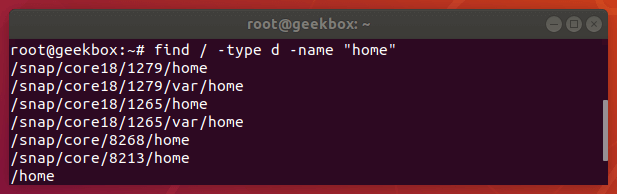
You can tell the find command to look specifically for directories with the -type d option. This will make find command only search for matching directory names and not file names.

find /path/to/search -type d -name "name-of-dir"

Find directory

Find hidden files

Since hidden files and directories in Linux begin with a period, we can specify this search pattern in our search string in order to recursively list hidden files and directories.

find /path/to/search -name ".*"

Find files of a certain size or greater than X

The -size option on find allows us to search for files of a specific size. It can be used to find files of an exact size, files that are larger or smaller than a certain size, or files that fit into a specified size range. Here are some examples:

Search for files bigger than 10MB in size:

find /path/to/search -size +10M

Search for files smaller than 10MB in size:

find /path/to/search -size -10M

Search for files that are exactly 10MB in size:

find /path/to/search -size 10M

Search for files that are between 100MB and 1GB in size:

find /path/to/search -size +100M -size -1G

Find from a list of files

If you have a list of files (in a .txt file, for example) that you need to search for, you can search for your list of files with a combination of the find and grep commands. For this command to work, just make sure that each pattern you want to search for is separated by a new line.

find /path/to/search | grep -f filelist.txt

The -f option on grep means “file” and allows us to specify a file of strings to be matched with. This results in the find command returning any file or directory names that match those in the list.

Find not in a list

Using that same list of files we mentioned in the previous example, you can also use find to search for any files that do not fit the patterns inside the text file. Once again, we’ll use a combination of the find and grep command; we just need an additional option specified with grep:

find /path/to/search | grep -vf filelist.txt

The -v option on grep means “inverse match” and will return a list of files that don’t match any of the patterns specified in our list of files.

Set the maxdepth

The find command will search recursively by default. This means that it will search the specified directory for the pattern you specified, as well as any and all subdirectories within the directory you told it to search.

For example, if you tell find to search the root directory of Linux (/), it will search the entire hard drive, no matter how many subdirectories of subdirectories exist. You can circumvent this behavior with the -maxdepth option.

Specify a number after -maxdepth to instruct find on how many subdirectories it should recursively search.

Search for files only in the current directory and don’t search recursively:

find . -maxdepth 0 -name "myfile.txt"

Search for files only in the current directory and one subdirectory deeper:

find . -maxdepth 1 -name "myfile.txt"

Find empty files (zero-length)

To search for empty files with find, you can use the -empty flag. Search for all empty files:

find /path/to/search -type f -empty

Search for all empty directories:

find /path/to/search -type d -empty

It is also very handy to couple this command with the -delete option if you’d like to automatically delete the empty files or directories that are returned by find.

Delete all empty files in a directory (and subdirectories):

find /path/to/search -type f -empty -delete

Find largest directory or file

If you would like to quickly determine what files or directories on your system are taking up the most room, you can use find to search recursively and output a sorted list of files and/or directories by their size.

How to show the biggest file in a directory:

find /path/to/search -type f -printf "%s\t%p\n" | sort -n | tail -1

Notice that the find command was sorted to two other handy Linux utilities: sort and tail. Sort will put the list of files in order by their size, and tail will output only the last file in the list, which is also the largest.

You can adjust the tail command if you’d like to output, for example, the top 5 largest files:

find /path/to/search -type f -printf "%s\t%p\n" | sort -n | tail -5

Alternatively, you could use the head command to determine the smallest file(s):

find /path/to/search -type f -printf "%s\t%p\n" | sort -n | head -5

If you’d like to search for directories instead of files, just specify “d” in the type option. How to show the biggest directory:

find /path/to/search -type d -printf "%s\t%p\n" | sort -n | tail -1

Find setuid set files

Setuid is an abbreviation for “set user ID on execution” which is a file permission that allows a normal user to run a program with escalated privileges (such as root).

This can be a security concern for obvious reasons, but these files can be easy to isolate with the find command and a few options.

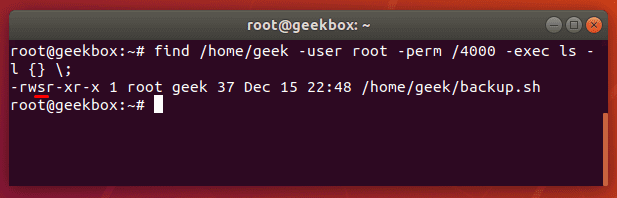
The find command has two options to help us search for files with certain permissions: -user and -perm. To find files that are able to be executed with root privileges by a normal user, you can use this command:

find /path/to/search -user root -perm /4000

Find suid files

In the screenshot above, we included the -exec option in order to show a little more output about the files that find returns with. The whole command looks like this:

find /path/to/search -user root -perm /4000 -exec ls -l {} \;

You could also substitute “root” in this command for any other user that you want to search for as the owner. Or, you could search for all files with SUID permissions and not specify a user at all:

find /path/to/search -perm /4000

Find sgid set files

Finding files with SGID set is almost the same as finding files with SUID, except the permissions for 4000 need to be changed to 2000:

find /path/to/search -perm /2000

You can also search for files that have both SUID and SGID set by specifying 6000 in the perms option:

find /path/to/search -perm /6000

List files without permission denied

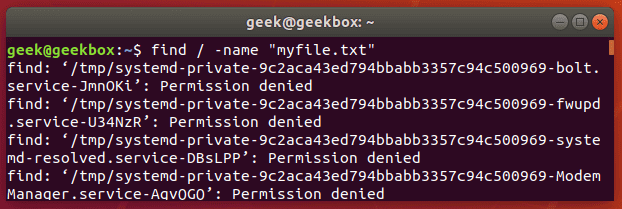
When searching for files with the find command, you must have read permissions on the directories and subdirectories that you’re searching through. If you don’t, find will output an error message but continue to look throughout the directories that you do have permission on.

Permission denied

Although this could happen in a lot of different directories, it will definitely happen when searching your root directory.

That means that when you’re trying to search your whole hard drive for a file, the find command is going to produce a ton of error messages.

To avoid seeing these errors, you can redirect the stderr output of find to stdout, and pipe that to grep.

find / -name "myfile.txt" 2>%1 | grep -v "Permission denied"

This command uses the -v (inverse) option of grep to show all output except for the lines that say “Permission denied.”

Find modified files within the last X days

Use the -mtime option on the find command to search for files or directories that were modified within the last X days. It can also be used to search for files older than X days, or files that were modified exactly X days ago.

Here are some examples of how to use the -mtime option on the find command:

Search for all files that were modified within the last 30 days:

find /path/to/search -type f -mtime -30

Search for all files that were modified more than 30 days ago:

find /path/to/search -type f -mtime +30

Search for all files that were modified exactly 30 days ago:

find /path/to/search -type f -mtime 30

If you want the find command to output more information about the files it finds, such as the modified date, you can use the -exec option and include an ls command:

find /path/to/search -type f -mtime -30 -exec ls -l {} \;

Sort by time

To sort through the results of find by modified time of the files, you can use the -printf option to list the times in a sortable way, and pipe that output to the sort utility.

find /path/to/search -printf "%T+\t%p\n" | sort

This command will sort the files older to newer. If you’d like the newer files to appear first, just pass the -r (reverse) option to sort.

find /path/to/search -printf "%T+\t%p\n" | sort -r

Difference between locate and find

The locate command on Linux is another good way to search for files on your system. It’s not packed with a plethora of search options like the find command is, so it’s a bit less flexible, but it still comes in handy.

locate myfile.txt

The locate command works by searching a database that contains all the names of the files on the system. The database that it searches through is updated with the upatedb command.

Since the locate command doesn’t have to perform a live search of all the files on the system, it’s much more efficient than the find command. But in addition to the lack of options, there’s another drawback: the database of files only updates once per day.

You can update this database of files manually by running the updatedb command:

updatedb

The locate command is particularly useful when you need to search the entire hard drive for a file, since the find command will naturally take a lot longer, as it has to traverse every single directory in real-time.

If searching a specific directory, known to not contain a large number of subdirectories, it’s better to stick with the find command.

CPU load of find command

When searching through loads of directories, the find command can be resource-intensive. It should inherently allow more important system processes to have priority, but if you need to ensure that the find command takes up fewer resources on a production server, you can use the ionice or nice command.

Monitor CPU usage of the find command:

top

Reduce the Input/Output priority of find command:

ionice -c3 -n7 find /path/to/search -name "myfile.txt"

Reduce the CPU priority of find command:

nice -n 19 find /path/to/search -name "myfile.txt"

Or combine both utilities to really ensure low I/O and low CPU priority:

nice -n ionice -c2 -n7 find /path/to/search -name "myfile.txt"

I hope you find the tutorial useful. Keep coming back.

0

15+ examples for Linux cURL command

In this tutorial, we will cover the cURL command in Linux. Follow along as we guide you through the functions of this powerful utility with examples to help you understand everything it’s capable of. The cURL command is used to download or upload data to a server, using one of its 20+ supported protocols. This data could be a file, email message, or web page. cURL is an ideal tool for interacting with a website or API, sending requests and displaying the responses to the terminal or logging the data to a file. Sometimes it’s used as part of a larger script, handing off the retrieved data to other functions for processing. Since cURL can be used to retrieve files from servers, it’s often used to download part of a website. It performs this function well, but sometimes the wget command is better suited for that job. We’ll go over some of the differences and similarities between wget and cURL later in this article. We’ll show you how to get started using cURL in the sections below.
Continue Reading →

Download a file

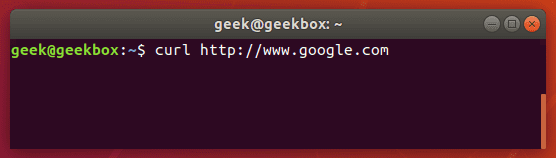
The most basic command we can give to cURL is to download a website or file. cURL will use HTTP as its default protocol unless we specify a different one. To download a website, just issue this command:

curl http://www.google.com

Of course, enter any website or page that you want to retrieve.

curl basic command

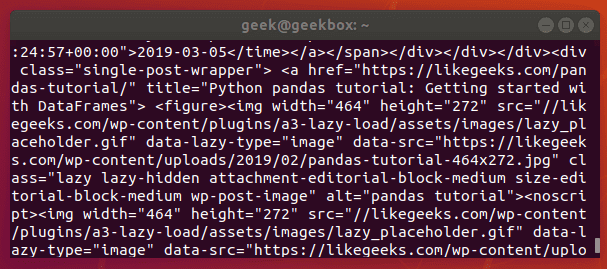
Doing a basic command like this with no extra options will rarely be useful, because this only tells cURL to retrieve the source code of the page you’ve provided.

curl output

When we ran our command, our terminal is filled with HTML and other web scripting code – not something that is particularly useful to us in this form.

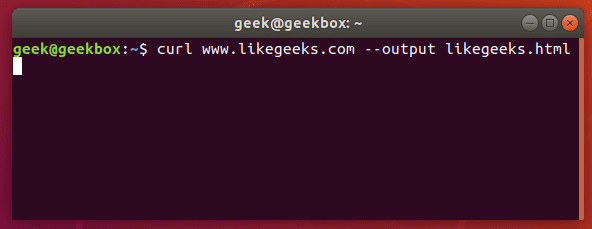
Let’s download the website as an HTML document instead, that way the content can be displayed. Add the –output option to cURL to achieve this.

curl www.likegeeks.com --output likegeeks.html

curl output switch

Now the website we downloaded can be opened and displayed in a web browser.

downloaded website

If you’d like to download an online file, the command is about the same. But make sure to append the –output option to cURL as we did in the example above.

If you fail to do so, cURL will send the binary output of the online file to your terminal, which will likely cause it to malfunction.

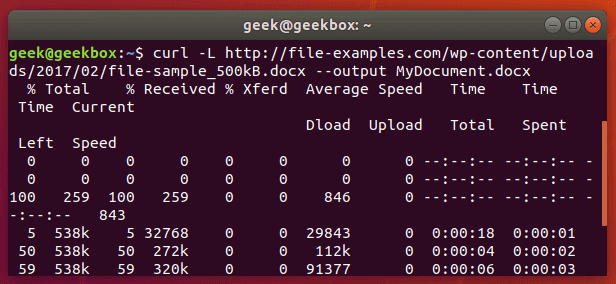
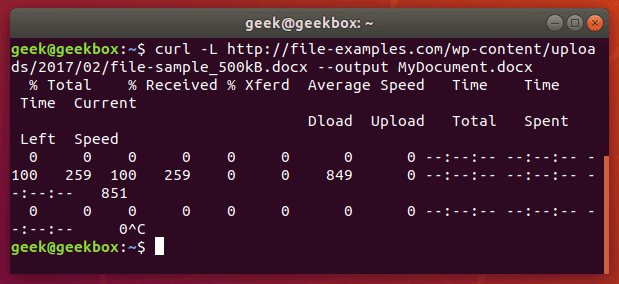
Here’s what it looks like when we initiate the download of a 500KB word document.

curl download document

The word document begins to download and the current progress of the download is shown in the terminal. When the download completes, the file will be available in the directory we saved it to.

In this example, no directory was specified, so it was saved to our present working directory (the directory from which we ran the cURL command).

Also, did you notice the -L option that we specified in our cURL command? It was necessary in order to download this file, and we go over its function in the next section.

Follow redirect

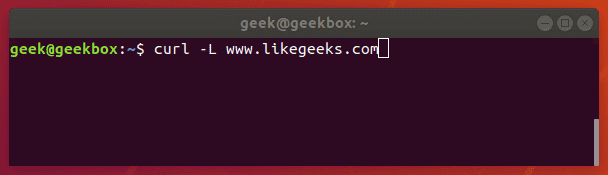
If you get an empty output when trying to cURL a website, it probably means that the website told cURL to redirect to a different URL. By default, cURL won’t follow the redirect, but you can tell it to with the -L switch.

curl -L www.likegeeks.com

curl follow redirect

In our research for this article, we found it was necessary to specify the -L on a majority of websites, so be sure to remember this little trick. You may even want to append it to the majority of your cURL commands by default.

Stop and resume download

If your download gets interrupted, or if you need to download a big file but don’t want to do it all in one session, cURL provides an option to stop and resume the transfer.

To stop a transfer manually, you can just end the cURL process the same way you’d stop almost any process currently running in your terminal, with a ctrl+c combination.

curl stop download

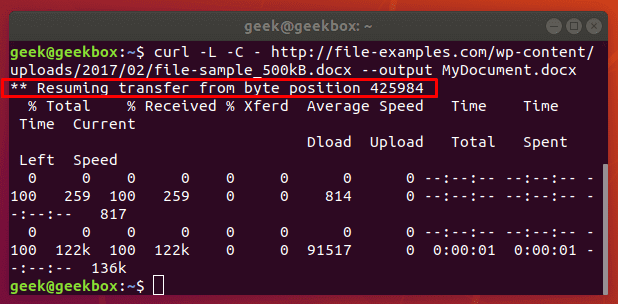
Our download has begun, but was interrupted with ctrl+c, now let’s resume it with the following syntax:

curl -C - example.com/some-file.zip --output MyFile.zip

The -C switch is what resumes our file transfer, but also notice that there is a dash (-) directly after it. This tells cURL to resume the file transfer, but to first look at the already downloaded portion in order to see the last byte downloaded and determine where to resume.

resume file download

Our file transfer was resumed and then proceeded to finish downloading successfully.

Specify timeout

If you want cURL to abandon what it’s doing after a certain amount of time, you can specify a timeout in the command. This is especially useful because some operations in cURL don’t have a timeout by default, so one needs to be specified if you don’t want it getting hung up indefinitely.

You can specify a maximum time to spend executing a command with the -m switch. When the specified time has elapsed, cURL will exit whatever it’s doing, even if it’s in the middle of downloading or uploading a file.

cURL expects your maximum time to be specified in seconds. So, to timeout after one minute, the command would look like this:

curl -m 60 example.com

Another type of timeout that you can specify with cURL is the amount of time to spend connecting. This helps make sure that cURL doesn’t spend an unreasonable amount of time attempting to contact a host that is offline or otherwise unreachable.

It, too, accepts seconds as an argument. The option is written as –connect-timeout.

curl --connect-timeout 60 example.com

Using a username and a password

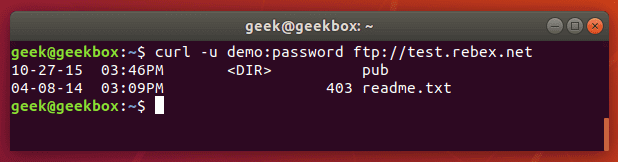
You can specify a username and password in a cURL command with the -u switch. For example, if you wanted to authenticate with an FTP server, the syntax would look like this:

curl -u username:password ftp://example.com

curl authenticate

You can use this with any protocol, but FTP is frequently used for simple file transfers like this.

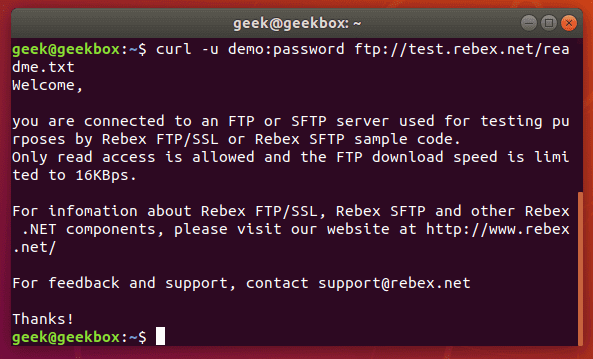
If we wanted to download the file displayed in the screenshot above, we just issue the same command but use the full path to the file.

curl -u username:password ftp://example.com/readme.txt

curl authenticate download

Use proxies

It’s easy to direct cURL to use a proxy before connecting to a host. cURL will expect an HTTP proxy by default, unless you specify otherwise.

Use the -x switch to define a proxy. Since no protocol is specified in this example, cURL will assume it’s an HTTP proxy.

curl -x 192.168.1.1:8080 http://example.com

This command would use 192.168.1.1 on port 8080 as a proxy to connect to example.com.

You can use it with other protocols as well. Here’s an example of what it’d look like to use an HTTP proxy to cURL to an FTP server and retrieve a file.

curl -x 192.168.1.1:8080 ftp://example.com/readme.txt

cURL supports many other types of proxies and options to use with those proxies, but expanding further would be beyond the scope of this guide. Check out the cURL man page for more information about proxy tunneling, SOCKS proxies, authentication, etc.

Chunked download large files

We’ve already shown how you can stop and resume file transfers, but what if we wanted cURL to only download a chunk of a file? That way, we could download a large file in multiple chunks.

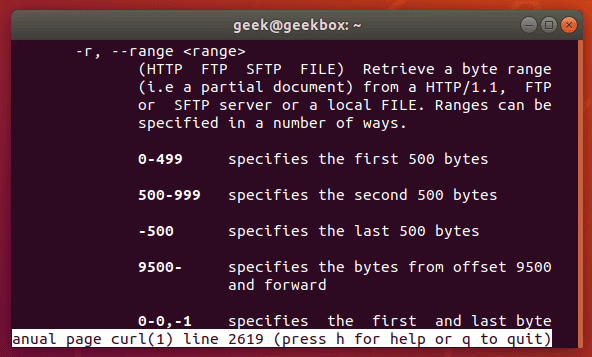
It’s possible to download only certain portions of a file, in case you needed to stay under a download cap or something like that. The –range flag is used to accomplish this.

curl range man

Sizes must be written in bytes. So if we wanted to download the latest Ubuntu .iso file in 100 MB chunks, our first command would look like this:

curl --range 0-99999999 http://releases.ubuntu.com/18.04/ubuntu-18.04.3-desktop-amd64.iso ubuntu-part1

The second command would need to pick up at the next byte and download another 100 MB chunk.

curl --range 0-99999999 http://releases.ubuntu.com/18.04/ubuntu-18.04.3-desktop-amd64.iso ubuntu-part1

curl --range 100000000-199999999 http://releases.ubuntu.com/18.04/ubuntu-18.04.3-desktop-amd64.iso ubuntu-part2

Repeat this process until all the chunks are downloaded. The last step is to combine the chunks into a single file, which can be done with the cat command.

cat ubuntu-part? > ubuntu-18.04.3-desktop-amd64.iso

Client certificate

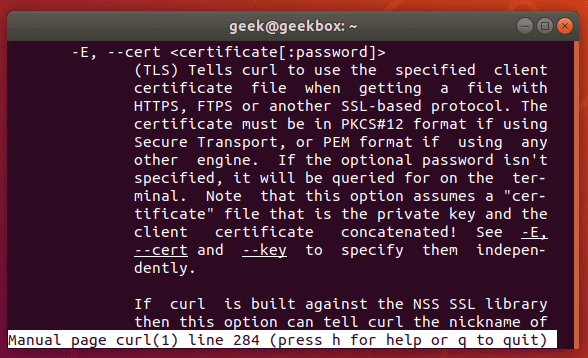
To access a server using certificate authentication instead of basic authentication, you can specify a certificate file with the –cert option.

curl --cert path/to/cert.crt:password ftp://example.com

cURL has a lot of options for the format of certificate files.

curl cert

There are more certificate related options, too: –cacert, –cert-status, –cert-type, etc. Check out the man page for a full list of options.

Silent cURL

If you’d like to suppress cURL’s progress meter and error messages, the -s switch provides that feature. It will still output the data you request, so if you’d like the command to be 100% silent, you’d need to direct the output to a file.

Combine this command with the -O flag to save the file in your present working directory. This will ensure that cURL returns with 0 output.

curl -s -O http://example.com

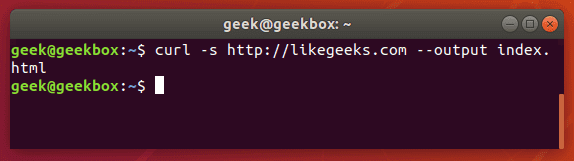
Alternatively, you could use the –output option to choose where to save the file and specify a name.

curl -s http://example.com --output index.html

curl silent

Get headers

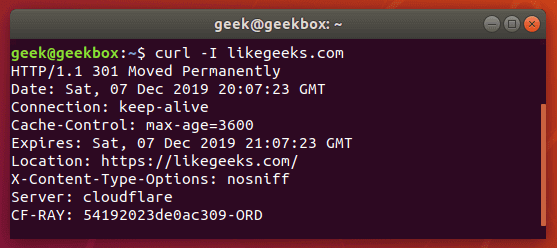
Grabbing the header of a remote address is very simple with cURL, you just need to use the -I option.

curl -I example.com

curl headers

If you combine this with the –L option, cURL will return the headers of every address that it’s redirected to.

curl -I -L example.com

Multiple headers

You can pass headers to cURL with the -H option. And to pass multiple headers, you just need to use the -H option multiple times. Here’s an example:

curl -H 'Connection: keep-alive' -H 'Accept-Charset: utf-8 ' http://example.com

Post (upload) file

POST is a common way for websites to accept data. For example, when you fill out a form online, there’s a good chance that the data is being sent from your browser using the POST method. To send data to a website in this way, use the -d option.

curl -d 'name=geek&location=usa' http://example.com

To upload a file, rather than text, the syntax would look like this:

curl -d @filename http://example.com

Use as many -d flags as you need in order to specify all the different data or filenames that you are trying to upload.

You can the -T option if you want to upload a file to an FTP server.

curl -T myfile.txt ftp://example.com/some/directory/

Send an email

Sending an email is simply uploading data from your computer (or another device) to an email server. Since cURL is able to upload data, we can use it to send emails. There are a slew of options, but here’s an example of how to send an email through an SMTP server:

curl smtp://mail.example.com --mail-from [email protected] --mail-rcpt [email protected] --upload-file email.txt

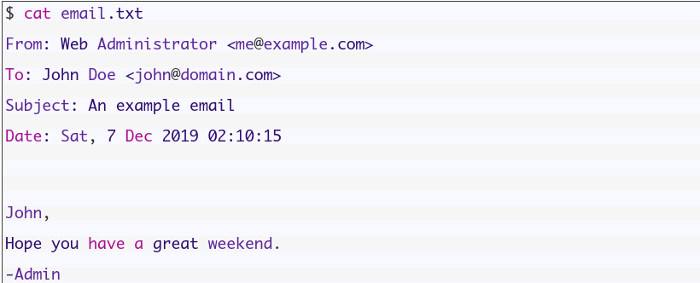
Your email file would need to be formatted correctly. Something like this:

cat email.txt

From: Web Administrator <[email protected]>

To: John Doe <[email protected]>

Subject: An example email

Date: Sat, 7 Dec 2019 02:10:15

John,

Hope you have a great weekend.

-Admin

As usual, more granular and specialized options can be found in the man page of cURL.

Read email message

cURL supports IMAP (and IMAPS) and POP3, both of which can be used to retrieve email messages from a mail server.

Login using IMAP like this:

curl -u username:password imap://mail.example.com

This command will list available mailboxes, but not view any specific message. To do this, specify the UID of the message with the –X option.

curl -u username:password imap://mail.example.com -X 'UID FETCH 1234'

Difference between cURL and wget

Sometimes people confuse cURL and wget because they’re both capable of retrieving data from a server. But this is the only thing they have in common.

We’ve shown in this article what cURL is capable of. wget provides a different set of functions. wget is the best tool for downloading websites and is capable of recursively traversing directories and links to download entire sites.

For downloading websites, use wget. If using some protocol other than HTTP or HTTPS, or for uploading files, use cURL. cURL is also a good option for downloading individual files from the web, although wget does that fine, too.

I hope you find the tutorial useful. Keep coming back.

0

Important Facts Everyone Needs to Know About Blockchain technology

If you were to ask the general population what they know about blockchain technology, you wouldn’t be surprised to hear that most of them either know nothing at all or can connect the blockchain to cryptocurrencies. They wouldn’t be wrong. Cryptocurrency is, in fact, dependent upon blockchain technology and it is the technology that has paved the way for bitcoin to become possible. Without it, the world’s most famous and valuable crypto wouldn’t exist. This is because when someone makes a payment with bitcoin, the payment is authenticated as another block of information on the chain. The blockchain takes the place of a bank to keep a record of payments, but unlike a bank, there is no central authority. The decentralised nature of bitcoin, therefore, hinges on this blockchain acting as a public ledger available to all but completely secure.

Continue Reading →

Looking Further than Bitcoin and Crypto

Yet, this is not the only use for blockchain technology. Despite bitcoin relying on its blockchain, it doesn’t work in the other direction.

Blockchains are used for other purposes in other industries. Here are some examples of industries that have already tapped into the blockchain potential:

#1: The Music Industry

One issue constantly facing musicians and those involved with creating music is that they do not receive the money they are owed.

It is not unheard of that megastars are seeking compensation from other music organisations for not paying them the royalties they deserve. Copyright infringements are rife and the court cases to address these problems are just as common.

The blockchain can counter this issue by providing a traceable and publicly available set of information for each song and who is owed what royalties from it.

The same idea can be applied to other forms of art such as photography. Photographers can trace the use of their images on the blockchain and even allow experts to track the origin of a piece of art.

#2: The Automotive Industry

One issue when buying a car is that you can never be certain that what you are buying is exactly how it was advertised or sold to you.

People can tamper with the mileage on a car and get around telling you about its maintenance history. What you think is a vehicle with an excellent track record could have been used a lot more and have been in the garage frequently.

This is why some businesses in the automotive industry have adopted blockchains and are using them on some vehicles to record maintenance and mileage. This is to prevent odometer fraud and vehicles being inaccurately sold by criminals.

#3: The Sports Industry

Some sports teams are using blockchain to create their own tokens for fans to use to buy match tickets and merchandise.

This is a way of creating a currency that is valuable to a select community. The blockchain is also being used by teams to implement fair voting systems to do with player jerseys and alike.

Using blockchains to cast votes is also a topic being considered by governments to ensure secure election processes without the need for recounts.

#4: The Freight Industry

The freight industry is welcoming blockchains to streamline often complex processes and reduce the amount of paperwork required en route.

It would enable businesses to track packages across a destination as they are scanned by different workers. It was also rumored to be a solution to the backstop issue within the Brexit negotiations.

From these four examples, it is easy to spot blockchains that have more purpose that what we most associate them with. In fact, it could be argued that the hype of owning a Luno Bitcoin wallet and sending secure payments around the world faster and cheaper may be making the general population blind to the other possibilities at hand.

The truth is, understanding the facts around blockchains will help us look beyond cryptocurrencies. Here are some of the key facts you may not know about blockchains already.

Blockchain Also Has a Place in Science

Thanks to grants and our natural thirst for knowledge, the scientific community has been able to amass a wealth of studies that help improve policies and inform public services.

However, scientists often come stuck when they try to replicate studies to authenticate results further, or tweak studies to find out more (and further our knowledge).

This happens because the original study’s data is not publicly available or easy to access. The blockchain could help in this matter by being the place where data is stored for scientific study.

Researchers across the globe could access a public ledger of data to conduct studies that other research has been based on, allowing future results to accurately verify information or increase our understanding.

Consider how many times two different researching teams have conflicting views about the same subject. The conflict may arise due to a difference in the quality or amount of data.

Blockchain technology holding the same data set would allow all research parties to research from the same information. Although this would help scientific groups to collaborate and progress with findings, it does also call for high-quality data to be used.

Blockchain as the Answer to ID Verification

Verifying our identity has become part and parcel of modern life. It is not just airports where we have to dig out our passport, but also gyms, libraries and any other time we sign up for a membership or service.

This can be time-consuming and inconvenient, especially when each vendor wants a different type of ID or a different combination of documentation.

Although blockchain has yet to be used in this way. There is potential for blockchain to be a solution and give every citizen of a country – or a group of countries that opt into the strategy – to record personal information and their identity on the blockchain.

This would make ID verification seamless in certain locations.

EU citizens already have something similar to this with their information stored on a chip placed on their ID card. An upgraded version of this on the blockchain could be the answer, with healthcare professionals having access to this in the event of an emergency.

Soon You May Be Buying Blockchain-Based Products

The idea that blockchain technologies will be most used by businesses is not true. Yes, many businesses will adopt the technology, but the technology will also be placed in the hands of the consumer.

This is because products are also going to be made with blockchain technology powering them – and it is already happening.

Some smartphone developers have already made blockchain smartphones. Other products that are in lien to be developed include devices around the home that recolonise the way we live.

What we are referring to is devices classed within the Internet of Things (IoT)

These devices will be connected and change how we do tasks and chores at home. They will also be connected to do so, such as telling a small device in the corner that you want to watch Netflix or to turn the dishwasher on.

The problem when lots of devices are connected is that they make you more vulnerable to hackers.

Blockchains can prevent hacks and protect your data by securing your at-home network on IoT devices. Methods of combining the two are already been worked on to keep consumers safe and their data protected.

Other Facts You Should Know About Blockchain Technology

The potential for blockchain has now been well established, but what has it already achieved? Here are some shorter facts about the technology that not a lot of people realize:

  1. The person(s) who made blockchains famous and bitcoin inventor, Satoshi Nakamoto, is unknown. People have suggested the person behind the revolution to be certain individuals, but the actual identity of the person responsible remains a mystery.
  2. Blockchains do not have to be public. They can also be private, somewhat like an intranet within a business. This is what enables them to function as a source of ID without compromising on data privacy laws.
  3. It is estimated that blockchain development is at the stage the internet was at around two decades ago. Considering this and what it has achieved so far perfectly illustrates the potential blockchain technology encompasses.
  4. Blockchains are relatively untouched. Around half of the world’s population use the internet and around 0.05% of us are using blockchains. This number will rise when more businesses adopt the technology.
  5. Conventional banks are now seeking blockchains to help with their own processes. What was once a tool against fiat financial systems is now being used within them. This may make some crypto enthusiasts weep a little.
  6. A Blockchain is at its most secure stage when it is first created. Many people assume that the blockchain will become more secure in time, but this is not the case.

It Doesn’t Mean We Should Forget about Cryptos

Just because the success of blockchain technology is not tied to cryptocurrency doesn’t mean we should forget about them. Cryptocurrencies, as well as digital tokens, ICOs and smart contracts,  are all the biggest successes of blockchain to date.

The benefits of cryptocurrency are huge, with faster, cheaper and more convenient payments becoming available worldwide.

This has a significantly positive impact on unbanked populations who do not have access to a bank account. For people sending money home to underdeveloped countries, they can send more money without incurring fees or time delays.

These glimpses into cryptocurrency’s power to dustups the financial status-quo should not be forgotten as other developments occur.

What Will Blockchains Do to the Job Market?

Technology and the internet, in particular, has had a significant impact on the job market in the developed world. Many jobs were replaced with machines that could do the work just as efficiently and many of these jobs were taken up by the working classes.

The same could happen once blockchain technology reaches its golden period. Many jobs may be displaced due to businesses utilising blockchains.

For example, earlier it was discussed that freight companies may use blockchains to streamline shipping processes. There is a strong chance that this development could put some workers out of a job.

Jobs may be lost due to blockchain, and they may be lost more in manual professions. However, the blockchain may also create lots of new jobs that are not around today. Most of these jobs will be directed at tech-savvy types and us geeks.

So, Should You Invest in Blockchain Startups?

There are so many positive noises coming from industries and businesses that are using blockchains. Yet, it is crucial to realise that this trend is new.

No doubt there are investment opportunities to be secured with blockchain B2B businesses, but are the right investments with blockchain startups?

The answer may be yes, but it may be smarter to invest your money in established technology companies who already own a strong market share.

Blockchains can be made for everyone and choosing a small startup may not guarantee you success. Placing your investment with companies who are actively looking at blockchains and already have a foothold in their market could be the wiser move.

The Takeaway Fact to Remember

There is a chance that you learned a lot about blockchains in this post, but you are not likely to retain everything you learned. If you need one fact about blockchain technology to leave with – and the most important one. It is that blockchains cannot be ignored.

They are a key player in the fourth industrial revolution and in that sense, they are exceptionally disruptive to all current technology.

Consider blockchains to be the puppet masters of the future of the tech and many other industries. It may just take a little while for the curtain to be pulled back completely.

0

SSH port forwarding (tunneling) in Linux

In this tutorial, we will cover SSH port forwarding in Linux. This is a function of the SSH utility that Linux administrators use to create encrypted and secure relays across different systems. SSH port forwarding, also called SSH tunneling, is used to create a secure connection between two or more systems. Applications can then use these tunnels to transmit data. Your data is only as secure as its encryption, which is why SSH port forwarding is a popular mechanism to use. Read on to find out more and see how to setup SSH port forwarding on your own systems. To put it simply, SSH port forwarding involves establishing an SSH tunnel between two or more systems and then configuring the systems to transmit a specified type of traffic through that connection.

Continue Reading →

What is SSH port forwarding?

To put it simply, SSH port forwarding involves establishing an SSH tunnel between two or more systems and then configuring the systems to transmit a specified type of traffic through that connection.

There are a few different things you can do with this: local forwarding, remote forwarding, and dynamic port forwarding. Each configuration requires its own steps to setup, so we will go over each of them later in the tutorial.

Local port forwarding is used to make an external resource available on the local network. An SSH tunnel is established to a remote system, and traffic from the local network can use that tunnel to transmit data back and forth, accessing the remote system and network as if it was a part of the local network.

Remote port forwarding is the exact opposite. An SSH tunnel is established but the remote system is able to access your local network.

Dynamic port forwarding sets up a SOCKS proxy server. You can configure applications to connect to the proxy and transmit all data through it. The most common use for this is for private web browsing or to make your connection seemingly originate from a different country or location.

SSH port forwarding can also be used to setup a virtual private network (VPN). You’ll need an extra program for this called sshuttle. We cover the details later in the tutorial.

Why use SSH port forwarding?

Since SSH creates encrypted connections, this is an ideal solution if you have applications that transmit data in plaintext or use an unencrypted protocol. This holds especially true for legacy applications.

It’s also popular to use it for connecting to a local network from the outside. For example, an employee using SSH tunnels to connect to a company’s intranet.

You may be thinking this sounds like a VPN. The two are similar, but creating ssh tunnels is for specific traffic, whereas VPNs are more for establishing general connections.

SSH port forwarding will allow you to access remote resources by just establishing an SSH tunnel. The only requirement is that you have SSH access to the remote system and, ideally, public key authentication configured for password-less SSHing.

How many sessions are possible?

Technically, you can specify as many port forwarding sessions as you’d like. Networks use 65,535 different ports, and you are able to forward any of them that you want.

When forwarding traffic, be cognizant of the services that use certain ports. For example, port 80 is reserved for HTTP. So you would only want to forward traffic on port 80 if you intend to forward web requests.

The port you forward on your local system doesn’t have to match that of the remote server. For example, you can forward port 8080 on localhost to port 80 on the remote host.

If you don’t care what port you are using on the local system, select one between 2,000 and 10,000 since these are rarely used ports. Smaller numbers are typically reserved for certain protocols.

Local forwarding

Local forwarding involves forwarding a port from the client system to a server. It allows you to configure a port on your system so that all connections to that port will get forwarded through the SSH tunnel.

Use the -L switch in your ssh command to specify local port forwarding. The general syntax of the command is like this:

ssh -L local_port:remote_ip:remote_port [email protected]

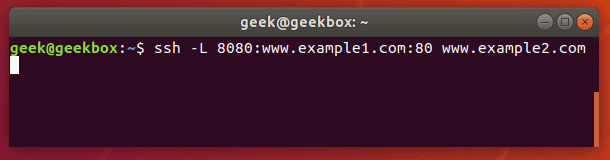
Check out the example below:

ssh -L 80:example1.com:80 example2.com

local port forwarding

This command would forward all requests to example1.com to example2.com. Any user on this system that opens a web browser and attempts to navigate to example1.com will, in the background, have their request sent to example2.com instead and display a different website.

Such a command is useful when configuring external access to a company intranet or other private network resources.

Test SSH port forwarding

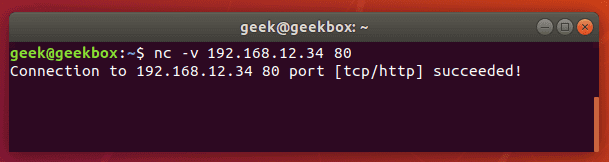
To see if your port forwarding is working correctly, you can use the netcat command. On the client machine (the system where you ran the ssh -L command), type the netcat command with this syntax:

nc -v remote_ip port_number

Test port forwarding using netcat

If the port is forwarded and data is able to traverse the connection successfully, netcat will return with a success message. If it doesn’t work, the connection will time out.

If you’re having trouble getting the port forwarding to work, make sure you’re able to ssh into the remote server normally and that you have configured the ports correctly. Also, verify that the connection isn’t being blocked by a firewall.

Persistent SSH tunnels (Using Autossh)

Autossh is a tool that can be used to create persistent SSH tunnels. The only prerequisite is that you need to have public key authentication configured between your systems, unless you want to be prompted for a password every time the connection dies and is reestablished.

Autossh may not be installed by default on your system, but you can quickly install it using apt, yum, or whatever package manager your distribution uses.

sudo apt-get install autossh

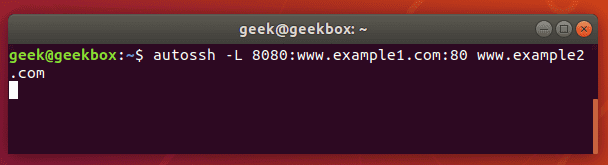
The autossh command is going to look pretty much identical to the ssh command we ran earlier.

autossh -L 80:example1.com:80 example2.com

Persistent SSH port forwarding autossh

Autossh will make sure that tunnels are automatically re-established in case they close because of inactivity, remote machine rebooting, network connection being lost, etc.

Remote forwarding

Remote port forwarding is used to give a remote machine access to your system. For example, if you want a service on your local computer to be accessible by a system(s) on your company’s private network, you could configure remote port forwarding to accomplish that.

To set this up, issue an ssh command with the following syntax:

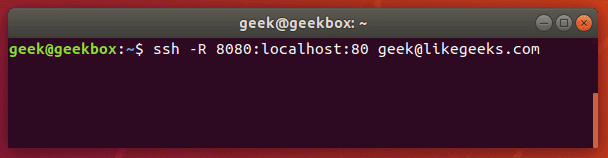
ssh -R remote_port:local_ip:local_port [email protected]

If you have a local web server on your computer and would like to grant access to it from a remote network, you could forward port 8080 (common http alternative port) on the remote system to port 80 (http port) on your local system.

ssh -R 8080:localhost:80 [email protected]

Remote port forwarding

Dynamic forwarding

SSH dynamic port forwarding will make SSH act as a SOCKS proxy server. Rather than forwarding traffic on a specific port (the way local and remote port forwarding do), this will forward traffic across a range of ports.

If you have ever used a proxy server to visit a blocked website or view location-restricted content (like viewing stuff on Netflix that isn’t available in your country), you probably used a SOCKS server.

It also provides privacy, since you can route your traffic through a SOCKS server with dynamic port forwarding and prevent anyone from snooping log files to see your network traffic (websites visited, etc).

To set up dynamic port forwarding, use the ssh command with the following syntax:

ssh -D local_port [email protected]

So, if we wanted to forward traffic on port 1234 to our SSH server:

ssh -D 1234 [email protected]

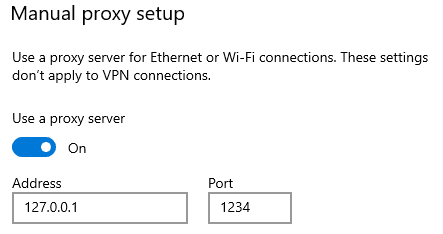
Once you’ve established this connection, you can configure applications to route traffic through it. For example, on your web browser:

Socks proxy

Type the loopback address (127.0.0.1) and the port you configured for dynamic port forwarding, and all traffic will be forwarded through the SSH tunnel to the remote host (in our example, the likegeeks.com SSH server).

Multiple forwarding

For local port forwarding, if you’d like to setup more than one port to be forwarded to a remote host, you just need to specify each rule with a new -L switch each time. The command syntax is like this:

ssh -L local_port_1:remote_ip:remote_port_1 -L local_port_2:remote_ip:remote_port2 [email protected]

For example, if you want to forward ports 8080 and 4430 to 192.168.1.1 ports 80 and 443 (HTTP and HTTPS), respectively, you would use this command:

ssh -L 8080:192.168.1.1:80 -L 4430:192.168.1.1:443 [email protected]

For remote port forwarding, you can setup more than one port to be forwarded by specifying each new rule with the -R switch. The command syntax is like this:

ssh -R remote_port1:local_ip:local_port1 remote_port2:local_ip:local_port2 [email protected]

List port forwarding

You can see what SSH tunnels are currently established with the lsof command.

lsof -i | egrep '\<ssh\>'

SSH tunnels

In this screenshot, you can see that there are 3 SSH tunnels established. Add the -n flag to have IP addresses listed instead of resolving the hostnames.

lsof -i -n | egrep '\<ssh\>'

SSH tunnels n flag

Limit forwarding

By default, SSH port forwarding is pretty open. You can freely create local, remote, and dynamic port forwards as you please.

But if you don’t trust some of the SSH users on your system, or you’d just like to enhance security in general, you can put some limitations on SSH port forwarding.

There are a couple of different settings you can configure inside the sshd_config file to put limitations on port forwarding. To configure this file, edit it with vi, nano, or your favorite text editor:

sudo vi /etc/ssh/sshd_config

PermitOpen can be used to specify the destinations to which port forwarding is allowed. If you only want to allow forwarding to certain IP addresses or hostnames, use this directive. The syntax is as follows:

PermitOpen host:port

PermitOpen IPv4_addr:port

PermitOpen [IPv6_addr]:port

AllowTCPForwarding can be used to turn SSH port forwarding on or off, or specify what type of SSH port forwarding is permitted. Possible configurations are:

AllowTCPForwarding yes #default setting

AllowTCPForwarding no #prevent all SSH port forwarding

AllowTCPForwarding local #allow only local SSH port forwarding

AllowTCPForwarding remote #allow only remote SSH port forwarding

To see more information about these options, you can check out the man page:

man sshd_config

Low latency

The only real problem that arises with SSH port forwarding is that there is usually a bit of latency. You probably won’t notice this as an issue if you’re doing something minor, like accessing text files or small databases.

The problem becomes more apparent when doing network intensive activities, especially if you have port forwarding set up as a SOCKS proxy server.

The reason for the latency is because SSH is tunneling TCP over TCP. This is a terribly inefficient way to transfer data and will result in slower network speeds.

You could use a VPN to prevent the issue, but if you are determined to stick with SSH tunnels, there is a program called sshuttle that corrects the issue. Ubuntu and Debian-based distributions can install it with apt-get:

sudo apt-get install sshuttle

If you package manager on your distribution doesn’t have sshuttle in its repository, you can clone it from GitHub:

git clone https://github.com/sshuttle/sshuttle.git

cd sshuttle

./setup.py install

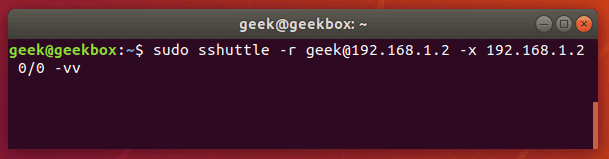
Setting up a tunnel with sshuttle is different from the normal ssh command. To setup a tunnel that forwards all traffic (akin to a VPN):

sudo sshuttle -r user@remote_ip -x remote_ip 0/0 -vv

sshuttle command

Break the connection with a ctrl+c key combination in the terminal. Alternatively, to run the sshuttle command as a daemon, add the -D switch to your command.

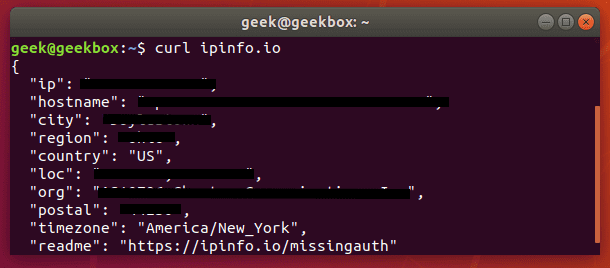
Want to make sure that the connection was established and the internet sees you at the new IP address? You can run this curl command:

curl ipinfo.io

curl IP address

I hope you find the tutorial useful. Keep coming back.

0

15+ examples for Linux cURL command

In this tutorial, we will cover the cURL command in Linux. Follow along as we guide you through the functions of this powerful utility with examples to help you understand everything it’s capable of. The cURL command is used to download or upload data to a server, using one of its 20+ supported protocols. This data could be a file, email message, or web page. What is cURL command? cURL is an ideal tool for interacting with a website or API, sending requests and displaying the responses to the terminal or logging the data to a file. Sometimes it’s used as part of a larger script, handing off the retrieved data to other functions for processing. Since cURL can be used to retrieve files from servers, it’s often used to download part of a website. It performs this function well, but sometimes the wget command is better suited for that job. We’ll go over some of the differences and similarities between wget and cURL later in this article. We’ll show you how to get started using cURL in the sections below.
Continue Reading →

Download a file

The most basic command we can give to cURL is to download a website or file. cURL will use HTTP as its default protocol unless we specify a different one. To download a website, just issue this command:

curl http://www.google.com

Of course, enter any website or page that you want to retrieve.

curl basic command

Doing a basic command like this with no extra options will rarely be useful, because this only tells cURL to retrieve the source code of the page you’ve provided.

curl output

When we ran our command, our terminal is filled with HTML and other web scripting code – not something that is particularly useful to us in this form.

Let’s download the website as an HTML document instead, that way the content can be displayed. Add the –output option to cURL to achieve this.
curl output switch

Now the website we downloaded can be opened and displayed in a web browser.

downloaded website

If you’d like to download an online file, the command is about the same. But make sure to append the –output option to cURL as we did in the example above.

If you fail to do so, cURL will send the binary output of the online file to your terminal, which will likely cause it to malfunction.

Here’s what it looks like when we initiate the download of a 500KB word document.

curl download document

The word document begins to download and the current progress of the download is shown in the terminal. When the download completes, the file will be available in the directory we saved it to.

In this example, no directory was specified, so it was saved to our present working directory (the directory from which we ran the cURL command).

Also, did you notice the -L option that we specified in our cURL command? It was necessary in order to download this file, and we go over its function in the next section.

Follow redirect

If you get an empty output when trying to cURL a website, it probably means that the website told cURL to redirect to a different URL. By default, cURL won’t follow the redirect, but you can tell it to with the -L switch.

curl -L www.likegeeks.com

curl follow redirect

In our research for this article, we found it was necessary to specify the -L on a majority of websites, so be sure to remember this little trick. You may even want to append it to the majority of your cURL commands by default.

Stop and resume download

If your download gets interrupted, or if you need to download a big file but don’t want to do it all in one session, cURL provides an option to stop and resume the transfer.

To stop a transfer manually, you can just end the cURL process the same way you’d stop almost any process currently running in your terminal, with a ctrl+c combination.

curl stop download

Our download has begun, but was interrupted with ctrl+c, now let’s resume it with the following syntax:

curl -C - example.com/some-file.zip --output MyFile.zip

The -C switch is what resumes our file transfer, but also notice that there is a dash (-) directly after it. This tells cURL to resume the file transfer, but to first look at the already downloaded portion in order to see the last byte downloaded and determine where to resume.

resume file download

Our file transfer was resumed and then proceeded to finish downloading successfully.

Specify timeout

If you want cURL to abandon what it’s doing after a certain amount of time, you can specify a timeout in the command. This is especially useful because some operations in cURL don’t have a timeout by default, so one needs to be specified if you don’t want it getting hung up indefinitely.

You can specify a maximum time to spend executing a command with the -m switch. When the specified time has elapsed, cURL will exit whatever it’s doing, even if it’s in the middle of downloading or uploading a file.

cURL expects your maximum time to be specified in seconds. So, to timeout after one minute, the command would look like this:

curl -m 60 example.com

Another type of timeout that you can specify with cURL is the amount of time to spend connecting. This helps make sure that cURL doesn’t spend an unreasonable amount of time attempting to contact a host that is offline or otherwise unreachable.

It, too, accepts seconds as an argument. The option is written as –connect-timeout.

curl --connect-timeout 60 example.com

Using a username and a password

You can specify a username and password in a cURL command with the -u switch. For example, if you wanted to authenticate with an FTP server, the syntax would look like this:

curl -u username:password ftp://example.com

curl authenticate

You can use this with any protocol, but FTP is frequently used for simple file transfers like this.

If we wanted to download the file displayed in the screenshot above, we just issue the same command but use the full path to the file.

curl -u username:password ftp://example.com/readme.txt

curl authenticate download

Use proxies

It’s easy to direct cURL to use a proxy before connecting to a host. cURL will expect an HTTP proxy by default, unless you specify otherwise.

Use the -x switch to define a proxy. Since no protocol is specified in this example, cURL will assume it’s an HTTP proxy.

curl -x 192.168.1.1:8080 http://example.com

This command would use 192.168.1.1 on port 8080 as a proxy to connect to example.com.

You can use it with other protocols as well. Here’s an example of what it’d look like to use an HTTP proxy to cURL to an FTP server and retrieve a file.

curl -x 192.168.1.1:8080 ftp://example.com/readme.txt

cURL supports many other types of proxies and options to use with those proxies, but expanding further would be beyond the scope of this guide. Check out the cURL man page for more information about proxy tunneling, SOCKS proxies, authentication, etc.

Chunked download large files

We’ve already shown how you can stop and resume file transfers, but what if we wanted cURL to only download a chunk of a file? That way, we could download a large file in multiple chunks.

It’s possible to download only certain portions of a file, in case you needed to stay under a download cap or something like that. The –range flag is used to accomplish this.

curl range man

Sizes must be written in bytes. So if we wanted to download the latest Ubuntu .iso file in 100 MB chunks, our first command would look like this:

curl --range 0-99999999 http://releases.ubuntu.com/18.04/ubuntu-18.04.3-desktop-amd64.iso ubuntu-part1

The second command would need to pick up at the next byte and download another 100 MB chunk.

curl --range 0-99999999 http://releases.ubuntu.com/18.04/ubuntu-18.04.3-desktop-amd64.iso ubuntu-part1

curl --range 100000000-199999999 http://releases.ubuntu.com/18.04/ubuntu-18.04.3-desktop-amd64.iso ubuntu-part2

Repeat this process until all the chunks are downloaded. The last step is to combine the chunks into a single file, which can be done with the cat command.

cat ubuntu-part? > ubuntu-18.04.3-desktop-amd64.iso

Client certificate

To access a server using certificate authentication instead of basic authentication, you can specify a certificate file with the –cert option.

curl --cert path/to/cert.crt:password ftp://example.com

cURL has a lot of options for the format of certificate files.

curl cert

There are more certificate related options, too: –cacert, –cert-status, –cert-type, etc. Check out the man page for a full list of options.

Silent cURL

If you’d like to suppress cURL’s progress meter and error messages, the -s switch provides that feature. It will still output the data you request, so if you’d like the command to be 100% silent, you’d need to direct the output to a file.

Combine this command with the -O flag to save the file in your present working directory. This will ensure that cURL returns with 0 output.

curl -s -O http://example.com

Alternatively, you could use the –output option to choose where to save the file and specify a name.

curl -s http://example.com --output index.html

curl silent

Get headers

Grabbing the header of a remote address is very simple with cURL, you just need to use the -I option.

curl -I example.com

curl headers

If you combine this with the –L option, cURL will return the headers of every address that it’s redirected to.

curl -I -L example.com

Multiple headers

You can pass headers to cURL with the -H option. And to pass multiple headers, you just need to use the -H option multiple times. Here’s an example:

curl -H 'Connection: keep-alive' -H 'Accept-Charset: utf-8 ' http://example.com

Post (upload) file

POST is a common way for websites to accept data. For example, when you fill out a form online, there’s a good chance that the data is being sent from your browser using the POST method. To send data to a website in this way, use the -d option.

curl -d 'name=geek&location=usa' http://example.com

To upload a file, rather than text, the syntax would look like this:

curl -d @filename http://example.com

Use as many -d flags as you need in order to specify all the different data or filenames that you are trying to upload.

You can the -T option if you want to upload a file to an FTP server.

curl -T myfile.txt ftp://example.com/some/directory/

Send an email

Sending an email is simply uploading data from your computer (or another device) to an email server. Since cURL is able to upload data, we can use it to send emails. There are a slew of options, but here’s an example of how to send an email through an SMTP server:

curl smtp://mail.example.com --mail-from [email protected] --mail-rcpt [email protected] --upload-file email.txt

Your email file would need to be formatted correctly. Something like this:

As usual, more granular and specialized options can be found in the man page of cURL.

Read email message

cURL supports IMAP (and IMAPS) and POP3, both of which can be used to retrieve email messages from a mail server.

Login using IMAP like this:

curl -u username:password imap://mail.example.com

This command will list available mailboxes, but not view any specific message. To do this, specify the UID of the message with the –X option.

curl -u username:password imap://mail.example.com -X 'UID FETCH 1234'

Difference between cURL and wget

Sometimes people confuse cURL and wget because they’re both capable of retrieving data from a server. But this is the only thing they have in common.

We’ve shown in this article what cURL is capable of. wget provides a different set of functions. wget is the best tool for downloading websites and is capable of recursively traversing directories and links to download entire sites.

For downloading websites, use wget. If using some protocol other than HTTP or HTTPS, or for uploading files, use cURL. cURL is also a good option for downloading individual files from the web, although wget does that fine, too.

I hope you find the tutorial useful. Keep coming back.

0

Grep command in Linux (With Examples)

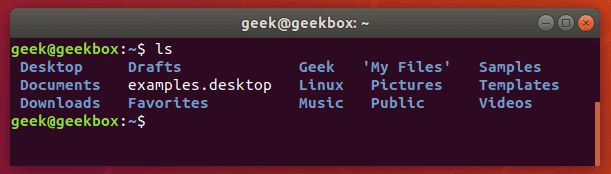
In this tutorial, you will learn how to use the very essential grep command in Linux. We’re going to go over why this command is important to master, and how you can utilize it in your everyday tasks at the command line. Let’s dive right in with some explanations and examples. Why do we use grep? Grep is a command line tool that Linux users use to search for strings of text. You can use it to search a file for a certain word or combination of words or you can pipe the output of other Linux commands to grep, so grep can show you only the output that you need to see. Let’s look at some really common examples. Say that you need to check the contents of a directory to see if a certain file exists there. That’s something you would use the “ls” command for. But, to make this whole process of checking the directory’s contents even faster, you can pipe the output of the ls command to the grep command. Let’s look in our home directory for a folder called Documents.
Continue Reading →

ls without grep

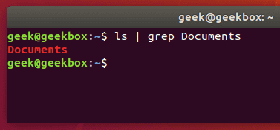
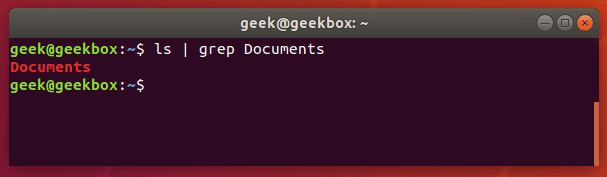
And now let’s try checking the directory again, but this time using grep to check specifically for the Documents folder.

ls | grep Documents

ls grep

As you can see in the screenshot above, using the grep command saved us time by quickly isolating the word we searched for from the rest of the unnecessary output that the ls command produced.

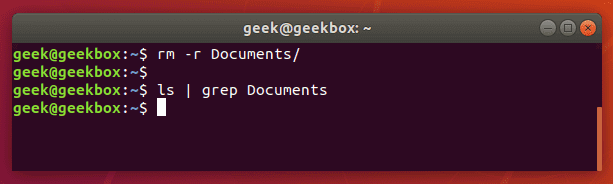
If the Documents folder didn’t exist, grep wouldn’t return any output. So if nothing is returned by grep, that means that it couldn’t find the word you are searching for.

grep no results

Find a string

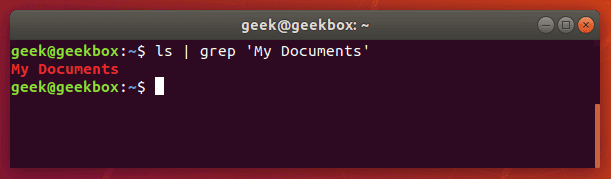
If you need to search for a string of text, rather than just a single word, you will need to wrap the string in quotes. For example, what if we needed to search for the “My Documents” directory instead of the single-worded “Documents” directory?

ls | grep 'My Documents'

grep for string

Grep will accept both single quotes and double quotes, so wrap your string of text with either.

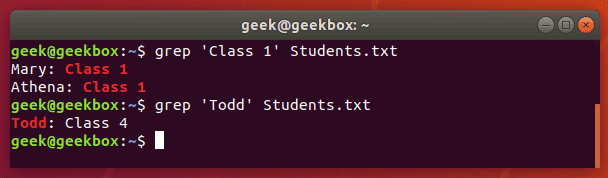
While grep is often used to search the output piped from other command line tools, you can also use it to search documents directly. Here’s an example where we search a text document for a string.

grep 'Class 1' Students.txt

grep for string in document

Find multiple strings

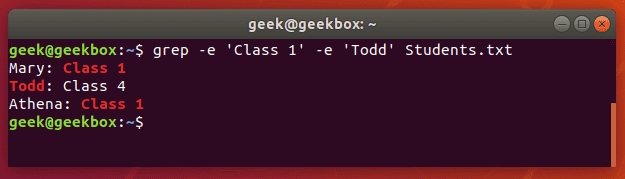
You can also use grep to find multiple words or strings. You can specify multiple patterns by using the -e switch. Let’s try searching a text document for two different strings:

grep -e 'Class 1' -e Todd Students.txt

grep multiple strings

Notice that we only needed to use quotes around the strings that contained spaces.

Difference between grep, egrep fgrep, pgrep, zgrep

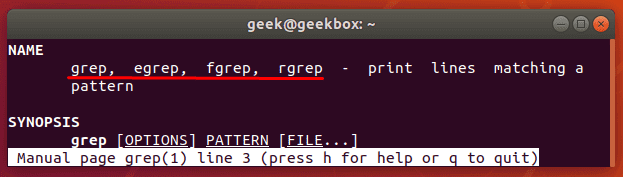
Various grep switches were historically included in different binaries. On modern Linux systems, you will find these switches available in the base grep command, but it’s common to see distributions support the other commands as well.

From the man page for grep:

grep commands

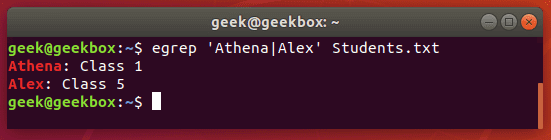
egrep is the equivalent of grep -E

This switch will interpret a pattern as an extended regular expression. There’s a ton of different things you can do with this, but here’s an example of what it looks like to use a regular expression with grep.

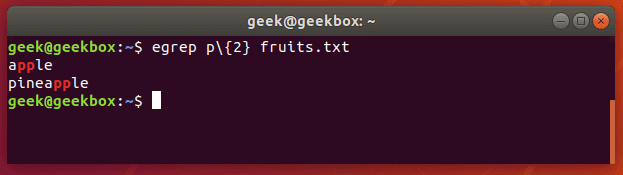
Let’s search a text document for strings that contain two consecutive ‘p’ letters:

egrep p\{2} fruits.txt
or
grep -E p\{2} fruits.txt

egrep example

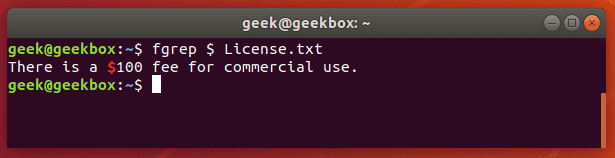
fgrep is the equivalent of grep -F

This switch will interpret a pattern as a list of fixed strings, and try to match any of them. It’s useful when you need to search for regular expression characters. This means you don’t have to escape special characters like you would with regular grep.

fgrep example

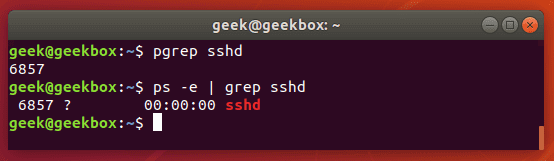
pgrep is a command to search for the name of a running process on your system and return its respective process IDs. For example, you could use it to find the process ID of the SSH daemon:

pgrep sshd

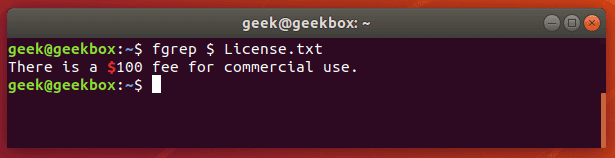
fgrep example

This is similar in function to just piping the output of the ‘ps’ command to grep.

prgrep vs ps

You could use this information to kill a running process or troubleshoot issues with the services running on your system.

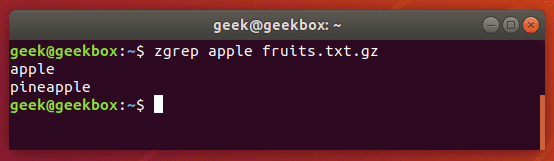
zgrep is used to search compressed files for a pattern. It allows you to search the files inside of a compressed archive without having to first decompress that archive, basically saving you an extra step or two.

zgrep apple fruits.txt.gz

zgrep example

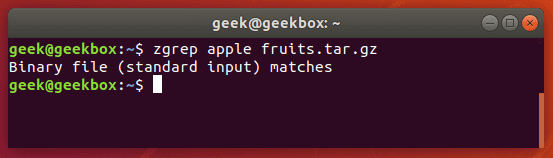
zgrep also works on tar files, but only seems to go as far as telling you whether or not it was able to find a match.

zgrep tar file

We mention this because files compressed with gzip are very commonly tar archives.

Difference between find and grep

For those just starting out on the Linux command line, it’s important to remember that find and grep are two commands with two very different functions, even though they are both used to “find” something that the user specifies.

It’s handy to use grep to find a file when you use it to search through the output of the ls command, like we showed in the first examples of the tutorial.

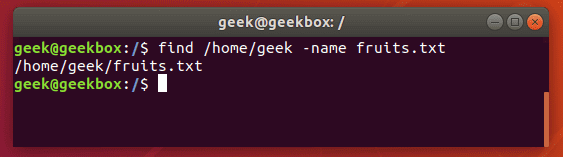
However, if you need to search recursively for the name of a file – or part of the file name if you use a wildcard (asterisk) – you’re much ahead to use the ‘find’ command.

find /path/to/search -name name-of-file

find command

The output above shows that the find command was able to successfully locate the file we searched for.

Search recursively

You can use the -r switch with grep to search recursively through all files in a directory and its subdirectories for a specified pattern.

grep -r pattern /directory/to/search

If you don’t specify a directory, grep will just search your present working directory. In the screenshot below, grep found two files matching our pattern, and returns with their file names and which directory they reside in.

recursive grep

Catch space or tab

As we mentioned earlier in our explanation of how to search for string, you can wrap text inside quotes if it contains spaces. The same method will work for tabs, but we’ll explain how to put a tab in your grep command in a moment.
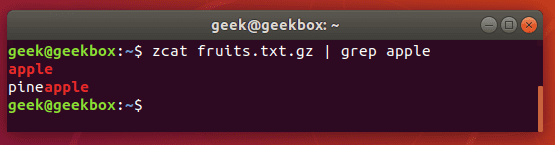
Put a space or multiple spaces inside quotes to have grep search for that character.

grep " " sample.txt

grep spaces

There are a few different ways you can search for a tab with grep, but most of the methods are experimental or can be inconsistent across different distributions.

The easiest way is to just search for the tab character itself, which you can produce by hitting ctrl+v on your keyboard, followed by tab.

Normally, pressing tab in a terminal window tells the terminal that you want to auto-complete a command, but pressing the ctrl+v combination beforehand will cause the tab character to be written out as you’d normally expect it to in a text editor.

grep " " sample.txt

grep tabs

Knowing this little trick is especially useful when greping through configuration files in Linux, since tabs are frequently used to separate commands from their values.

Using regular expressions

Grep’s functionality is further extended by using regular expressions, allowing you more flexibility in your searches. Several exist, and we will go over some of the most commons ones in the examples below:

[ ] brackets are used to match any of a set of characters.

grep "Class [123]" Students.txt

grep brackets

This command will return any lines that say ‘Class 1’, ‘Class2’, or ‘Class 3’.

[-] brackets with hyphen can be used to specify a range of characters, either numerical or alphabetical.

grep "Class [1-3]" Students.txt

grep brackets hyphen

We get the same output as before, but the command is much easier to type, especially if we had a bigger range of numbers or letters.

^ caret is used to search for a pattern that only occurs at the beginning of a line.

grep "^Class" Students.txt

grep caret

[^] brackets with caret are used to exclude characters from a search pattern.

grep "Class [^1-2]" Students.txt

grep brackets caret

$ dollar sign is used to search for a pattern that only occurs at the end of a line.

grep "1$" Students.txt

grep dollar

. dot is used to match any one character, so it’s a wildcard but only for a single character.

grep "A….a" Students.txt

grep dot

Grep gz files without unzipping

As we showed earlier, the zgrep command can be used to search through compressed files without having to unzip them first.

zgrep word-to-search /path/to/file.gz

You can also use the zcat command to display the contents of a gz file, and then pipe that output to grep to isolate the lines containing your search string.

zcat file.gz | grep word-to-search

zcat

Grep email addresses from a zip file

We can use a fancy regular expression to extract all the email addresses from a zip file.

grep -o '[[:alnum:]+\.\_\-]*@[[:alnum:]+\.\_\-]*' emails.txt

The -o flag will extract the email address only, rather than showing the entire line that contains the email address. This results in a cleaner output.

grep emails

As with most things in Linux, there is more than one way to do this. You could also use egrep and a different set of expressions. But the example above works just fine and is a pretty simple way to extract the email addresses and ignore everything else.

Grep IP addresses

Greping for IP addresses can get a little complex because we can’t just tell grep to look for 4 numbers separated by dots – well, we could, but that command has the potential to return invalid IP addresses as well.

The following command will find and isolate only valid IPv4 addresses:

grep -E -o "(25[0-5]|2[0-4][0-9]|[01]?[0-9][0-9]?)\.(25[0-5]|2[0-4][0-9]|[01]?[0-9][0-9]?)\.(25[0-5]|2[0-4][0-9]|[01]?[0-9][0-9]?)\.(25[0-5]|2[0-4][0-9]|[01]?[0-9][0-9]?)" /var/log/auth.log

We used this on our Ubuntu server just to see where the latest SSH attempts have been made from.

grep IP addresses

To avoid repeat information and having your screen flooded, you may want to pipe your grep commands to “uniq” and “more” as we did in the screenshot above.

Grep or condition

There are a few different ways you can use an or condition with grep, but we will show you the one that requires the least amount of keystrokes and is easiest to remember:

grep -E 'string1|string2' filename
or, technically using egrep is even less keystrokes:
egrep 'string1|string2' filename

grep or condition

Ignore case sensitivity

By default, grep is case sensitive, which means you have to be precise in the capitalization of your search string. You can avoid this by telling grep to ignore the case with the -i switch.

grep -i string filename

grep ignore case

Search with case sensitive

What if we want to search for a string where the first can be uppercase or lowercase, but the rest of the string should be lowercase? Ignoring case with the -i switch won’t work in this case, so a simple way to do it would be with brackets.

grep [Ss]tring filename

This command tells grep to be case sensitive except for the first letter.

grep case sensitive

Grep exact match

In our examples above, whenever we search our document for the string “apple”, grep also returns “pineapple” as part of the output. To avoid this, and search for strictly “apple”, you can use this command:

grep "\<apple\>" fruits.txt

exact match

You can also use the -w switch, which will tell grep that the string must match the whole line. Obviously, this will only work in situations where you’re not expecting the rest of the line to have any text at all.

Exclude pattern

To see the contents of a file but exclude patterns from the output, you can use the -v switch.

grep -v string-to-exclude filename

exclude pattern

As you can see in the screenshot, the string we excluded is no longer shown when we run the same command with the -v switch.

Grep and replace

A grep command piped to sed can be used to replace all instances of a string in a file. This command will replace “string1” with “string2” in all files relative to the present working directory:

grep -rl 'string1' ./ | xargs sed -i 's/string1/string2/g'

Grep with line number

To show the number of a line that your search string is found on, use the -n switch.

grep -n string filename

show line numbers

Show lines before and after

If you need a little more context to the grep output, you can show one line before and after your specified search string with the -c switch:

grep -c 1 string filename

Specify the number of lines you wish to show – we did only 1 line in this example.

line before and after

Sort the result

Pipe grep’s output to the sort command to sort your results in some kind of order. The default is alphabetical.

grep string filename | sort

line before and after

I hope you find the tutorial useful. Keep coming back.

0