
Archive | GNU/Linux İpuçları

Understanding Linux runlevels the right way

You can think of Linux runlevels as different “modes” that the operating system runs in. Each of these modes, or runlevels, has its own list of processes and services that are either turned on or off. From the time Linux boots up, it’s always in some runlevel. This runlevel may change as you continue to use your computer, depending on what kind of services the operating system needs access to. For example, running your Linux machine with a graphical user interface will necessitate a different runlevel than if you were only running the command line on your system. This is because the graphical user interface will need access to various services that the command line simply does not. In order for the system to determine which services are needed to be switched on (or off), it changes the runlevel as needed.

Continue Reading →

Importance of Linux runlevels

You may have used Linux for years without realizing that there are different runlevels. That’s because it’s not something most server administrators will need to configure often.

However, Linux runlevels do give administrators increased control over the systems they manage.

The runlevel a system is in can be changed (which we will see how to do later in the article), as can the services which run inside the runlevels. This allows us complete control over what services our systems have access to at any given time.

How many runlevels are in Linux?

There are seven different runlevels in Linux, numbered from zero to six. Various distributions may use the seven runlevels differently, so it’s not very easy to compile a definitive list of what the runlevels do.

Instead, you would need to check how the runlevels work on the specific distribution that you are using. For the most part, the list below represents how Linux distributions generally configure runlevels:

Runlevel 0 shuts down the system.

Runlevel 1 is a single-user mode, which is used for maintenance or administrative tasks. You may also see this mode referred to as runlevel S (the S stands for single-user).

Runlevel 2 is a multi-user mode. This runlevel does not use any networking services.

Runlevel 3 is a multi-user mode with networking. This is the normal runlevel you are used to if you use a system that doesn’t boot into a GUI (graphical user interface).

Runlevel 4 is not used. The user can customize this runlevel for their own purposes (which we will cover how to do later in the article).

Runlevel 5 is the same as runlevel 3, but it also starts a display manager. This is the runlevel you are used to if you use a system that boots into a GUI.

Runlevel 6 reboots the system.

What is my current runlevel?

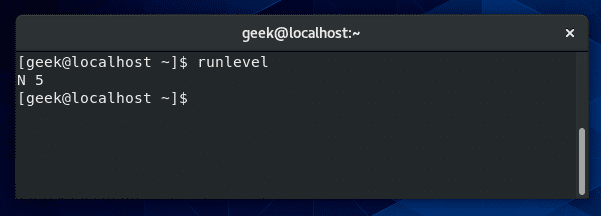
You can see your current runlevel on most distributions by simply typing “runlevel” in the terminal.
Current runlevel

When you enter the “runlevel” command, it’ll give you two different numbers. The first number is the previous runlevel your system was running, and the second number is the current runlevel of your system.

In the screenshot above, the “N” is short for “none”, meaning that the system was not in any different runlevel previously. The “5” means our system is currently in runlevel 5.

We are running CentOS in this example, which booted directly into a graphical interface, hence why the system went straight to runlevel 5.

How to change the current runlevel?

You can change the current runlevel of your system using the “telinit” command. For example, to change to runlevel 3 on CentOS, you would type:

telinit 3
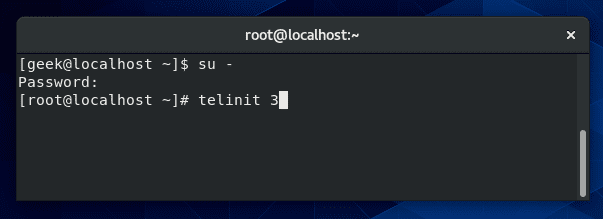
Change the current runlevel

Keep in mind that you must be the root user to execute this command. Be aware that runlevels work differently on Debian and Ubuntu – for example, Ubuntu will boot into runlevel 5 even without starting a GUI.

If you follow the example above, your screen may go blank. This is because you’re left at the – now empty – tty. Just do Alt+F1 (or some other function key) on your keyboard to be taken to a working terminal.

If we use the “runlevel” command again, we’ll see that we are now in runlevel 3, and the previous runlevel is listed as 5 since we just changed from it.
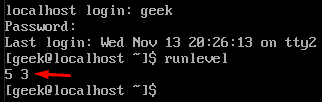
runlevel command

Linux systemd targets vs runlevels

In recent years, systemd has come to replace the long-standing “System V init” (runlevels) system. It still works in basically the same way, but uses some new commands and commonly refers to “runlevels” as “targets” instead.

Runlevel 0 = poweroff.target (runlevel0.target)

Runlevel 1 = rescue.target (runlevel1.target)

Runlevel 2 = multi-user.target (runlevel2.target)

Runlevel 3 = multi-user.target (runlevel3.target)

Runlevel 4 = multi-user.target (runlevel4.target)

Runlevel 5 = graphical.target (runlevel5.target)

Runlevel 6 = reboot.target (runlevel6.target)

We’ll continue going over systemd and the commands you’ll need to know as this tutorial progresses.

How to change the default runlevel at startup?

There are a lot of reasons why you may wish to boot into a different runlevel. For example, it’s common for system administrators to boot into the command line, and only start a graphical interface when deemed necessary.

For this functionality, you would want to make sure your default runlevel is set to 3, and not 5.

In the past, one was required to edit the /etc/inittab file to define the default runlevel at startup. You may still find this to be the case on some distributions.

If working with an operating system that has not been upgraded for a few years, you’ll still find this method to be relevant for you.

vi /etc/inittab
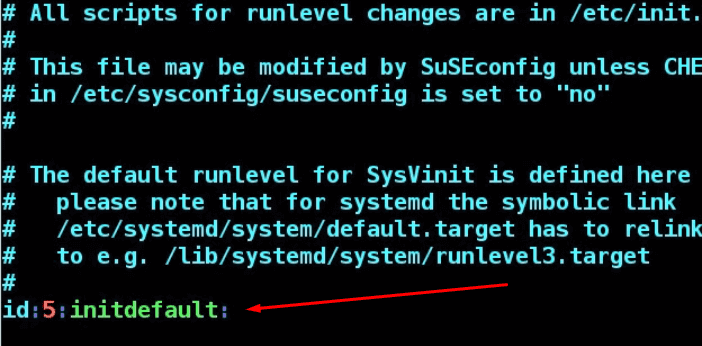
inittab file

In the screenshot above, runlevel 5 is currently set to the default runlevel for the startup.

As of 2016, most major Linux distributions have phased out the /etc/inittab file, in favor of systemd targets – we’ll cover the differences later in this article.

You may find that your system doesn’t have the /etc/inittab file at all, or your inittab file may advise you to use systemd instead like, in this screenshot from our CentOS system.
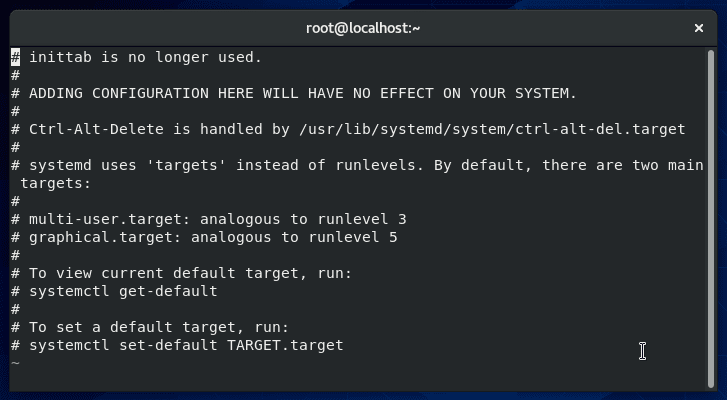
systemd

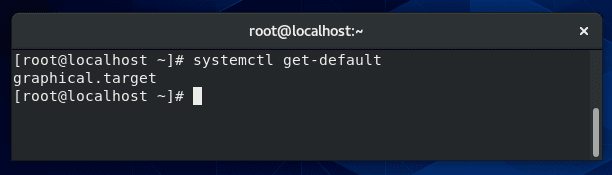
To check the current default target of your system:

systemctl get-default
Current default target

In the screenshot above, the reply back from the system is “graphical.target”. As you can probably guess, this is the equivalent to runlevel 5.

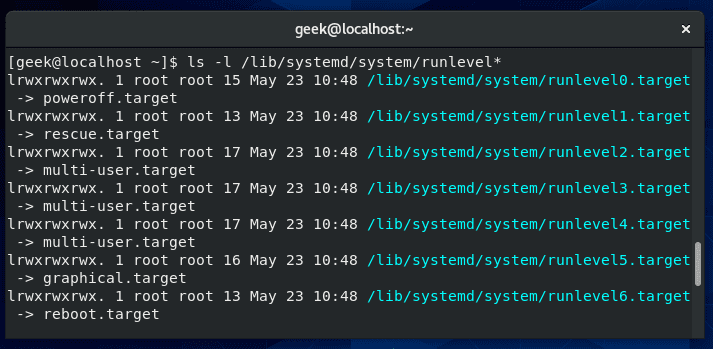
To see the other available targets, and the runlevels they are associated with, type:

ls -l /lib/systemd/system/runlevel*
Available target runlevels

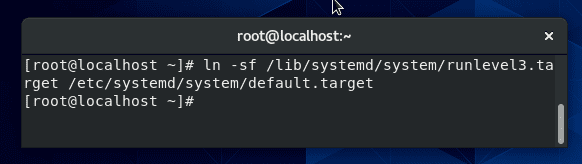
These symbolic links tell us that the systemd targets pretty much operate the same way runlevels do. So, how can we change the default runlevel (or target) at startup? We need to create a new symbolic link, like this:

ln -sf /lib/systemd/system/runlevel3.target /etc/systemd/system/default.target
Default target

This command will change our default runlevel to 3, so the next time we reboot, our system will be in runlevel 3 instead of 5. If you wanted a different runlevel, you would just substitute a different number in place of the “3” in the command.

For reference, the -f switch in that command indicates that the target file should be removed, before creating the new link. You could also just remove it first with a simple rm command.

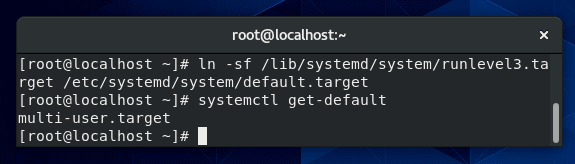
You can confirm that the change was made successfully with the “systemctl get-default” command again.
Default target

This command will change our default runlevel to 3, so the next time we reboot, our system will be in runlevel 3 instead of 5. If you wanted a different runlevel, you would just substitute a different number in place of the “3” in the command.

For reference, the -f switch in that command indicates that the target file should be removed, before creating the new link. You could also just remove it first with a simple rm command.

You can confirm that the change was made successfully with the “systemctl get-default” command again.

get-default command

Runlevel 3 vs runlevel 5

The two runlevels you will hear about and work with the most are going to be 3 and 5. It basically boils down to this: runlevel 3 is a command line, and runlevel 5 is a graphical user interface.

Of course, not every distribution follows this convention, and your system could be configured by an admin so that these runlevels have even more differences.

But, in general, that’s how it works. If you want to see exactly what services are enabled at both of these runlevels, we cover that in the next section.

List services that are enabled at a particular runlevel

Up till recent years, “chkconfig –list” was the command to list the services that would be enabled at different runlevels. If your operating system is up to date, that command may give you an error or defer you over to systemd.
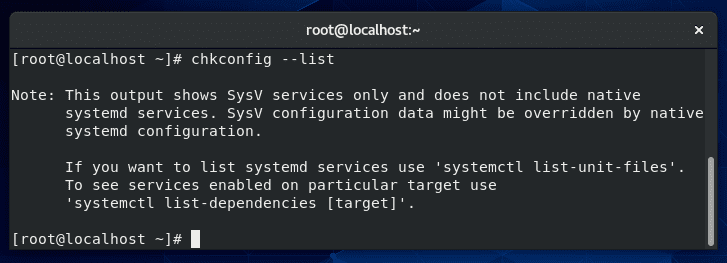
chkconfig command

If we want to see what services will be started when we boot into graphical mode (runlevel 5), we can run this command:

get-default command

Runlevel 3 vs runlevel 5

The two runlevels you will hear about and work with the most are going to be 3 and 5. It basically boils down to this: runlevel 3 is a command line, and runlevel 5 is a graphical user interface.

Of course, not every distribution follows this convention, and your system could be configured by an admin so that these runlevels have even more differences.

But, in general, that’s how it works. If you want to see exactly what services are enabled at both of these runlevels, we cover that in the next section.

List services that are enabled at a particular runlevel

Up till recent years, “chkconfig –list” was the command to list the services that would be enabled at different runlevels. If your operating system is up to date, that command may give you an error or defer you over to systemd.

chkconfig command

If we want to see what services will be started when we boot into graphical mode (runlevel 5), we can run this command:

systemctl list-dependencies graphical.target
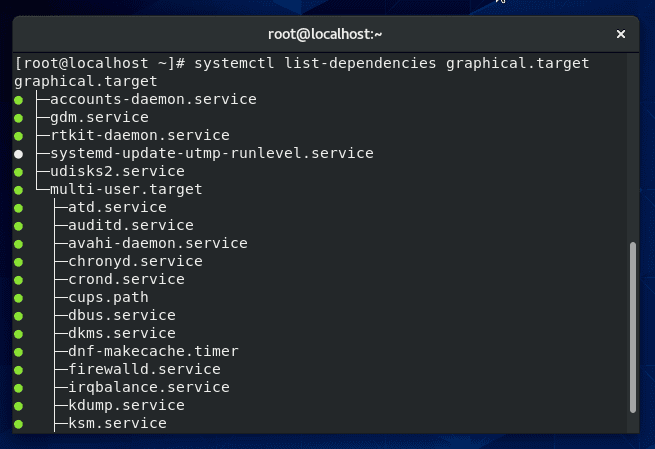
List services

To see the services that run by default on other runlevels, just replace “graphical.target” with the name of the target you need to see.

Under which runlevel will a process run?

If you’d like to see which runlevel(s) a specific service runs at, you can use this command:

systemctl show -p WantedBy [name of service]
For example, if you wanted to see at which runlevel the SSH daemon will run, you would type:
systemctl show -p WantedBy sshd.service
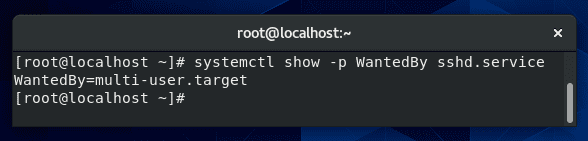
Runlevel for a service

According to the output in the above screenshot, the SSH service will start on runlevels 2, 3, and 4 (multi-user.target)

How to change the runlevel of an application?

As seen above, our SSH service is only running at runlevels 2-4 (multi-user.target). What if we also want it to start when we boot into a graphical interface – runlevel 5 (graphical.target)? We could apply that configuration with the following command:

systemctl enable sshd.service
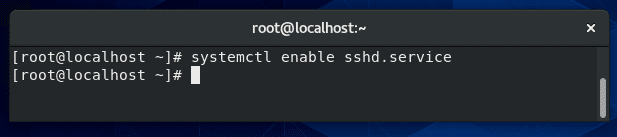
Enable service at startup

Security issues with runlevels in Linux

As we said earlier in this article, the point of Linux runlevels is to give an administrator control over what services run under certain conditions. Having this type of granular control over your system enhances security since you can be sure that there are no extraneous services running.

The problem can arise when an administrator is unaware of exactly what services are running, therefore doesn’t bother to secure those attack surfaces.

You can use the methods in this guide to configure your default runlevel and to control which applications are running. These practices will not only free up system resources, but also keep your server more secure.

Remember to only use the runlevel you need. For example, there is no sense in starting runlevel 5 (graphical interface) if you only plan to use the terminal.

Changing to a different runlevel will introduce multiple new services, some of which may run completely in the background and you may forget to secure them.

Which runlevel is the best for me?

Determining which runlevel is the best for you all depends on the situation. Generally, you are probably going to be using runlevels 3 and 5 on a regular basis.

If you are comfortable with the command line and don’t need a graphical interface, runlevel 3 (on most distributions) is going to be best for you.

This will keep unnecessary services from running. On the other hand, if you want more of a desktop experience and a graphical interface to use various apps, etc, then runlevel 5 will be your preferred runlevel.

If you need to perform maintenance on a production server, runlevel 1 suits that situation well. This is used to ensure that you are the only one on the server (the network service is not even started), and you can perform your maintenance uninterrupted.

In rare cases, you may even need to use runlevel 4. This would only be in particular situations where you or the system administrator has a custom configured runlevel. We will cover how to do that in the next section.

As you have probably assumed, you won’t (and can’t) run your system in runlevels 0 or 6, but it’s possible to switch to them just to reboot or power off. Doing so shouldn’t ordinarily be necessary since there are other commands that do that for us.

Can we create a new runlevel in Linux?

It is possible to create a new runlevel in Linux, but it’s extremely unlikely that you would ever need to do that. If you were determined to do it anyway, you can start by copying one of the existing systemd targets, and then editing it with your own customizations.

The targets are located in:

/usr/lib/systemd/system
If you wanted to base your new runlevel/target off of graphical.target (runlevel 5), copy that directory to your new target directory.
cp /usr/lib/systemd/system/graphical.target /usr/lib/systemd/system/mynew.target
After that, create a new “wants” directory, like so:
mkdir /etc/systemd/system/mynew.target.wants

And then symlink the additional services from /usr/lib/systemd/system that you want to enable for your new runlevel.

I hope you find the tutorial useful. Keep coming back.

0

10+ examples for killing a process in Linux

In this tutorial, we will talk about killing a process in Linux with multiple examples. In most cases, it’s as simple as typing “kill” command followed by the process ID (commonly abbreviated as PID).

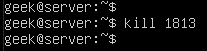
In the screenshot above, we’ve killed a process with the ID of 1813. If you are a Windows user, it may help to think of the ‘kill’ command as Linux’s equivalent of the ‘End task’ button inside of the Windows task manager. The “ps -e” command will list everything running on your system. Even with a minimal installation, the command will probably output more than 80 results, so it’s much easier to pipe the command to ‘grep’ or ‘more’.

Continue Reading →

ps -e | grep name-of-process

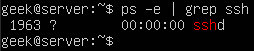
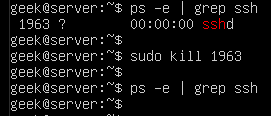
In the screenshot below, we check to see if SSH is running on the system.

Check if process is running

This also gives us the PID of the SSH daemon, which is 1963.

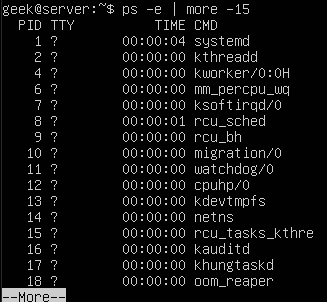
Pipe to ‘more’ if you want to look through your system’s running processes one-by-one.

List running processes

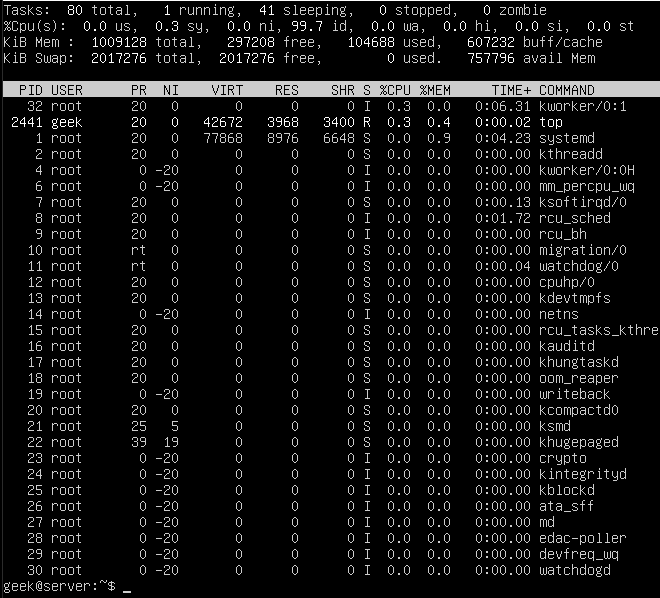
You can also make use of the ‘top’ command in order to see a list of running processes. This is useful because it will show you how many system resources that each process is using.

List processes using top command

The PID, User, and name of the resource are all identified here, which is useful if you decide to kill any of these services later.

Pay attention to the %CPU and %MEM columns, because if you notice an unimportant process chewing up valuable system resources, it’s probably beneficial to kill it!

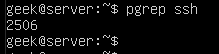
Another very efficient away of obtaining the corresponding process ID is to use the ‘pgrep’ command. The only argument you need to supply is the name (or part of the name) of the running process.

Here’s what it looks like when we search for SSH. As you can see, it returns a process ID of 2506.

Using pgrep

Kill a process by PID

Now that we know the PID of the SSH daemon, we can kill the process with the kill command.

sudo kill 1963

Kill process by ID

You can issue a final ‘ps’ command, just to ensure that the process was indeed killed.

ps -e | grep ssh

The results come up empty, meaning that the process was shut down successfully. If you notice that the process is continuing to run – which should not normally happen – you can try sending a different kill signal to the process, as covered in the next session.

Note: It’s not always necessary to use ‘sudo’ or the root user account to end a process. In the former example, we were terminating the SSH daemon, which is run under the root user, therefore we must have the appropriate permissions to end the process.

Default signal sent by the kill command

By default, the kill command will send a SIGTERM signal to the process you specify.

This should allow the process to terminate gracefully, as SIGTERM will tell the process to perform its normal shutdown procedures – in other words, it doesn’t force the process to end abruptly.

This is a good thing because we want our processes to shut down the way they are intended.

Sometimes, though, the SIGTERM signal isn’t enough to kill a process. If you run the kill command and notice that the process is still running, the process may still be going through its shutdown process, or it may have become hung up entirely.

Force killing

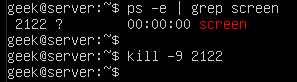
To force the process to close and forego its normal shutdown, you can send a SIGKILL signal with the -9 switch, as shown here:

kill -9 processID

Force process killing

It can be tempting to always append the -9 switch on your kill commands since it always works. However, this isn’t the recommended best practice. You should only use it on processes that are hung up and refusing to shut down properly.

When possible, use the default SIGTERM signal. This will prevent errors in the long run, since it gives the process a chance to close its log files, terminate any lingering connections, etc.

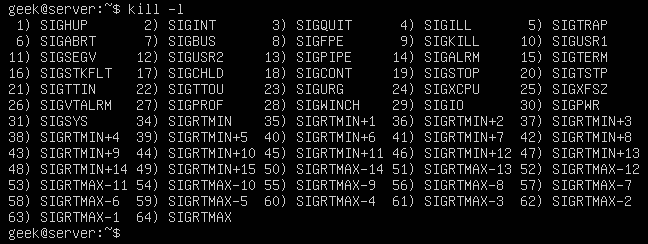
Apart from the SIGTERM and SIGKILL signals, there is a slew of other signals that kill can send to processes, all of which can be seen with the -l switch.

Kill signals

The numbers next to the names are what you would specify in your ‘kill’ command. For example, kill -9 is SIGKILL, just like you see in the screenshot above.

For everyday operations, SIGTERM and SIGKILL are probably the only signals you will never need to use. Just keep the others in mind in case you have a weird circumstance where a process recommends terminating it with a different signal.

How to kill all processes by name?

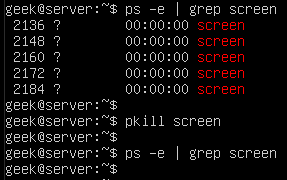
You can also use the name of a running process, rather than the PID, with the pkill command. But beware, this will terminate all the processes running the under the specified name, since kill won’t know which specific process you are trying to terminate.

pkill name-of-process

Check out the example below where we terminate five processes with a single pkill command.

Kill a process using pkill

In this example, we had wanted to only terminate one of those screen sessions, it would’ve been necessary to specify the PID and use the normal ‘kill’ command. Otherwise, there is no way to uniquely specify the process that we wish to end.

How to kill all processes by a user?

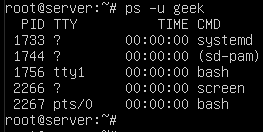
You can also use the pkill command to terminate all processes that are running by a Linux user. First, to see what processes are running under a specific user, use the ps command with a -u switch.

ps -u username

List processes running by a user

That screenshot shows us that there are currently 5 services running under the user ‘geek’. If you need to terminate all of them quickly, you can do so with pkill.

pkill -u username

pkill command

How to kill a nohup process?

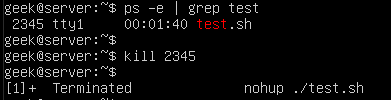
The nohup process is killed in the same way as any other running process. Note that you can’t grep for “nohup” in the ps command, so you’ll need to search for the running process using the same methods as shown above.

In this example, we find a script titled ‘test.sh’ which has been executed with the nohup command. As you’ll see, finding and ending it is much the same as the examples above.

Kill nohup process

The only difference with the output is that we are notified that the process was terminated. That’s not part of kill, but rather a result from running the script in the background (the ampersand in this example) and being connected to the same tty from which the script was initiated.

nohup ./test.sh &

How to run a process in the background?

The kill command is an efficient way to terminate processes you have running in the background. You’ve already learned how to kill processes in this tutorial, but knowing how to run a process in the background is an effective combination for use with kill command.

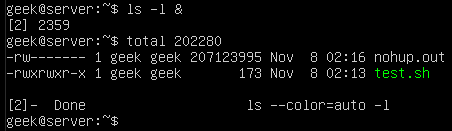
You can append an ampersand (&) to your command in order to have it executed in the background. This is useful for commands or scripts that will take a while to execute, and you wish to do other tasks in the meantime.

Run a process in background using ampersand

Here we have put a simple ‘ls’ command into the background. Since it’s the type of command which takes very little time to execute, we’re given more output about it finishing its job directly after.

The output in our screenshot says “Done”, meaning that the job in the background has completed successfully. If you were to kill the job instead, it would show “terminated” in the output.

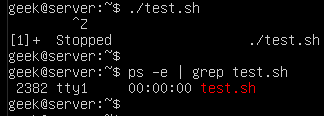
You can also move a job to the background by pressing Ctrl+Z on your keyboard. The ^Z in this screenshot indicates that Ctrl+Z was pressed and the test.sh script has been moved into the background.

Run a process in background using CTRL+Z

You can see test.sh continuing to run in the background by issuing a ps command.

ps -e | grep test.sh

List background processes

Using screen command

Another way to run a process in the background is to use the ‘screen’ command. This works by creating what basically amounts to a separate terminal window (or screen… hence the name).

Each screen that you create will be given its own process ID, which means that it’s an efficient way of creating background processes that can be later ended using the kill command.

Screen isn’t included on all Linux installs by default, so you may have to install it, especially if you’re not running a distribution meant specifically for servers.

On Ubuntu and Debian-based distributions, it can be installed with the following command:

sudo apt-get install screen

Once screen command is installed, you can create a new session by just typing ‘screen’.

screen

But, before you do that, it’s good to get in the habit of specifying names for your screens. That way, they are easy to look up and identify later. All you need in order to specify a name is the -S switch.

screen -S my-screen-name

Let’s make a screen called “testing” and then try to terminate it with the ‘kill’ command. We start like this:

Screen command

After typing this command and pressing enter, we’re instantly taken to our newly created screen. This is where you could start the process that you wish to have running in the background.

This is especially handy if you are SSH’d into a server and need a process to continue running even after you disconnect.

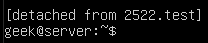
With your command/script running, you can disconnect from the screen by pressing Ctrl+A, followed by D (release the Ctrl and A key before pressing the D key).

Disconnect from screen

As you can see, screen command has listed the process ID as soon as we detached the screen. Of course, we can terminate this screen (and the command/script running inside of it), by using the kill command.

You can easily look up the process ID of your screen sessions by using this command:

screen -ls

List screen sessions

If we hadn’t named our screen session by using the -S switch, only the process ID itself would be listed. To reattach to the any of the screens listed, you can use the -r switch:

screen -r name-of-screen
or
screen -r PID

Reattach screen process

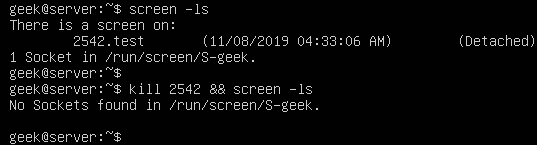
In the screenshot below, we are killing the screen session we created (along with whatever is being run inside of it), and then issuing another screen -ls command in order to verify that the process has indeed ended.

Kill screen session

How to kill a background process?

In one of our examples in the previous section, we put our tesh.sh script to run in the background. Most background processes, especially simple commands, will terminate without any hassle.

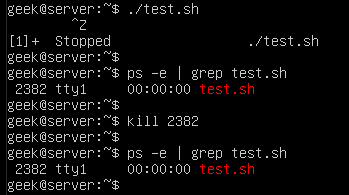
However, just like any process, one in the background may refuse to shut down easily. Our test.sh script has a PID of 2382, so we’ll issue the following command:

kill 2383

In the screenshot, though, you’ll notice that the script has ignored our kill command:

Process killing ignored

As we’ve learned already, kill -9 is the best way to kill a process that is hung up or refusing to terminate.

Force killing

How to kill stopped processes?

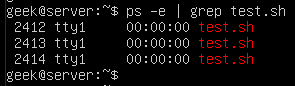
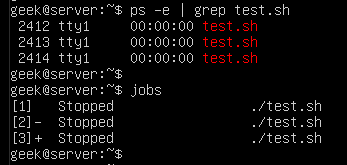
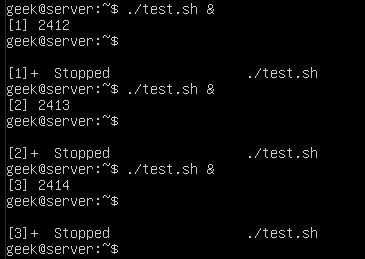
It can be useful to kill all your stopped background jobs at once if they have accumulated and are no longer useful to you. For the sake of example, we’re running three instances of our test.sh script in the background and they’ve been stopped:

./test.sh &

Stop a process

You can see these processes with the ps command:

ps -e | grep test.sh

List processes

Or, to just get a list of all the stopped jobs on the system, you can run the jobs command:

jobs

List stopped processes

The easiest way to kill all the stopped jobs is with the following command:

kill `jobs -ps`

Or use the -9 switch to make sure the jobs terminate immediately:

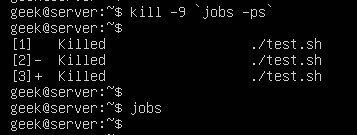
kill -9 `jobs -ps`

Kill stopped processes

The jobs -ps command will list all jobs’ PIDs running in the background, which is why we’re able to combine its output with the kill command in order to end all the stopped processes.

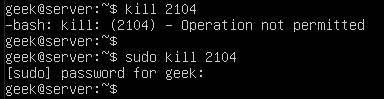
Kill operation not permitted

If you are getting an “operation not permitted” error when trying to kill a process, it’s because you don’t have the proper permissions. Either log in to the root account or use ‘sudo’ (on Debian distributions) before your kill command.

sudo kill PID

sudo kill permission

I hope you find the tutorial useful. Keep coming back.
0

15+ examples for listing users in Linux

In this post, you will learn about listing users in Linux. Besides this, you will know other tricks about Linux users’ characteristics. There are 2 types of users in Linux, system users who are created by default with the system. On the other hand, there are regular users who are created by system administrators and can log in to the system and use it. Before we start listing users, we need to know where are these users saved on Linux? The users are stored in a text file on the system called the passwd file. This file is located in the /etc directory. The file is located on the following path:

Continue Reading →

/etc/passwd

In this file, you can find all the information about the users in the system.

List all users

Listing users is a the first step to manage them. This way we will know how many they are and who they are. In Linux, almost everything can be done in various ways and this is no exception.

To list all users, you can use the cat command:

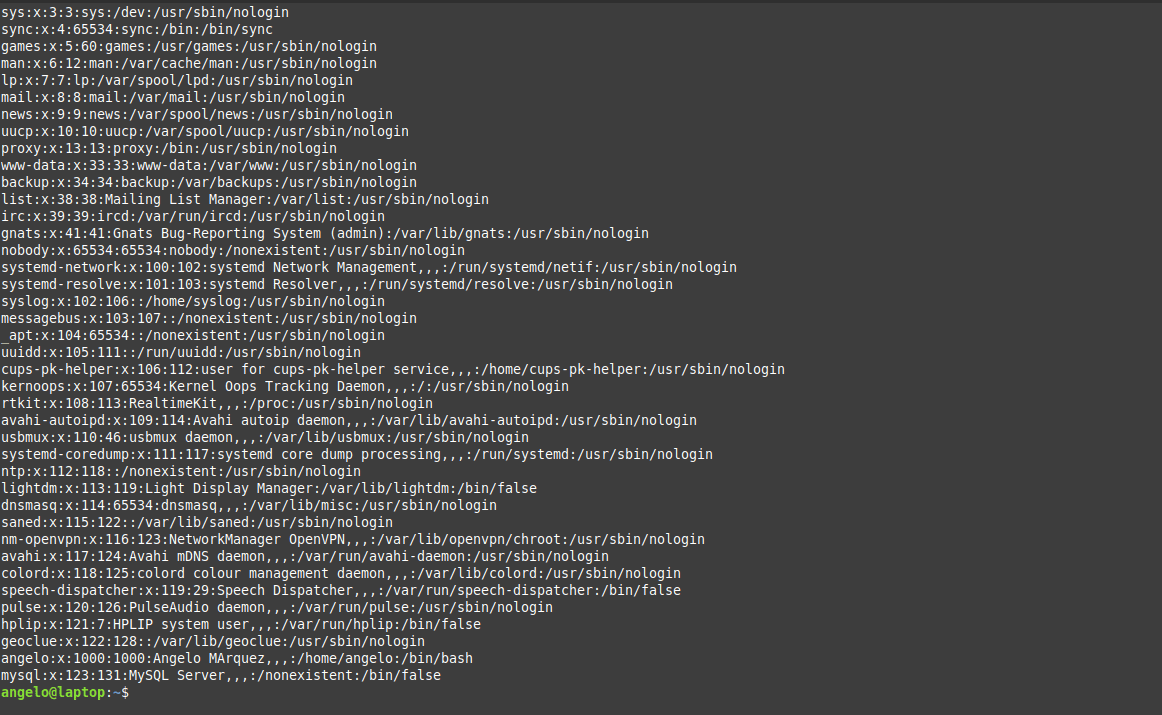
cat /etc/passwd

list all users in Linux

As you can see in the image, there is all the information about the users.

1- In the first field, you will see the user name.

2- Then, a representation of the encrypted password (The x character). The encrypted password is stored in /etc/shadow file.

3- The UID or the user ID.

4- The next field refers to the primary group of the user.

5- Then, it shows user ID info such as the address, email, etc.

6- After this, you will see the home directory of the user.

7- The last field is the shell used by that user.

However, although the information is quite useful but if you only want to list users’ names in a basic way, you can use this command:

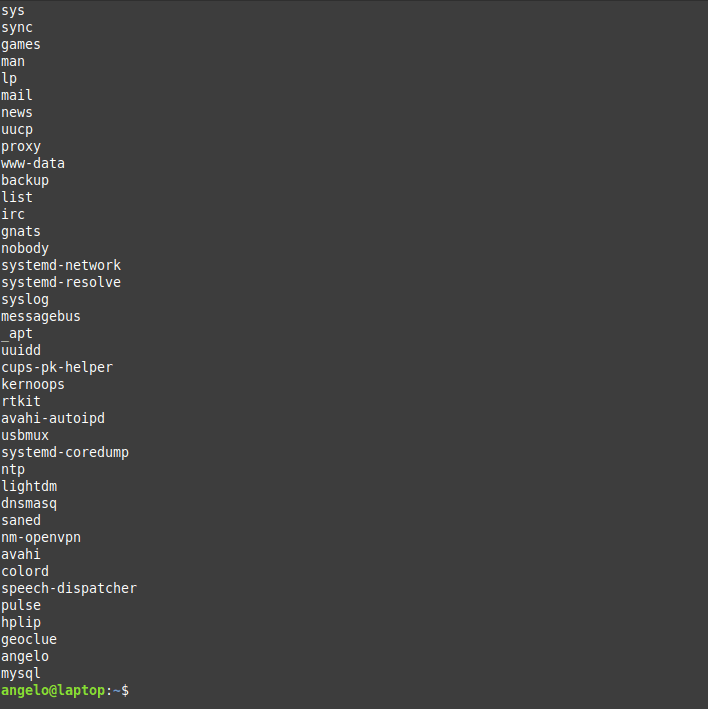
cut -d: -f1 /etc/passwd

Listing users in Linux

Now we have the names only by printing the first field of te file only.

List & sort users by name

The above command serves the purpose of listing users on Linux. But what about listing the users in alphabetical order?

To do this, we will use the previous command, but we will add the sort command.

So, the command will be like this:

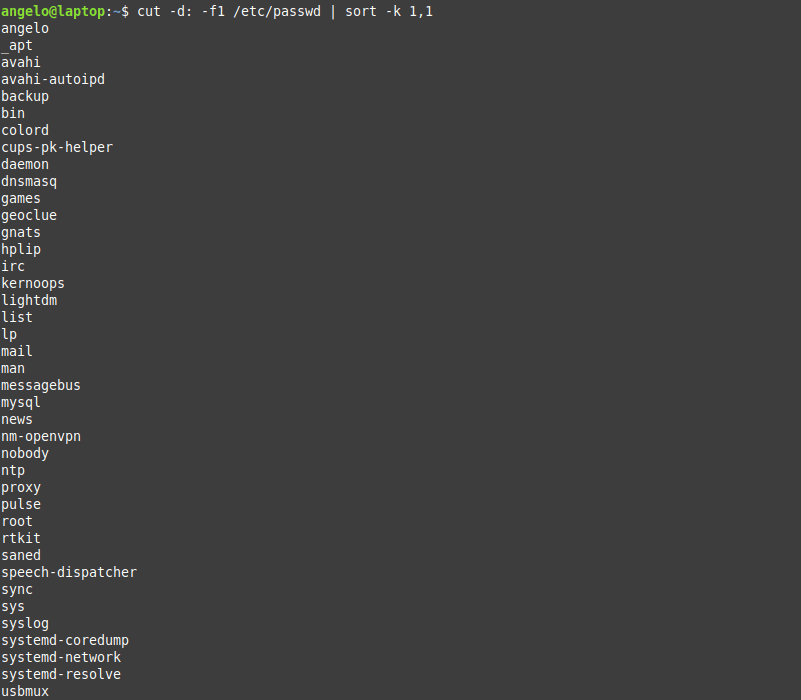
cut -d: -f1 /etc/passwd | sort

Sort by name

As you can see in the image, the users are shown sorted.

Linux list users without password

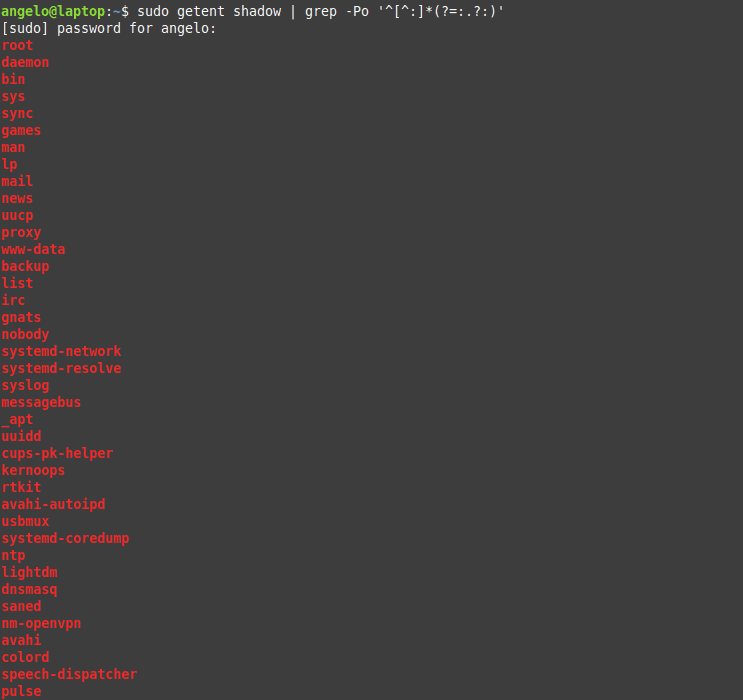
It is important to know users who have no password and to take appropriate action. To list users who do not have a password, just use the following command:

sudo getent shadow | grep -Po '^[^:]*(?=:.?:)'

User with no password

The used regex will list all users with no password.

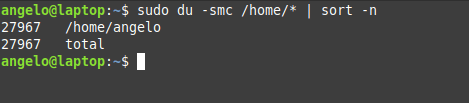
List users by disk usage

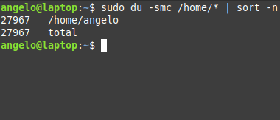
If you have a big directory and you want to know which user is flooding it, you can use the du command to get the disk usage.

With this, you can detect which of these users are misusing the disk space.

For it, it is enough to use the following command:

sudo du -smc /home/* | sort -n

List users by disk usage

In this way, you will have the users ordered by the disk usage for the /home directory.

We used the -n for the sort command to sort the output by numbers.

List the currently logged users

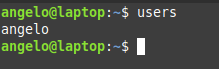
To list the currently logged in users, we have several ways to do it. The first method we can use the users command:

users

Users currently logged

It will list the users with open sessions in the system.

But this information is a little basic however, we have another command that gives more details. The command is simply w.

w

Using the w command to list users currently logged

With this command, we can have more information such as the exact time when the session was started and the terminal session he has available.

Finally, there is a command called who. It is available to the entire Unix family. So you can use it on other systems like FreeBSD.

who

The who command

With who command, we also have some information about currently logged in users. Of course, we can add the option -a and show all the details.

who -a

The who command with options

So, this way you know everything about the logged in users.

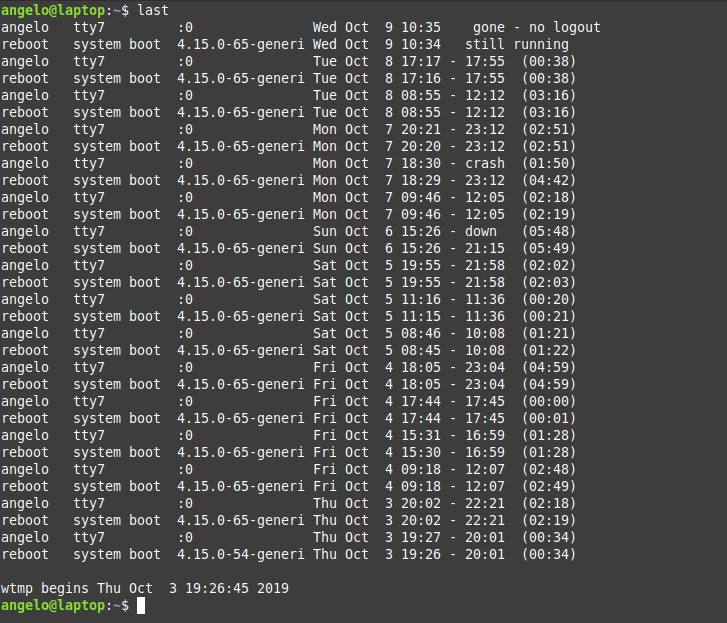
Linux list of users who recently logged into the system

We saw how to get the currently logged in users, what about listing the login history of users?

You can use the last command to get more info about the logins that took place:

last

The last command

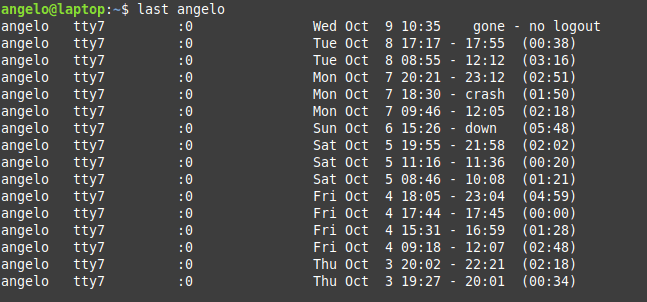
Or the logins of a particular user

last [username]

For example:

last angelo

last command with specific user

These are the user login activity and when it was started and how long it took.

List users’ logins on a specific date or time

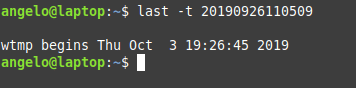
What about listing users’ logins on a specific date or time? To achieve this, we use the last command but with the -t parameter:

last -t YYMMDDHHMMSS
For example:
last -t 20190926110509

List users by a specific date

And now all you have to do is choose an exact date & time to list who logged on that time.

List all users in a group

There are 2 ways to list the members of a group in Linux, the easiest and most direct way is to get the users from the /etc/group file like this:

cat /etc/group | grep likegeeks

This command will list users in the likegeeks group.

The other way is by using commands like the members command in Debian based distros. However, it is not installed by default in Linux distributions.

To install it in Ubuntu / Linux Mint 19, just use APT:

sudo apt install members

Or in the case of CentOS:
sudo dnf install members

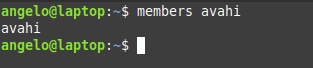
Once it’s installed, you can run the command then the name of the group you want to list the users to:

members [group_name]

For example:
members avahi

Using the members command

This way you can list users for a group in a Debian based distro. What about a RedHat based distro like CentOS?

You can use the following command:

getent group likegeeks

List users with UID

In Unix systems, each user has a user identifier or ID. It serves to manage and administer accounts internally in the operating system.

Generally, UIDs from 0 to 1000 are for system users. And thereafter for regular users. Always on Unix systems, UID zero belongs to the root users (You can have more than one user with UID of zero).

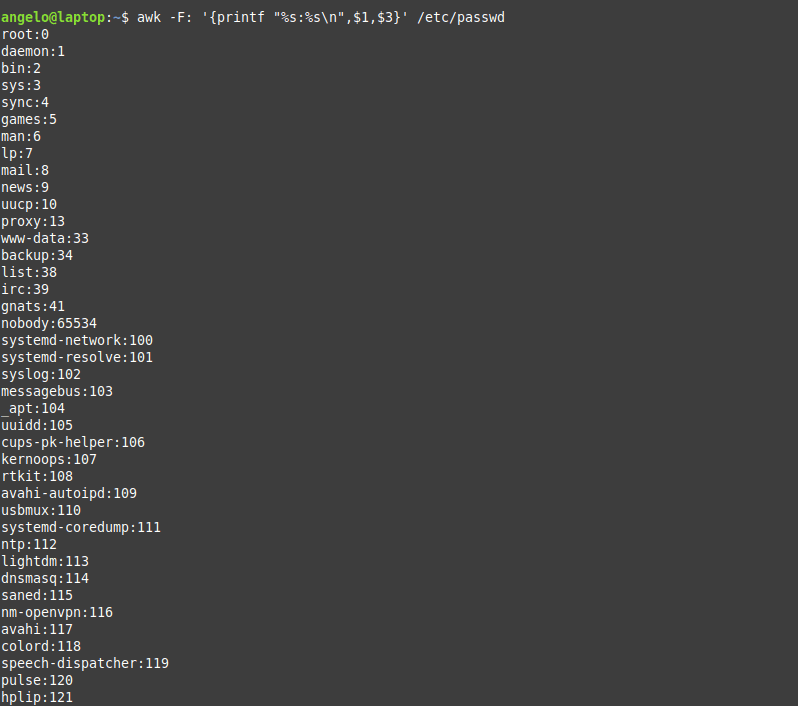
So now we will list the users with their respective UID using awk.

The command that performs the task is the following:

awk -F: '{printf "%s:%s\n",$1,$3}' /etc/passwd

List users with the UID

As you can see, each user with his UID.

List root users

In a Unix-like system like Linux, there is usually only one root user. If there are many, how to list them?

To do this, we can use this command:

grep 'x:0:' /etc/passwd

root users in the system

Here we are filtering the file to get users with UID of zero (root users).

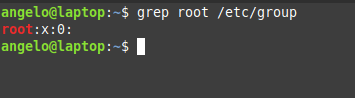
Another way by checking the /etc/group file:

grep root /etc/group

The root users in Linux

Here we are getting users in the group root from the /etc/group file.

Also, you can check if any user can execute commands as root by checking the /etc/sudoers file:

cat /etc/sudoers

Get the total number of users

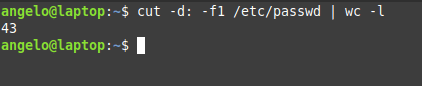
To get the total number of users in Linux, you can count lines in /etc/passwd file using the wc command like this:

cut -d: -f1 /etc/passwd | wc -l

List total number of users in Linux

Great! 43 users. But this includes system and regular users. What about getting the number of regular users only?

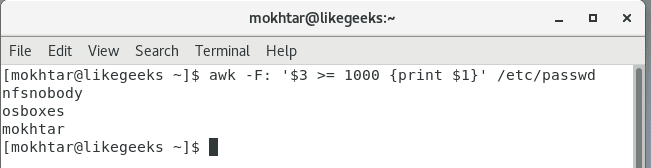
Easy! Since we know from above that regular users have UID of 1000 or greater, we can use awk to get them:

awk -F: '$3 >= 1000 {print $1}' /etc/passwd

List regular users

Cool!

List sudo users

Linux systems have a utility called sudo that allows you to execute commands as if you were another user who is usually the root user.

This should be handled with care in a professional environment.

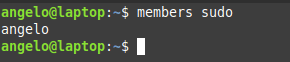
Also, it is very important to know which users can run the sudo command. For this, it is enough to list the users that belong to the sudo group.

members sudo

sudo group users

Users in this group can execute commands as super users.

List users who have SSH access

SSH allows users to access remote computers over a network. It is quite secure and was born as a replacement for Telnet.

On Linux by default, all regular users can log in and use SSH. If you want to limit this, you can use the SSH configuration file (/etc/ssh/ssh_config) and add the following directive:

AllowUsers user1 user2 user3
Also, you can allow groups instead of allowing users only using the AllowGroups directive:
AllowGroups group1 group2 group3

These directives define who can access the service. Don’t forget to restart the SSH service.

List users who have permissions to a file or directory

We can give more than one user permission to access or modify files & directories in two ways.

The first method is by adding users to the group of the file or the directory.

This way, we can list the group members using the members utility as shown above.

Okay, but what if we just want this user to have access to this specific file only (Not all the group permissions)?

Here we can set the ACL for this file using setfacl command like this:

setfacl -m u:newuser:rwx myfile

Here we give the user called newser the permission for the file called myfile the permissions of read & write & execute.

Now the file can be accessed or modified by the owner and the user called newuser. So how to list them?

We can list them using the getfacl command like this:

getfacl myfile

This command will list all users who have permissions for the file with their corresponding permissions.

List locked (disabled) users

In Linux, as a security measure, we can lock users. This as a precaution if it is suspected that the user is doing things wrong and you don’t want to completely remove the user and just lock him for investigation.

To lock a user, you can use the following command:

usermod -L myuser

Now the user named myuser will no longer to able to login or use the system.

To list all locked users of the system, just use the following command:

cat /etc/passwd | cut -d : -f 1 | awk '{ system("passwd -S " $0) }' | grep locked

This will print all locked users including system users. What about listing regular users only?

As we saw above, using awk we can get locked regular users like this:

awk -F: '$3 >= 1000 {print $1}' /etc/passwd | cut -d : -f 1 | awk '{ system("passwd -S " $0) }' | grep locked

Very easy!

Listing remote users (LDAP)

Okay, now can list all system users (local users), but what about remote users or LDAP users? Well, we can use a tool like ldapsearch, but is there any other way?

Luckily yes! You can list local & remote users with one command called getent

getent passwd

This command lists both local system users and LDAP or NIS users or any other network users.

You can pipe the results of this command to any of the above-mentioned commands the same way.

Also, the getent command can list group accounts like this:

getent group

You can check the man page of the command to know the other databases the command can search in.

Conclusion

Listing users in the Linux system was fun! Besides this, we have learned some tips about users and how to manage them in different ways.

Finally, this knowledge will allow a better administration of the users of the system.

I hope you find the tutorial useful. keep coming back.
0

Pardus e-posta listeleri arşivi

Değerli dostumuz @caylakpenguen, yine ilginç bir konuya değinmiş. Dostumuz, bu kez, “Pardus e-posta listeleri arşivi” konusunu gündeme getiriyor. Böylelikle 2012 yılına kadar geçen sürede oldukça aktif olan e-posta listeleri ve kullanıcı topluluğunu gündeme taşıyor. Bilindiği gibi, bu tarihten sonra Pardus çekirdek ekibi dağıldı ve ekipten çoğu kişi Amerika veya Avrupa ülkelerine taşındı. Pardus e-posta liste arşivlerini yedeklemiş ve yedek diskimde unuttuğunu söyleyen @caylakpenguen, yedek diskini karıştırırken e-posta arşivlerine rastgeldiğini ve LKD yönetimi ile görüşüp arşivin LKD Liste arşivine eklenmesini sağladığını söylüyor. Bu vesile ile Doruk Fişek’e selam ettiğini bildiriyor.

Continue Reading →

Değerli dostumuz @caylakpenguen‘in bildirdiğine göre, Pardus e-posta listeleri arşivine buradan erişebilirsiniz.

0

Linux Mint 19.3 “Tricia”ya yükseltme nasıl yapılabilir?

Bilindiği gibi, Linux Mint 19.3 “Tricia” 18 Aralık 2019 Çarşamba günü Clement Lefebvre tarafından duyuruldu. Ubuntu 18.04 LTS’ye dayalı olarak gelen yeni sürüm; Cinnamon 4.4, MATE 1.22.2, Xfce 4.14 masaüstü ortamlarıyla kullanıma sunuluyor. 5.0 Linux çekirdeği üzerine yapılandırılmış olan sistem; kullanıcıya olası sorunları bildiren proaktif sistem raporları özelliğiyle geliyor. 2023’e kadar desteklenecek olan sistemi duyuran Lefebvre; artık geliştirme ekibinin 2020 yılına kadar, yeni bir temel üzerinde çalışmaya başlamayacağını söyledi. Lefebvre, bunun ardından “Linux Mint 19.3 “Tricia”ya nasıl yükseltme yapılabilir?” başlıklı yazısını yazdı. Buna göre, bu yazıda Linux Mint 19.3 “Tricia”ya nasıl yükseltme yapılabileceğini ele alacağız.

Continue Reading →

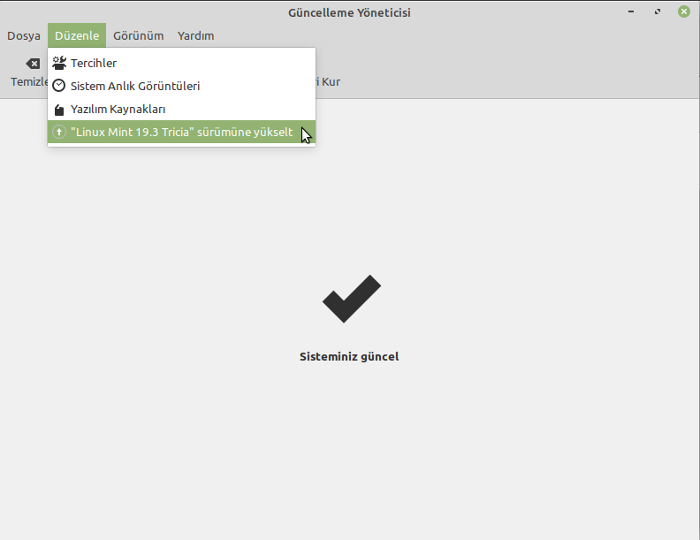
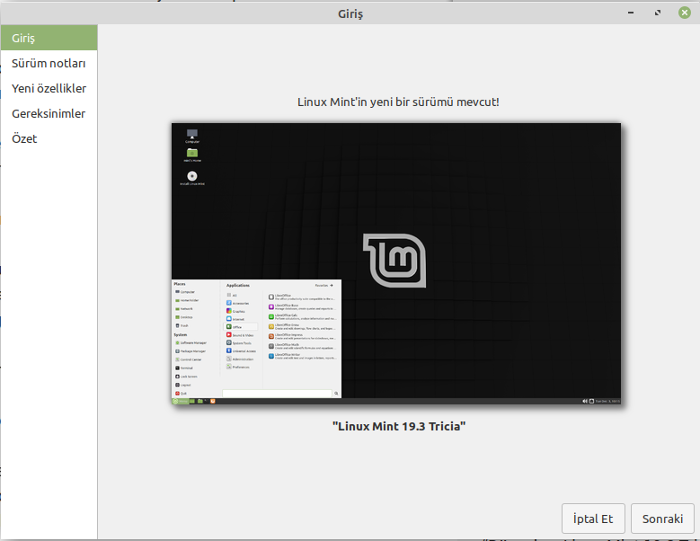
Linux Mint 19.3 “Tricia”ya yükseltme yapmak isteyen kullanıcılar, ilkin güncelleme yöneticisini açarak, düzenle sekmesi tıklanmalıdır.

Resimde de görüldüğü gibi, düzenle sekmesinin en altına “Linux Mint 19.3 Tricia” sürümüne yükselt seçeneği gelmiştir. Şimdi de bu seçeneği tıklayınız.

“Linux Mint 19.3 Tricia” sürümüne yükselt seçeneğne tıkladığınızda yukarıdaki yükseltme penceresi açılır. İlkin giriş bölümündesiniz, “sonraki” butonuna tıklayarak aşamalar üzerinde ilerleyiniz. En son, yükseltmeyi onaylayıp, yükseltme işlemine başlayacaksınız.

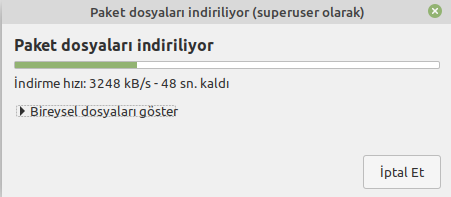
Yukarıdaki resimde görüldüğü gibi yükseltme sürecini bu şekilde takip edebilirsiniz. Kısa bir süre sonra yükseltme işleminin sona erdiği belirtilerek, bilgisayarınızı yeniden başlatmanız istenecektir. Bilgisayarınızı yeniden başlatıp, Linux Mint 19.3 “Tricia”yı kullanmaya başlayabilirisiniz.

0

Debian 10 Buster’a Netbeans nasıl yüklenir?

Oracle tarafından geliştirilen bir Java geliştirme ortamı olan NetBeans, özellikle kullanıcı arayüzü tasarımında sağladığı kolaylıklardan dolayı tercih edilen özgür bir yazılımdır. Popülerliği giderek artmakta olan yazılım; Java , C/C++, PHP ve HTML5 diliyle profesyonel masaüstü, kurumsal, Web ve Mobil uygulamaları geliştirmek için gerekli tüm araçları içermektedir. Windows, GNU/Linux, Mac OS X ve Solaris de dahil olmak üzere birçok platformda çalışan Netbeans IDE 6.5 sürümünden sonra zengin JavaScript düzenleme özellikleri, Spring web framework kullanım desteği ve daha sıkı bir MySQL entegrasyonu gibi bir kısım yeni özellikler ve iyileştirmeler içermektedir. Bu yazıda, programcıların yazma, derleme, hata bulma ve yükleme olanağı sağlayan bir araç olan NetBeans’in Debian 10 Buster’a nasıl yükleneceğini ele alacağız.

Continue Reading →

Öncelikle bir yazılım yüklemeden önce, terminalde aşağıdaki komutları çalıştırarak sistemin güncel olduğundan emin olmanız önerilir:

sudo apt update
sudo apt upgrade

NetBeans, Java VM’nin kurulu olmasını gerektiriyor. Bu nedenle önce OpenJDK paketini kurmalısınız.

sudo apt install openjdk-11-jdk

Aşağıdaki komutu kullanarak kurulumu doğrulayabilirsiniz.

java -version

Daha sonra Netbeans’ı Debian’a yüklemek için aşağıdaki komutu kullanabilirsiniz:

sudo snap install netbeans --classic

İşlem bağlantı hızınıza bağlı olarak biraz zaman alabilir. Başarılı bir kurulumdan sonra aşağıdaki çıktıyı almalısınız:

netbeans 10.0 from 'apache-netbeans' installed

Artık NetBeans’ı Debian 10’un Uygulama Menüsünde bulabilir veya terminalde aşağıdaki komutu kullanarak Netbeans’ı başlatabilirsiniz:

netbeans

Güle güle kullanın.

0

Nginx HTTP/2 desteği

Değerli dostumuz @caylakpenguen, yine ilginç bir konuya değinmiş. Dostumuz, bu kez, “Nginx HTTP/2 desteği” başlıklı bir yazı ile HTTP protokolüyle erişim sağlanan cihaz ve server arasındaki bilgi alışverişinin sağlanmasına ilişkin kuralları ve yöntemleri düzenleyen bir uygulamayı tanıtmış. Yazar, HTTP protokolüyle erişim sağlanan cihaz ve server arasındaki bilgi alışverişinin sağlanması ile ilgili kurallar ve yöntemleri düzenleyen bir protokol hakkında bir yazı yazmış. “Bu sistemlerin arasındaki ilişkiyi herhangi bir web sitesine giriş yapmaya çalıştığınızda adresin başına “http” yazmasanız bile tarayıcının bunu otomatik olarak eklemesinden görebilirsiniz.” diye konuya giren @caylakpenguen konuya aşağıdaki şekilde devam ediyor.

Continue Reading →

HTTP/1.1 ile HTTP/2 protokolleri arasındaki en büyük fark, HTTP/1.1 protokolünün her statik dosya için (css,js,resim,video vb.) ayrı istekler göndermesidir. Her dosya için tek tek istek gönderilmesi ve yanıtlanması açılma süresinin artmasına neden olur. HTTP/2 de ise gelen istekler toplu olarak alınarak, en hızlı şekilde yanıtlanmakta ve bu sayede açılış hızlarında ki gecikmelerin önüne geçilmektedir.

HTTP/2 ile birlikte sunucular üzerindeki yükün en aza indirilmesi hem son kullanıcı bazlı hemde hizmet sağlayıcı firmalar tarafından büyük bir yükü almış oldu. HTTP/2 çoklu bağlantı yapısı ile bilikte TCP üzerinden birden fazla istek gönderebilmekte. Her bir çağrı için ayrı bir istek açılması ve tek tek yanıtlanması yerine tek bir istekte tüm çağrıların iletilmesi ve karşı sunucunun cevaplamasını sağlıyor, bu özellik de sitenizde herhangi bir optimizasyon yapmasanız dahi HTTP/2 protokolü sayesinde web sitenizin daha hızlı yüklenmesini sağlamaktadır.

Son olarak HTTP/2 ‘yi birkaç kelime ile açıklamak gerekirse, web sayfalarının daha hızlı yüklenmesini sağlar ve tüm kullanıcılar için zaman kaybını önler. Yapılan birçok testte açılış hızında %20’lik bir artış gözükmekte olup, optimize edilmiş web sayfalarında bu oran %30-40’lık açılış hızı farkına ulaşmaktadır.

Nginx http2 desteğini test edelim.

Not: Sadece https desteği olan sitelerde HTTP/2 aktif olarak kullanılabilir

Birde Hız testi Yaptım 🙂”

Kaynak Site: https://www.hosting.com.tr/bilgi-bankasi/http-2-nedir-ne-ise-yarar/

caylak.truvalinux.org.tr

0