

Archive | GNU/Linux İpuçları

Install, Secure, Access and Configure Linux Mail Server

If you want to send or receive an email, you should have a mail server. In this post, we will discuss Linux mail server and how the SMTP (Simple Mail Transfer Protocol) works as well as other mail-related protocols, like Post Office Protocol (POP) and Internet Message Access Protocol (IMAP) and the relationship between them. SMTP defines how a mail is sent from one host to another, it is also system independent, which means the sender and receiver can have different operating systems. SMTP requires only that a server is able to send straight ASCII text to another server, and this is done by connecting to the server on port 25 which is the standard SMTP port. Most Linux distros today are shipped with two of the most common implementations of SMTP which are sendmail and Postfix. Sendmail is a famous and free mail server, but it has a little complex design and less secure. The Postfix took mail server implementation one step further, it was developed with security in mind.

Continue Reading →

Mail Service Components

The mail service on any mail server has three components:

Mail user agent (MUA): this component that the user sees and interacts with like Thunderbird and Microsoft Outlook, these user agents are responsible for reading mail and allowing you to compose mail.

Mail transport agent (MTA): this component is responsible for getting the mail from one site to another like Sendmail and Postfix.

Mail delivery agent (MDA): this component is responsible for distributing received messages on the local machine to the appropriate user mailbox like postfix-maildrop and Procmail.

Setup Email Server

We chose Postfix mail server, which is very popular and common between system administrators today.

Postfix is the default mail server on most modern Linux distros.

First, check if it is installed on your system or not:

$ rpm -qa | grep postfix

If not installed, you can install Postfix mail server on Red Hat based distros like this:

$ dnf -y install postfix

Then start the postfix service and enable it on system startup:

$ systemctl start postfix

$ systemctl enable postfix

On Debian based distros like Ubuntu, you can install it like this:

$ apt-get -y install postfix

You will be prompted to select your Postfix mail server configuration type during the installation process.

Among the four choices No configuration, Internet site, Internet with smarthost, Satellite system and Local only, we will choose No configuration option.

Configure Linux Mail Server

After installing the Postfix mail server, you will need to configure it, most of its configuration files can be found under the /etc/postfix/ directory.

You can find the main configuration for Postfix mail server in /etc/postfix/main.cf file.

This file contains a lot of options like:

myhostname

This option is used for specifying the hostname of the mail server. This is the Internet hostname which Postfix will receive emails on it.

The hostnames could be like mail.example.com, smtp.example.com.

It is written like this:

myhostname = mail.example.com

mydomain

This option is the mail domain that you will be servicing, like example.com

The syntax is like this:

mydomain = example.com

myorigin

All emails sent from this mail server will look as though it came from this option. You can set this to $mydomain value.

myorigin = $mydomain

You can use any option value, just precede it with a $ like $mydomain.

mydestination

This option lists the domains that the Postfix server uses for incoming emails.

It can take values like this:

mydestination = $myhostname, localhost.$mydomain, $mydomain, mail.$mydomain, www.$mydomain

mail_spool_directory

There are two modes of delivery that Postfix mail server can use:

  • Directly to a user’s mailbox.
  • To a central spool directory, this way, the mail will be in /var/spool/mail with a file for each user.

mail_spool_directory = /var/spool/mail

mynetworks

This option allows you to configure what servers can relay through your Postfix server.

This option should take local addresses like local mail scripts on your server only.

Otherwise, spammers can utilize your mail server to relay their messages and your mail server blacklisted and as a result, you will not be able to receive many emails.

This option has the following syntax:

mynetworks = 127.0.0.0/8, 192.168.1.0/24

smtpd_banner

This variable sets the message that is sent when the client after successful connection.

It is better to change the banner to something that doesn’t give an indication about the server you are using.

inet_protocols

This option specifies the IP protocol version used for server connections.

inet_protocols = ipv4

If you change the configuration files for Postfix mail server, you need to reload the service:

$ systemctl reload postfix

When you type any configuration, you may make a mistake, you can check for errors using the following command:

$ postfix check

This tool will help you find exactly the line and the error so you can fix it.

Checking the Mail Queue

Sometimes the mail queues on your system are filled up. This can be caused by many reasons like network failure or any reason that can delay mail delivery.

To check the mail queue on your Linux mail server, use the following command:

$ mailq

This command shows the Postfix mail queue.

If your queue is filled up and the message takes several hours to be sent, then you should flush the mail queue.

$ postfix flush

Now, if you check your mail queue you should find it empty.

Test Linux Mail Server

After configuring Postfix mail server correctly, you should test your mail server.

The first step is to use a local mail user agent like mailx or mail which is a symlink to mailx.

Try to send a mail to someone else on the same server, if this works, then send to a remote site.

$ echo "This is message body" | mailx -s "This is Subject" -r "likegeeks<[email protected]>" -a /path/to/attachment [email protected]

Then try to receive a mail from a remote site.

If you have any problems, check the logs. The log file on Red Hat based distros in /var/log/maillog file and on Debian based distros in /var/log/mail.log  file or as defined in the rsyslogd configuration.

I recommend you to review the Linux Syslog Server for a detailed explanation about logs and how to configure the rsyslogd.

If you still have problems, try checking your DNS settings and check your MX records using Linux network commands.

Secure Mail Boxes From Spam Using SpamAssassin

One of the ways to fight spam is to scan the mailboxes by some tool, searching for certain patterns associated with spam.

One of the best solutions is SpamAssassin, which is open-source.

You can install it like this:

$ dnf -y install spamassassin

Then start the service and enable it at startup:

$ systemctl start spamassassin

$ systemctl enable spamassassin

Once you’ve installed it, you can check the configuration in  /etc/mail/spamassassin/local.cf file.

SpamAssassin determines if an email is spam or not based on the result of the different scripts scores.

If the message has a higher score, that means a higher possibility of the mail being spam.

In the configuration file, the parameter required_hits 5 indicates that SpamAssassin will mark an email as spam if its score is five or higher.

The report_safe option takes the values 0, 1, or 2. If set to 0 means email marked as spam is sent as it is, only modifying the headers to show that it is spam.

If it takes the value 1 or 2, a new report message is generated by SpamAssassin and sent to the recipient.

If the value is 1, that means the spam message is coded as content message/rfc822, while if the value is 2, that means the message is coded as text/plain content.

The text/plain is safer since some mail clients execute message/rfc822 and could infect the client computer.

Now we need to integrate it into postfix. The simplest way to do this is probably by using procmail.

We’ll have to create a file, named /etc/procmailrc, and add the following content:

:0 hbfw
| /usr/bin/spamc

Then we edit Postfix configuration file /etc/postfix/main.cf and change mailbox_command like this:

mailbox_command = /usr/bin/procmail

Finally, restart Postfix and SpamAssassin services:

$ systemctl restart postfix

$ systemctl restart spamassassin

However, SpamAssassin sometimes does not recognize spam messages, that led to mailboxes filled with spam messages.

Fortunately, you can filter messages before they enter the Postfix server using Realtime Blackhole Lists (RBLs). That will decrease the load on your mail server and keep your mail server clean.

Open the configuration file of postfix server /etc/postfix/main.cf and change smtpd_recipient_restrictions option and add the following options like this:

strict_rfc821_envelopes = yes

relay_domains_reject_code = 554

unknown_address_reject_code = 554

unknown_client_reject_code = 554

unknown_hostname_reject_code = 554

unknown_local_recipient_reject_code = 554

unknown_relay_recipient_reject_code = 554

unverified_recipient_reject_code = 554

smtpd_recipient_restrictions =
reject_invalid_hostname,
reject_unknown_recipient_domain,
reject_unauth_pipelining,
permit_mynetworks,
permit_sasl_authenticated,
reject_unauth_destination,
reject_rbl_client dsn.rfc-ignorant.org,
reject_rbl_client dul.dnsbl.sorbs.net,
reject_rbl_client list.dsbl.org,
reject_rbl_client sbl-xbl.spamhaus.org,
reject_rbl_client bl.spamcop.net,
reject_rbl_client dnsbl.sorbs.net,
permit

Then restart your postfix server:

$ systemctl restart postfix

The above RBLs are the common ones, you can find more lists on the web and try them.

Securing SMTP Connection

It is better to transfer your SMTP traffic over TLS to protect it from being modified in the middle.

First, we need to generate the certificate and the key using openssl command:

$ openssl genrsa -des3 -out mail.key

$ openssl req -new -key mail.key -out mail.csr

$ cp mail.key mail.key.original

$ openssl rsa -in mail.key.original -out mail_secure.key

$ openssl x509 -req -days 365 -in mail_secure.csr -signkey mail_secure.key -out mail_secure.crt

$ cp mail_secure.crt /etc/postfix/

$ cp mail_secure.key /etc/postfix/

Then add the following option to Postfix configuration file /etc/postfix/main.cf:

smtpd_use_tls = yes

smtpd_tls_cert_file = /etc/postfix/mail_secure.crt

smtpd_tls_key_file = /etc/postfix/mail_secure.key

smtp_tls_security_level = may

Finally, restart your postfix service:

$ systemctl restart postfix

Now, you have to choose the TLS on your client when connecting to the server.

You will receive a warning when you send a mail the first time after changing the setting because of the certificate is not signed.

Using Let’s Encrypt Certificates

Let’s Encrypt is a free SSL certificate provider that enables you to encrypt your traffic.

Instead of using self-signed certificates which annoy your users about trusting them, you can use this good solution.

First, install letsencrypt:

$ yum install letsencrypt

Or if you are using Debian based distro, you can use the following command:

$ apt-get install letsencrypt

Then run letsencrypt like this:

$ letsencrypt certonly --standalone -d yourdomain.com

You should replace yourdomain.com with your actual domain.

After answering the prompted questions about the contact email, the email server domain, and the license, everything should be OK now.

The certificates will be stored in /etc/letsencrypt/live/yourdomain.com/

One last thing you have to do which is making postfix use those certificates, you can use the following commands:

sudo postconf -e 'smtpd_tls_cert_file = /etc/letsencrypt/live/yourdomain.com/fullchain.pem'

sudo postconf -e 'smtpd_tls_key_file = /etc/letsencrypt/live/yourdomain.com/privkey.pem'

Don’t forget to replace yourdomain.com with your actual domain.

Finally, restart your postfix server

$ systemctl restart postfix

POP3 and IMAP Protocol Basics

So far we’ve seen how SMTP mail server sends and receives emails without problems, but consider the following situations:

  • Users need local copies of e-mail for offline viewing.
  • mbox file format is not supported. The mbox format is used by many mail user agents like mailx and mutt.
  • Users cannot stay connected to a fast network to grab a local copy to read offline.
  • Some mail servers don’t give access to the shared mail spool directories for security reasons.

To handle these cases, another class of protocols was introduced. This type of protocols may be described as mail access protocols.

The most common two popular mail access protocols are Post Office Protocol (POP) and Internet Message Access Protocol (IMAP).

The idea behind POP is very simple: A central Linux mail server remains online all the time and receives and store emails for all users. All received emails are queued on the server until a user grabs them.

When a user wants to send an email, the email client relays it through the central Linux mail server via SMTP normally.

Note that the SMTP server and POP server can be on the same system without any problem. Most servers do this today.

Features like keeping a master copy of a user’s email on the server were missing, that led to the development of IMAP.

By using IMAP, your Linux mail server will support three modes of access:

  • The online mode is similar to having direct file system access to the Linux mail server.
  • The offline mode is similar to how POP works, where the client is disconnected from the network except when grabbing his email. In this mode, the server normally does not retain a copy of the email.
  • The disconnected mode works by allowing users to keep cached copies of their emails and the server retains a copy of the email.

There are several implementations for IMAP and POP, the most popular one is Dovecot server which provides both protocols.

The POP3, POP3S, IMAP, and IMAPS listen on ports 110, 995, 143, and 993 respectively.

Installing Dovecot

Most Linux distros come with dovecot preinstalled, however, you can install dovecot in Red Hat based distros like this:

$ dnf -y install dovecot

On Debian based distros, the IMAP and POP3 functionality are provided in two separate packages, you can install them like this:

$ apt-get -y install dovecot-imapd dovecot-pop3d

You will be prompted to create self-signed certificates for using IMAP and POP3 over SSL/TLS. Select yes and enter the hostname for your system when prompted.

Then you can run the service and enable it at startup like this:

$ systemctl start dovecot

$ systemctl enable dovecot

The main configuration file for Dovecot is /etc/dovecot/dovecot.conf file.

Some Linux distros put the configuration under /etc/dovecot/conf.d/ directory and use the include directive to include the settings in the files.

The following list is the some of the parameters used to configure dovecot:

protocols: the protocols you want to support.

protocols = imap pop3 lmtp

lmtp means local mail transfer protocol.

listen: IP addresses to listen on.

listen = *, ::

The asterisk means all ipv4 interfaces and :: means all ipv6 interfaces

userdb: user database for authenticating users.

userdb {

driver = pam

}

passdb: password database for authenticating users.

passdb {

driver = passwd

}

mail_location: this entry in /etc/dovecot/conf.d/10-mail.conf file, and it is written like this:

mail_location = mbox:~/mail:INBOX=/var/mail/%u
Secure Dovecot

Dovecot comes with generic SSL certificates and key files that are used in the /etc/dovecot/conf.d/10-ssl.conf

ssl_cert = </etc/pki/dovecot/certs/dovecot.pem

ssl_key = </etc/pki/dovecot/private/dovecot.pem

When a user tries to connect to dovecot server, it will show a warning because the certificates are not signed, you can purchase a certificate from a certificate authority if you want.

Or if you go with Let’s Encrypt certificates, you can point to them instead:

ssl_cert = </etc/letsencrypt/live/yourdomain.com/fullchain.pem

ssl_key = </etc/letsencrypt/live/yourdomain.com/privkey.pem

Don’t forget to open dovecot server ports in your iptables firewall by adding iptables rules for ports 110, 995, 143, 993, 25.

Then save the rules.

Or if you are using firewalld you can do the following:

$ firewall-cmd --permanent --add-port=110/tcp --add-port=995

$ firewall-cmd --permanent --add-port=143/tcp --add-port=993

$ firewall-cmd --reload

And again, for troubleshooting, you check the log files /var/log/messages, /var/log/maillog, and /var/log/mail.log files.

Linux mail server is one of the easiest servers to work with, especially Postfix mail server.

I hope you find the post useful and interesting. Keep coming back.

Thank you.

likegeeks.com

0

Block, Modify Content, Anonymize and Authenticate Users Using Squid Linux Proxy Server

Linux proxy server or proxy server generally is a server that saves the visited web pages for later requests, so if you try to visit the same web page or any one else, the page will be retrieved from the proxy server. This is very useful, it makes web surfing much faster and reduces the traffic which means less cost. Caching servers can decrease external traffic up to 45%. Another main advantage for proxy servers, you can configure the proxy with some settings for access control. For example, you can restrict access to specific websites. If you surf the web before from an anonymous proxy, this is actually a proxy server. You can choose any of the available Linux proxy servers out there like: Squid, Varnish, Polipo, TinyProxy, and more. In this post, we will discuss the most common Linux proxy server which is Squid.

Continue Reading →

Install squid

Installing squid proxy server is very simple. For Red Hat based distro, you can install it like this:

$ dnf -y install squid

Or if you are using Debian based distro, you can install it like this:

$ apt-get -y install squid

Now you can start squid service and enable it at startup:

$ systemctl start squid

$ systemctl enable squid

To squid proxy server, you can check the configuration file in  /etc/squid/squid.conf

Before we dig into the configuration, let’s see the proxy server in action.

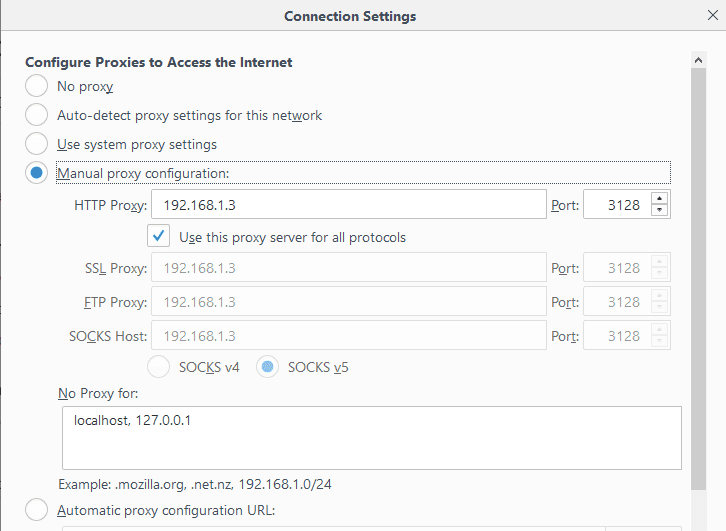
Just change the proxy setting on your browser to the IP address of the proxy and the port 3128 since this is the squid default port. You can change the default port by changing the http_port option in the configuration file.

Linux Proxy Server set client

As shown on the image I’ve pointed my browser to my Linux proxy server and I can browse the web without any problems.

If you are using iptables firewall, don’t forget to open the squid server port.

Allow IP Address Range

If you open the configuration file /etc/squid/squid.conf, you will see the rules that allow IP addresses to connect to the proxy server like this:

acl localnet src 192.168.0.0/16

However, you can add a new ACL entry to allow a range of IP addresses to connect to your proxy server:

acl localnet src 212.80.113.0/16

Then save the file and restart squid service:

$ systemctl restart squid

Very easy, right?

Also, if you remove any ACL from the file, all IP addresses from that range will not be able to connect to the proxy server.

Allow Specific Ports

You can find all ports that are allowed in the configuration file like this:

acl Safe_ports port 80

Consider adding Safe_ports ACL rule for any port that your clients need.

You can add a port range instead of writing a rule for every port like this:

acl Safe_ports port 6000-7000

Don’t forget to restart the squid proxy server after the modification:

$ systemctl restart squid

Authenticating Users

You can force your users to authenticate before they use your Linux proxy server using Apache authentication.

First, we create a file that will store the users:

$ touch /etc/squid/passwd

Then change the ownership to squid daemon so it can access the file:

$ chown squid /etc/squid/passwd

Now we will create a new user using the htpasswd command:

$ htpasswd /etc/squid/passwd likegeeks

It will prompt you for the password twice.

If you open the created file, you will see the user and the hashed password.

Then you change the squid configuration to tell it about the authentication that it should use.

Add the following lines below the ACL ports and nowhere else to enable authentication:

auth_param basic program /usr/lib64/squid/basic_ncsa_auth /etc/squid/passwd

auth_param basic children 5

auth_param basic realm Squid Basic Authentication

auth_param basic credentialsttl 3 hours

acl auth_users proxy_auth REQUIRED

http_access allow auth_users

Then restart the squid service and try to open the browser again.

$ systemctl restart squid

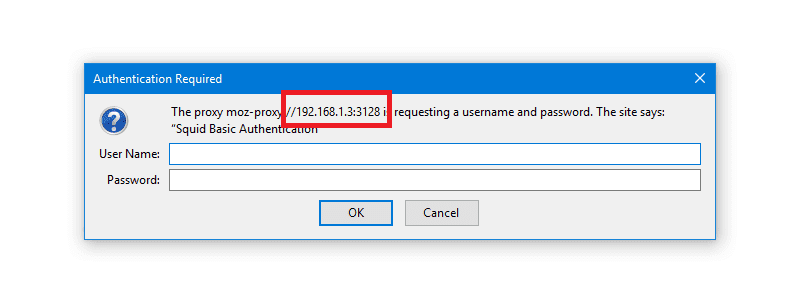
Linux proxy server authentication

As you can see, if you try to connect to the Linux proxy server, it will prompt you for the username and the password.

Block Websites

You can block websites from the proxy users, just create a separate file that will be the list of domains you want to block and point that file from the squid configuration like this:

$ touch /etc/squid/blocked

Then type all websites you want to block one per line in that file and save it.

Now change the squid configuration to block those websites under acl list and http_access list.

acl blocked_sites dstdomain "/etc/squid/blocked"

http_access deny blocked_sites

Then restart squid service:

$ systemctl restart squid

There are a lot of ready to use lists on the web and they are categorized, you can use them in squid, like MESD blacklists, Shalla’s Blacklists.

Modify Content

Since the Linux proxy server is between the browser and the internet, this is a very good position to alter the delivered content.

You can change images or ads or whatever. This can be done using the url_rewrite_program module.

Actually, you can do more than that, but we don’t want to be evil.

In our example, we will flip the images and surf the flipped images instead of the original.

First, we need to install ImageMagick:

$ dnf -y install imagemagick

Then we will write the script that will do the magic. The script will be written in Perl.

You can find the script here

This Perl script searches for JPG, GIF and PNG, images in the carried content, once it is found, it uses mogrify utility that shipped with ImageMagick to flip the images and put the flipped image in /var/www/html/  which is the root directory for Apache server and apache service should be running of course, then send the flipped images as a response.

Just make sure to add ownership for squid for this folder:

$ usermod -aG www-data squid

Finally, you have to tell squid about this script. Open the configuration file and type the following:

url_rewrite_program /home/likegeeks/flip.pl

Then restart your squid service

$ systemctl restart squid

The web has a lot of Perl scripts that play with the content, some of them are good, and some others are evil.

Anonymous Browsing

By default squid proxy server forwards the client IP address to the requested site, if you want the proxy to be surf users anonymously, you should send squid IP instead of clients IPs.

To do that, change the forwarded_for option to off in /etc/squid/squid.conf file.

forwarded_for off

And add the following options mentioned here at the end of the configuration file.

Then restart the service:

$ systemctl restart squid

You can check your public IP address, you will notice that your IP is the squid proxy server IP.

Connecting Squid Servers

The cache_peer directive sets your peer caches and informs Squid how to communicate with them.

It is written like this:

cache_peer hostname Server-type http-port icp-port [options]

The first argument is the other squid hostname or IP address.

The 2nd argument specifies the type of the other server.

The 3rd argument is the port number.

The 4th argument specifies the ICP port (Internet Caching Protocol) which is 3130. This is used to query other cache servers.

The cache_peer has some options you can use like:

proxy-only: This option prevents Squid from saving any responses it receives from the other squid server.

no-delay: If any delay, it will be ignored.

login= user:password: The authentication credentials to the other server. It takes this formula login =user:password

connect-timeout: This option specifies the connection timeout to other squid servers.

Write your options and save the configuration file and restart the service.

Squid Log Files

Log files are your main source for problem diagnostics and various squid operations.

There are cache.log, access.log, and store.log. You can find them in /var/log/squid directory.

The cache.log file contains informational messages about Squid’s operation. All proxy errors are written to this file.

The access.log file contains all HTTP request made by the clients.

The store.log file contains information about the passed objects.

Each entry on these files is written with time stamps when the message was generated.

I hope you find working with Linux proxy server is easy. Keep coming back

Thank you.

likegeeks.com

0

Linux Virtual File System

The Linux virtual file system or virtual file system generally is a layer that sits on the top of your actual file system which allows the user to access different types of file systems, you can think of virtual file system as an interface between the kernel and the actual file system. That means you will not find any entries for those Linux virtual filesystems in your /etc/fstab file. Yet, you will still find them when you type the mount command. If you are coming from Windows, the virtual file system is the Registry. The proc file system is a virtual file system which is mounted on /proc directory. There is no real file system exists on /proc, it’s a virtual layer that is used for dealing with the kernel functionalities.
Continue Reading →

For example, to get the processor specifications, type the following command:

$ cat /proc/cpuinfo

This is a very powerful and easy way to query Linux kernel.

Notice that if you check the size of the file in /proc directory, you will find that all file sizes are 0, because as we said they don’t exist on the disk.

When you type cat /proc/cpuinfo command, a file is dynamically created to show you the CPU info.

The only file that has a size in /proc directory is /proc/kcore file, which shows the RAM content. Actually, this file isn’t occupying any space on the disk.

Writing to Proc Files

As we’ve seen, we can read the content of proc files, but some of them are writable, so we can write to them to change some functionality.

For example, this /proc/sys/net/ipv4/ip_forward file controls IP forwarding in case you have multiple network cards.

You can change the value of this file like this:

$ echo "1" > /proc/sys/net/ipv4/ip_forward

Keep in mind that when you change any file or value under /proc directory there is no validation of what you are doing, you may crash your system if you type a wrong setting.

Persisting /proc Files Changes

The previous modification to the /proc/sys/net/ipv4/ip_forward entry will not survive after rebooting since you are not writing to a file, this is a virtual file system, means change happens to the memory.

If you need to save changes under /proc, you have two ways:

  • You can write your entries in /etc/rc.local  file, or in Red Hat based distros like CentOS, create /etc/rc.d/rc.local file and make it executable and enable the systemd service unit that enables the use of the rc.local file and write your entries.
  • The sysctl command is used to change entries in /proc/sys/ directory.

$ sysctl net.ipv4.ip_forward

This will show the value of the entry, to change it, use the -w option:

$ sysctl w net.ipv4.ip_forward=1

One final step is to write the changes to /etc/sysctl.conf:

$ echo “net.ipv4.ip_forward = 1” >> /etc/sysctl.conf

Make sure that the file /etc/sysctl.conf does not contain the entry before you write your changes.

Common /proc Entries

These are some of the commonly used /proc entries:

/proc/cpuinfo                    information about CPUs in the system.

/proc/meminfo                information about memory usage.

/proc/ioports                     list of port regions used for I/O communication with devices.

/proc/mdstat                     display the status of RAID disks configuration.

/proc/kcore                        displays the system actual memory.

/proc/modules                 displays a list of kernel loaded modules.

/proc/cmdline                   displays the passed boot parameters.

/proc/swaps                      displays the status of swap partitions.

/proc/iomem                     the current map of the system memory for each physical device.

/proc/version                    displays the kernel version and time of compilation.

/proc/net/dev                   displays information about each network device like packets count.

/proc/net/sockstat         displays statistics about network socket utilization.

/proc/sys/net/ipv4/ip_ display the range of ports that Linux uses.

local_port_range

/proc/sys/net/ipv4/        protection against syn flood attacks.

tcp_ syncookies

These are some of the common entries in /proc directory.

Listing /proc Directory

If you list the files in /proc directory, you’ll notice a lot of directories which have numeric names, these directories contain information about the running processes and the numeric value is the corresponding process ID.

You can check the consumed resources by a specific process from these directories.

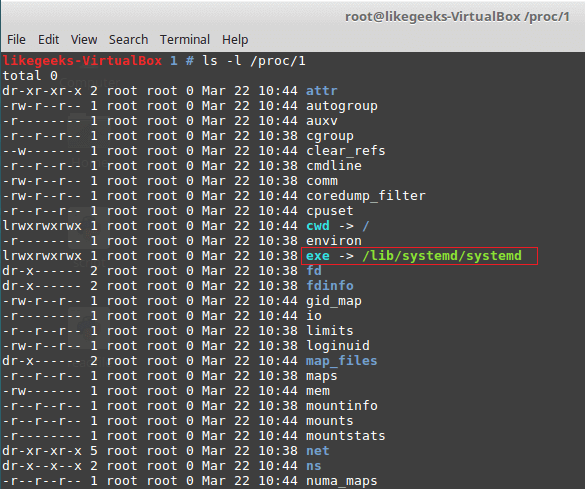
If you take a look at the folder named 1, it belongs to the init process or systemd (like CentOS 7) which is the first process runs When Linux starts.

$ ls -l /proc/1

Linux Virtual File System

The /proc/1/exe  file is a symbolic link to  /lib/systemd/systemd binary or /sbin/init in other systems that use init binary.

The same concept applies to all numeric folders under /proc directory.

proc Useful Examples

To protect your server from SYN flood attack, you can use iptables to block SYN packets.

A better solution is to use SYN cookies. A special method in the kernel that keeps track of which SYN packets come. If the SYN packets don’t move to established state within a reasonable interval, the kernel will drop them.

$ sysctl -w net.ipv4.tcp_syncookies=1

And to persist the changes.

$ echo "net.ipv4.tcp_syncookies = 1" >> /etc/sysctl.conf

Another useful example which is the /proc/sys/fs/file-max, this value shows the maximum files (including sockets, files, etc,) that can be opened at the same time.

You can increase this number like this:

$ sysctl -w "fs.file-max=96992"

$ echo "fs.file-max = 96992" >> /etc/sysctl.conf

sysfs Virtual File System

sysfs is a Linux virtual file systems which mean it’s also in memory.

sysfs file system can be found at /sys. The sysfs can be used to get information about your system hardware.

$ ls -l /sys

From the result of the above command, the file sizes are all zero because as we know this is a Linux virtual file system.

The top level directory of /sys contains the following:

Block                     list of block devices detected on the system like sda.

Bus                        contains subdirectories for physical buses detected in the kernel.

class                      describes class of device like audio, network or printer.

Devices                 list all detected devices by the physical bus registered with the kernel.

Module                 lists all loaded modules.

Power                   the power state of your devices.

tmpfs Virtual File System

tmpfs is a Linux virtual file system that keeps data in the system virtual memory. It is the same like any other Virtual File Systems, any files are temporarily stored in the Kernel’s internal caches.

The /tmp file system is used as the storage location for temporary files.

The /tmp file system is backed by an actual disk-based storage and not by a virtual system.

This location is chosen during Linux installation.

The /tmp is created automatically by systemd service when booting the system.

You can setup tmpfs style file system with the size you want, using the mount command.

$ mount it tmpfs -o size=2GB tmpfs /home/myfolder

Awesome!!

Working with Linux virtual file system is very easy.

I hope you find the post useful and interesting. Keep coming back.

Thank you.

likegeeks.com

0

Install, Configure, and Troubleshoot Linux Web Server

In this post, we will talk about Linux web server and how to install it and configure it to serve you content to others. A web server is a system that manipulates requests via HTTP protocol, you request a file from the server and it responds with the requested file, which might give you an idea that web servers are only used for the web. Actually, web servers can also be found embedded in devices such as printers, routers, when you open your router configuration page, there is a web server behind it. When you open the printer configuration page, there is also a web server behind it serving your requests, so web servers are important today because they are used everywhere. First, your browser sends a request to the server. The server takes the requested file or page from you and maps it to the corresponding file from the server. The server sends the file back to the browser with some information such as its MIME type, the length of the content and some other useful information.
Continue Reading →

Sometimes the requested file is a static page like HTML pages or dynamic pages like PHP, Java, Perl or any other server side language. For example, when you type www.yourDomain.com, the browser queries the DNS server about the IP address of the computer: www.yourDomain.com. Once the browser gets the response from the DNS, it starts a TCP connection on port 80 and asks for the default web page, then this page is sent to you and that’s all.

Linux Webserver Implementations

There are many Linux web server implementations available for you to use:

  • Apache server
  • Nginx
  • Lighttpd
  • Apache Tomcat
  • Monkey HTTP Daemon (used especially for embedded systems)

There are more Linux web servers, but this list is the most used web servers.

The most used web servers are Apache and Nginx.

In this post, we will use Apache server for several reasons:

  • It is stable.
  • It is flexible.
  • It is secure.

We’ll install and configure Apache server on Linux, but at first, let’s review some of the basics of HTTP protocol basics.

Understanding HTTP

When you request a file or a page from a web server, the client at first connects to the server on port 80. After successful connection, the client then sends HTTP commands (also methods) to the server. This command includes a request header which includes information about the client.

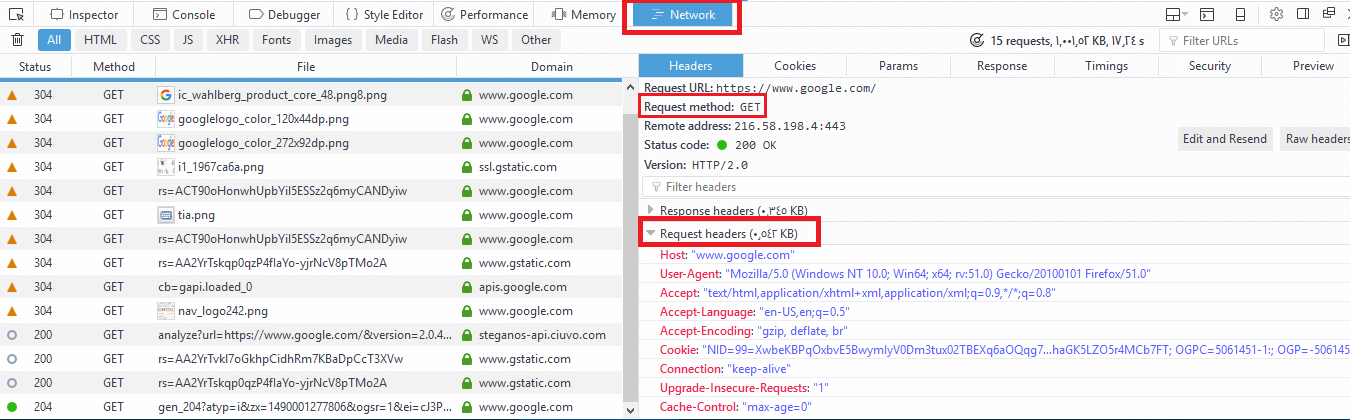
To view these request headers in chrome, open chrome devtools, then open network panel and visit google.com and check the request headers, you should see something like this:

Linux Web Server Request Header

The request header also includes information about the client, like the user agent and the accepted formats.

Additional information may be sent with the request header. For example, if you click on a link that will open another website, the header will include the referral site.

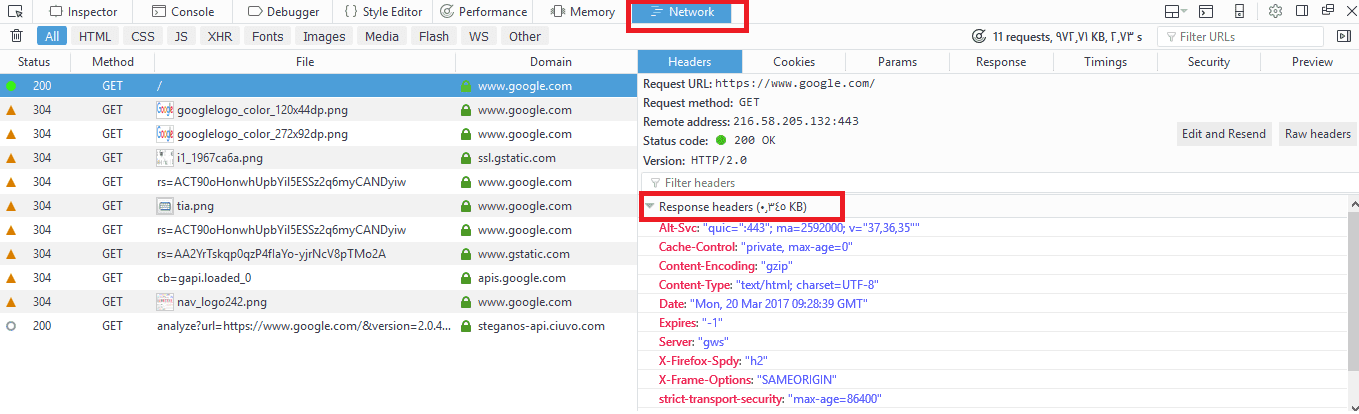
After receiving the request header completely, the server responds with the requested file or page along with a response header.

The response header includes information about the received content, its type, and other information.

Linux Web Server response header

You can check the response headers from the browser network panel.

Install Apache Webserver

You can install Apache server on Red Hat based distros using the following command:

$ dnf -y httpd

Or if you are using a Debian-based distro, you can install it like this:

$ apt-get -y install apache2

The Apache web server service is called httpd on Red Hat based distros like CentOS, while it is called apache2 in Debian based distros.

If you are using a firewall like iptables, you should add a rule for port 80.

$ iptables -I INPUT 1 -m state --state NEW -m tcp -p tcp --dport 80 -j ACCEPT

Or if you are using firewalld, you can use the following command:

$ firewall-cmd --add-port=80/tcp

To start your service and enable it on boot:

$ systemctl start httpd

$ systemctl enable httpd

You can check if your service is running or not, using the following command:

$ systemctl status httpd

You can check if your service is running or not, using the following command:

$ systemctl status httpd

Now open your browser and visit http://localhost or http://[::1]/ if you are using IP v6 and if your installation goes well, you should see your HTML homepage.

Configuring Apache Webserver

You can add files to Apache in the /var/www/html directory for top-level pages.

Just remember to make sure that any files or directories placed in that directory are world-readable.

The default index page is index.html.

The Apache configuration files are in  /etc/httpd/conf/ directory.

On Debian based systems like Ubuntu, you may find it at  /etc/apache2/apache2.conf file.

We can’t discuss every option for Apache on a single post, but we will discuss the most important options.

You call them options or directives.

ServerRoot Option

This option specifies the configuration folder for Apache web server. On Red Hat based distros, the ServerRoot option is /etc/httpd/ directory. On Debian distros the ServerRoot option is /etc/apache2/.

ServerRoot /etc/httpd

Listen Option

This is the port that Apache web server will use to wait for incoming connections.

The default value for this option is 80 for nonsecure connections and 443 for secured connections.

If you have multiple IP addresses on your server, you can assign which IP should listen for connection using Listen option.

You can specify a different port other than 80, just make sure that it’s not in use.

You can run many HTTP servers on the same hardware every one on a unique port.

When a server runs on a non-standard port such as port 8080, it will require the port number to be explicitly stated like this:

www.example.com:8080

Listen 80

ServerName Option

This option specifies the hostname of the web server that appears to the visitors.

ServerName FQDN

DocumentRoot Option

This defines the path that will contain your files that will be served.

The default path is /var/www/html .

DocumentRoot /var/www/html

MaxRequestWorkers Option

This option sets the maximum number of concurrent connections that the server will receive.

LoadModule Option

This option is used to load modules into Apache web server.

There are a lot of Apache modules like these:

mod_cgid: This module is used to run CGI scripts using Apache web server.

mod_ssl: Provides secure connections via SSL and TLS protocols.

mod_userdir: This module allows you to serve content from users specific directories.

If you want to disable loading a specific module, you can comment the Load module line that contains that module.

Or if you use Debian based distros like Ubuntu, you can use these commands:

$ a2enmod modulename

This command to enable the module.

$ a2dismod modulename

This command to disable the module.

All these commands do is create a symlink under /etc/apache2/modsenabled  directory with the file that contains the module you want to enable. All files under this directory are included in Apache configuration by default, so any file will exist in this directory will be included.

And if you use a2dismod, the symlink will be removed.

If you enable or disable a module, you have to reload or restart apache web server.

LoadModule mod_cgid.so

Include Option

This option allows you to include other configuration files.

You can store all the configuration for different virtual domains, and Apache will include them at runtime.

Include filePath

UserDir option

This option specifies the directory that will contain the files that will be accessible via the web server. This directory is usually named public_html and its location in user’s home directory.

For example, if you have a user adam who wants to make his web content available via Apache web server.

First, we make a public_html folder under his home directory.

Then set the permission for the public_html folder:

$ chmod 644 public_html

Now if we put an index.html file, it will be accessible via the browser like this:

http://YOURHOSTNAME/~adam

UserDir public_html

Alias Option

This option specifies the location of the files that are outside the DocumentRoot location and need to be served by the Apache web server.

Like you have files outside DocumentRoot and you want them to be available to the visitors.

Alias URL_Path Actual_Path

ErrorLog Option

This option specifies the error log file for Apache web server.

ErrorLog /var/log/httpd/error_log

VirtualHost Option

This option allows you to host multiple websites on the same server.

The idea is that the content is served based on the requested hostname.

To setup a virtual host for the host www.example.com. First, create a VirtualHost option in /etc/httpd/conf/httpd.conf file.

And specify the DocumentRoot and ServerName like this:

ServerAdmin [email protected]

DocumentRoot /home/adam/public_html

ServerName www.example.com

ErrorLog /var/log/users/adam/error_log

</VirtualHost>

Keep in mind that the ServerName option must be resolvable via DNS.

These are the most used Apache options.

Virtual Host Types

There are two types of virtual hosts that you can define in Apache web server:

  • Name-based virtual hosts
  • IP-based virtual hosts

The NameVirtualHost directive defines which addresses can be virtual hosts; the asterisk (*) means any name or address on this server. You can write them like this:

NameVirtualHost *
<VirtualHost *>
ServerName www.example.com
DocumentRoot “/home/user1/public_html/”
</VirtualHost>
<VirtualHost *>
ServerName www.example2.com
DocumentRoot “/ home/user2/public_html/”
</VirtualHost>

If you have more than one IP address and you want to use SSL certificate, the website must be on a dedicated IP address. You can write IP-based virtual hosts like this:

<VirtualHost 192.168.1.2>
ServerName www.example.com
DocumentRoot “/home/user1/public_html/”
</VirtualHost>
<VirtualHost 192.168.1.3>
ServerName www.example2.com
DocumentRoot “/ home/user2/public_html/”
</VirtualHost>

Apache Process Ownership

We know from the Linux process management that each process inherits its permissions of its parent process.

This fact is true for all processes except for applications with the SETUID bit set, they inherit permissions from the owner, not the parent process. A good example is the /bin/su.

If a normal user runs /bin/su program, it does not inherit the permission from adam, but it acts as a root user running it.

Since Apache web server needs to bind port 80, and this needs root privileges.

After binding to port 80, Apache can run as a normal user and read only files that have permissions to read them.

Based on the Linux distro you use, the user could be one of the following:

nobody, www, apache, www-data, or daemon.

I delayed introducing two more options for apache till reaching that point.

User Option

This specifies the user ID which the web server will use to answer requests.

User wwwdata

Group Option

This specifies the group that Apache web server will use to read files.

Group wwwdata

Security is very important for sites that use executable scripts such as CGI or PHP scripts.

The use that you will use will have permission to read and write the content of all sites on the server. But we want to ensure that only the members of a particular site can read their own site only.

This is very important because if a site got compromised, the attacker will be able to read all files since the apache user has permission to do that.

So how to solve this problem?

suEXEC Support

A popular method is to use suEXEC. suEXEC is a program that runs with root permissions and makes CGI programs run as the user and group IDs of a specific user, not the Apache server user.

You can specify the user on each virtual host like this:

<VirtualHost www.example.com>

SuExecUserGroup adam adamGroup

</VirtualHost>

Just that simple.

Apache Authentication

You may want to restrict some parts to specific visitors. It’s like a password protected directory.

In Apache, you can store authentication information file called .htpasswd file.

You can use the htpasswd command to do that.

First, create the .htpasswd file using the htpasswd command:

$ htpasswd -c /home/adam/.htpassswd myuser

The -c option is needed the first time you run htpasswd, but when you need to add more users you shouldn’t use -c because it will overwrite the file.

Then create a .htaccess file in the public_html folder and write the following:

<Location /vip>

AuthName "test"

AuthType Basic

AuthUserFile /home/adam/.htpasswd

Order deny,allow

require valid-user

</Location>

AuthName is required, you can use any string you want.

AuthType Basic says that you’re using htpasswd style user file.

AuthUserFile points to the file that contains the generated password from htpasswd command.

The Order line indicates that Apache must deny access by default, and only allow access for users specified in the htpasswd file.

The require directive means any user in the .htpasswd file is allowed.

Troubleshooting Apache Webserver

If you modify the httpd.conf file and restart or reload Apache web server and it did not work, then you have typed a wrong configuration, however, this is not the only case that you need to troubleshoot Apache, you may look at the apache logs to see how the service works so you can diagnose the problem and solve it.

The two main log files for apache are error_log and access_log files.

You can find these files in /var/log/httpd/  directory in Red Hat based distros, or in /var/log/apache2/  directory if you are using Debian based distros.

The access_log file contains every request to Apache web server with the details about client requested that resource.

The error_log file contains errors of Apache web server.

You can use tail command to watch the log file:

$ tail -f /var/log/httpd/error_log

I recommend you to review the Linux syslog server to know more about logging.

I hope you find working with Linux web server easy and interesting. Keep coming back.

Thank you.

likegeeks.com

0

Install, Configure, and Secure FTP Server in Linux

FTP or File Transfer Protocol is a commonly used protocol for transferring files between computers, one act as a client, the other act as a server. In this post, we will talk about the FTP server in Linux systems, specifically Very Secure FTP Daemon (vsftpd). The vsftpd program is a very popular FTP server that is used by many servers today. FTP server works with the client server architecture to communicate and transfer files. FTP is a stateful protocol, that means connections between clients and servers stay open during an FTP session. To send or receive files from an FTP server, you can use FTP commands, these commands are executed consecutively. It is like a queue, one by one.

Continue Reading →

There are two types of FTP connections initiated:

  • Control connection also called a command connection.
  • Data connection.

When you establish an FTP connection, the TCP port 21 opens to send your login credentials, this connection is called control connection.

When you transfer a file, a data connection is started.

There are two types of data connection:

  • Passive mode.
  • Active mode.

Active connections are initiated by the remote server, and the client waits for server requests.

Passive connections initiated by the client to the remote server and the server waits for requests.

When the FTP client starts a transfer, there is an option on your FTP client that controls whether you want to use active or passive FTP connection.

Active Mode

The client connects from a random ephemeral source port to the FTP control port 21.

You can check your ephemeral port range using this command:

$ cat /proc/sys/net/ipv4/ip_local_port_range

When you need to transfer a file, the remote FTP server will open port 20 to connect to the FTP client.

Active mode connections usually have problems with firewalls, TCP ports 20 and 21 should be open on your firewall.

Because of these problems with firewalls of active mode, the passive mode was introduced.

If you are using iptables firewall I recommend you to review Linux iptables firewall to know how to allow specific ports.

Passive Mode

In passive mode, the client starts the control connection from a random port to the destination port 21 on the remote server.

if the FTP client requests a file, it will issue the PASV FTP command. The server will open a random port and give this port number to the client.

That’s why the FTP is a connection-hungry protocol because every time you make a data connection (like transfer a file) the server will do the above process and this is done with all clients connected to the server.

In passive mode, the control and data connections started by the FTP client.

Vsftpd FTP Server Features

There are several FTP servers available for you to use, commercial and open source.

Vsftpd has some security features which makes it on the top like:

  • Can run as a normal user with privilege separation.
  • Supports SSL/TLS FTP connections.
  • Can jail users into their home directories.

FTP Server Setup

Some Linux distros shipped with vsftpd, anyway, if you want to install it on Red Hat based systems, you can use the following command:

$ sudo dnf -y vsftpd

On Debian based distros like Ubuntu, you can install it like this:

$ sudo apt-get install vsftpd

Once you’ve installed the package, you can run the service and enable it to run at boot time.

$ systemctl start vsftpd

$ systemctl enable vsftpd

The configuration file for vsftpd FTP server is /etc/vsftpd/vsftpd.conf file or in Debian based distros, you can find it at /etc/vsftpd.conf .

Actually, the FTP server in Linux is one of the easiest servers that you can work with.

There are two types of accessing the FTP server:

  • Anonymous FTP access: anyone can login with the username anonymous without a password.
  • Local user login: all valid users on /etc/passwd are allowed to access the FTP server.

You can allow anonymous access to FTP server from the configuration, in /etc/vsftpd/vsftpd.conf by enabling anonymous_enable=YES if it is not enabled and reload your service.

Now you can try to connect to the FTP server using any FTP client, I will use the simple FTP command.

You can install it if it’s not on your system:

$ dnf -y install ftp

Now you can access your FTP server like this:

$ ftp localhost

Then type the username anonymous and with no password, just press enter.

You will see the FTP prompt.

ftp>

And now you can type any FTP command to interact with the FTP server.

Connect as Local User

Since there is an option in the settings for allowing local users to access FTP server which is local_enable=YES, now let’s try to access the FTP server using a local user:

$ ftp localhost

Then type your local username and the password for that user and you will see Login successful message.

Setup FTP Server as Anonymous Only

This kind of FTP server is useful if your files should be available for users without any passwords or login.

You need to configure vsftpd to allow only anonymous user.

Open /etc/vsftpd/vsftpd.conf file, and change the following options with the corresponding values.

listen=NO

listen_ipv6=NO

anonymous_enable=YES

local_enable=NO

write_enable=NO

Then we need to create a non-privileged system account to be used for anonymous FTP-type access.

$ useradd -c " FTP User" -d /var/ftp -r -s /sbin/nologin ftp

This user has no privileges on the system, so it is safer to use it when accessing an FTP server.

Don’t forget to restart your FTP server after you modify the configuration file.

You can access the FTP server from the browser, just type ftp://youdomain/

FTP Server Security

We can configure vsftpd to use TLS, so the transferred files over the network is a bit more secure.

First, we generate a certificate request using openssl command:

$ openssl genrsa -des3 -out FTP.key

Then we generate a certificate request:

$ openssl req -new -key FTP.key -out certificate.csr

Now we remove the password from the key file:

$ cp FTP.key FTP.key.orig

$ openssl rsa -in FTP.key.orig -out ftp.key

Finally, we generate our certificate:

$ openssl x509 -req -days 365 -in certificate.csr -signkey ftp.key -out mycertificate.crt

Now we copy the certificate file and the key and to /etc/pki/tls/certs:

$ cp ftp.key /etc/pki/tls/certs/

$ cp mycertificate.crt /etc/pki/tls/certs

Now, all we need to do is to configure vsftpd to support secure connections.

Open / etc/vsftpd/vsftpd.conf file and add the following lines:

ssl_enable=YES

allow_anon_ssl=YES

ssl_tlsv1=YES

ssl_sslv2=NO

ssl_sslv3=NO

rsa_cert_file=/etc/pki/tls/certs/mycertificate.crt

rsa_private_key_file=/etc/pki/tls/certs/ftp.key

ssl_ciphers=HIGH

require_ssl_reuse=NO

Restart your service to reflect these changes. And that’s it.

Try to connect to your FTP server from any client on any system like Windows and choose the secured connection or FTPS, and you will successfully see your folders.

SFTP vs. FTPS

In the last example, we saw the FTP over SSL layer (FTPS) and we’ve successfully connected to the FTP server, however, with the tightly secured firewall, it is difficult to manage this kind of connection since FTPS uses multiple port numbers.

The best solution, in this case, is to use SFTP (FTP over SSH).SFTP uses port 22 only.

This port is used for all connections during FTP sessions.

If you are using a firewall, it’s recommended to choose SFTP, since it needs only one port.

Jailing FTP Users

You can secure your FTP server by jailing your FTP users in their home directories and allow only specific users to access the service.

Open /etc/vsftpd/vsftpd.conf and uncomment the following options:

chroot_local_user=YES

chroot_list_enable=YES

chroot_list_file=/etc/vsftpd.chroot_list

The file /etc/vsftpd.chroot_list contains the list of jailed users one per line.

Save the files and restart your service.

$ systemctl restart vsftpd

Linux FTP Server Commands

You can use any GUI client to upload and download your files, but you need to know some FTP server commands also.

You can print the current working directory using pwd command:

ftp> pwd

You can list files using the ls command:

ftp> ls

Also, you can use the cd command to change the working directory:

ftp> cd /

If you want to exit your FTP session use the bye command:

ftp> bye

lcd command is used to display the local folder, not the FTP folder:

ftp> lcd

You can change the local directory using the lcd command:

ftp> lcd /home

You can download a file using the get command:

ftp> get myfile

Also, you can download multiple files using the mget command:

ftp> mget file1 file2

Use delete command to delete a file from the server:

ftp> delete filename

Use put command to upload a file to the server:

ftp> put filename

To upload multiple files, use the mput command:

ftp> mput file1 file2

You can create a directory using the mkdir command:

ftp> mkdir dirName

Or you can delete a directory from the server using the rmdir command.

ftp> rmdir dirName

There are two modes for file transfer when using FTP server, ASCII mode, and binary mode, you can change the mode like this:

ftp> binary

ftp> ascii

The FTP server is one of the easiest servers in Linux to configure and work with.

I hope you find the post useful and interesting. Keep coming back

Thank you.

likegeeks.com

0

Install, Configure, and Maintain Linux DNS Server

The DNS (Domain Name System) is a naming system for computers, the service that does that is called DNS server which translates an IP address to human readable address. This process is the backbone of the internet and a very important service in your server, so from that point, we will discuss DNS server or specifically Linux DNS server and how to install, configure and maintain it. Without the need to a DNS server, every system will have to keep its own copy of the table of the host names and their IP addresses. On Linux systems, this table is the /etc/hosts file. So even if you don’t have a DNS server or DNS server is unavailable, this file can translate IP addresses to names using /etc/hosts file. That means the system query this file first before going to DNS server and if it finds the domain, it will translate it without going to any DNS servers.

Continue Reading →

Try to edit /etc/hosts and type the following:

127.0.0.1 google.com

Then go to your browser and type google.com and see the results. If you have Apache server installed on your system and your localhost is running, it will show the index page of the localhost instead of google page.

Linux DNS Server

You can translate google.com to any other IP address of any site and see the result to ensure that.

So what this file is doing is translating IP addresses to names, but this for the same connected network, so what about the outside networks and how to maintain all those records for all systems?

Will everybody manage his own /etc/hosts file and update it himself? Of course not.

Domain Names

When you visit a website, you type the FQDN (Fully Qualified Domain Name) or the domain name like this: likegeeks.com or www.google.com

Each domain consists of domain components, the dot separates these components.

The text com is the top-level domain component and google is the second-level domain component and www is the third-level domain component

Actually, when you visit any website the browser silently adds a dot at the end, but not visible to you, so the domain will be like www.google.com. Notice the dot after .com, this dot is called the root domain.

But why this root domain or the dot is added?

Because this dot is served by the root name servers. At the time of this post, there are 13 root name servers in the world, you can think of them as the brain of the internet, if they go OFF the world will be without the internet.

And why 13?

Because maybe an earthquake in one place of the world might destroy a root server so the others serve until the damaged server become online.

Those root name servers are named like this: a.root-server.net, b.root-server.net, and so on.

Top Level Domain Names (TLDs)

We saw a top level domain component such as com domains.

Top level domains (TLDs) are divided into categories based on geographical or functional aspects.

There are more than 800 top level domains on the web at the time of writing this post.

The top level domains categories are:

  • Generic top-level domain like (.org, .com, .net, .gov, .edu and so on).
  • Country-code top-level domains like (.us, .ca and so on) corresponding to the country codes for the United States and Canada respectively.
  • New branded top-level domains like (.linux, .microsoft, .companyname and so on).
  • Infrastructure top-level domains like .arpa domain.

Subdomains

When you visit a website like mail.google.com the mail here is a subdomain of google.com.

Only the name servers for mail.google.com know all the hosts existing beneath it, so google answers if there is mail subdomain or not, the root name servers have no clue about that.

Types of DNS Servers

There are three types of DNS servers:

  • Primary DNS servers: They contain the domain’s configuration files and they respond to the DNS queries.
  • Secondary DNS server: They work as a backup and load distribution. Primary servers know the existence of the secondary name servers and send updates to them.
  • Caching DNS server: All they do is caching the DNS responses so you don’t need to ask the primary or secondary DNS server again. You can make your system work as a caching server easily as we will see later on this post.

Setting up Linux DNS Server

There are many packages on Linux that implement DNS functionality, but we will focus on BIND DNS server. It is used on most DNS servers worldwide.

If you are using Red Hat based distro like CentOS, you can install it like this:

$ dnf -y install bind

Or on Debian based systems like Ubuntu:

$ apt-get install bind9

Once the installation completed, you can start it and enable it to run at boot time.

$ systemctl start named

$ systemctl enable named

Configuring BIND

The service configuration is /etc/named.conf file.

There are some statements that BIND uses in that file like:

options                 used for global BIND configuration.

logging                 what can be logged and what can be ignored. I recommend you to review Linux syslog server.

zone                      define DNS zone.

include                 to include another file in named.conf.

From the options statement, you can see that the working directory for BIND is /var/named directory.

The zone statement enables you to define a DNS zone.

Like the domain google.com which has also subdomains like mail.google.com and analytics.google.com and other subdomains.

Every one of these three (the domain and subdomains) has a zone defined by the zone statement.


Defining a Primary Zone

We know from the DNS server types that there are primary, secondary and cache DNS servers.

Primary and secondary are considered equally authoritative in their answers, unlike caching server.

To define a primary zone in /etc/named.conf  file you can use the following syntax:

zone "likegeeks.com" {

type master;

file likegeeks.com.db

};

The file that contains the zone information is located in /var/named directory since this is the working directory as we know from the options.

Note that the server software or the hosting panel you’re using creates this file with this name automatically for you, so if your domain is example.org, the file will be /var/named/example.org.db.

The type is master which means this is a primary zone.

Defining a Secondary Zone

The same as the primary zone definition with little change.

zone "likegeeks.com" {

type slave;

masters Primary Nameserver IP Address Here; ;

file likegeeks.com.db

};

On the secondary zone, the domain is the same as the primary zone and the type slave here means this is a secondary zone, and the masters option to list the IP addresses of the primary nameserver and finally, the file is the path of the primary’s zone files.

Defining a Caching Zone

It is necessary but not required to have a caching zone, so you decrease the queries on the DNS server.

To define a caching zone, you need to define three zone sections the first one:

zone "." IN {

type hint;

file "root.hint";

};

The first line contains a dot which is the root name servers. The type hint; which means a caching zone entry, and the file “root.hints”; specifies the file that contains the root servers ( the 13 root name server). You can get the latest root name server from http://www.internic.net/zones/named.root

The second zone defined in the /etc/named.rfc1912.zones file and included in /etc/named.conf via include directive which is already included by default.

zone "localhost" IN {

type master;

file "localhost.db";

};

The third zone defines the reverse lookup for the localhost.

zone "0.0.127.in-addr.arpa" IN {

type master;

file "127.0.0.rev";

};

Putting these three zones on /etc/named.conf will make your system work as a caching DNS server. Now you should type the content of the files referenced like likegeeks.com.db, localhost.db, and 127.0.0.rev

These files contain the DNS record types for each zone with some options. So what are those DNS record types and how they are written?

DNS Records Types

The database files consist of record types like SOA, NS, A, PTR, MX, CNAME and TXT.

So let’s start with each record type and see how it is written.

SOA: Start of Authority Record

The SOA record describes the site’s DNS entries with the following format:

example.com. 86400 IN SOA ns1.example.com. mail.example.com. (

2017012604 ;serial

86400 ;refresh, seconds

7200 ;retry, seconds

3600000 ;expire, seconds

86400 ;minimum, seconds

)

The first line starts with the domain example.com. and ends with a period. Which is the same as the zone definition in /etc/named.conf file.

Keep in mind that DNS configuration files are extremely picky.

The IN word means Internet record.

The SOA word means Start of Authority record.

The ns1. example.com. is the domain’s name server.

The mail.host.com. is the domain administrator email. You may notice there is no @ sign and it is replaced with the period, and there is a trailing period.

Line 2 is the serial number which is used to tell the name server about the file update time, so if you make a change to the zone data, you have to increment this number. The serial number has the format YYYYMMDDxx where xx is starting from 00.

Line 3 is the refresh rate in seconds. How often secondary DNS servers should query the primary server to check for updates.

Line 4 is the retry rate in seconds. This is the time that the secondary DNS server takes for waiting after trying to connect to the primary DNS server and cannot reach it. The specified number of retry seconds.

Line 5 is the expire directive. If the secondary server cannot connect to the primary server for an update, it should discard the value after the specified number of seconds.

Line 6 tells the caching servers can’t connect to the primary DNS server, they wait before expiring an entry, this line defines the wait time.

NS: Name Server Records

You can use the NS record to specify the name servers for a zone.

You can write NS records like this:

IN NS ns1.example.com.

IN NS ns2.example.com.

It is not required to have 2 NS records, but it is preferred to have backup name servers.

A and AAAA: Address Records

The A record maps the hostname to an IP address:

support IN A 192.168.1.5

If you have a host at support.example.com on address 192.168.1.5, you can type like the above example.

Note: the host is written without a period.

PTR: Pointer Records

The PTR record is for doing the reverse name resolution, you give an IP address and it returns the hostname.

This is the opposite of what A record does.

192.168.1.5 IN PTR support.example.com.

Here we type the full host name with the trailing period.

MX: Mail Exchange Records

The MX record tells about the mail server records.

example.com. IN MX 10 mail

The domain ends with a period, the number 10 is the importance of the mail server, if you have multiple mail servers, the lower number is the less important.

CNAME: Canonical Name Records

CNAME records are like shortcuts for host names.

Suppose you have a site that has a hostname of whatever-bignameis.example.com and since the system is a web server, an alias of www or CNAME record can be created for the host.

So you can create a CNAME record to make the name www.example.com:

whatever-bignameis IN A 192.168.1.5

www IN CNAME whatever-bignameis

The first line tells the DNS server about the location of the alias, the second line creates the alias that points to www.

TXT Records

You can put any text on TXT records like your contact information or any other information you want the people to know when they query your DNS server.

You can write TXT records like this:

example.com. IN TXT " YOUR INFO GOES HERE"

Also, you can use the RP record to put the contact information.

example.com. IN RP mail.example.com. example.com.

DNS TTL Value

In /etc/named.conf on the top there is $TTL entry.

This entry informs BIND about the time to live value for each individual record.

It takes a value in seconds like 14400 seconds (4 hours), so the DNS servers will cache your zone up to four hours then will query your DNS server again.

You can lower the value, but the default value is fair. Unless you know what you are doing.

Catching Configuration Errors

When you write your zone files, maybe you forget a period or space or any other error.

You can diagnose your Linux DNS server errors from the log. The BIND service through errors in /var/log/messages, you can use the tail command to view real-time error log using -f option.

$tail -f /var/log/messages

So when you write a zone file or modify /etc/named.config and restart your service and it shows an error, you can easily identify the error from the log.

Host Command

After you have successfully added or modified your records, you can use the host command to see if your host if resolved correctly.

If you give it a hostname, it will answer with the corresponding IP addresses.

$ host example.com

Also, you can perform reverse lookups.

$ host 192.168.1.5

You can check the host and dig command

Whois Command

The whois command is used to get the domain owner’s details.

Also, the owner’s email addresses, and contact phone numbers.

$ whois example.com

The rndc Command

The rndc tool can be used to manage the name server securely.

You can check the status of the Linux DNS server like this:

$ rndc status

Also, if you make a change to any of the zone files, you can reload the service without restart the named service.

$ rndc reload example.com

Here we reload the example.com zone file.

You can reload all zones like this:

$ rndc reload

Or maybe you add new zones or change the configuration of the service, you can reload the configuration like this:

$ rndc reconfig

Linux DNS resolver

We’ve seen how a Linux DNS server works and how to configure it. The other part is the client who is contacting the DNS server.

The client is the resolver, you can check the configuration file /etc/resolv.conf

On Debian based distros, you can check /etc/resolvconf/resolv.conf.d/ directory.

The /etc/resolv.conf file contains the local DNS servers that the system uses.

The first line is used for the default search domain, and the second line indicates the IP address of the name server.

You can use your own DNS server once your BIND service running, just type them in the resolver.conf file.

Working with Linux DNS server is pretty easy. I hope you find the post useful and easy.

Thank you.

likegeeks.com

0

Configure and Use Linux-PAM

In the previous post, we talked about Linux iptables firewall, and some people asked about authentication. Today we will talk about the powerful framework in Linux used for authentication which is Linux-PAM. PAM or Pluggable Authentication Modules are the management layer that sits between Linux applications and the Linux native authentication system. There are many programs on your system that use PAM modules like su, passwd, ssh and login and other services, we will discuss some of them. PAM main focus is to authenticate your users. Authentication in Linux is done by matching the encrypted password in /etc/shadow file with the entered one. We have many services on our systems that require authentication like SSH, FTP, TELNET, IMAP and many other services, so we will have a lot of authentication files besides /etc/shadow file to maintain, and it could be a serious problem if there is any inconsistent data between these authentication files. Here comes PAM. Linux-PAM offers a unified login system for your services.
Continue Reading →

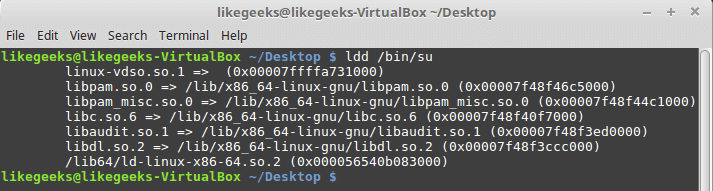
To check if your program uses Linux-PAM or not:

$ ldd /bin/su

linux PAM check pam usability

You should see libpam.so library.

Linux-PAM Configuration

The configuration of Linux-PAM is in the directory /etc/pam.d/.

Some PAM modules require configuration files with the PAM configuration to operate. You can find the configuration files in /etc/security

If PAM is misconfigured, this could lead to serious problems.

PAM Services

The four types of PAM services:

  • Authentication service modules.
  • Account management modules.
  • Session management modules.
  • Password management modules.

Any application requires authentication can register with PAM using a service name.

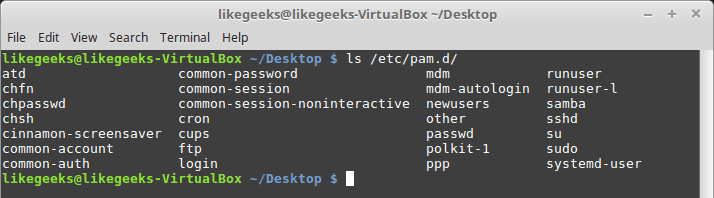
You can list Linux services that use Linux-PAM.

$ ls /etc/pam.d/

Linux PAM services

If you open any service file, you will see that the file is divided into three columns. The first column is management group, the second column is for control flags and the third column is the module (so file) used.

$ cat /etc/pam.d/sshd

account required pam_nologin.so

The account is the management group, required is the control flag and the used module is pam_nologin.so.

You may find a fourth column which is for module parameters.

Management Groups

There are four Management Groups you will see in PAM services files:

  • Auth Group: it can validate users
  • Account Group: controls the access to the service like how many times you should use this service.
  • Session Group: responsible for the service environment.
  • Password Group: for password updating.

Control Flags

We have four control flags in services files:

  • Requisite: the strongest flag. If the requisite not found or failed to load, it will stop loading other modules and return failure.
  • Required: The same as requisite, but if the module failed to load for any reason, it continues loading other modules and returns failure at the end of execution.
  • Sufficient: if the module return success, the processing of other modules no longer needed.
  • Optional: In the case of failure, the stack of modules continues execution and the return code is ignored.

Modules Order

The order is important because each module depends on the previous module on the stack.

If you try a configuration like the following to log in:

auth required pam_unix.so

auth optional pam_deny.so

That will work correctly, but what will happen if we change the order like this:

auth optional pam_deny.so

auth required pam_unix.so

No one can log in, so the order matters.

PAM Modules

There are PAM built-in modules on your system that you should know about, so you can use them perfectly.

pam_succeed_if Module

This module allows access for the specified groups. You can validate user accounts like this:

auth required pam_succeed_if.so gid=1000,2000

The above line states that only users in the group whose ID 1000 or 2000 are allowed to log in.

You can use uid as user id instead.

auth requisite pam_succeed_if.so uid >= 1000

In this example, any user id greater than or equal 1000 can log in.

You can also use it with ingroup parameter like this:

auth required pam_succeed_if.so user ingroup mygroup

Only people in the group named mygroup can log in.

pam_nologin Module

This module allows root only to log in if /etc/nologin file is available.

auth required pam_nologin.so

You can modify login service file with this line and create /etc/nologin file, so root only can log in.

This module used with auth, account management groups.

pam_access Module

This module works like the pam_succeed_if module except the pam_access module checks logging from networked hosts, while the pam_succeed_if module doesn’t care.

account required pam_access.so accessfile=/etc/security/access.conf

You can type your rules in the /etc/security/access.conf file like this:

+:mygroup

-:ALL:ALL

The above rules state that only mygroup users are allowed to log in while others can’t.

Where plus sign means allow and minus sign means deny.

This module is used with auth, account, session, password management groups.

pam_deny Module

The module is used to restricting access. It will always return a non-OK.

You can use it at the end of your module stack to protect yourself from any misconfiguration.

If you use it at the beginning of module stack, your service will be disabled:

auth required pam_deny.so

auth required pam_unix.so

This module is used with auth, account, session, password management groups.

pam_unix Module

This module is used to check user’s credentials against /etc/shadow file.

auth required pam_unix.so

You will see this module used in many services in your system.

This module is used with auth, session, password management groups.

pam_localuser Module

This module is used to check if the user is listed in /etc/passwd.

account sufficient pam_localuser.so

This module is used with auth, session, password, account management groups.

pam_mysql Module

Instead of checking user’s credentials against/etc/shadow, you can use a MySQL database as a backend using the pam_mysql module.

It can be used like this:

auth sufficient pam_mysql.so user=myuser passwd=mypassword host=localhost db=mydb table=users usercolumn=username passwdcolumn=password

The parameters for pam_mysql is used to validate the user.

You can install if it is not on your system like this:

$ yum install libpam-mysql

This module is used with auth, session, password, account management groups.

pam_cracklib module

Strong passwords are a must these days. This module ensures that you will use strong passwords.

password required pam_cracklib.so retry=4 minlen=12 difok=6

This example ensures that:

Password minimum length = 12

Four times to pick a string password, otherwise, it will exit.

Your new password must have 6 new characters from the old password.

This module is used with password management group.

pam_rootok Module

This module checks if the user ID is 0 that means only root users can run this service.

auth sufficient pam_rootok.so

You can use this module to ensure that a specific service is allowed for root users only.

This module is used with auth management group.

pam_limits Module

This module is used to set limits on the system resources, even root users are affected by these limits.

The limits configuration are in the /etc/security/limits.conf and  /etc/security/limits.d/  directory.

session required pam_limits.so

You can use this module to protect your system resources.

This module is used with session management group.

The limits in /etc/security/limits.conf file could be hard or soft.

Hard: The user cannot change its value, but root can.

Soft: normal user can change it.

The limits could be fsize, cpu, nproc, nproc, data and many other limits.

@mygroup hard nproc 50

myuser hard cpu 5000

The first limit for mygroup members which sets the number of processes for each one of them to be 50.

The second limit for the user named myuser which limits the CPU time to 5000 minutes.

You can edit any PAM service file in /etc/pam.d/ and use the module you want to protect your services the way you want.

I hope you find using Linux PAM modules easy and useful.

Thank you.

likegeeks.com

0