

Archive | GNU/Linux İpuçları

Linux iptables Firewall Simplified Examples

In the previous post, we talked about how to Secure Linux Server Using Hardening Best Practices, some people asked me about the firewall section which was a brief introduction about iptables firewall. Today we will discuss in detail the Linux iptables firewall and how to secure your server traffic using that awesome firewall. If you are using CentOS 7, you will find that firewalld was introduced to manage iptables, so if you want to go back to iptables, you have to stop and mask firewalld.

Continue Reading →

$ systemctl stop firewalld

$ systemctl mask firewalld

Then install iptables service and enable it:

$ yum install iptables-services

$ systemctl enable iptables

Then you can start it:

$ systemctl start iptables

How Linux Firewall Works

Iptables firewall functions are built on Netfilter framework that is available in the Linux kernel for packets filtering.

Firewall Types

There are two types of firewalls:

Stateless firewall process each packet on its own, it means it doesn’t see other packets of the same connection.

Stateful firewall this type of firewalls cares about all packets passed through it, so it knows the state of te connection. It gives more control over the traffic.

Netfilter contains tables. These tables contain chains, and chains contain individual rules.

If the passed packet matches any rule, the rule action will be applied on that packet.

The actions can be: accept, rejectignore, or pass the packet on to other rules for more processing.

Netfilter can process incoming or outgoing traffic using the IP address and port number

Netfilter is managed and configured by the iptables command.

Before we start writing firewall commands, we need to understand the firewall structure a bit so we can write firewall rules easily.

iptables Firewall Tables

Netfilter has three tables that can carry rules for processing.

The iptables filter table is the main table for processing the traffic.

The second is nat table, which handles NAT rules.

The third table is the mangle table, which is used for mangling packets.

Table Chains

Each table of the above-mentioned tables contains chains, these chains are the container of the rules of iptables.

The filter table contains FORWARD, INPUT, and OUTPUT chains.

You can create a custom chain to save your rules on it.

If a packet is coming to the host, it will be processed by INPUT chain rules.

If the packet is going to another host, that means it will be processed by OUTPUT chain rules.

The iptables FORWARD chain is used for handling packets that have accessed the host but are destined to another host.

Chain Policy

Each chain in the filter table has a policy. The policy is the default action taken.

The policy could be DROP, REJECT, and ACCEPT.

The ACCEPT policy allows the packets to pass the firewall. The DROP policy drops a packet without informing the client. The REJECT policy also drops the packet and inform the sender.

From a security perspective, you should drop all the packets coming to the host and accept only the packets that come from trusted sources.

Adding iptables Rules

You can add a new rule using the iptables command like this:

$ iptables -A INPUT -i eth1 -p tcp --dport 80 -d 1.2.3.4 -j ACCEPT

Let’s break this command into pieces so we can understand everything about it.

The -A means we are adding a new rule. By default, all new rules are added to filter table unless you specify another table.

The -i flag means which device will be used for the traffic to enter the host. If no device specified, the rule will be applied to all incoming traffic regardless the devices.

The -p flag specifies the packet’s protocol that you want to process, which is TCP in our case.

The –dport flag specifies the destination port, which is 80.

The -d specifies the destination IP address which is 1.2.3.4. If no destination IP address specified, the rule would apply to all incoming traffic on eth1 regardless of IP address.

The -j specifies the action or the JUMP action to do, here we are accepting the packets using the accept policy.

The above rule allows incoming HTTP traffic which is on port 80.

What about allowing outgoing traffic?

$ iptables -A OUTPUT -o eth1 -p tcp --sport 80 -j ACCEPT

The -A flag is used to add rules to the OUTPUT chain.

The -o flag is used for the device used for outgoing traffic.

The -sport flag specifies the source port.

You can use the service name like http or https instead of the numeric port number on sport or dport. The service names can be found in /etc/services file.

It is recommended to use the service name rather than a port number, which makes reading rules easier.

Iptables Rules Order

When you add a rule, it is added to the end of the chain.

You can add it on the top by using -I option.

The sequence of the rules matters as you will see now.

You can insert your rules exactly where you want using the I flag.

Look at the following rules to understand how rules ordering matters:

$ iptables -I INPUT 3 -i eth1 -p udp -j ACCEPT

$ iptables -I INPUT 4 -i eth1 -p udp --dport 80 -j DROP

The first rule accepts all UDP traffic comes to eth1, and the number 3 is the rule order.

The second rule drops the traffic that enters port 80.

The first rule will accept all the traffic, then the second rule will be ignored because the first rule already accepts all the traffic so the second rule here makes no sense.

Your rules should make sense since the order of the rules in the chain matters.

List iptables Rules

You can list the rules in a chain using -L flag:

$ iptables -L INPUT

You can show the line numbers for rules using –line-numbers:

$ iptables -L INPUT --line-numbers

The list shows the services names, you can show port numbers instead using -n option:

$ iptables -L INPUT -n --line-numbers

This will make the listing faster because it prevents iptables from DNS resolution and service lookups.

You can list all rules for all chains like this:

$ iptables -L -n --line-numbers

To get how many packets processed by each rule, you can use the -v flag:

$ iptables -L -v

Also, you can reset the counters to zero using -Z flag.

Now we can add a new rule to any chain we want, we can insert the rule in a specific order and we can list the rules for any chain or all chains, but what about deleting a rule?

Deleting Rules

You can delete a rule using -D flag:

$ iptables -D INPUT -i eth1 -p tcp --dport 80 -d 1.2.3.4 -j ACCEPT

This command will delete the HTTP rule that you specified earlier.

Before you delete a rule, just make sure of the rule specification by listing it, then delete it.

You can delete the rule using the order number instead of writing the rule specifications.

$ iptables -D INPUT 2

You can delete all rules in a specific chain using -F flag which means flush all rules.

$ iptables -F INPUT

If you forget to mention the chain name when using -F flag, then all chain rules will be deleted.

Replacing Rules

You can replace existing rules with your own rule using -R flag:

$ iptables R INPUT 1 i eth1 p tcp dport httpht d 1.2.3.4 j ACCEPT

This command will replace the first rule in INPUT chain with the typed rule.

Listing Specific Table

To list a specific table, use the -t flag with the table name like this:

$ iptables -L -t nat

Here we list the rules in nat table.

Iptables User Defined Chain

To create a user defined chain, use the -N flag.

$ iptables -N MY_CHAIN

Also, you can rename it using -E flag.

$ iptables -E MY_CHAIN NEW_NAME

And you can delete the user-defined chain using -X flag.

$ iptables -X MY_CHAIN

If you don’t mention the chain name when using -X flag it will delete all user-defined chains. You can’t delete built-in chains like INPUT and OUTPUT.

Redirection to a User Defined Chain

You can redirect packets to a user-defined chain like built-in chains using -j flag.

$ iptables -A INPUT -p icmp -j MY_CHAIN

So all incoming ICMP traffic will be redirected to the newly created chain called MY_CHAIN.

Setting The Default Policy for Chains

You can use the -P flag to set the default policy for a specific chain. The default policy could be ACCEPT, REJECT and DROP.

$ iptables -P INPUT DROP

So now the input chain will drop any packet come unless you write a rule to allow any incoming traffic.

SYN Flooding

The attacker sends SYN packets only without completing the TCP handshake and as a result, the receiving host would have many opened connections, and your server becomes too busy to respond to other clients.

We can use the limit module of iptables firewall to protect us from SYN flooding.

$ iptables -A INPUT -i eth1 -p tcp --syn -m limit --limit 10/second -j ACCEPT

Here we specify 10 SYN packets per second only. You can adjust this value according to your network needs.

If this will throttle your network, you can use SYN cookies.

SYN Cookies

In /etc/sysctl.conf file and add this line:

net.ipv4.tcp_syncookies = 1

Then save and reload.

$ sysctl -p

Drop INVALID State Packets

The INVALID state packets are packets that don’t belong to any connection and should be dropped.

$ iptables -A INPUT -m state --state INVALID -j DROP

This rule will drop all incoming invalid state packets.

Drop Fragmented Packets

Fragmented packets are broken pieces of large malformed packets and should be dropped

The -f flag tells iptables firewall to select all fragments. So if you are not using iptables as a router, you can drop fragmented packets.

$ iptables -A INPUT -f -j DROP

Save iptables Rules

All the rules we discussed will be lost if you reboot your server, so how to persist them.

You can save all of your rules using the iptables-save command if you are using CentOS or Red Hat.

iptables-save > /etc/sysconfig/iptables

On CentOS 7, you can save rules like this:

$ service iptables save

You can save specific table like filter table only:

$ iptables-save -t filter

Also, you can use iptables-restore to restore rules that were saved.

On Debian based distros, you can use the iptables-persistent package to save and restore rules.

First, install it:

$ apt-get install iptables-persistent

Then you can save and restore rules:

$ netfilter-persistent save

$ netfilter-persistent reload

I Hope you find iptables firewall easy. Keep coming back.

Thank you.

likegeeks.com

0

Secure Linux Server Using Hardening Best Practices

In the previous post we talked about some Linux security tricks and as I said, we can’t cover everything about Linux hardening in one post, but we are exploring some tricks to secure Linux server instead of searching for ready Linux hardening scripts to do the job without understanding what’s going on, However, the checklist is so long so let’s get started. This is important if you are not securing your server physically. If you are using Systems prior to CentOS 7, all you have to do is to comment out the following line in /etc/inittab file.

Continue Reading →

ca::ctrlaltdel:/sbin/shutdown -t3 -r now

Otherwise, if you are using CentOS 7 use the following command:

$ ln -s /dev/null /etc/systemd/system/ctrl-alt-del.target

Secure Mounted Filesystems

Each of your Linux file systems is mounted so you can the files inside it. You can mount your file systems using different options.

You can type these options in the /etc/fstab file.

LABEL=/ / ext4 defaults 1 1

The first column is just a label for your device.

The second column is the location of the mounted filesystem.

The third column is the file system type like ext4.

The fourth column contains security options which are the most important one for us.

The last two columns control the options for the dump and fsck commands.

There are many different ways to control how file systems are mounted and the following list shows some of them:

auto                       It will be mounted automatically at boot time.

noauto                   It will not be mounted automatically at boot time.

exec                       You can execute binaries on this file system.

noexec                  You can’t execute binaries on this file system.

suid                       setuid bits are permitted.

nosuid                  No setuid bits.

user                       non-root users can mount this device.

nouser                  No user except root can mount this device.

owner                   Only owner can mount the device.

ro                          Mount device read-only.

rw                          Mount device read-write.

defaults                Make your file system’s options: rw, suid, exec, auto, nouser.

The exec and noexec options enable you to control whether binary execution is allowed or not.

You can mount /home securely with noexec like this:

/dev/hda1 /home ext4 noexec 0 2

Keep in mind that this line will prevent the execution of binaries on /home, so if you have any executables, you should take care of that.

You can mount /tmp with noexec option as a step of hardening, but keep in mind that some programs might not work properly because they use /tmp to execute. So you can test your software with this mount option, if it goes well then it’s OK.

If you have binaries that have the setuid and setgid bits, and you set the nosuid option, the setuid and setgid bits will be neglected.

Only root users can mount file systems, but if you want other users to do that, you can set the user, nouser options. If you set the user option, then any user can mount or unmount file systems.

Any user other than root shouldn’t be allowed to mount file systems.

By setting ro and rw options, you can set your filesystem as read-only or writable.

You can mount any file system as read-only like this:

/dev/hda2 /usr ext4 ro,nodev 0 2

You can mount /boot as read-only using the same way, but keep in mind that if any kernel update arrives, you have to remount it as rw to apply the update like this:

$ mount -o remount,rw /boot

You know mount options and you should be wise enough to take the decision about which directory needs which option to mount with.

Protect /etc/services File

The /etc/services file translates service names to port numbers.

This file is writable by root only, but you may make a mistake without intention.

Well, you can use the immutable attribute to avoid any mistakes.

Also, that prevents accidental deleting or overwriting of such a vital file.

$ chattr +i /etc/services

Remove Unused Accounts

These vendor accounts are preinstalled on your system for some Linux system activity.

If you don’t need those accounts, it’s preferred to remove them using the userdel command, and these are some of the unused users for me.

$ userdel adm

$ userdel games

$ userdel halt

$ userdel lp

$ userdel shutdown

Also, you will need to remove the groups belongs to those accounts if exist using groupdel command

If you check /etc/passwd file, you’ll see that the users are deleted.

If you run your own VPS or server you can set the immutable bit on /etc/passwd and /etc/shadow to prevent any unwanted changes.

$ chattr +i /etc/passwd

$ chattr +i /etc/shadow

If you need to add new users to the system or install a program that will add users, consider removing the immutable flag first.

Hardening Cron Scripts

Some scripts under /etc/cron.d doesn’t have the secured permissions, they are readable to normal users.

Consider fixing the permission for the scripts that are responsible for executing scheduled job on our server so root only can read it.

$ chmod 0700 /etc/cron.daily/*

Normal users don’t need to look at those scripts.

Keep in mind that if you update a program that provides a cron file on your system, consider updating the permission, or you can make a shell script that does the job for you instead.

And the same for the other cron directories like:

/etc/cron.weekly

/etc cron.monthly/

/etc cron.hourly/

Securing SUID Programs

SUID (Set User ID) is a special type of file permissions given to a file. When you want to use a tool like passwd command which writes on files belong to root such as /etc/passwd and /etc/shadow, the passwd command must have this SUID permission to enable normal users to use that command.

You may take a look at all programs that have this permission and consider removing that permission from unnecessary programs that you think that normal users won’t need it.

$ find / -type f -user root -perm -4000 -print

All these programs have SUID bit and normal users can run them as root. To remove that permission, you can use this command:

$ chmod a-s /bin/mount

Keep in mind that some programs need that permission to work so be careful when doing that.

Risky World-Writable Files and Directories

World-writable directories and files can lead to serious problems if the attacker gains access to them.

He will be allowed to modify or delete any file, and this is a serious problem.

To get all writable files in your web folder, use this command:

$ find /home/*/public_html -type f -writable -exec ls -la {} \;

And writable directories:

$ find /home/*/public_html -type d -writable -exec ls -ld {} \;

You may find writable directories and files in some locations like /var/mail which has no problem, but on web folders, you have to be careful about that much.

You can use some integrity check tool like tripwire.

This tool will scan the system for any public writable files and directors and warn you, so you can take action about them.

Risky Symlinks

Symlinks or symbolic links are useful if they used for a good purpose to simplify your work, but the attacker in some cases uses any scripting language on your server to build a symlink to travel between directories and see your files, steal passwords and gain access to all websites on the server, so it’s very important to keep any eye on that.

The following command searches for any symlink and deletes it.

$ find -L /home/*/public_html -type l –delete

You can change the path based on your server paths, you may also create a shell script to find those symlinks and send to your email so you can investigate how it was created.

#!/bin/bash
find /home/*/public_html/ -type l >> /root/symlinks
cat /root/symlinks | cut -d"/" -f3 | uniq >> /root/out
echo "Symlinks:"|mail -s "Symlinks in $(hostname)" [email protected] < /root/out > /root/symlinks > /root/out

There are many ways to stop symlink creation, if you are using PHP, you can disable some serious functions, and apply Symlinks only if owner matches for your server if you are using apache.

This trick is very useful, especially when dealing with compromised systems.

There is a lot to talk about securing PHP; maybe we should make another post about that, but let’s keep simple for now.

Securing Log Files

Your last line of defense is the log files. Log files for each running service tell you everything about that service, so you can keep track of everything happened on your system.

In worst scenarios (like gaining root access), the attacker might delete those log files and left you without any evidence of what had happened.

Consider copying your log files to a different place or schedule a regular backup of log files to somewhere else that shouldn’t be accessible to the attacker if he gains access to your system.

Securing Linux Resources

Securing Linux Resources is a must because users can jeopardize the stability of your server if they left to use server resources without limits.

You can allocate how much memory for each user, how many processes and other server resources.

Under /etc/security, there is a file called limits.conf, in this file you can specify the limits for your users like this:

* hard rss 500000

* hard nproc 50

The first line says for all users, limit the memory usage to 500 MB.

The second line says for all users, limit the number of processes to 50 processes.

All these restriction rules applied to all users expect root user.

The asterisk on both lines means all users, and some systems have users running services like www or mysql users and these service users are used by all users on the system and if we apply our restriction rules for them too, that can lead to problems.

A good solution for this problem is to add a special group and add our users to that group and apply our restriction rules to that group.

In this case, the rules will be applied for every user in this group and not to the whole users of the group.

@myusers hard rss 500000

@myusers hard nproc 50

Hardening /proc Directory

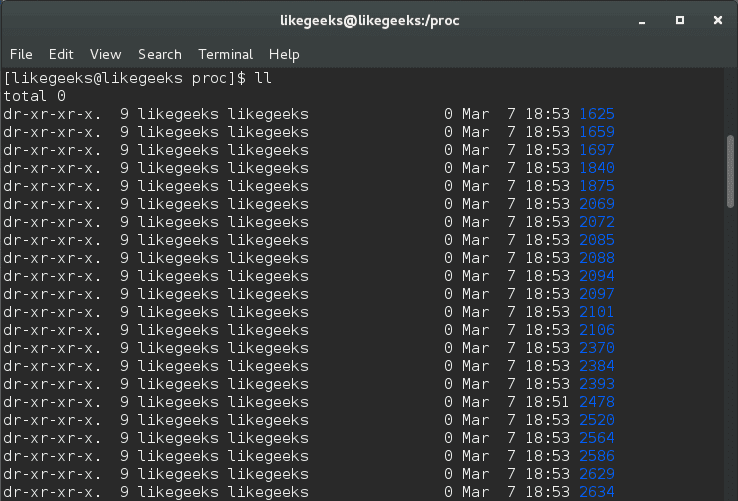
The /proc directory or as they call it (process information pseudo-file system) gives you hints about the currently running processes. Linux is installed by default to allow normal users to see that information. You can see what processes belong to root and all other user’s processes.

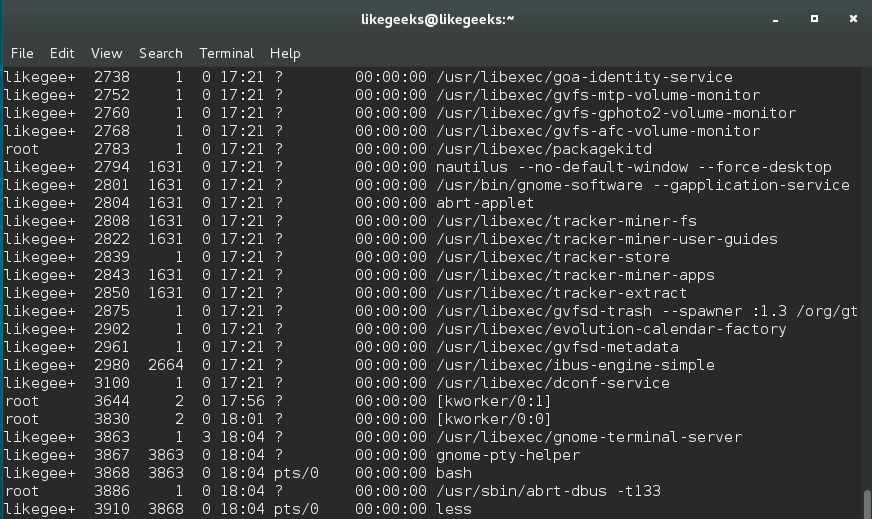
Before you use this trick, as you can see that normal user can see all processes even root processes:

Secure Linux Server ps -ef

The hidepid mount option allows you to hide process IDs. It takes a value of 0, 1, 2.

$ mount -o remount,rw,hidepid=2 /proc

And you can write it to /etc/fstab to make it permanent so after reboot, the process IDs remains hidden.

proc /proc proc defaults,hidepid=2 0 0

proc directory Hardening Best Practices

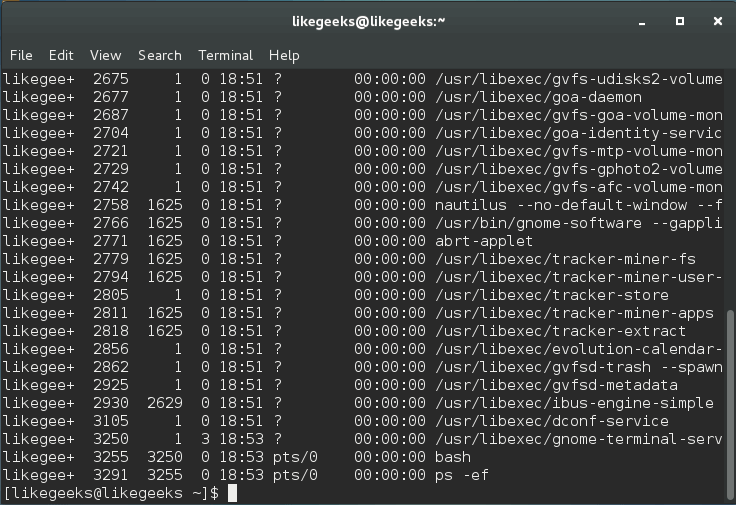
After that command, you are only allowed to see your processes. Only root users can see all processes for all users.

$ ps -ef

Secure Linux Server ps -ef

Another mount option is gid which allows users in a specific group to see /proc directory.

If the group you want to assign the permission to has ID of 100, you can write it like this:

$ mount -o remount,rw,gid=100 /proc

Also, you can write it in /etc/fstab file:

proc /proc proc defaults,gid=100 0 0

The last advice for you is to keep your system and software updated always, that will protect you from many threats.

I hope you find these hardening tricks useful. Keep coming back.

Thank you.

likegeeks.com

0

Linux Network Commands Used In Network Troubleshooting

In the previous post, we talked about Linux process management. In this post, we will talk about Linux network commands and how to troubleshoot your network. Once you have confirmed that the physical network is working, the next step is to troubleshoot your network and here we come to our topic which is Linux network commands and how to use them to troubleshoot your network. We are going to cover the most used Linux network commands. The ping command is one of the most used Linux network commands in network troubleshooting. It is used to check whether or not a specific IP address can be reached. The ping command works by sending an ICMP echo request to check the network connectivity.

Continue Reading →

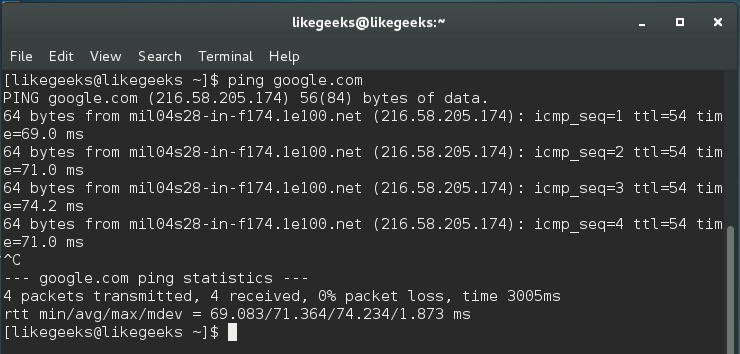
$ ping google.com

ping linux network commands

These results are showing a successful ping, and it can be described as the trip of an echo request issued by our system to google.com.

This command measures the average response. If there is no response, then maybe there is one of the following:

  • There is a physical problem on the network itself.
  • The location might be incorrect or non-functional.
  • The ping request is blocked by the target.
  • There is a problem in the routing table.

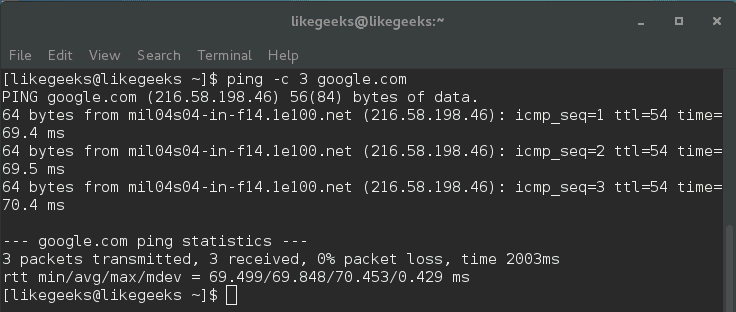
If you want to limit the number of echo requests made to 3, you can do it like this:

$ ping -c 3 google.com

ping -c Linux network commands

Here ping command stops sending echo requests after 3 cycles.

There are some issues that you should consider about ping command. These issues may not necessarily mean that there is a problem like:

Distance to the target: so if you live in the U.S. and you ping a server on Asia, you should expect that this ping will take much time than pinging a server in the U.S.

The connection speed: if your connection is slow, ping will take longer time than if you have a fast connection.

The hop count: this refers to routers and servers that the echo travels across till reaching its destination.

The important rule about ping is that the low ping is always desirable.

Get DNS Records Using dig and host Commands

You can use the dig command to verify DNS mappings, host addresses, MX records, and all other DNS records for a better understanding of DNS topography.

The dig command was developed to replace nslookup command.

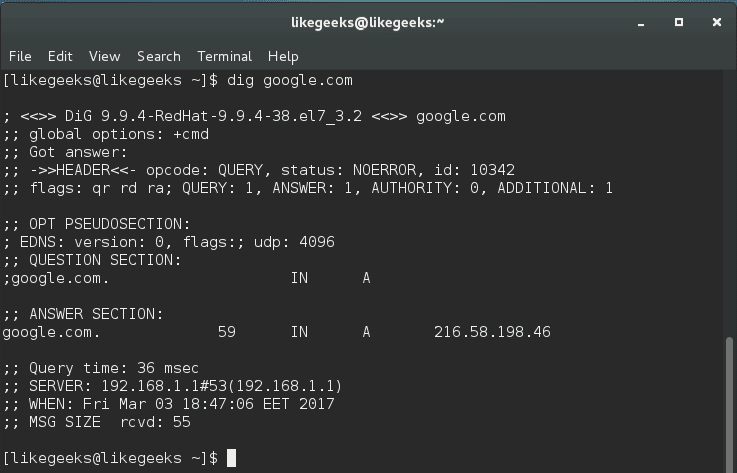
$ dig google.com

dig linux network commands

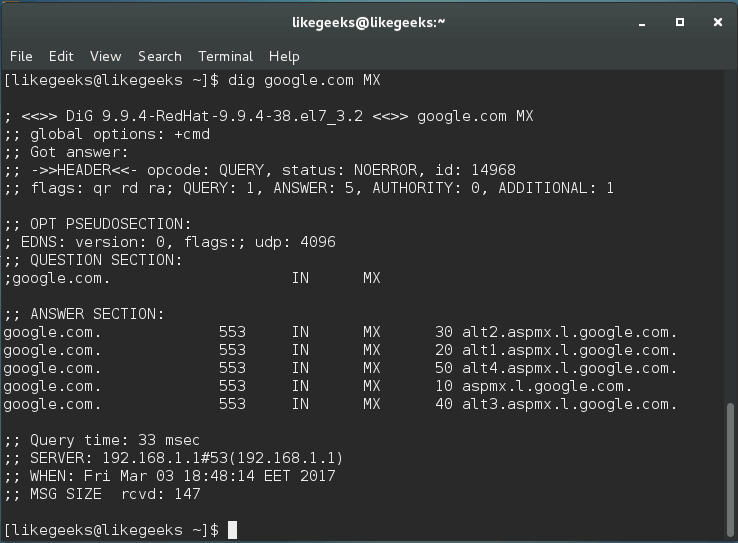
The dig command by default searches for A records, you can obtain information for specific record types like MX records or NS records.

$ dig google.com MX

dig mx linux network commands

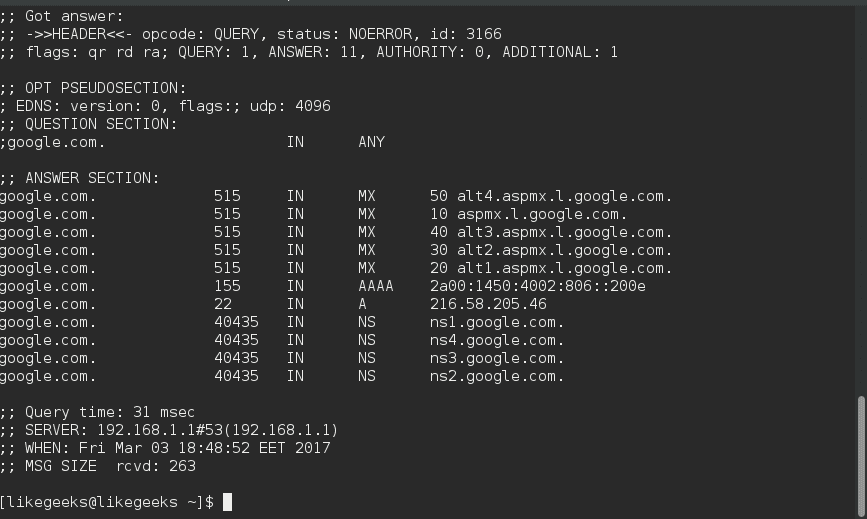
You can get all types of records by using ANY query.

$ dig google.com ANY

dig ANY linux network commands

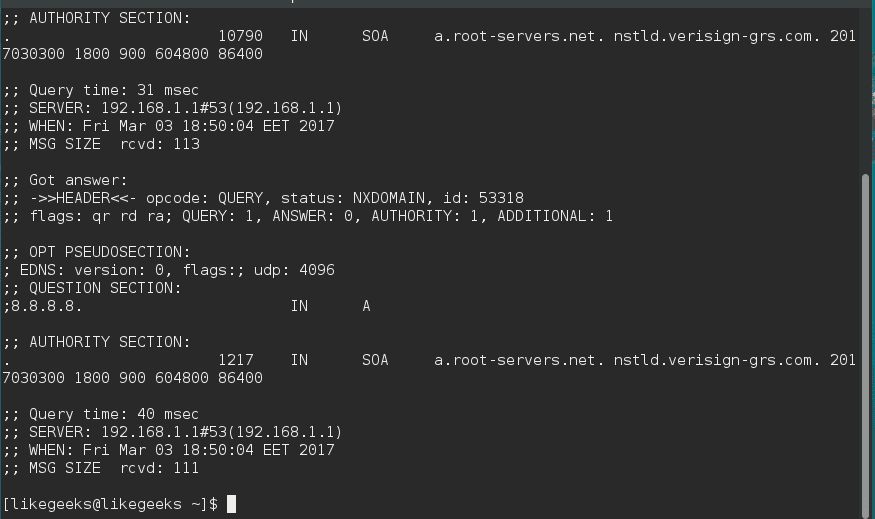
The dig command makes a reverse lookup to get DNS information like this:

$ dig –x 8.8.8.8

dig -x linux network commands

dig command does its query using the servers listed on /etc/resolv.conf.

The host command is similar to dig command.

$ host –a google.com

host linux network commands

Also, you can perform reverse lookups using host command.

$ host 8.8.8.8

So both commands work in a similar way but dig command provides more advanced options.

Diagnose Network Latency Using traceroute Command

The traceroute command is one of the most useful Linux network commands. It is used to show the pathway to your target and where the delay comes from. This command helps basically in:

  • Providing the names and the identity of every device on the path.
  • Reporting network latency and identify at which device the latency comes from.

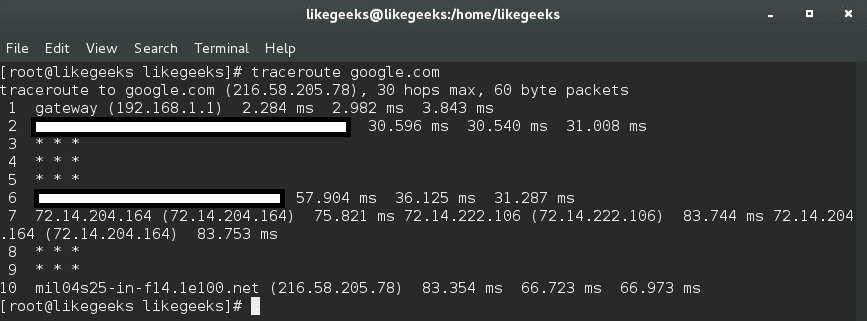
$ traceroute google.com

traceroute linux network commands

The output will provide the specified host, the size of the packet that will be used, the IP address, and the maximum number of hops required. You can see the hostname, IP address, the hop number, and packet travel times.

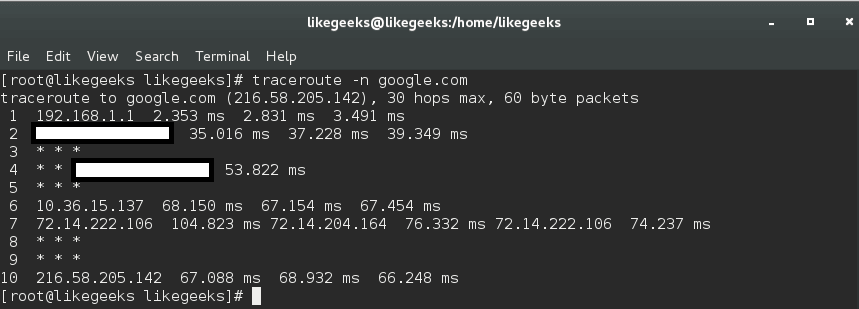
To avoid reverse DNS lookup, use the -n option.

$ traceroute -n google.com

traceroute -n linux network commands

By using traceroute command, you can identify network bottlenecks. The asterisks shown here means there is a potential problem in routing to that host, as the asterisks indicate packet loss or dropped packets.

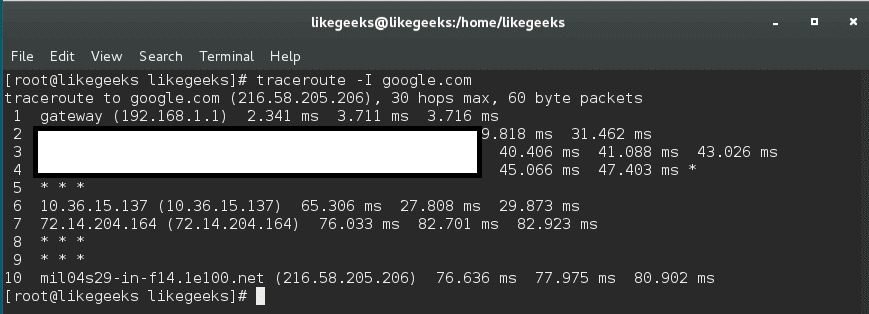
The traceroute command sends a UDP packet, traceroute can send UDP, TCP, and ICMP.

If you need to send ICMP packet, you can send it like this:

$ sudo traceroute -I google.com

traceroute -I linux network commands

To use a TCP variation, it can be used like this:

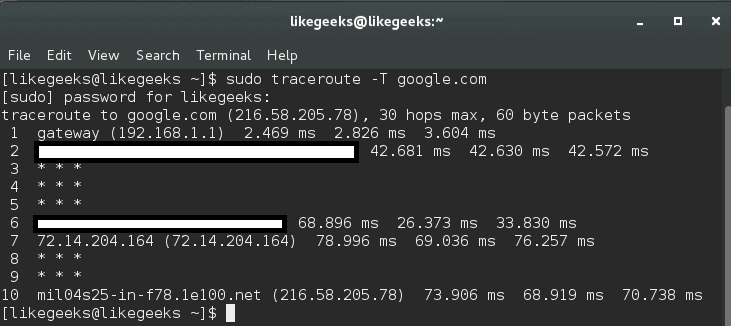
$ sudo traceroute -T google.com

traceroute -T linux network commands

This is because some servers block UDP requests, so you can use this method.

In this case, you can send UDP, ICMP, or TCP to bypass these issues.

mtr Command (Realtime Tracing)

This command is an alternative to traceroute command.

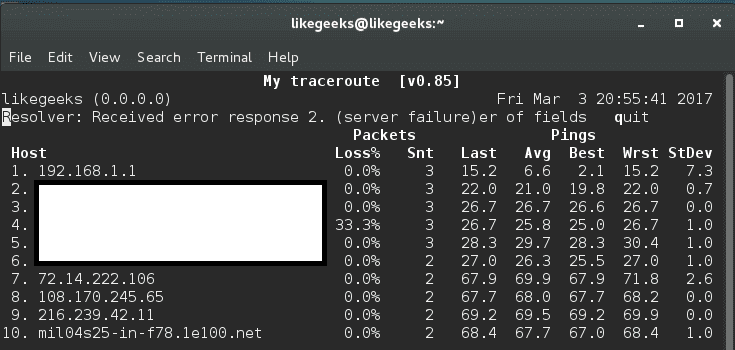
$ mtr google.com

mtr linux network command

The best thing about mtr command is that it displays real-time data unlike traceroute.

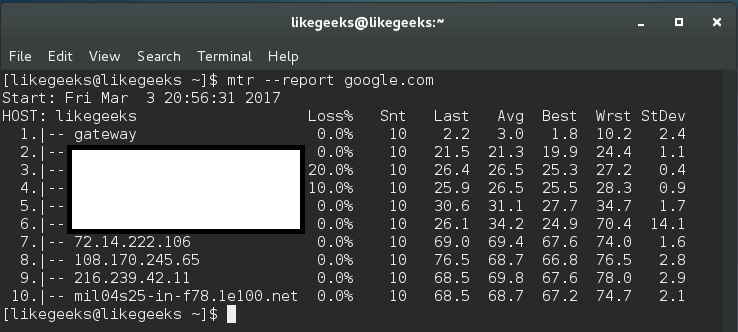
Furthermore, you can use the mtr command with –report option, this command sends 10 packets to each hop found on its way like this:

$ mtr --report google.com

mtr report linux network command

This command gives a huge amount of details better than traceroute.

If this command doesn’t run using a normal user account, you should use root, since some distros adjust the permission of this binary for root users only.

Checking Connection Performance Using ss Command

The socket statistics command ss is a replacement for netstat, it’s faster than netstat and gives more information.

The ss command gets its information directly from the kernel instead of relying on /proc directory like netstat command.

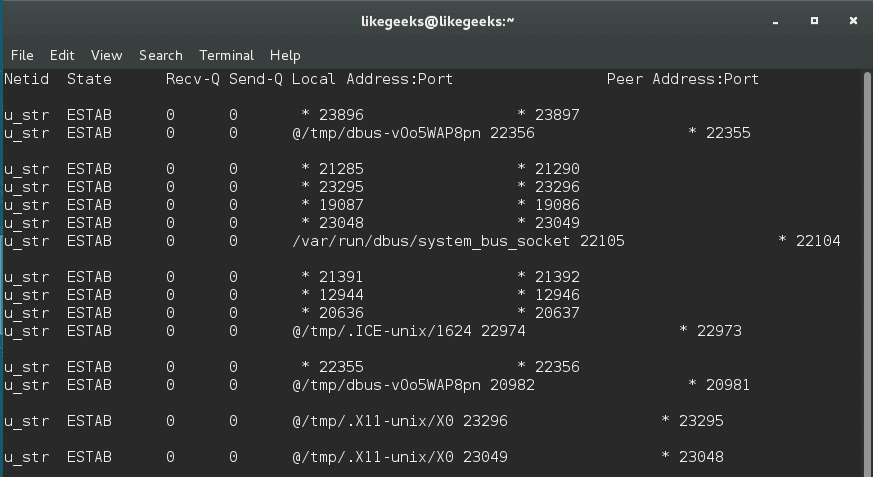
$ ss | less

ss linux network command

This command outputs all TCP, UDP, and UNIX socket connections and pipes the result to the less command for better display.

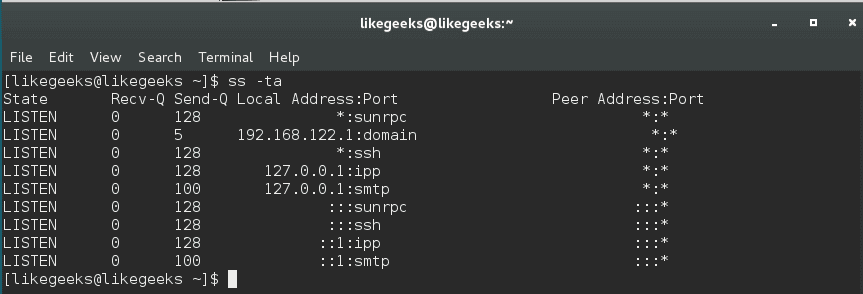
You can combine this command with either the -t to show TCP sockets or -u to show UDP or -x to show UNIX sockets. And you should use -a option combined with any of these options to show the connected and listening sockets.

$ ss -ta

ss -ta linux network command

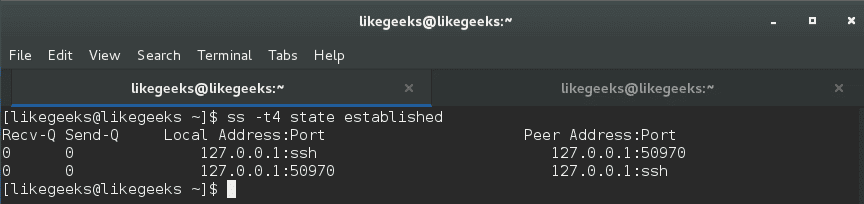
To list all established TCP sockets for IPV4, use the following command:

$ ss -t4 state established

ss established connections

To list all closed TCP states:

$ ss -t4 state closed

You can use the ss command to show all connected ports from a specific IP:

$ ss dst XXX.XXX.XXX.XXX

And you can filter by a specific port like this:

$ ss dst XXX.XXX.XXX.XXX:22

Install and Use iftop Command For Traffic Monitoring

iftop utility or iftop command is used to monitor the traffic and display real-time results.

You can download the tool like this:

$ wget http://www.ex-parrot.com/pdw/iftop/download/iftop-0.17.tar.gz

Then extract it:

$ tar zxvf iftop-0.17.tar.gz

Then compile it:

$ cd iftop-0.17

$ ./configure

$ make

$ make install

If you got any errors about libpcap, you can install it like this:

$ yum install libpcap-dev

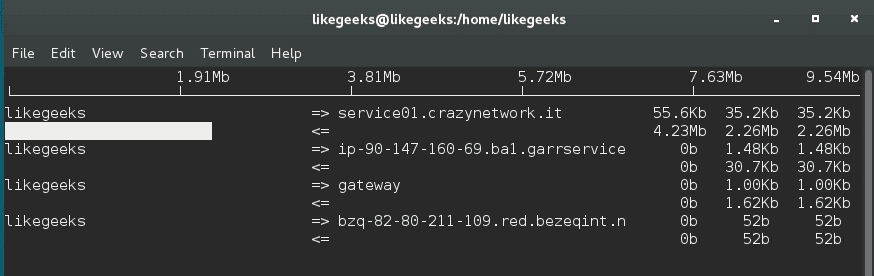
And you can run the tool as a root user like this:

$ sudo iftop -I

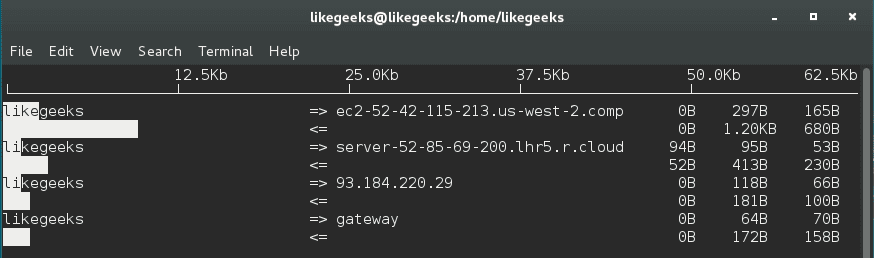
iftop command

And you will see this table with a real-time data about your traffic.

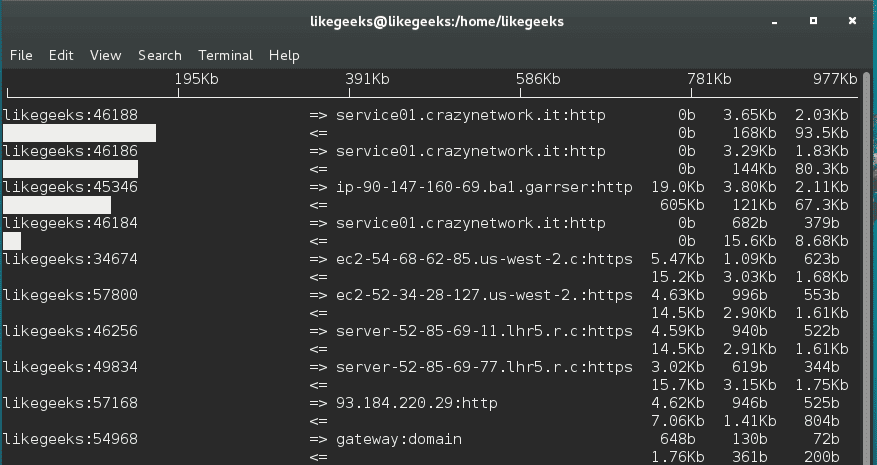
add P option with iftop to show ports.

$ sudo iftop -P

iftop -P linux network commands

You can use the -B option to display the output in bytes instead of bits which is shown by default.

$ iftop -B

iftop -B linux ntwork command

There a lot of options, you can check them man iftop

arp Command

Systems keep a table of IP addresses and their corresponding MAC addresses, this table is called ARP lookup table. If you try to connect to an IP address, your router will check for your MAC address. If it’s cached, ARP table is not used.

To view the arp table, use the arp command:

$ arp

arp linux network command

By default, arp command shows the hostnames, you can show IP addresses instead like this:

$ arp -n

arp -n linux network command

You can delete entries from the arp table like this:

$ arp -d HWADDR

Packet Analysis with tcpdump

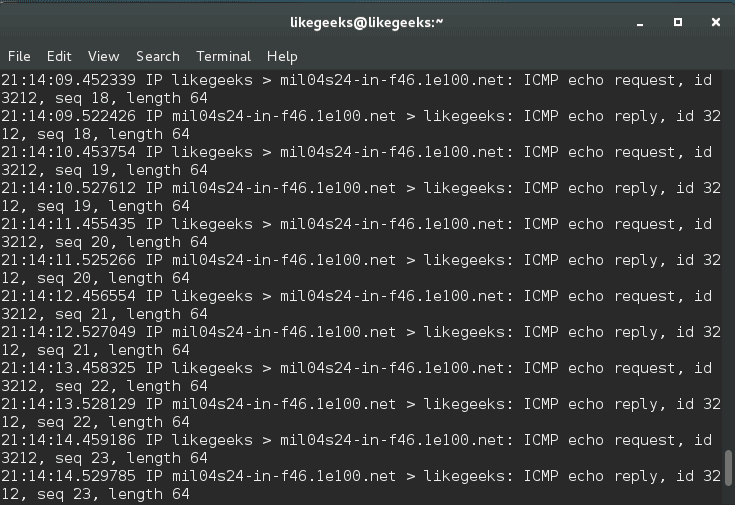
One of the most important Linux network commands is The tcpdump command. tcpdump command is used to capture the traffic that is passing through your network interface.

This kind of access to the packets which is the deepest level of the network can be vital when troubleshooting the network.

$ tcpdump -i <network_device>

tcpdump linux network command

You can also specify a protocol (TCP, UDP, ICMP and others) like this:

$ tcpdump -i tcp

Also, you can specify the port:

$ tcpdump -i port 80

tcpdump will keep running until the request is canceled; it is better to use the -c option in order to capture a pre-determined number of events like this:

$ tcpdump -c 20 -i

You can also specify the IP to capture from using src option or going to using dst option.

$ tcpdump -c 20 -i src XXX.XXX.XXX.XXX

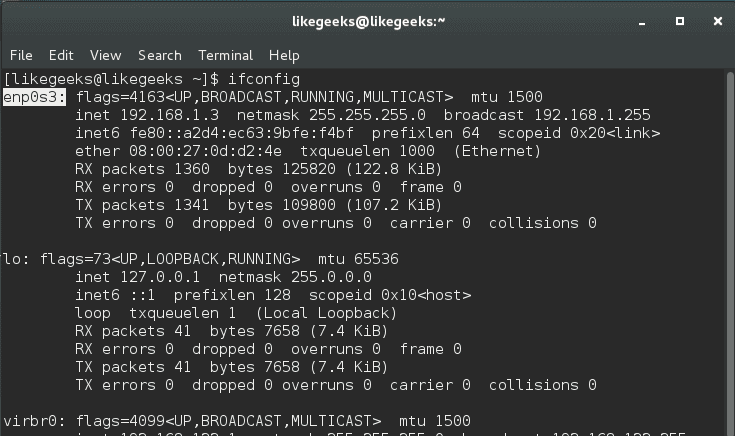
You can obtain the device names like this:

$ ifconfig

ifconfig linux network command

You can save the traffic captured from tcpdump to a file and read it later with -w option.

You can save the traffic captured from tcpdump to a file and read it later with -w option.

$ tcpdump -w /path/ -i

And to read that file:

$ tcpdump -r /path

I hope that Linux network commands we’ve discussed in this post could help you troubleshoot some of your network problems and take the right decision.

Thank you.

likegeeks.com

0

Performance Tuning Using Linux Process Management Commands

In server administration, it is very important to understand how the running processes work in detail, from high load to slow response time processes. When your server becomes so slow or fails to respond, you should understand the process management or Linux process management in specific to an action. When it is the time to kill a process or renice it and how to monitor the currently running processes and how these processes affect the system load. Let’s see how Linux process management will help us tune the system.

Continue Reading →

Process Types

Before we start talking about Linux process management, we should review process types. There are four common types of processes:

  • Parent process
  • Child process
  • Orphan Process
  • Daemon Process
  • Zombie Process

Parent process is a process which runs the fork() system call. All processes except process 0 have one parent process.

Child process is created by a parent process.

Orphan Process it continues running while its parent process has terminated or finished.

Daemon Process is always created from a child process and then exit.

Zombie Process exists in the process table although it is terminated.

The orphan process is a process that still executing and its parent process has died while orphan processes do not become zombie processes.

Memory Management

In server administration, memory management is one of your responsibility that you should care about as a system administrator.

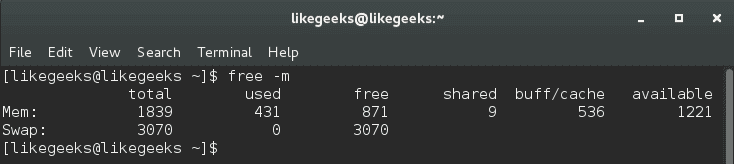
One of most used commands in Linux process management is the free command:

$ free –m

The -m option to show values in megabytes.

linux process managment free command

Our main concern in buff/cache.

The output of free command here means 536 megabytes is used while 1221 megabytes is available.

The second line is the swap. Swapping occurs when memory becomes to be crowded.

The first value is the total swap size which is 3070 megabytes.

The second value is the used swap which is 0.

The third value is the available swap for usage which is 3070.

From the above results, you can say that memory status is good since no swap is used, so while we are talking about the swap, let’s discover what proc directory provides us about the swap.

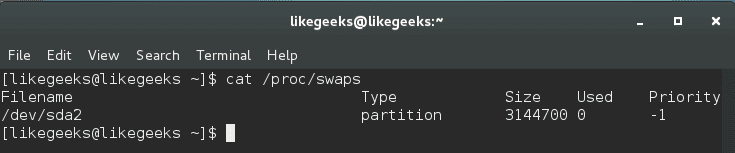
$ cat /proc/swaps

linux process managment swaps

This command shows the swap size and how much is used:

$ cat /proc/sys/vm/swappiness

linux process managment swappiness

This command shows a value from 0 to 100, this value means the system will use the swap if the memory becomes 70% used.

Notice: the default value for most distros for this value is between 30 and 60, you can modify it like this:

$ echo 50 > /proc/sys/vm/swappiness

Or using sysctl command like this:

$ sudo sysctl -w vm.swappiness=50

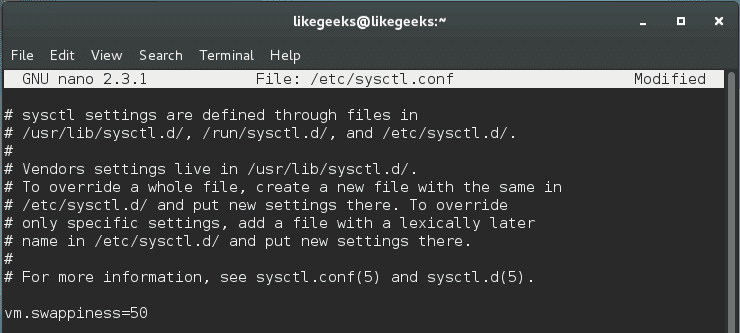
Changing the swappiness value using the above commands is not permanent, you have to write it on /etc/sysctl.conf file like this:

$ nano /etc/sysctl.conf

vm.swappiness=50

linux process managment persist swappiness

Cool!!

The swap level measures the chance to transfer a process from the memory to the swap.

Choosing the accurate swappiness value for your system requires some experimentation to choose the best value for your server.

Managing virtual memory with vmstat

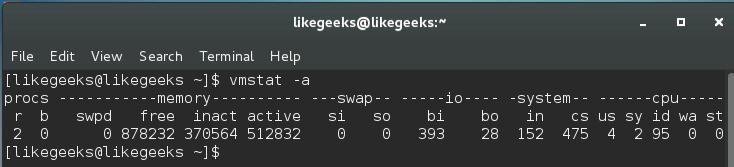
Another important command used in Linux process management which is vmstat. vmstat command gives a summary reporting about memory, processes, and paging.

$ vmstat -a

-a option is used to get all active and inactive processes.

linux process managment vmstat command

And this is the important column outputs from this command:

si:                           How much swapped in from disk.

so:                          How much swapped out to disk.

bi:                           How much sent to block devices.

bo:                         How much obtained from block devices.

us:                          The user time.

sy:                          The system time.

id:                           The idle time.

Our main concern is the (si) and (so) columns, where (si) column shows page-ins while (so) column provides page-outs.

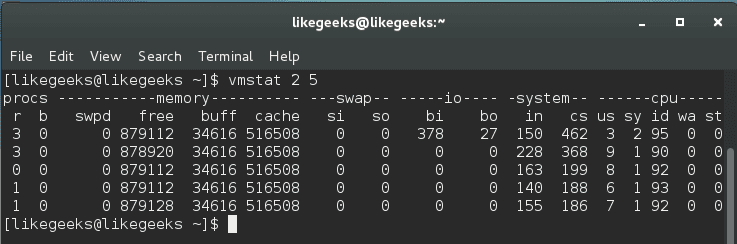
A better way to look at these values is by viewing the output with a delay option like this:

$ vmstat 2 5

linux process managment vmstat delay

Where 2 is the delay in seconds and 5 is the number of times vmstat is called. It shows five updates of the command and all data is presented in kilobytes.

Page-in (si) happens when you start an application and the information is paged-in. Page out (so) happens when the kernel is freeing up memory.

System Load & top Command

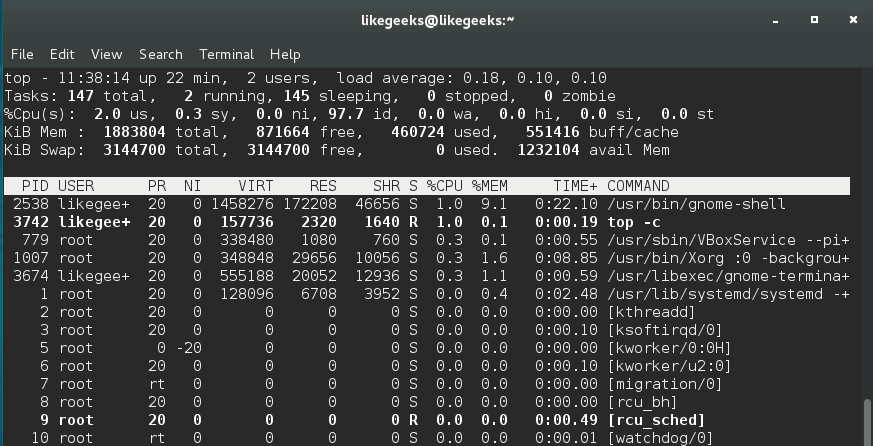
In Linux process management, the top command gives you a list of the running processes and how they are using CPU and memory ; the output is a real-time data.

If you have a dual core system may have the first core at 40 percent and the second core at 70 percent, in this case, the top command may show a combined result of 110 percent, but you will not know the individual values for each core.

$ top -c

linux process managment top command

We use -c option to show the command line or the executable path behind that process.

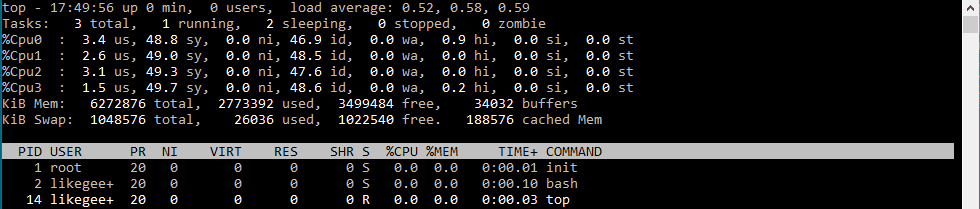
You can press 1 key while you watch the top command statistics to show individual CPU statuses.

linux process management individual cpu status

Keep in mind that certain processes are spawned like the child processes, you will see multiple processes for the same program like httpd and PHP-fpm.

You shouldn’t rely on top command only, you should review other resources before making a final action.

Monitoring Disk I/O with iotop

The system starts to be slow as a result of high disk activities, so it is important to monitor disk activities. That means figuring out which processes or users cause this disk activity.

The iotop command in Linux process management helps us to monitor disk I/O in real-time. You can install it if you don’t have it:

$ yum install iotop

Running iotop without any options will result in a list all processes.

To view the processes that cause to disk activity, you should use -o option:

$ iotop -o

linux process managment iotop command

You can easily know what program is impacting the system.

ps command

We’ve talked about ps command before on a previous post and how to order the processes by memory usage and CPU usage.

Monitoring System Health with iostat and lsof

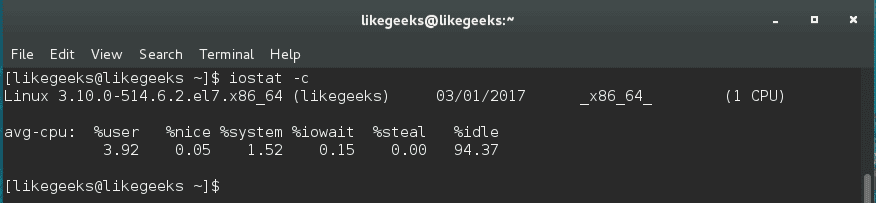
iostat command gives you CPU utilization report; it can be used with -c option to display the CPU utilization report.

$ iostat -c

linux process managment iostat command

The output result is easy to understand, but if the system is busy, you will see %iowait increases. That means the server is transferring or copying a lot of files.

With this command, you can check the read and write operations, so you should have a solid knowledge of what is hanging your disk and take the right decision.

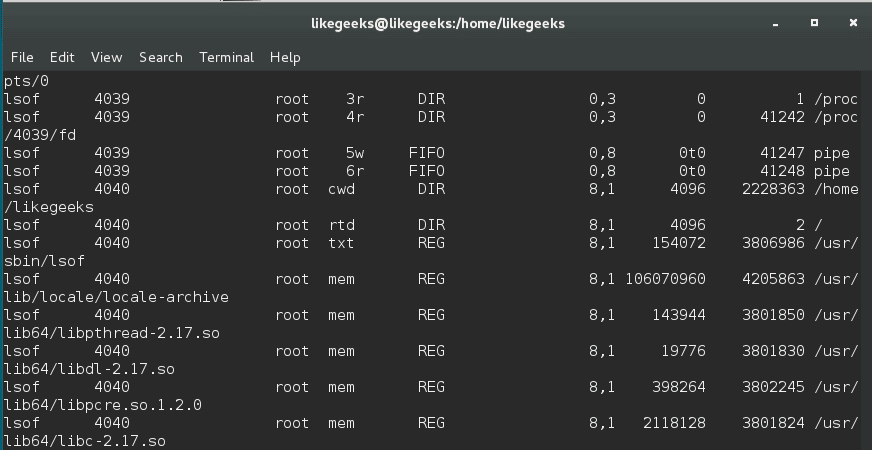
Additionally, lsof command is used to list the open files:

linux process managment lsof command

lsof command shows which executable is using the file, the process ID, the user, and the name of the opened file.

Calculating the system load

Calculating system load is very important in Linux process management. The system load is the amount of processing for the system which is currently working. It is not the perfect way to measure system performance, but it gives you some evidence.

The load is calculated like this:

Actual Load = Total Load (uptime) / No. of CPUs

You can calculate the uptime by reviewing uptime command or top command:

$ uptime

linux process managment uptime command

$ top

The server load is shown in 1, 5, and 15 minutes.

As you can see, the average load is 0.00 at the first minute, 0.01 at the fifth minute, and 0.05 at fifteenth minutes.

When the load increases, processors are queued, and if there are many processor cores, the load is distributed equally across the server’s cores to balance the work.

You can say that the good load average is about 1. This does not mean if the load exceeds 1 that there is a problem, but if you begin to see higher numbers for a long time, that means a high load and there is a problem.

pgrep and systemctl

You can get the process ID using pgrep command followed by the service name.

$ pgrep servicename

linux process managment pgrep command

This command shows the process ID or PID.

Note if this command shows more than process ID like httpd or SSH, the smallest process ID is the parent process ID.

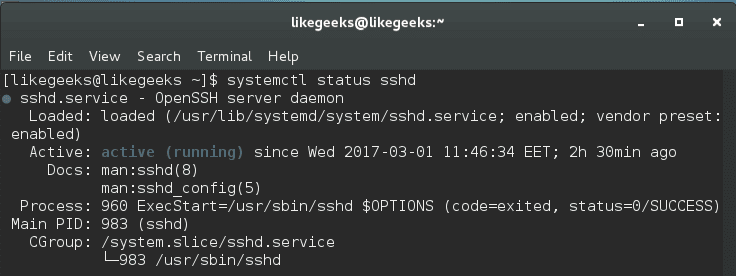
On the other hand, you can use the systemctl command to get the main PID like this:

$ systemctl status <service_name>.service

linux process managment systemctl command

There are more ways to obtain the required process ID or parent process ID, but this one is easy and straight.

Managing Services with systemd

If we are going to talk about Linux process management, we should take a look at systemd. The systemd is responsible for controlling how services are managed on modern Linux systems like CentOS 7.

You can start, stop and check the status like this:

$ systemctl status .service

$ systemctl stop .service

$ systemctl start .service

Instead of using chkconfig command to enable and disable a service during the boot, you can use the systemctl command:

$ systemctl enable .service

$ systemctl disable .service

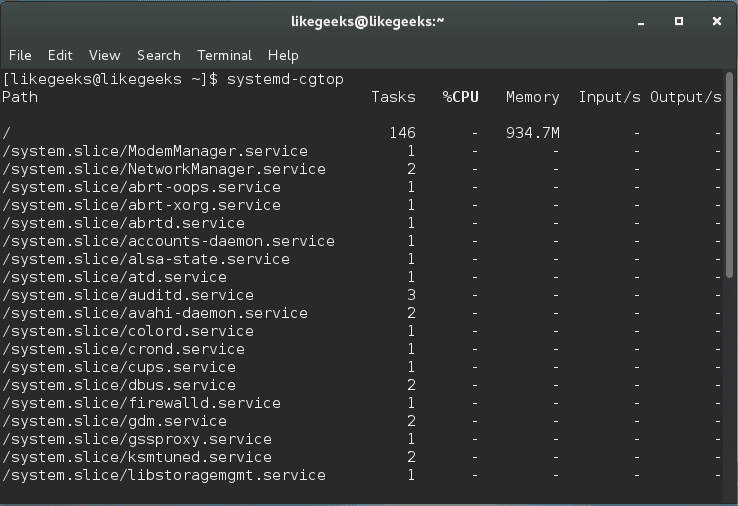
Systemd also ships with its own version of the top command, and in order to show the processes that are associated with a specific service, you can use the system-cgtop command like this:

$ systemd-cgtop

linux process managment systemd-cgtop

As you can see, all associated processes, path, the number of tasks, the % of CPU used, memory allocation, and the inputs and outputs related.

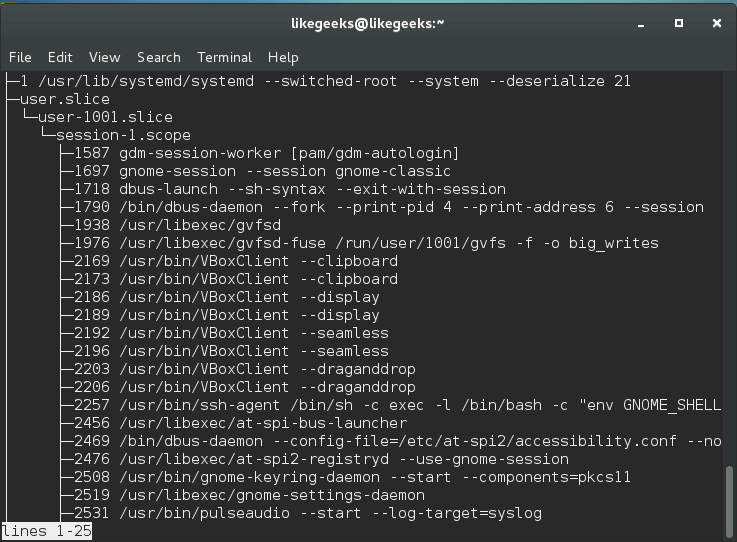
This command can be used to output a recursive list of service content like this:

$ systemd-cgls

linux process managment systemd-cgls

This command gives us very useful information that can be used to make your decision.

Nice and Renice Processes

The process nice value is a numeric indication that belongs to the process and how it’s fighting for the CPU.

A high nice value indicates a low priority for your process, so how nice you are going to be to other users, and from here the name came.

The nice range is from -20 to +19.

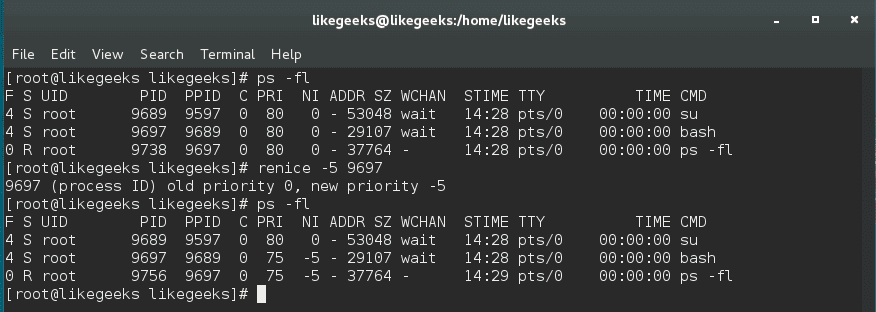
nice command sets the nice value for a process at creation time, while renice command adjusts the value later.

$ nice –n 5 ./myscript

This command increases the nice value which means lower priority by 5.

$ sudo renice -5 2213

This command decreases the nice value means increased priority and the number (2213) is the PID.

linux process managment renice command

You can increase its nice value (lower priority) but cannot lower it (high priority) while root user can do both.

Sending the kill signal

To kill a service or application that causes a problem, you can issue a termination signal (SIGTERM). You can review the previous post about signals and jobs.

$ kill process ID

This method is called safe kill. However, depending on your situation, maybe you need to force a service or application to hang up like this:

$ kill -1 process ID

Sometimes the safe killing and reloading fail to do anything, you can send kill signal SIGKILL by using -9 option which is called forced kill.

$ kill -9 process ID

There are no cleanup operations or safe exit with this command and not preferred. However, you can do something more proper by using the pkill command.

$ pkill -9 serviceName

linux process managment pkill command

And you can use pgrep command to ensure that all associated processes are killed.

$ pgrep serviceName

linux process managment pkill -9

I hope you have a good idea about Linux process management and how to make a good action to make the system healthy.

Thank you.

likegeeks.com

0

Install, Configure and Use Linux NIS Server

The Linux NIS server (Network Information Service) is a server used for sharing critical data stored in flat files between systems on a network, it is often ideal to have a common repository (such as NIS) for storing user and group information that is traditionally stored in flat files like /etc/passwd. So what is the benefit of that? By making such files available via the NIS server, that would allow any remote NIS client machine to access or query the data in these shared files and use them as extensions to the local versions. NIS is not limited to sharing files. Any tabular file which at least has one column with a unique value can be shared via NIS like /etc/services file. The main benefit from using NIS server is that you keep your data and files, and if your data is updated, all updates be propagated to all users. Some users, especially windows users might think this is sort of Active Directory like service, but the Linux NIS server is older than Active Directory and not a replicate for it.

Continue Reading →

What is NIS?

The NIS is a database that contains a series of tables. Each table is created from text files like /etc/passwd, /etc/services and any other tabular files. Each table may contain one column or more with a unique key on each row.

You can think of it like any normal database.

You can query these tables in two ways:

  • Listing the entire table
  • Pulling a specific entry by searching

When a program makes a request to search for a user password details, the client checks the /etc/passwd file to check if the user doesn’t exist there; the client then asks the NIS server to search for it in the /etc/passwd table from the NIS server.

The following list is the list of services and tools that are used by NIS server:

ypserv: This service waits for queries and gives answers to NIS clients.

ypbind: This is client-side of NIS.

ypxfrd: This service is used for sending the NIS databases from master MIS servers to slave servers.

Linux NIS Servers

Linux NIS server types are:

  • Master server:: where all original files are stored.
  • Slave (secondary) server: it’s used for load balancing and helpful in case of master server failure.

You can have multiple secondary NIS servers if you need.

Primary and secondary NIS servers are kept synced and updated. This process is called server push.

NIS Domain Name

NIS domains are just like the domains of a domain controller in Windows, but the difference is that client can join the network without having to wait for admin acceptance.

Keep in mind that the names used for NIS domain names MUST be different from your DNS domain names.

Installing Master Linux NIS Server

On Red Hat based distros, you can install it like this:

$ dnf -y install ypserv

On Debian-based distros, you can install it like this:

$ apt-get -y install nis

After successful installation, you need to set the NIS domain name by using the domainname command.

Let’s name it nis.example.com

$ domainname nis.example.com

To persist our NIS domain name in Red hat based distros, we can create a variable called NISDOMAIN in the /etc/sysconfig/network file.

On Debian-based distros, you can achieve the same result by adding the domainname command with the correct value to one of the rc scripts which run at boot time.

Configuring NIS

As we mentioned earlier, the ypserv waits for queries and gives answers to NIS clients.

NIS is an RPC service, so you need to ensure that the rpcbind program is up and running before you attempt to start the Linux NIS server.

On new Linux distros that rely on systemd as the service manager, systemd will automatically take care of service intra-dependencies that exist between rpcbind and ypserv.

If your distro is not one of them, you can start rpcbind like this:

$ systemctl start rpcbind

On our distro which has systemd, we can start the service like this:

$ systemctl start ypserv

To confirm that the service is running, you can use the rpcinfo command.

$ rpcinfo -p | grep ypserv

Editing the Makefile

The make command is responsible for preparing the list of files that need compilation and the needed program for compilation for each of them.

The make command compiles a file called Makefile.

Taking this concept to work on NIS is straightforward. In this case, a series of text files need to be converted into database format. We want a tool that will re-convert any files that have been changed, we can use the make command.

The Makefile is in /var/yp directory. This file contains all the shared files by NIS server.

Let’s discuss the options in the Makefile.
NOPUSH Option

If you plan to have NIS slave servers, you will need to tell the master Linux NIS server to push the resulting maps to the slave servers. Change the NOPUSH variable to false if you want to have support for slave servers.

NOPUSH=true

Keep in mind that you need to list the hostnames of your slave servers in /var/yp/ypservers file and ensure to list a corresponding entry in the /etc/hosts file.

Min UIDs GIDs

Every user on Linux has a user id and group id, you can get your id by typing the id command and gid command respectively.

You can set the minimum permissions for the files that will be shared via NIS using MINUID and MINGID like this:

MINUID=500

MINGID=500

Merging Shadow Passwords with Real Ones

The Linux NIS server can be used to authenticate their users, NIS server will automatically take the encrypted field from the /etc/shadow file and merge it into the NIS shared copy of /etc/passwd.

This is done using MERGE_PASSWD option:

MERGE_PASSWD=true

Merging Group Shadow Passwords with Real Ones

The /etc/group file allows passwords to be applied to group settings. Since the /etc/group file needs to be publicly readable, most distros have taken to support shadow group files /etc/gshadow.

The option is called MERGE_GROUP:

MERGE_GROUP=true

Shared Entries

In Makefile, there is an option that specifies what is shared, it is (all) option

all: passwd group hosts services shadow networks

The option YPPWDDIR specifies the location of the passwd, group, and shadow files, so you don’t need to type the full path.

Initialize NIS Server Using ypinit

Once you’ve finished editing options in Makefile, you can initialize the NIS server like this:

$ /usr/lib64/yp/ypinit -m

The -m option is used to initialize the server as a master server.

Or if you are using a 32bit system the command will be:

$ /usr/lib/yp/ypinit

This tool will ask about the secondary NIS servers if you have any.

These entries will be stored in the /var/yp/ypservers file.

Congratulations, now your NIS server should work OK and your map will be on the secondary servers if you have any.

Configuring NIS Client

On Red Hat based distros, you can install NIS client like this:

$ dnf -y install ypbind

On Debian-based distros, you can install it like this:

$ apt-get install nis

The /etc/yp.conf file is the configuration for the client-side daemon.

You can start ypbind now:

$ systemctl start ypbind

$ systemctl enable ypbind

The/etc/nsswitch.conf File

This file contains entries of facilities and their corresponding files and services that the system will use for searching.

passwd: files nis

This entry means that search requests for password entries will first be done in the /etc/passwd file. If the requested entry isn’t found there, check NIS server.

NIS Tools

To work better with the Linux NIS server, there are some useful tools that can help you manage the information in the database.

ypcat: This tool is used to get data from the NIS server by extracting it from NIS map.

ypwhich: gets the name of the Linux NIS server that is responding to your requests.

ypmatch: rather than grabbing the entire map, or you can search by key to get a specific entry.

I hope you find the post useful and interesting. Keep coming back.

Thank you.

likegeeks.com

0

Bash Scripting Part2 – For and While Loops With Examples

In the previous post, we talked about how to write a bash script, and we saw how bash scripting is awesome. In this post, we will look at the for command, while command, and how to make loops to iterate over a series of values. The for command enables you to perform a loop on a list of items. This is often the fundamental format of the for command.
 

Continue Reading →

for myvar in vars

do

Code Here

done

In every loop, the variable myvar holds one of the values of the list. The loop iterates until the list is finished.

Iterating Over Simple Values

You can iterate over simple values like this:

#!/bin/bash

for var in first second third fourth fifth

do

echo The $var item

done

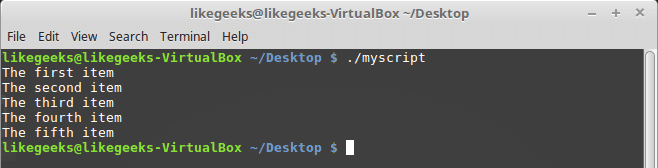
Check the results:

bash scripting for loop

Iterating Over Complex Values

Your list maybe contains a comma or two words, and you want to deal with them as one item on the list.

Check the following example:

#!/bin/bash

for var in first "the second" "the third" "I’ll do it"

do

echo "This is: $var"

done

We quote our strings with double quotations.

We play nice till now, we always do. Just keep reading and practicing.

bash scripting compelx for loop

Command Substitution

By using command substitution using this format $(Linux command) you can store the result in a variable for later use.

#!/bin/bash

my_file="myfile"

for var in $(cat $my_file)

do

echo " $var"

done

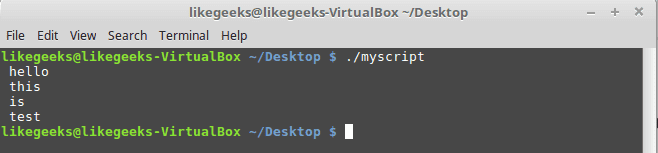
Here we get the file content using cat command. Notice that our file contains one word per line, not separated by spaces.

bash scripting loop from command

Here we get the content of the file using command substitution then iterate over the result, assuming that each line has one word.

What about having spaces in one of these lines?

In this case, every word will be considered a field. You need to tell the shell to consider new lines as a separator instead of spaces.

The Field Separator

By default, the following characters treated as fields.

  • Space
  • Tab
  • newline

If your text includes any of these characters, the shell will assume it’s a new field.

Well, you can change the internal field separator or IFS environment variable. like this:

IFS=$'\n'

It will consider new lines as a separator instead of spaces.

#!/bin/bash

file="/etc/passwd"

IFS=$'\n'

for var in $(cat $file)

do

echo " $var"

done

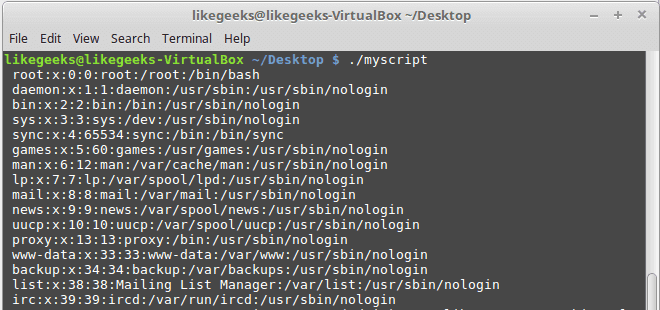
You got it. Bash scripting is easy.

bash scripting passwd file

The separator is colons in /etc/passwd file which contains the user’s information, you can assign it like this:

IFS=:

Bash scripting is awesome, right?

Iterating Over Directory Files

If you want to list the files in /home directory, you can use the for loop like this:

#!/bin/bash

for obj in /home/likegeeks/*

do

if [ -d "$obj" ]

then

echo "$obj is a folder"

elif [ -f "$obj" ]

then

echo "$obj is a file"

fi

done

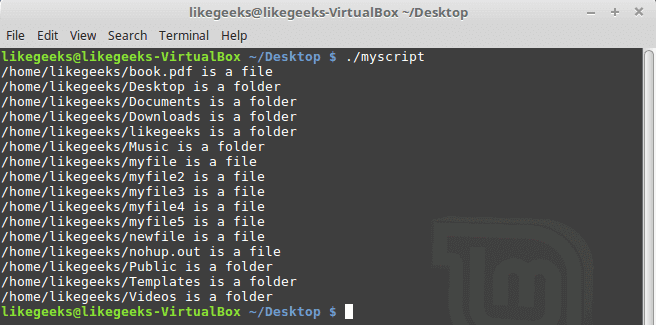
From the previous post, you should know the if statement and how to check for files and folders, so if you don’t know, I recommend you to review it bash script step by step.

bash scripting directory iteration

Here we use wildcard character which is the asterisk * and this is called in bash scripting file globbing which means All files with all names.

Notice that in the if statements here we quote our variables with quotations because maybe the file or the folder name contains spaces.

As you see the result, all files and directories in that folder are listed.

for Command C-Style

If you know C language, you may find that the for loop here is some weird because you are familiar with this syntax:

for (var= 0; var < 5; var++)

{

printf(“number is %d\n”, var);

}

Well, you can use the same syntax but with a little difference, here’s the syntax.

for (( variable = start ; condition ; iteration step))

So it looks like this:

for (( var = 1; var < 5; var++ ))

And this is an example:

#!/bin/bash

for (( var=1; var <= 10; var++ ))

do

echo "number is $var"

done

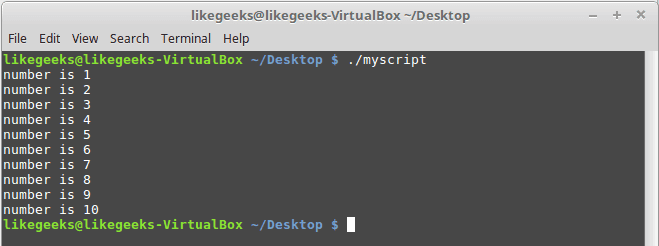
And this is the output:

bash scripting c-style

The while Command

The for loop is not the only way for looping in bash scripting. The while loop does the same job but it checks for a condition before every iteration.

The while loop command takes the following structure:

while condition

do

commands

done

and here is an example:

#!/bin/bash

number=10

while [ $number -gt 4 ]

do

echo $number

number=$[ $number - 1 ]

done

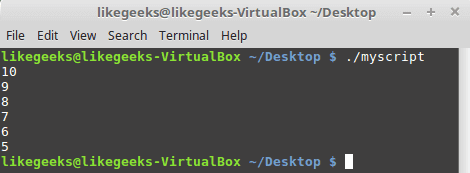
The script is simple; it starts with the while command to check if number is greater than zero, then the loop will run and the number value will be decreased every time by 1 and on every loop iteration it will print the value of number, Once the number value is zero the loop will exit.

bash scripting while loop

If we don’t decrease the value of var1, it will be the same value and the loop will be infinite.

Nesting Loops

You can type loops inside loops. This is called the nested loop.

Here’s an example of nested loops:

#!/bin/bash

for (( v1 = 1; v1 <= 5; v1++ ))

do

echo "Start $v1:"

for (( v2 = 1; v2 <= 5; v2++ ))

do

echo " Inner loop: $v2"

done

done

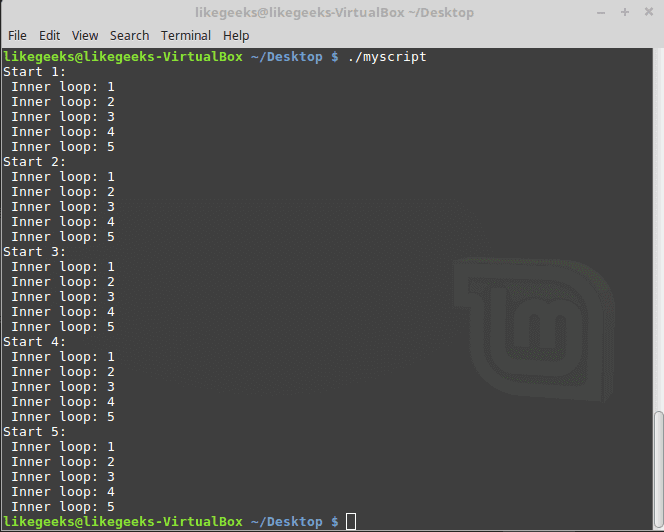
The outer loop hits first, then goes into the internal loop and completes it and go back to the outer loop and so on.

bash scripting nested loops

Iterate Over File Content

This is the most common usage for the for loop in bash scripting.

We can iterate over file content, for example, iterate over /etc/passwd file and see the output:

#!/bin/bash

IFS=$'\n'

for text in $(cat /etc/passwd)

do

echo "This line $text ++ contains"

IFS=:

for field in $text

do

echo " $field"

done

done

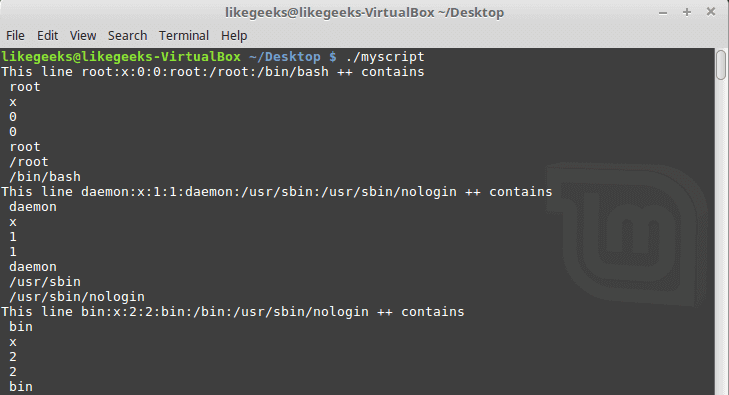
Here we have two loops, the first loop iterate over the lines of the file and the separator is the newline, the second iteration is over the words on the line itself and the separator is the colon :

bash scirpting file data

You can apply this idea when you have a CSV or any comma separated values file. The idea is the same; you just have to change the separator to fit your needs.

Controlling the Loop

Maybe after the loop starts you want to stop at a specific value, will you wait until the loop is finished? Of course no, there are two commands help us in this:

  • break command
  • continue command

The break Command

The break command is used to exit from any loop, like the while and the until loop

#!/bin/bash

for number in 10 11 12 13 14 15

do

if [ $number -eq 14 ]

then

break

fi

echo "Number: $number"

done

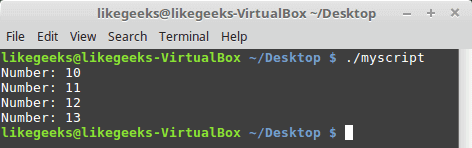
The loop runs until it reaches 14 then the break command exits the loop.

bash scirpting break command

And the same for the while loop:

#!/bin/bash

val=1

while [ $val -lt 5 ]

do

# Check number value

if [ $val -eq 4 ]

then

# The Code Breaks here <==

break

fi

# The Printed Message

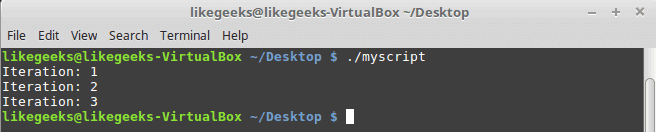
echo "Iteration: $val"

val=$(( $val + 1 ))

done

The break command exits the while loop and that happens when the execution reaches the if statement.

bash scripting break while

The continue command

You can use the continue command to stop executing the remaining commands inside a loop without exiting the loop.

Check the following example:

#!/bin/bash

# The loop starts here

for (( number = 1; number < 10; number++ ))

do

# Check if number greater than 0 and less than 5

if [ $number -gt 0 ] && [ $number -lt 5 ]

then

continue

fi

# The printed message

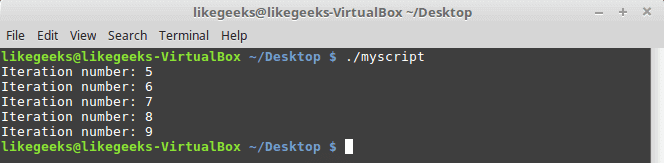
echo "Iteration number: $number"

done

When the if condition is true, the continue command runs each iteration, and lines after the continue command never run until the condition becomes false.

bash scripting continue command

Redirecting the Loop Output

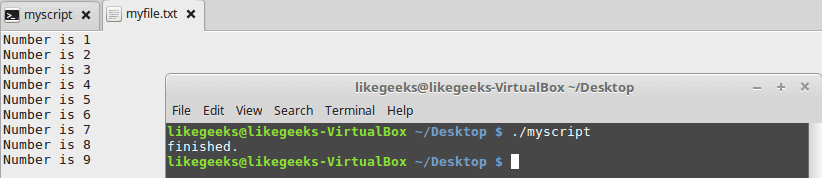
You can use the done command to send the loop output to a file like this:

#!/bin/bash

for (( var = 1; var < 10; var++ )) do echo "Number is $var" done > myfile.txt

echo "finished."#!/bin/bash

for (( var = 1; var < 10; var++ )) do echo "Number is $var" done > myfile.txt

echo "finished."

The shell creates the file myfile.txt and the output is redirected to the file, and if we check that file we will find our loop output inside it.

bash sciprintg process output

Let’s employ our bash scripting knowledge in something useful.

Useful Examples

Finding executables

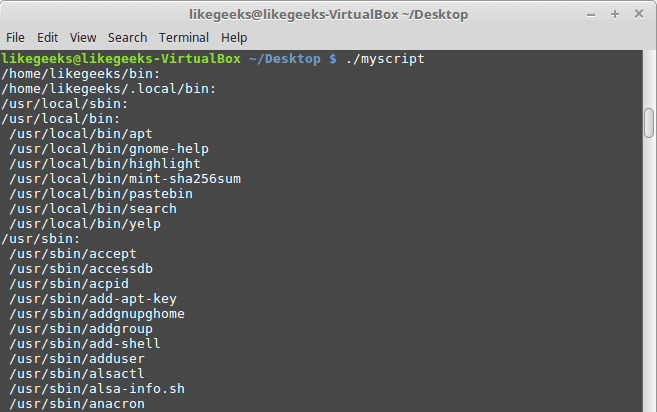
To get all executable files on your system, you can iterate over the directories in the PATH variable. We discussed for loop and if statements and file separator so our toolset is ready. Let’s combine them together and make something useful.

#!/bin/bash

IFS=:

for dir in $PATH

do

echo "$dir:"

for myfile in $dir/*

do

if [ -x $myfile ]

then

echo " $myfile"

fi

done

done

This is just awesome. We were able to get all the executables on the system that we can run.

bash scripting finding executables

Now nothing stops you except your imagination.

I hope you learn a new thing or at least review your knowledge if you forget it. My last word for you, keep reading and practicing.

Thank you.

likegeeks.com

0