
Archive | GNU/Linux İpuçları

Python correlation matrix tutorial

In this blog, we will go through an important descriptive statistic of multi-variable data called the correlation matrix. We will learn how to create, plot, and manipulate correlation matrices in Python. We will be looking at the following topics:
1 What is the correlation matrix?,
1.1 What is the correlation coefficient?
2 Finding the correlation matrix of the given data
3 Plotting the correlation matrix
4 Interpreting the correlation matrix
5 Adding title and labels to the plot
6 Sorting the correlation matrix
7 Selecting negative correlation pairs
8 Selecting strong correlation pairs (magnitude greater than 0.5)
9 Converting a covariance matrix into the correlation matrix
10 Exporting the correlation matrix to an image
11 Conclusion

Continue Reading →

What is the correlation matrix?

A correlation matrix is a tabular data representing the ‘correlations’ between pairs of variables in a given data.

We will construct this correlation matrix by the end of this blog.

Each row and column represents a variable, and each value in this matrix is the correlation coefficient between the variables represented by the corresponding row and column.

The Correlation matrix is an important data analysis metric that is computed to summarize data to understand the relationship between various variables and make decisions accordingly.

It is also an important pre-processing step in Machine Learning pipelines to compute and analyze the correlation matrix where dimensionality reduction is desired on a high-dimension data.

We mentioned how each cell in the correlation matrix is a ‘correlation coefficient‘ between the two variables corresponding to the row and column of the cell.

Let us understand what a correlation coefficient is before we move ahead.

What is the correlation coefficient?

A correlation coefficient is a number that denotes the strength of the relationship between two variables.

There are several types of correlation coefficients, but the most common of them all is the Pearson’s coefficient denoted by the Greek letter ρ (rho).

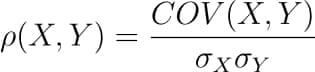
It is defined as the covariance between two variables divided by the product of the standard deviations of the two variables.
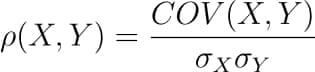
Where the covariance between X and Y COV(X, Y) is further defined as the ‘expected value of the product of the deviations of X and Y from their respective means’.
The formula for covariance would make it clearer.

So the formula for Pearson’s correlation would then become:

The value of ρ lies between -1 and +1.
Values nearing +1 indicate the presence of a strong positive relation between X and Y, whereas those nearing -1 indicate a strong negative relation between X and Y.
Values near to zero mean there is an absence of any relationship between X and Y.

Finding the correlation matrix of the given data

Let us generate random data for two variables and then construct the correlation matrix for them.

import numpy as np

np.random.seed(10)

# generating 10 random values for each of the two variables
X = np.random.randn(10)

Y = np.random.randn(10)

# computing the corrlation matrix
C = np.corrcoef(X,Y)

print(C)

Output:

Since we compute the correlation matrix of 2 variables, its dimensions are 2 x 2.
The value 0.02 indicates there doesn’t exist a relationship between the two variables. This was expected since their values were generated randomly.

In this example, we used NumPy’s `corrcoef` method to generate the correlation matrix.
However, this method has a limitation in that it can compute the correlation matrix between 2 variables only.

Hence, going ahead, we will use pandas DataFrames to store the data and to compute the correlation matrix on them.

Plotting the correlation matrix

For this explanation, we will use a data set that has more than just two features.

We will use the Breast Cancer data, a popular binary classification data used in introductory ML lessons.
We will load this data set from the scikit-learn’s dataset module.
It is returned in the form of NumPy arrays, but we will convert them into Pandas DataFrame.

from sklearn.datasets import load_breast_cancer

import pandas as pd

breast_cancer = load_breast_cancer()

data = breast_cancer.data

features = breast_cancer.feature_names

df = pd.DataFrame(data, columns = features)

print(df.shape)

print(features)

There are 30 features in the data, all of which are listed in the output above.

Our goal is now to determine the relationship between each pair of these columns. We will do so by plotting the correlation matrix.

To keep things simple, we’ll only use the first six columns and plot their correlation matrix.
To plot the matrix, we will use a popular visualization library called seaborn, which is built on top of matplotlib.

import seaborn as sns

import matplotlib.pyplot as plt

# taking all rows but only 6 columns
df_small = df.iloc[:,:6]

correlation_mat = df_small.corr()

sns.heatmap(correlation_mat, annot = True)

plt.show()

Output:
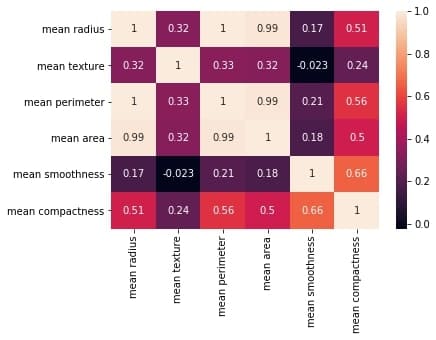
The plot shows a 6 x 6 matrix and color-fills each cell based on the correlation coefficient of the pair representing it.

Pandas DataFrame’s corr() method is used to compute the matrix. By default, it computes the Pearson’s correlation coefficient.
We could also use other methods such as Spearman’s coefficient or Kendall Tau correlation coefficient by passing an appropriate value to the parameter 'method'.

We’ve used seaborn’s heatmap() method to plot the matrix. The parameter ‘annot=True‘ displays the values of the correlation coefficient in each cell.

Let us now understand how to interpret the plotted correlation coefficient matrix.

Interpreting the correlation matrix

Let’s first reproduce the matrix generated in the earlier section and then discuss it.

You must keep the following points in mind with regards to the correlation matrices such as the one shown above:

  1. Each cell in the grid represents the value of the correlation coefficient between two variables.
  2. The value at position (a, b) represents the correlation coefficient between features at row a and column b. This will be equal to the value at position (b, a)
  3. It is a square matrix – each row represents a variable, and all the columns represent the same variables as rows, hence the number of rows = number of columns.
  4. It is a symmetric matrix – this makes sense because the correlation between a,b will be the same as that between b, a.
  5. All diagonal elements are 1. Since diagonal elements represent the correlation of each variable with itself, it will always be equal to 1.
  6. The axes ticks denote the feature each of them represents.
  7. A large positive value (near to 1.0) indicates a strong positive correlation, i.e., if the value of one of the variables increases, the value of the other variable increases as well.
  8. A large negative value (near to -1.0) indicates a strong negative correlation, i.e., the value of one variable decreases with the other’s increasing and vice-versa.
  9. A value near to 0 (both positive or negative) indicates the absence of any correlation between the two variables, and hence those variables are independent of each other.
  10. Each cell in the above matrix is also represented by shades of a color. Here darker shades of the color indicate smaller values while brighter shades correspond to larger values (near to 1).
    This scale is given with the help of a color-bar on the right side of the plot.

Adding title and labels to the plot

We can tweak the generated correlation matrix, just like any other Matplotlib plot. Let us see how we can add a title to the matrix and labels to the axes.

correlation_mat = df_small.corr()

sns.heatmap(correlation_mat, annot = True)

plt.title("Correlation matrix of Breast Cancer data")

plt.xlabel("cell nucleus features")

plt.ylabel("cell nucleus features")

plt.show()

Output:

If we want, we could also change the position of the title to bottom by specifying the y position.

correlation_mat = df_small.corr()

sns.heatmap(correlation_mat, annot = True)

plt.title("Correlation matrix of Breast Cancer data", y=-0.75)

plt.xlabel("cell nucleus features")

plt.ylabel("cell nucleus features")

plt.show()

Output:

Sorting the correlation matrix

If the given data has a large number of features, the correlation matrix can become very big and hence difficult to interpret.

Sometimes we might want to sort the values in the matrix and see the strength of correlation between various feature pairs in an increasing or decreasing order.
Let us see how we can achieve this.

First, we will convert the given matrix into a one-dimensional Series of values.

correlation_mat = df_small.corr()

corr_pairs = correlation_mat.unstack()

print(corr_pairs)

Output:
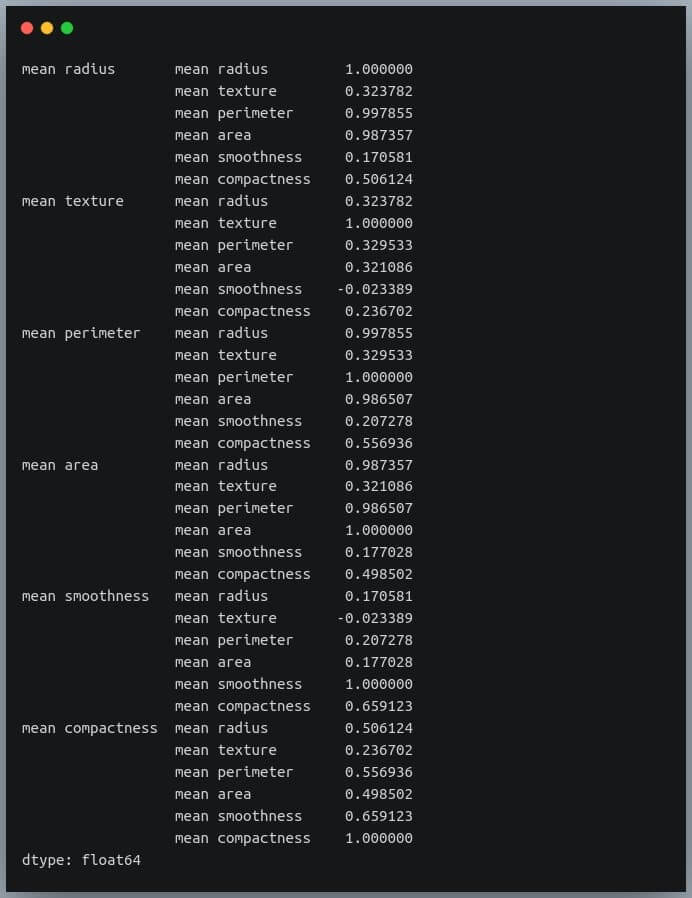
The unstack method on the Pandas DataFrame returns a Series with MultiIndex.That is, each value in the Series is represented by more than one indices, which in this case are the row and column indices that happen to be the feature names.

Let us now sort these values using the sort_values() method of the Pandas Series.

sorted_pairs = corr_pairs.sort_values(kind="quicksort")

print(sorted_pairs)

Output:
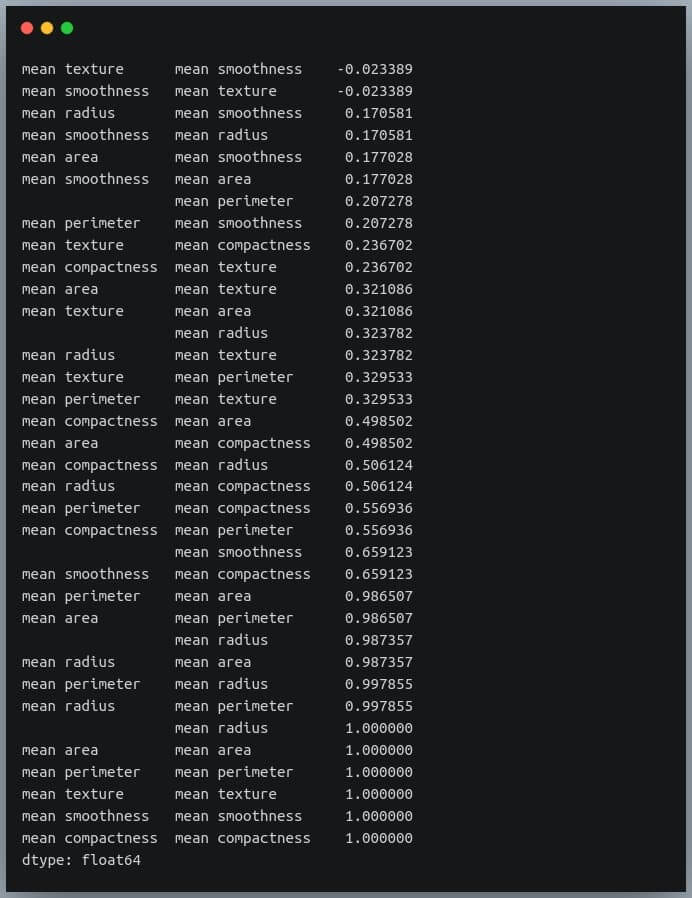
We can see each value is repeated twice in the sorted output. This is because our correlation matrix was a symmetric matrix, and each pair of features occurred twice in it.

Nonetheless, we now have the sorted correlation coefficient values of all pairs of features and can make decisions accordingly.

Selecting negative correlation pairs

We may want to select feature pairs having a particular range of values of the correlation coefficient.
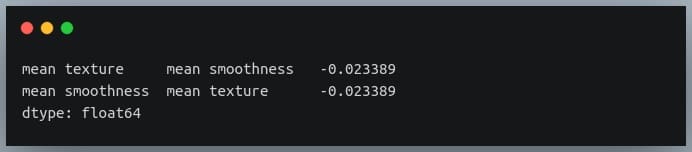
Let’s see how we can choose pairs with a negative correlation from the sorted pairs we generated in the previous section.

negative_pairs = sorted_pairs[sorted_pairs < 0]

print(negative_pairs)

Output:
Selecting strong correlation pairs (magnitude greater than 0.5)

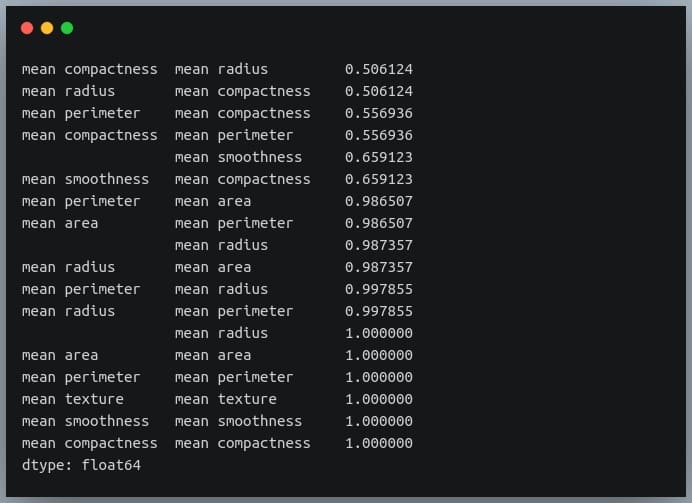
Let us use the same approach to choose strongly related features. That is, we will try to filter out those feature pairs whose correlation coefficient values are greater than 0.5 or less than -0.5.

strong_pairs = sorted_pairs[abs(sorted_pairs) > 0.5]

print(strong_pairs)

Output:
Converting a covariance matrix into the correlation matrix

We have seen the relationship between the covariance and correlation between a pair of variables in the introductory sections of this blog.
Let us understand how we can compute the covariance matrix of a given data in Python and then convert it into a correlation matrix. We’ll compare it with the correlation matrix we had generated using a direct method call.

First of all, Pandas doesn’t provide a method to compute covariance between all pairs of variables, so we’ll use NumPy’s cov() method.
cov = np.cov(df_small.T)

print(cov)

Output:
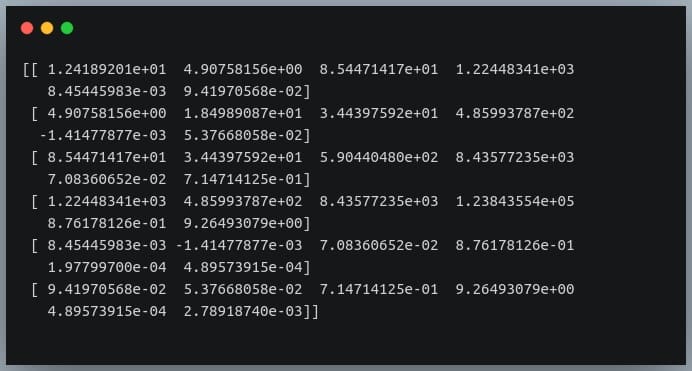
We’re passing the transpose of the matrix because the method expects a matrix in which each of the features is represented by a row rather than a column.

So we have gotten our numerator right.
Now we need to compute a 6×6 matrix in which the value at i, j is the product of standard deviations of features at positions i and j.

We’ll then divide the covariance matrix by this standard deviations matrix to compute the correlation matrix.

Let us first construct the standard deviations matrix.

#compute standard deviations of each of the 6 features
stds = np.std(df_small, axis = 0) #shape = (6,)

stds_matrix = np.array([[stds[i]*stds[j] for j in range(6)] for i in range(6)])

print("standard deviations matrix of shape:",stds_matrix.shape)

Output:

Now that we have the covariance matrix of shape (6,6) for the 6 features, and the pairwise product of features matrix of shape (6,6), we can divide the two and see if we get the desired resultant correlation matrix.

new_corr = cov/std_matrix

We have stored the new correlation matrix (derived from a covariance matrix) in the variable new_corr.

Let us check if we got it right by plotting the correlation matrix and juxtaposing it with the earlier one generated directly using the Pandas method corr().

plt.figure(figsize=(18,4))

plt.subplot(1,2,1)

sns.heatmap(correlation_mat, annot = True)

plt.title("Earlier correlation matrix (from Pandas)")

plt.xlabel("cell nucleus features")

plt.ylabel("cell nucleus features")

plt.subplot(1,2,2)

sns.heatmap(correlation_mat, annot = True)

plt.title("Newer correlation matrix (from Covariance mat)")

plt.xlabel("cell nucleus features")

plt.ylabel("cell nucleus features")

plt.show()

Output:
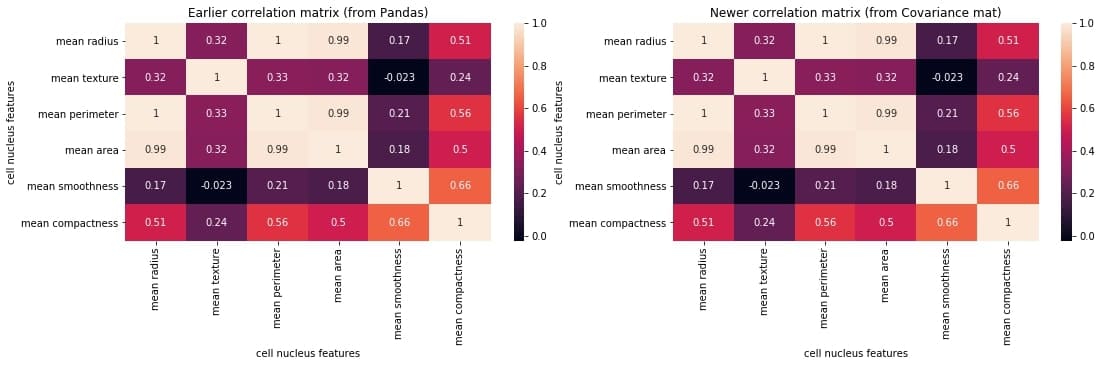
We can compare the two matrices and notice that they are identical.

Exporting the correlation matrix to an image

Plotting the correlation matrix in a Python script is not enough. We might want to save it for later use.
We can save the generated plot as an image file on disk using the plt.savefig() method.

correlation_mat = df_small.corr()

sns.heatmap(correlation_mat, annot = True)

plt.title("Correlation matrix of Breast Cancer data")

plt.xlabel("cell nucleus features")

plt.ylabel("cell nucleus features")

plt.savefig("breast_cancer_correlation.png")

After you run this code, you can see an image file with the name ‘breast_cancer_correlation.png’ in the same working directory.

Conclusion

In this tutorial, we learned what a correlation matrix is and how to generate them in Python. We began by focusing on the concept of a correlation matrix and the correlation coefficients.

Then we generated the correlation matrix as a NumPy array and then as a Pandas DataFrame. Next, we learned how to plot the correlation matrix and manipulate the plot labels, title, etc. We also discussed various properties used for interpreting the output correlation matrix.

We also saw how we could perform certain operations on the correlation matrix, such as sorting the matrix, finding negatively correlated pairs, finding strongly correlated pairs, etc.

Then we discussed how we could use a covariance matrix of the data and generate the correlation matrix from it by dividing it with the product of standard deviations of individual features.
Finally, we saw how we could save the generated plot as an image file.

0

Linux Mint 19.3 Linux Mint 20’ye nasıl yükseltilir?

Öncelikle şunu belirtelim: Linux Mint 19.3’ün hem 32 bit hem de 64 bit sürümleri Nisan 2023’e kadar desteklense de, Linux Mint 20 de dahil olmak üzere yeni Linux Mint sürümleri yalnızca 64 bit olarak kullanılabilecek. Bu nedenle, Linux Mint 20’ye yükseltmek için, Linux Mint 19.3’ün 64 bit sürümünü kullanıyor olmanız gerekiyor. hangi sürümü kullandığınızı anlamak için şu komutu çalıştırabilirsiniz: dpkg --print-architecture. Çıktı amd64 olarak dönerse, sistemi, Linux Mint 20’ye yükseltebilirsiniz. İ386 çıktısını alırsanız, 32 bit sürümünü kullandığınız anlamına gelir. Bu durumda yükseltme yapamazsınız ve Linux Mint 19.3 ile devam etmeniz gerekir. Linux Mint 20’ye yükseltmek için APT ve komut satırı deneyimine sahip olmanız gerekir. Şimdi çalışmaya başlayabiliriz. Öncelikle sisteminizde tüm güncellemelerin tam olarak yapılmış olması gerekir. Öncelikle Menü -> Yönetim -> Güncelleme Yöneticisi ile Güncelleme Yöneticisini açın. “Yenile” düğmesine basın. Yeni paketler çıkarsa, “Tümünü Seç” düğmesine basın ve ardından “Güncellemeleri Yükle” düğmesine basarak güncelleme işlemini gerçekleştirin. Yok, yeni paketler gelmezse, bu sisteminizin güncel olduğunu gösterir, devam edebilirsiniz.

Continue Reading →

Yükseltme sırasında bir sorun oluşursa, en son sistem anlık görüntüsünü geri yükleyerek zamanda geriye gidebilir ve tüm değişiklikleri geri alabilirsiniz. Bir sistem anlık görüntüsü oluşturmak için Timeshift’i “Menü -> Yönetim -> Timeshift” ile başlatıp, anlık görüntüler için bir hedef seçmek üzere sihirbazı izleyebilirsiniz. İlkin yükseltme aracını kurmanız gerekiyor. Bunun için terminale aşağıdaki kodu girin:

apt install mintupgrade

Şİmdi bir kontrol yapmamız gerekiyor. Bunun için terminale aşağıdaki kodu girin:

mintupgrade check

Ardından ekrandaki talimatları izleyin. Bu komut sistemi geçici olarak Linux Mint 20 depolarına yönlendirir ve yükseltmenin etkisini hesaplar. mintupgrade check komutuyla; yükseltmenin mümkün olup olmadığını ve varsa hangi paketlerin yükseltileceğini, yükleneceğini, kaldırılacağını ve saklanacağını öğrenrceksiniz. Artık paket yükseltmelerini indirmeye başlayabiliriz. Bunun için terminale aşağıdaki komutu girin:

mintupgrade download

Bu komutun aslında yükseltmenin kendisini gerçekleştirmez, yalnızca paketleri indirir. İndirme bittikten sonra yükseltmeleri uygulayabiliriz. Bu adım geri alınamaz. Bunu yaptıktan sonra, geri dönmenin tek yolu bir sistem anlık görüntüsünü geri yüklemektir. Yükseltmeleri uygulamak için terminale aşağıdaki komutu yazın:

mintupgrade upgrade

Bazı paketler artık Linux Mint 20’de mevcut değil veya Linux Mint 19.3 sürümünden daha düşük bir sürüme sahip. Düzgün çalışmalarını garanti etmek için indirgenmeleri gerekir. “Menü -> Yönetim -> Yazılım Kaynakları” ndan Yazılım Kaynakları aracını başlatın. “Bakım” sekmesini açın ve “Yabancı Paketleri Eski Sürüme Geç” seçeneğini tıklayın. Tüm yabancı paketleri seçin ve “Eski sürüme geçir” i tıklayın.

Şimdi de yabancı paketleri silmemiz gerekiyor. Bunun için “Menü -> Yönetim -> Yazılım Kaynakları” ndan Yazılım Kaynakları aracını başlatın. “Bakım” sekmesini açın ve “Yabancı Paketleri Kaldır” ı tıklayın. Kendiniz kurduğunuz paketler hariç (3. taraf kaynaklardan), tüm yabancı paketleri seçin ve “Kaldır” a tıklayın.

Yükseltme yapamıyorsanız, lütfen yeni bir kurulum yapın. Yükseltmelerle ilgili Clement Lefebvre’in yazdığı genel talimatları burada ve burada bulabilirsiniz.

0

Arandr nasıl kullanılır?

Bilindiği gibi, Debian Türkiye Forum’un değerli bir üyesi, değerli arkadaşımız Vedat Kılıç; uzun zamandır kendine özgü ISO kalıpları hazırlıyor. Vedat, bunları kendisine ait olan gnulinuxfree.blogspot.com üzerinden yayımlıyor. Bilindiği gibi, daha geniş bir çevreye duyurulması amacıyla bu çalışmaları forum üzerinden ve buradan da sizlere duyurmaya çaba gösteriyoruz. Vedat Kılıç‘ın en son yazdığı “Arandr nasıl kullanılır?” başlıklı yazı, eminim sizinle de bir biçimde alakalı olacaktır. Bu nedenle, yazıyı buraya da almayı uygun gördük. Kılıç, yazısına şu şekilde başlıyor:”Arandr yazılımı iki görev yapar, ekran çözünürlüğü scripti oluşturur ve mevcut çözünürlükleri anlık olarak uygular. Şayet bize lazım olan çözünürlük üzerinde mevcut değilse onu uygulamaz. Ancak yine onun oluşturduğu script içeriğinden değişiklik yaparak istediğimiz çözünürlüğü sağlayabiliriz. Eğer sisteminizdeki araçlarla istediğiniz ekran çözünürlüğü elde edemiyorsanız Arandr ile yapacağımız işlem çözüm olabilir.

Continue Reading →

Yapacağımız işlem bütün dağıtımlar ve bütün ekran kartları için geçerlidir. Hangi dağıtım ve hangi ekran kartı olursa olsun bu işlemi deneyebilirsiniz, herhangi bir yan tesiri yoktur. Bu nedenle önce kullandığınız sistemin paket yöneticisinden kurmanız gerekiyor.
Örneğin, Debian/Ubuntu tabanlarında alttaki komutla kurabilirsiniz.
sudo apt install arandr
Bütün dağıtımlarda kurulum komutunun sonuna arandr yazmanızla kurulur. Kurulumdan sonra sistem menüsündeki simgesine tıklayarak çalıştırabilirsiniz. Pencere açıldığında üst resimdeki gibi görüntü gelir. Arandr bilgisayarınızda bağlı ekran girişlerini algılar ve bunu HDMI1, VGA1 veya daha başka girişleri adıyla gösterir. İster bütün girişleri tek bir scripte isterse tek girişi bir scripte oluşturabilirsiniz, fark etmez. Eğer bir girişi oluşturmak isterseniz alttaki resimdeki gibi Etkin tikini boş bırakarak sadece kullanmak istediğinizi etkin yapabilirsiniz.”

“Örneğin bende HDMI1 ve VGA1 girişi var, VGA1 Etkin tikini boş bırakınca alttaki resimdeki gibi sadece HDMI1 göründü. Buna göre ne gibi bir seçim yaptıysanız ardından Farklı Kaydet tuşuna tıklıyorsunuz. Bir isim vermeniz için açılan pencereye ekran yazıyor ve kaydediyorsunuz.”

“Burada Arandr ile işimiz bitti, pencereyi kapatabilirsiniz. Bu işlemle /home/kullanıcı dizininde .screenlayout adında bir dizin ve bu dizin içinde ekran.sh adında bir script oluştu. Dosya yöneticisini açın, ctrl+h tuşlarıyla gizlileri görünür yapın ve /home/kullanıcı/.screenlayout/ekran.sh dosyasını bir metin editörü ile açın. Dosya içeriği birebir değilse de alttakine benzer olacaktır.
Bizi ilgilendiren kısım yeşil çizgi ile işaretlediğim ekran çözünürlüğü kısmıdır.”

1440×900 yazan yerde sizde farklı çözünürlükler yazabilir. Burayı istediğiniz çözünürlük ile değiştirebilirsiniz. Örneğin benim ekranın çözünürlüğü normalde 1920×1080 çözünürlüktür, ancak kenarlarda taşmayı dengelediği için 1440×900 yaptım.

Belirlediğim yerden istediğiniz ekran çözünürlüğünü yazdıysanız, dosyayı kaydedin ve kapatın. Ardından uçbirimi açın alttaki komut ile çalışma izni verin.
chmod a+rwx $HOME/.screenlayout/ekran.sh
Şu anda Arandr ve script ile işimiz bitti.
Ancak dosyayı ve çözünürlüğü denemek gerekiyor.
Bunun için uçbirime alttaki komutu girin.
sh -c "$HOME/.screenlayout/ekran.sh"
Bu komut ile ekranınız bir anlık kararır ve istediğiniz çözünürlükte olduysa işlem olumlu sonuç verdi demektir.
Eğer işlemi hatasız yapmanıza rağmen olmadıysa bu işlem işe yaramadı demektir.
İşe yaradıysa devam edelim.

Sistem her açılışta dosyanın çalışması için önce alttaki komutu uçbirime girin.
mkdir ~/.config/autostart
autostart dosyası varsa “işlem gerçekleşmedi, aynı dosya zaten var” der, aynı dosya yoksa bir şey demez.

Son olarak alttaki komutu olduğu gibi uçbirime girin.
echo '[Desktop Entry]
Type=Application
Name=ekran
Icon=computer
TryExec=ekran.sh
Exec=sh -c "$HOME/.screenlayout/ekran.sh"
StartupNotify=false
NoDisplay=true
Terminal=false' | tee ~/.config/autostart/ekran.desktop

Bu komutla oluşturduğumuz ekran.desktop dosyası sistem her açılışta oluşturduğunuz scripti çalıştıracaktır.

Arandr yazılımının kullanımı ve ekran çözünürlüğü scripti oluşturma işlemi bu kadar, umarım işinizi görür, kolay gelsin.”

gnulinuxfree.blogspot.com

0

Debian Buster sürümüne Steam nasıl kurulur?

Bilindiği gibi, Debian Türkiye Forum’un değerli bir üyesi, değerli arkadaşımız Vedat Kılıç; uzun zamandır kendine özgü ISO kalıpları hazırlıyor. Vedat, bunları kendisine ait olan gnulinuxfree.blogspot.com üzerinden yayımlıyor. Bilindiği gibi, daha geniş bir çevreye duyurulması amacıyla bu çalışmaları forum üzerinden ve buradan da sizlere duyurmaya çaba gösteriyoruz. Vedat Kılıç‘ın en son yazdığı “Debian Buster sürümüne Steam nasıl kurulur?” başlıklı yazı, eminim sizinle bir biçimde alakalı olcaktır. Bu nedenle, yazıyı buraya da almayı uygun gördük. Kılıç, yazısına şu şekilde başlıyor: “İnternet üzerinden ücretli-ücretsiz, sayısız ve sınırsız oyun oynama imkanı sunan Steam’da oyun oynamak için önce onu sisteme kurmamız gerekiyor. Debian’ın ana deposunda olmadığı için farklı yöntem uygulayacağız.

Continue Reading →

Önce uçbirimi açın, mousepad yerine kullandığınız metin editörü adını yazın ve alttaki komutla sources.list dosyasını açın.

sudo mousepad /etc/apt/sources.list

Açılan dosyada geçen her satırın sonuna alttaki örnekte olduğu gibi contrib non-free yazılarını ekleyin, dosyayı kaydedin ve pencereleri kapatın.

deb http://deb.debian.org/debian/ buster main contrib non-free#deb-src http://deb.debian.org/debian/ buster main contrib non-freedeb http://security.debian.org/debian-security buster/updates main contrib non-free#deb-src http://security.debian.org/debian-security buster/updates main contrib non-freedeb http://deb.debian.org/debian/ buster-updates main contrib non-free#deb-src http://deb.debian.org/debian/ buster-updates main contrib non-free

Ardından uçbirimi açın, alttaki komutla root olun.

sudo -i

Son olarak birden çok komutu tek komut haline getirdiğim alttaki komutun tamamını uçbirime girin.

sh -c "sudo apt-key adv --keyserver keyserver.ubuntu.com --recv-keys F24AEA9FB05498B7 ; sudo apt update ; sudo dpkg --add-architecture i386 ; sudo apt update ; echo 'deb [arch=amd64,i386] http://repo.steampowered.com/steam/ precise steam' | sudo tee /etc/apt/sources.list.d/steam.list ; sudo apt update ; sudo apt install steam-launcher xterm -y ; sudo apt --fix-broken install -y ; sudo echo 'y' | apt install -f"

Bu komuttan sonra Steam kurulmuş olacak ve sistem menüsüne simgesi gelmiş olacaktır.

gnulinuxfree.blogspot.com

1

Debian Buster sürümüne Virtualbox nasıl kurulur?

Bilindiği gibi, Debian Türkiye Forum’un değerli bir üyesi, değerli arkadaşımız Vedat Kılıç; uzun zamandır kendine özgü ISO kalıpları hazırlıyor. Vedat, bunları kendisine ait olan gnulinuxfree.blogspot.com üzerinden yayımlıyor. Bilindiği gibi, daha geniş bir çevreye duyurulması amacıyla bu çalışmaları forum üzerinden ve buradan da sizlere duyurmaya çaba gösteriyoruz. Vedat Kılıç‘ın en son yazdığı “Debian Buster sürümüne Virtualbox nasıl kurulur?” başlıklı yazı, eminim sizinle bir biçimde alakalı olcaktır. Bu nedenle, yazıyı buraya da almayı uygun gördük. Kılıç, yazısına şu şekilde başlıyor: “Virtualbox geliştiricilerine birlikte çalışma önerisinde bulunan Debian geliştiricileri olumsuz yanıt alınca güvenlik açısından ve haklı olarak Virtualbox yazılımını Debian’ın ana deposundan kaldırdılar. Bu da doğal olarak Debian Stable tabanıyla uyuşma riski taşımasıyla birlikte kurulum için bildiğimiz yöntemler de işe yaramadı. Alternatif yazılımlar ise benim hiç hoşuma gitmedi, sanal makineden ziyade işkence makineleri desem herhalde yeridir. Kimine onlarca komut giriyorsun iso kalıbını beğenmiyor, kiminin penceresi var ortada kendisi yok. Bu yüzden yine en iyi seçenek şimdilik Virtualbox olarak görünüyor. Sizin de sanal makine ihtiyacınız varsa ve Virtualbox diyorsanız, zar-zor ve deneme-yanılma ile bulduğum yönteme başlayalım.

Continue Reading →

Önce uçbirimi açın, mousepad yerine kullandığınız metin editörü adını yazın ve alttaki komutla sources.list dosyasını açın.

sudo mousepad /etc/apt/sources.list

Açılan dosyada geçen her satırın sonuna alttaki örnekte olduğu gibi contrib non-free yazılarını ekleyin, dosyayı kaydedin ve pencereleri kapatın.
deb http://deb.debian.org/debian/ buster main contrib non-free
#deb-src http://deb.debian.org/debian/ buster main contrib non-free
deb http://security.debian.org/debian-security buster/updates main contrib non-free
#deb-src http://security.debian.org/debian-security buster/updates main contrib non-free
deb http://deb.debian.org/debian/ buster-updates main contrib non-free
#deb-src http://deb.debian.org/debian/ buster-updates main contrib non-free

Ardından uçbirime açın, alttaki komutla root olun.
sudo -i

Virtualbox kurulumu için ayrıca işi kolaylaştırdım, komutları uçbirime tek tek girmek yerine alttaki komutu hepsini bir defa uçbirime girmenizle Virtualbox kurulacaktır.

sh -c "wget -q https://www.virtualbox.org/download/oracle_vbox_2016.asc -O- | sudo apt-key add - ; wget -q https://www.virtualbox.org/download/oracle_vbox.asc -O- | sudo apt-key add - ; echo 'deb [arch=amd64] https://download.virtualbox.org/virtualbox/debian buster contrib' | sudo tee /etc/apt/sources.list.d/virtualbox.list ; sudo apt-get update ; sudo apt-get install virtualbox-6.1 -y ; echo 'y' | sudo apt install -f"

Bu komuttan sonra hemen çalıştırırsanız sisteme tam entegre olmadığı için hata uyarısı verebilir, bu yüzden bilgisayarı yeniden başlatın. Debian Buster sürümüne Virtualbox kurulum işlemi bu kadar, aynı şekilde defalarca kurdum, hiç birinde sorun yaşamadım, umarım siz de sorun yaşamadan kullanırsınız.

gnulinuxfree.blogspot.com

0

NumPy where tutorial (With Examples)

Looking up for entries that satisfy a specific condition is a painful process, especially if you are searching it in a large dataset having hundreds or thousands of entries. If you know the fundamental SQL queries, you must be aware of the ‘WHERE’ clause that is used with the SELECT statement to fetch such entries from a relational database that satisfy certain conditions. NumPy offers similar functionality to find such items in a NumPy array that satisfy a given Boolean condition through its ‘where()‘ function — except that it is used in a slightly different way than the SQL SELECT statement with the WHERE clause. In this tutorial, we’ll look at the various ways the NumPy where function can be used for a variety of use cases. Let’s get going.

Continue Reading →

A very simple usage of NumPy where

Let’s begin with a simple application of ‘np.where()‘ on a 1-dimensional NumPy array of integers.
We will use ‘np.where’ function to find positions with values that are less than 5.

We’ll first create a 1-dimensional array of 10 integer values randomly chosen between 0 and 9.

import numpy as np

np.random.seed(42)

a = np.random.randint()

print("a = {}".format(a))

Output:

a = [6 3 7 4 6 9 2 6 7 4]

Now we will call ‘np.where’ with the condition ‘a < 5’ i.e we’re asking ‘np.where’ to tell us where in the array a are the values less than 5. It will return us an array of indices where the specified condition is satisfied.

result = np.where(a < 5)

print(result)

Output:

(array([1, 3, 6, 9]),)

We get the indices 1,3,6,9 as output and it can be verified from the array that the values at these positions are indeed less than 5.
Note that the returned value is a 1-element tuple. This tuple has an array of indices.
We’ll understand the reason for the result being returned as a tuple when we discuss np.where on 2D arrays.

How does NumPy where work?

To understand what goes on inside the complex expression involving the ‘np.where’ function, it is important to understand the first parameter of ‘np.where’, that is, the condition.

When we call a Boolean expression involving NumPy array such as ‘a > 2’ or ‘a % 2 == 0’, it actually returns a NumPy array of Boolean values.

This array has the value True at positions where the condition evaluates to True and has the value False elsewhere. This serves as a ‘mask‘ for NumPy where function.

Here is a code example.

a = np.array([1, 10, 13, 8, 7, 9, 6, 3, 0])

print ("a > 5:")

print(a > 5)

Output:

a > 5:
[false True True True True True True False False]

So what we effectively do is that we pass an array of Boolean values to the ‘np.where’ function which then returns the indices where the array had the value True.

This can be verified by passing a constant array of Boolean values instead of specifying the condition on the array that we usually do.

bool_array = np.array([True, True, True, False, False, False, False, False, False])

print(np.where(bool_array)

Output:

(array([0, 1, 2]),)

Notice how, instead of passing a condition on an array of actual values, we passed a Boolean array and the ‘np.where’ function returned us the indices where the values were True.

2D matrices

Now that we have seen it on 1-dimensional NumPy arrays, let us understand how would ‘np.where’ behave on 2D matrices.

The idea remains the same. We call the ‘np.where’ function and pass a condition on a 2D matrix. The difference is in the way it returns the result indices.
Earlier, np.where returned a 1-dimensional array of indices (stored inside a tuple) for a 1-D array, specifying the positions where the values satisfy a given condition.

But in the case of a 2D matrix, a single position is specified using 2 values — the row index and the column index.
So in this case, np.where will return 2 arrays, the first one carrying the row indices and the second one carrying the corresponding column indices.

Both these rows and column index arrays are stored inside a tuple (now you know why we got a tuple as an answer even in case of a 1-D array).

Let’s see this in action to better understand it.
We’ll write a code to find where in a 3×3 matrix are the entries divisible by 2.

np.random.seed(42)

a = np.random.randint(0,10, size=(3,3))

print("a =\n{}\n".format(a))

result = np.where(a % 2 == 0)

print("result: {}".format(result))

Output:

a =
[[6 3 7]
[4 6 9]
[2 6 7]

result: (array([0, 1, 1, 2, 2]], array([0, 0, 1, 0, 1]))

The returned tuple has 2 arrays, each bearing the row and column indices of the positions in the matrix where the values are divisible by 2.

Ordered pairwise selection of values from the two arrays gives us a position each.
The length of each of the two arrays is 5, indicating there are 5 such positions satisfying the given condition.

If we look at the 3rd pair — (1,1), the value at (1,1) in the matrix is 6 which is divisible by 2.
Likewise, you can check and verify with other pairs of indices as well.

Multidimensional array

Just as we saw the working of ‘np.where’ on a 2-D matrix, we will get similar results when we apply np.where on a multidimensional NumPy array.

The length of the returned tuple will be equal to the number of dimensions of the input array.
Each array at position k in the returned tuple will represent the indices in the kth dimension of the elements satisfying the specified condition.

Let’s quickly look at an example.

np.random.seed(42)

a = np.random.randint(0,10, size=(3,3,3,3)) #4-dimensional array

print("a =\n{}\n".format(a))

result = np.where(a == 5) #checking which values are equal to 5

print("len(result)= {}".format(len(result)))

print("len(result[0]= {})".format(len(result[0])))

Output:

len(result) = 4 indicates the input array is of 4 dimension.

The length of one of the arrays in the result tuple is 6, which means there are six positions in the given 3x3x3x3 array where the given condition (i.e containing value 5) is satisfied.

Using the result as an index

So far we have looked at how we get the tuple of indices, in each dimension, of the values satisfying the given condition.

Most of the time we’d be interested in fetching the actual values satisfying the given condition instead of their indices.

To achieve this, we can use the returned tuple as an index on the given array. This will return only those values whose indices are stored in the tuple.

Let’s check this for the 2-D matrix example.

np.random.seed(42)

a = np.random.randint(0,10, size=(3,3))

print("a =\n{}\n".format(a))

result_indices = np.where(a % 2 == 0)

result = a[result_indices]

print("result: {}".format(result))

Output:

a =
[[6 3 7]
[4 6 9]
[2 6 7]]

result: [6 4 6 2 6]

As discussed above, we get all those values (not their indices) that satisfy the given condition which, in our case, was divisibility by 2 i.e even numbers.

Parameters ‘x’ and ‘y’

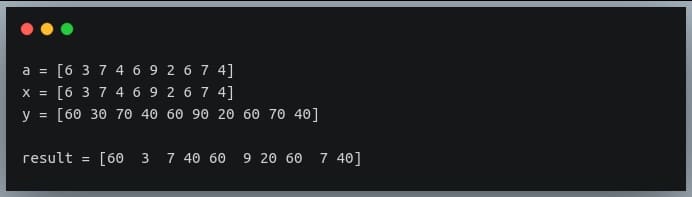
Instead of getting the indices as a result of calling the ‘np.where’ function, we can also provide as parameters, two optional arrays x and y of the same shape (or broadcastable shape) as input array, whose values will be returned when the specified condition on the corresponding values in input array is True or False respectively.

For instance, if we call the method on a 1-dimensional array of length 10, and we supply two more arrays x and y of the same length.
In this case, whenever a value in input array satisfies the given condition, the corresponding value in array x will be returned whereas, if the condition is false on a given value, the corresponding value from array y will be returned.

These values from x and y at their respective positions will be returned as an array of the same shape as the input array.

Let’s get a better understanding of this through code.

np.random.seed(42)

a = np.random.randint(0,10, size=(10))

x = a

y = a*10

print("a = {}".format(a))

print("x = {}".format(x))

print("y = {}".format(y))

result = np.where(a%2 == 1, x, y) #if number is odd return the same number else return its multiple of 10.

print("\nresult = {}".format(result))

Output:

This method is useful if you want to replace the values satisfying a particular condition by another set of values and leaving those not satisfying the condition unchanged.
In that case, we will pass the replacement value(s) to the parameter x and the original array to the parameter y.

Note that we can pass either both x and y together or none of them. We can’t pass one of them and skip the other.

Apply on Pandas DataFrames

Numpy’s ‘where’ function doesn’t necessarily have to be applied to NumPy arrays. It can be used with any iterable that would yield a list of Boolean values.

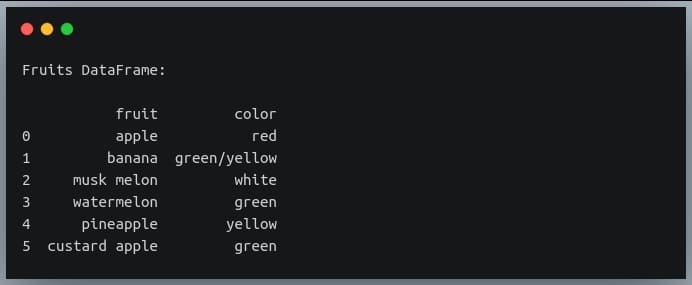
Let us see how we can apply the ‘np.where’ function on a Pandas DataFrame to see if the strings in a column contain a particular substring.

import pandas as pd

import numpy as np

df = pd.DataFrame({"fruit":["apple", "banana", "musk melon",
"watermelon", "pineapple", "custard apple"],
"color": ["red", "green/yellow", "white",
"green", "yellow", "green"]})

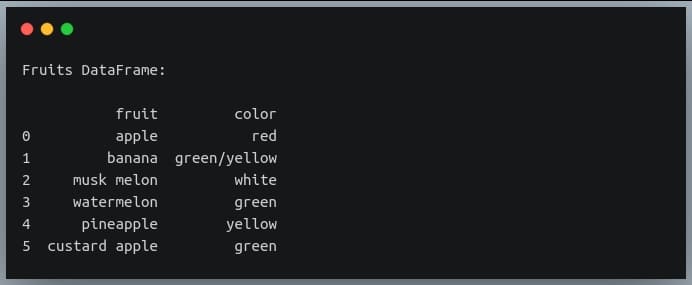
print("Fruits DataFrame:\n")

print(df)

Output:

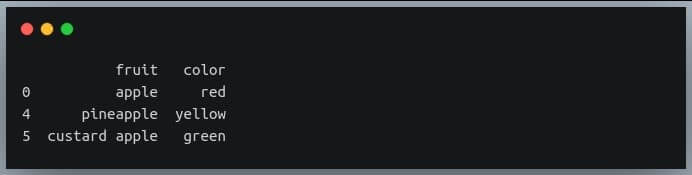
Now we’re going to use ‘np.where’ to extract those rows from the DataFrame ‘df’ where the ‘fruit’ column has the substring ‘apple’

apple_df = df.iloc[np.where(df.fruit.str.contains("apple"))]

print(apple_df)

Output:

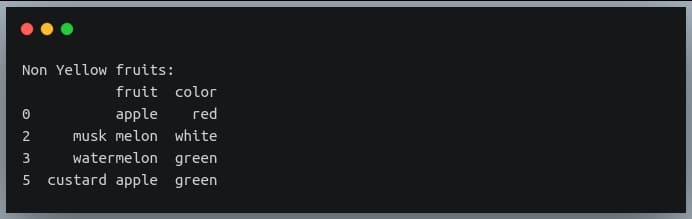
Let’s try one more example on the same DataFrame where we extract rows for which the ‘color’ column does not contain the substring ‘yell’.

Note: we use the tilde (~) sign to inverse Boolean values in Pandas DataFrame or a NumPy array.


non_yellow_fruits = df.iloc[np.where(~df.color.str.contains("yell"))]

print("Non Yellow fruits:\n{}".format(non_yellow_fruits))

Output:

Multiple conditions

So far we have been evaluating a single Boolean condition in the ‘np.where’ function. We may sometimes need to combine multiple Boolean conditions using Boolean operators like ‘AND‘ or ‘OR’.

It is easy to specify multiple conditions and combine them using a Boolean operator.
The only caveat is that for the NumPy array of Boolean values, we cannot use the normal keywords ‘and’ or ‘or’ that we typically use for single values.
We need to use the ‘&’ operator for ‘AND’ and ‘|’ operator for ‘OR’ operation for element-wise Boolean combination operations.

Let us understand this through an example.

np.random.seed(42)

a = np.random.randint(0,15, (5,5)) #5x5 matrix with values from 0 to 14

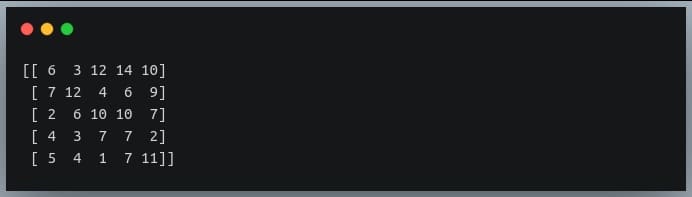
print(a)

Output:

We will look for values that are smaller than 8 and are odd. We can combine these two conditions using the AND (&) operator.

# get indices of odd values less than 8 in a
indices = np.where((a < 8) & (a % 2==1))

#print the actual values
print(a[indices])

Output:

We can also use the OR (|) operator to combine the same conditions. This will give us values that are ‘less than 8’ OR ‘odd values’ i.e all values less than 8 and all odd values greater than 8 will be returned.

# get indices of values less than 8 OR odd values in a
indices = np.where((a < 8) | (a % 2==1))

#print the actual values
print(a[indices])

Output:

Nested where (where within where)

Let us revisit the example of our ‘fruits’ table.


import pandas as pd

import numpy as np

df = pd.DataFrame({"fruit":["apple", "banana", "musk melon",
"watermelon", "pineapple", "custard apple"],
"color": ["red", "green/yellow", "white",
"green", "yellow", "green"]})

print("Fruits DataFrame:\n")

print(df)

Output:

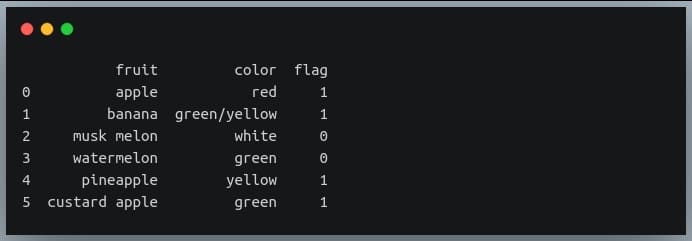
Now let us suppose we wanted to create one more column ‘flag’ which would have the value 1 if the fruit in that row has a substring ‘apple’ or is of color ‘yellow’. We can achieve this by using nested where calls i.e we will call ‘np.where’ function as a parameter within another ‘np.where’ call.

df['flag'] = np.where(df.fruit.str.contains("apple"), 1, # if fruit == 'apple', set 1
np.where(df.color.str.contains("yellow"), 1, 0)) #else if color has 'yellow' set 1, else set 0

print(df)

Output:

The complex expression above can be translated into simple English as:

  1. If the ‘fruit’ column has the substring ‘apple’, set the ‘flag’ value to 1
  2. Else:
    1. If the ‘color’ column has substring ‘yellow’, set the ‘flag’ value to 1
    2. Else set the ‘flag’ value to 0

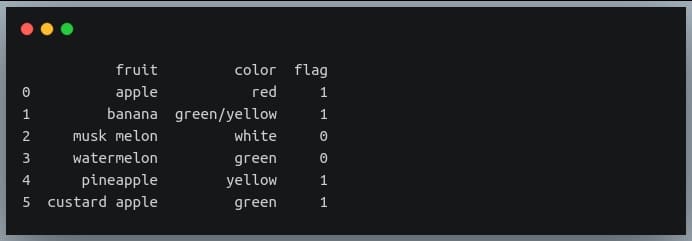
Note that we can achieve the same result using the OR (|) operator.

#set flag = 1 if any of the two conditions is true, else set it to 0
df['flag'] = np.where(df.fruit.str.contains("apple") |
df.color.str.contains("yellow"), 1, 0)

print(df)

Output:

Thus nested where is particularly useful for tabular data like Pandas DataFrames and is a good equivalent of the nested WHERE clause used in SQL queries.

Finding rows of zeros

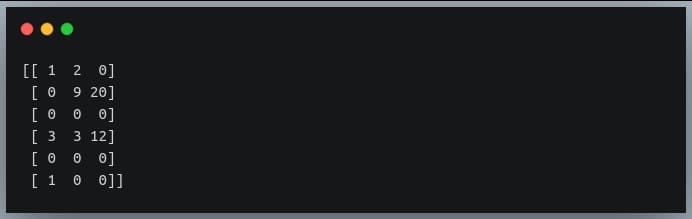
Sometimes, in a 2D matrix, some or all of the rows have all values equal to zero. For instance, check out the following NumPy array.

a = np.array([[1, 2, 0],
[0, 9, 20],
[0, 0, 0],
[3, 3, 12],
[0, 0, 0]
[1, 0, 0]])
print(a)

Output:

As we can see the rows 2 and 4 have all values equal to zero. But how do we find this using the ‘np.where’ function?

If we want to find such rows using NumPy where function, we will need to come up with a Boolean array indicating which rows have all values equal to zero.

We can use the ‘np.any()‘ function with ‘axis = 1’, which returns True if at least one of the values in a row is non-zero.

The result of np.any() will be a Boolean array of length equal to the number of rows in our NumPy matrix, in which the positions with the value True indicate the corresponding row has at least one non-zero value.

But we needed a Boolean array that was quite the opposite of this!

That is, we needed a Boolean array where the value ‘True’ would indicate that every element in that row is equal to zero.

Well, this can be obtained through a simple inversion step. The NOT or tilde (~) operator inverts each of the Boolean values in a NumPy array.

The inverted Boolean array can then be passed to the ‘np.where’ function.

Ok, that was a long, tiring explanation.
Let’s see this thing in action.

zero_rows = np.where(~np.any(a, axis=1))[0]

print(zero_rows)

Output:

Let’s look at what’s happening step-by-step:

  1. np.any() returns True if at least one element in the matrix is True (non-zero). axis = 1 indicates it to do this operation row-wise.
  2. It would return a Boolean array of length equal to the number of rows in a, with the value True for rows having non-zero values, and False for rows having all values = 0.
    np.any(a, axis=1)
    Output:

3.The tilde (~) operator inverts the above Boolean array:
~np.any(a, axis=1)
Output:

  1. ‘np.where()’ accepts this Boolean array and returns indices having the value True.

The indexing [0] is used because, as discussed earlier, ‘np.where’ returns a tuple.

Finding the last occurrence of a true condition

We know that NumPy’s ‘where’ function returns multiple indices or pairs of indices (in case of a 2D matrix) for which the specified condition is true.

But sometimes we are interested in only the first occurrence or the last occurrence of the value for which the specified condition is met.

Let’s take the simple example of a one-dimensional array where we will find the last occurrence of a value divisible by 3.

np.random.seed(42)

a = np.random.randint(0,10, size=(10))

print("Array a:", a)

indices = np.where(a%3==0)[0]

last_occurrence_position = indices[-1]

print("last occurrence at", last_occurrence_position)

Output:

Here we could directly use the index ‘-1’ on the returned indices to get the last value in the array.

But how would we extract the position of the last occurrence in a multidimensional array, where the returned result is a tuple of arrays and each array stores the indices in one of the dimensions?

We can use the zip function which takes multiple iterables and returns a pairwise combination of values from each iterable in the given order.

It returns an iterator object, and so we need to convert the returned object into a list or a tuple or any iterable.

Let’s first see how zip works:


a = (1, 2, 3, 4)

b = (5, 6, 7, 8)

c = list(zip(a,b))

print(c)

Output:

So the first element of a and the first element of b form a tuple, then the second element of a and the second element of b form the second tuple in c, and so on.

We’ll use the same technique to find the position of the last occurrence of a condition being satisfied in a multidimensional array.

Let’s use it for a 2D matrix with the same condition as we saw in the earlier example.

np.random.seed(42)

a = np.random.randint(0,10, size=(3,3))

print("Matrix a:\n", a)

indices = np.where(a % 3 == 0)

last_occurrence_position = list(zip(*indices))[-1]

print("last occurrence at",last_occurrence_position)

Output:

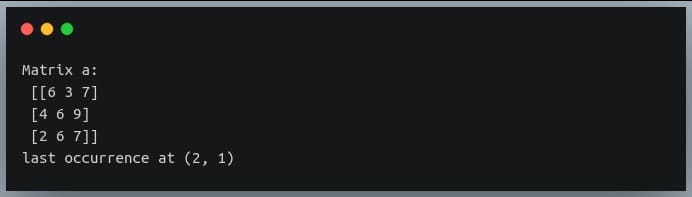
We can see in the matrix the last occurrence of a multiple of 3 is at the position (2,1), which is the value 6.

Note: The * operator is an unpacking operator that is used to unpack a sequence of values into separate positional arguments.

Using on DateTime data

We have been using ‘np.where’ function to evaluate certain conditions on either numeric values (greater than, less than, equal to, etc.), or string data (contains, does not contain, etc.)

We can also use the ‘np.where’ function on datetime data.

For example, we can check in a list of datetime values, which of the datetime instances are before/after a given specified datetime.

Let’s understand this through an example.
Note: We’ll use Python’s datetime module to create date objects.

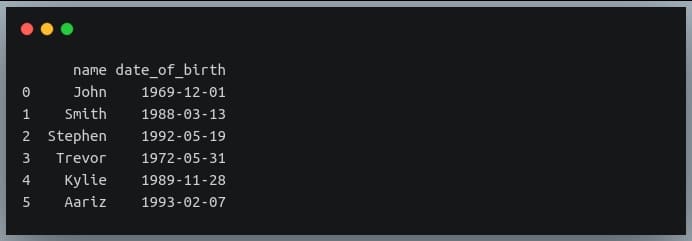
Let’s first define a DataFrame specifying the dates of birth of 6 individuals.

import datetime

names = ["John", "Smith", "Stephen", "Trevor", "Kylie", "Aariz"]

dob = [datetime.datetime(1969, 12, 1),
datetime.datetime(1988, 3, 13),
datetime.datetime(1992, 5, 19),
datetime.datetime(1972, 5, 31),
datetime.datetime(1989, 11, 28),
datetime.datetime(1993, 2, 7)]

data_birth = pd.DataFrame({"name":names, "date_of_birth":dob})

print(data_birth)

Output:

This table has people from diverse age groups!
Let us now specify a condition where we are interested in those individuals who are born on or post-January 1, 1990.

post_90_indices = np.where(data_birth.date_of_birth >= '1990-01-01')[0]

print(post_90_indices)

Output:

Rows 2 and 5 have Smith and Kylie who are born in the years 1992 and 1993 respectively.

Here we are using the ‘greater than or equal to’ (>=) operator on a datetime data, which we generally use with numeric data.
This is possible through operator overloading.

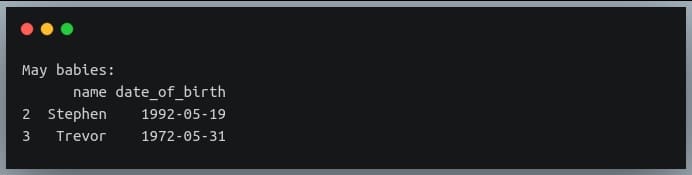
Let’s try one more example. Let’s fetch individuals that were born in May.
Note: Pandas Series provides ‘dt’ sub-module for datetime specific operations, similar to the ‘str’ sub-module we saw in our earlier examples.

may_babies = data_birth.iloc[np.where(data_birth.date_of_birth.dt.month == 5)]

print("May babies:\n{}".format(may_babies))

Output:

Conclusion

We began the tutorial with simple usage of ‘np.where’ function on a 1-dimensional array with conditions specified on numeric data.

We then looked at the application of ‘np.where’ on a 2D matrix and then on a general multidimensional NumPy array.
We also understood how to interpret the tuple of arrays returned by ‘np.where’ in such cases.

We then understood the functionality of ‘np.where’ in detail, using Boolean masks.
We also saw how we can use the result of this method as an index to extract the actual original values that satisfy the given condition.

We looked at the behavior of the ‘np.where’ function with the optional arguments ‘x’ and ‘y’.

We then checked the application of ‘np.where’ on a Pandas DataFrame, followed by using it to evaluate multiple conditions.

We also looked at the nested use of ‘np.where’, its usage in finding the zero rows in a 2D matrix, and then finding the last occurrence of the value satisfying the condition specified by ‘np.where’

Finally, we used ‘np.where’ function on a datetime data, by specifying chronological conditions on a datetime column in a Pandas DataFrame.

0

Pek bilinmeyen altı tane web browser

Bilindiği gibi, Debian Türkiye Forum’un değerli bir üyesi, değerli arkadaşımız Vedat Kılıç; uzun zamandır kendine özgü ISO kalıpları hazırlıyor. Vedat, bunları kendisine ait olan gnulinuxfree.blogspot.com üzerinden yayımlıyor. Bilindiği gibi, daha geniş bir çevreye duyurulması amacıyla bu çalışmaları forum üzerinden ve buradan da sizlere duyurmaya çaba gösteriyoruz. Vedat Kılıç‘ın en son yazdığı “Pek bilinmeyen altı tane web browser” adlı yazı, bu kez farklı, bir o kadar da ilginç bir konu içeriyor. Bu nedenle, bu yazıyı da sizlere aktarmak istedim. Dostumuz yazısına şöyle başlıyor: “GNU/Linux için yapılmış ama henüz dağıtım depolarına girmemiş 7 tane farklı web tarayıcıyı ile tanışacağız. Bu tarayıcıların kimisi muhtemelen zaman içinde depolara girecek, kimisi belki hiç giremeden durdurulacak, o kadarını bilemeyiz ama en azından yenilik adına onlara göz atmakta fayda var.

Continue Reading →

Sielo web browser

Resimde görülen tarayıcının adı Sielo, bir Fransız tarafından geliştirilmiş, Chromium tabanlı, bir kaç dile sahip, henüz Türkçe yok, AppImage paketi olarak paylaşılıyor. AppImage bütün bağımlılıkları kendi içinde olan, üzerine çift tıklamayla çalışan yeni tür kurulmadan çalışan portable paket prensibine dayanıyor. Kurulmadan ve USB’den çalışıyor olması bir çoklarının tercihi olsa da dosya içeriği görülmediği için temel geliştiricilerin bazıları tarafından şiddetle eleştiriliyor ve desteklenmiyor. Lakin konumuz bu olmadığı için burayı geçiyoruz. Dünyaya açılan pencere de denilen web browserler içinde Sielo browserin arayüzü dünyayı gezen pencereye benziyor. Neredeyse bütün tuşları istenen yere taşınabiliyor. Örneğin resimde görülen yuvarlak daire aslında yan panel ama hem yerini hem şeklini değiştirebiliyorsunuz. Bu panel imleci takip ediyor, imleç hangi sayfadaysa anında o sayfaya geçiyor. Resimde bir kısmı görüldüğü gibi sayısız sekmeleri ve sayfaları arayüze döşeyebiliyorsunuz, bunun için sekmeleri istediğiniz bölgeye sürüklemeniz yetiyor. Sielo browserde ayrıca bukelamun gibi her bölgesine, arkaplanına veya sayfalara istediğiniz rengi verebiliyorsunuz. Kendinden reklam engelleyici özelliği de bulunuyor. Sielo browser tamamen hızlı, görsel ve pratik kullanım üzerine geliştirilmiş. Görselliği ve pratik kullanmayı sevenler için denemeye değer. Resmi web sitesi ve indirme adresi: Sielo Browser

 Dissenter web browser

Dissenter browser, Brave browserin birebir kopyası. Hızlılığa, güvenliğe ve tarayıcı arayüzünden mesajlaşmaya ağırlık verilmiş
Chrome eklentileri eklenebiliyor, Türkçe ve görevini iyi yapıyor. Dissenter geliştiricinin anlatımını okuyalım.
‘Dissenter nedir?
Dissenter, reklamverenler için değil, İnsanlar için oluşturulmuş açık kaynaklı bir web tarayıcısıdır. Dissenter, tek tek URL’ler etrafında konuşmalar düzenler ve üzerinde herkesin yorum bırakabileceği genel bir kare oluşturur. Dissenter tarayıcısı, varsayılan olarak reklamları ve izleyicileri engeller, böylece web’de gezinme deneyiminizi geleneksel web tarayıcılarından çok daha hızlı hale getirir. Dissenter, geçişi henüz yapmaya hazır değilseniz ve genel yorum sistemimizi diğer tarayıcılarda test etmek istemeniz durumunda, diğer tarayıcılar için de bir uzantı sunar.’  Buradan indirin: Dissenter Browser

Naver Whale  web browser

Bu tarayıcıyı Koreliler inşa etmiş, güzel bir hedefe sahip. Tarayıcının temelini yükledikten sonra içeriğini yani temel yapısını kendine göre özelleştiriyorsun. API sayfası var, kişisel bütün özelleştirmeler oradan yapılıyor. Sayısız gönüllülerin katılımıyla şekilleniyor, yani siz kurduğunuzda ne görüyorsanız sizin gibi kullanıcıların yaptıklarını görmüş oluyorsunuz. Herkesin katıldığı bir blog sayfası var, herkes önerilerini, görüşlerini ve tarayıcıya yaptığı işlemleri orada paylaşıyor, en çok beğenilenler ana sayfanın en üstünde teşhir ediliyor. Bu tarayıcıdan şikayetin olduğunda muhatabın yine kendin oluyorsun, sorununu blog sayfasında paylaştığında binlerce kullanıcının önerisiyle karşılaşıyorsun. Chromium tabanlı, Chrome eklentileri eklenebiliyor, önemli yerleri Türkçe. Buradan indir: Naver Whale browser

OhHai web browser

OhHai tarayıcı sıfırdan inşa edilmiş, istendiği kadar sekmelerle çalışabilmek amacıyla yapılmış. Bütün sekmeleri yan tarafta tutuyor, ileri-geri alma, yer imine ekleme, yenileme ve yeni sekme açma özelliklerinden ibaret. Şimdilik başka özellik taşımıyor, lakin sorunsuz çalışan ve sade bir tarayıcı isteyenler için iyi bir tercih olabilir. Buradan indirin: OhHai browser

Spez web browser

Spez browser gelişmiş bir tarayıcı olmakla birlikte Epiphany tarayıcının zarif görünümlü bir çatalı. Geliştirici şöyle tanımlamış.
‘Güçlü gizlilik ayarları, basit inteface ve gerçekten güvenilir bir şekilde internette gezinmenizi sağlayan adblock özelliklerine sahip, özgürlüğünüz ve gizliliğiniz için güçlü web tarayıcısı. Web’in özel, sade, temiz, güzel bir görünümünü arıyorsanız, bu sizin için bir tarayıcıdır.’ Buradan indirin: Spez browser

Youtube Music

Bir de sizlere farklı bir tarayıcı tanıtayım, bu tarayıcı internette gezmek için değil, Youtube sitesinde gezmek için. Youtube arayüzünü kendine göre müthiş geliştirmiş, videoları kendi penceresinde ve harici pencerede oynatabiliyor. Bir sanatçıya veya videoya ait ne varsa tarihine, resimlerine kadar bütün bilgileri getiriyor ve sunu şeklinde gösteriyor. Yıllara göre, türe göre ve yerli-yabancı sanatçılara göre kategori oluşturuyor, böylece tercih ve kullanım daha pratik oluyor. Kendi kitaplığını oluşturabiliyor, yorumda ve paylaşımda bulunabiliyorsun. Reklam engelleyici, kısıtlı mod, geçmişi temizleme gibi özelliklere sahip.

Ayrıca AppImage formatlı olduğu için kurmadan kullanabilirsiniz, bunun için indirdiğiniz AppImage dosyasına çift tıklamanız yeterli. Buradan indirin: Youtube Music

0