

Archive | GNU/Linux İpuçları

Regex tutorial for Linux (Sed & AWK) examples

In order to successfully work with the Linux sed editor and the awk command in your shell scripts, you have to understand regular expressions or in short regex. Since there are many engines for regex, we will use the shell regex and see the bash power in working with regex. First, we need to understand what regex is, then we will see how to use it. For some people, when they see the regular expressions for the first time they said what are these ASCII pukes !! Well, A regular expression or regex, in general, is a pattern of text you define that a Linux program like sed or awk uses it to filter text. We saw some of those patterns when introducing basic Linux commands and saw how the ls command uses wildcard characters to filter output.

Continue Reading →

Types of regex

There are many different applications use different types of regex in Linux, like the regex included in programming languages (Java, Perl, Python,,,) and Linux programs like (sed, awk, grep,) and many other applications.

A regex pattern uses a regular expression engine which translates those patterns.

Linux has two regular expression engines:

  • The Basic Regular Expression (BRE) engine.
  • The Extended Regular Expression (ERE) engine.

Most Linux programs work well with BRE engine specifications, but some tools like sed understand some of the BRE engine rules.

The POSIX ERE engine is shipped with some programming languages. It provides more patterns like matching digits, and words. The awk command uses the ERE engine to process its regular expression patterns.

Since there are many regex implementations, it’s difficult to write patterns that work on all engines. Hence, we will focus on the most commonly found regex and demonstrate how to use it in the sed and awk.

Define BRE Patterns

You can define a pattern to match text like this:

echo "Testing regex using sed" | sed -n '/regex/p'

echo "Testing regex using awk" | awk '/regex/{print $0}'

Linux regex tutorial

You may notice that the regex doesn’t care where the pattern occurs or how many times in the data stream.

The first rule to know is that regular expression patterns are case sensitive.

echo "Welcome to LikeGeeks" | awk '/Geeks/{print $0}'

echo "Welcome to Likegeeks" | awk '/Geeks/{print $0}'

regex character case

The first regex succeeds because the word “Geeks” exists in the upper case, while the second line fails because it uses small letters.

You can use spaces or numbers in your pattern like this:

echo "Testing regex 2 again" | awk '/regex 2/{print $0}'

space character

Special Characters

regex patterns use some special characters. And you can’t include them in your patterns and if you do so, you won’t get the expected result.

These special characters are recognized by regex:

.*[]^${}\+?|()

You need to escape these special characters using the backslash character (\).

For example, if you want to match a dollar sign ($), escape it with a backslash character like this:

cat myfile

There is 10$ on my pocket

awk '/\$/{print $0}' myfile

dollar sign

If you need to match the backslash (\) itself, you need to escape it like this:

echo "\ is a special character" | awk '/\\/{print $0}'

special character

Despite the forward slash isn’t a special character, you still get an error if you use it directly.

echo "3 / 2" | awk '///{print $0}'

regex slash

So you need to escape it like this:

echo "3 / 2" | awk '/\//{print $0}'

escape slash

Anchor Characters

To locate the beginning of a line in a text, use the caret character (^).

You can use it like this:

echo "welcome to likegeeks website" | awk '/^likegeeks/{print $0}'

echo "likegeeks website" | awk '/^likegeeks/{print $0}'

anchor begin character

The caret character (^) matches the start of text:

awk '/^this/{print $0}' myfile

caret anchor

What if you use it in the middle of the text?

echo "This ^ caret is printed as it is" | sed -n '/s ^/p'

caret character

It’s printed as it is like a normal character.

When using awk, you have to escape it like this:

echo "This ^ is a test" | awk '/s \^/{print $0}'

escape caret

This is about looking at the beginning of the text, what about looking at the end?

The dollar sign ($) checks for the end a line:

echo "Testing regex again" | awk '/again$/{print $0}'

end anchor

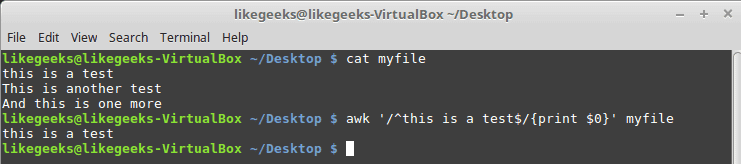
You can use both the caret and dollar sign on the same line like this:

cat myfile
this is a test
This is another test
And this is one more

awk '/^this is a test$/{print $0}' myfile
combine anchors

As you can see, it prints only the line that has the matching pattern only.

You can filter blank lines with the following pattern:

awk '!/^$/{print $0}' myfile

Here we introduce the negation which is done by the exclamation mark !

The pattern searches for empty lines where nothing between the beginning and the end of the line and negates that to print only the lines have text.

The dot Character

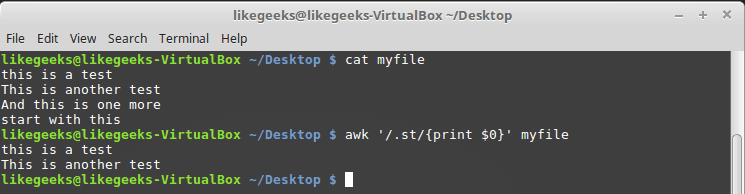
The dot character is used to match any character except newline (\n).

Look at the following example to get the idea:

cat myfile
this is a test
This is another test
And this is one more
start with this

awk '/.st/{print $0}' myfile
dot character

You can see from the result that it prints only the first two lines because they contain the st pattern while the third line does not have that pattern and fourth line start with st so that also doesn’t match our pattern.

Character Classes

You can match any character with the dot special character, but what if you match a set of characters only, you can use a character class.

The character class matches a set of characters if any of them found, the pattern matches.

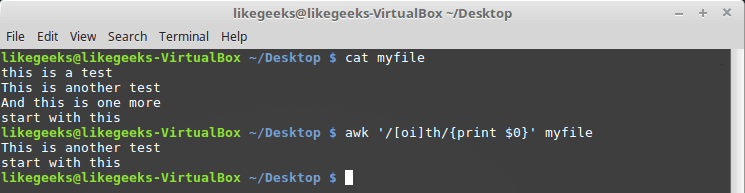
The chracter classis defined using square brackets [] like this:

awk '/[oi]th/{print $0}' myfile
character classes

Here we search for any th characters that have o character or i before it.

This comes handy when you are searching for words that may contain upper or lower case and you are not sure about that.

echo "testing regex" | awk '/[Tt]esting regex/{print $0}'

echo "Testing regex" | awk '/[Tt]esting regex/{print $0}'

upper and lower case

Of course, it is not limited to characters; you can use numbers or whatever you want. You can employ it as you want as long as you got the idea.

Negating Character Classes

What about searching for a character that is not in the character class?

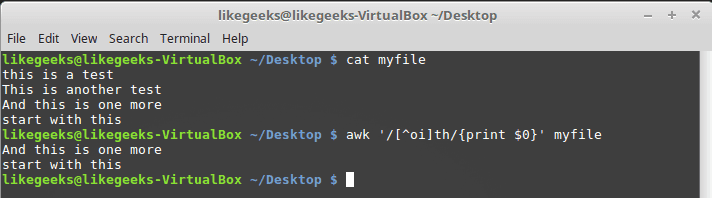
To achieve that, precede the character class range with a caret like this:

awk '/[^oi]th/{print $0}' myfile
negate character classes

So anything is acceptable except o and i.

Using Ranges

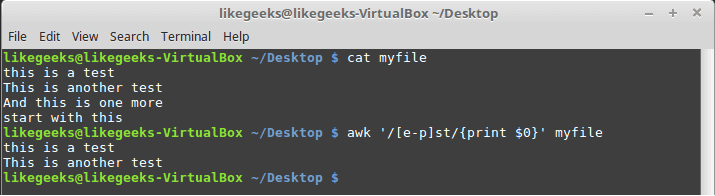
To specify a range of characters, you can use the (-) symbol like this:

awk '/[e-p]st/{print $0}' myfile
regex ranges

This matches all characters between e and p then followed by st as shown.

You can also use ranges for numbers:

echo "123" | awk '/[0-9][0-9][0-9]/'

echo "12a" | awk '/[0-9][0-9][0-9]/'

number range

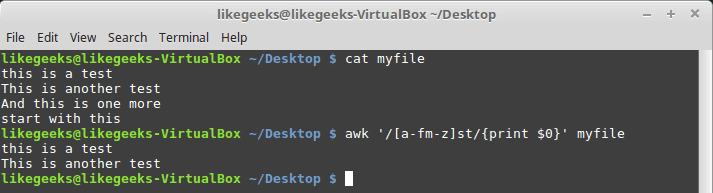
You can use multiple and separated ranges like this:

awk '/[a-fm-z]st/{print $0}' myfile
non-continuous range

The pattern here means from a to f, and m to z must appear before the st text.
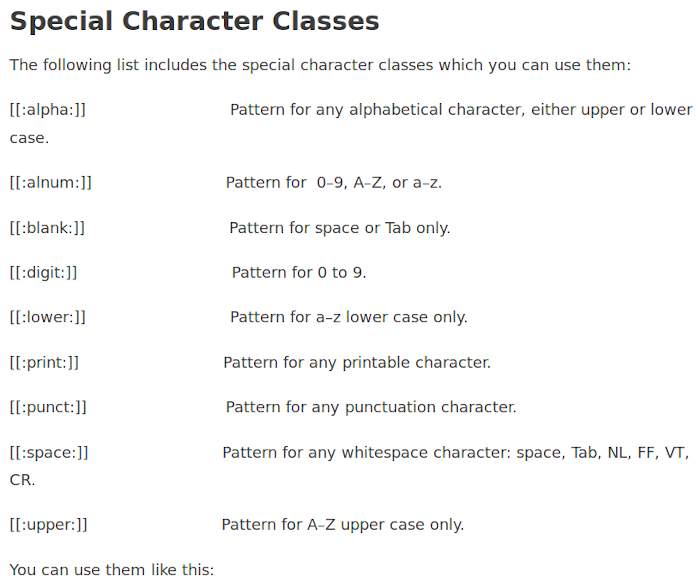
echo "abc" | awk '/[[:alpha:]]/{print $0}'

echo "abc" | awk '/[[:digit:]]/{print $0}'

echo "abc123" | awk '/[[:digit:]]/{print $0}'

special character classes

The Asterisk

The asterisk means that the character must exist zero or more times.

echo "test" | awk '/tes*t/{print $0}'

echo "tessst" | awk '/tes*t/{print $0}'

asterisk

This pattern symbol is useful for checking misspelling or language variations.

echo "I like green color" | awk '/colou*r/{print $0}'

echo "I like green colour " | awk '/colou*r/{print $0}'

asterisk example

Here in these examples whether you type it color or colour it will match, because the asterisk means if the “u” character existed many times or zero time that will match.

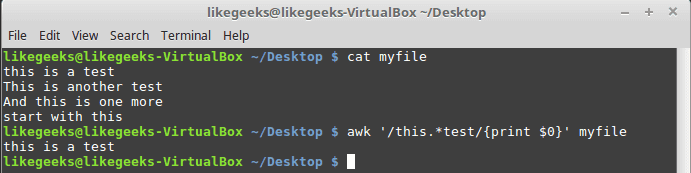
To match any number of any character, you can use the dot with the asterisk like this:

awk '/this.*test/{print $0}' myfile
asterisk with dot

It doesn’t matter how many words between the words “this” and “test”, any line matches, will be printed.

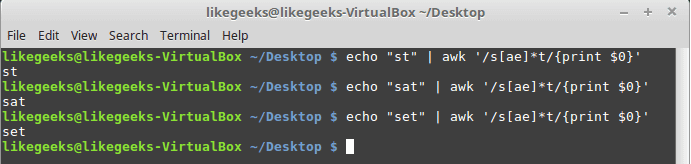
You can use the asterisk character with the character class.

echo "st" | awk '/s[ae]*t/{print $0}'

echo "sat" | awk '/s[ae]*t/{print $0}'

echo "set" | awk '/s[ae]*t/{print $0}'
asterisk with character classes

All three examples match because the asterisk means if you find zero times or more any “a” character or “e” print it.

Extended Regular Expressions

The following are some of the patterns that belong to Posix ERE:

The question mark

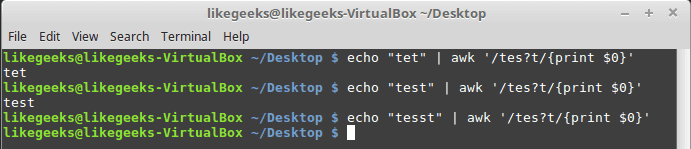
The question mark means the previous character can exist once or none.

echo "tet" | awk '/tes?t/{print $0}'

echo "test" | awk '/tes?t/{print $0}'

echo "tesst" | awk '/tes?t/{print $0}'
question mark

The question mark can be used in combination with a character class:

echo "tst" | awk '/t[ae]?st/{print $0}'

echo "test" | awk '/t[ae]?st/{print $0}'

echo "tast" | awk '/t[ae]?st/{print $0}'

echo "taest" | awk '/t[ae]?st/{print $0}'

echo "teest" | awk '/t[ae]?st/{print $0}'
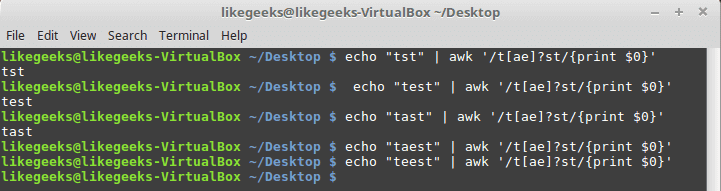
question mark with character classes

If any of the character class items exists, the pattern matching passes. Otherwise, the pattern will fail.

The Plus Sign

The plus sign means that the character before the plus sign should exist one or more times, but must exist once at least.

echo "test" | awk '/te+st/{print $0}'

echo "teest" | awk '/te+st/{print $0}'

echo "tst" | awk '/te+st/{print $0}'
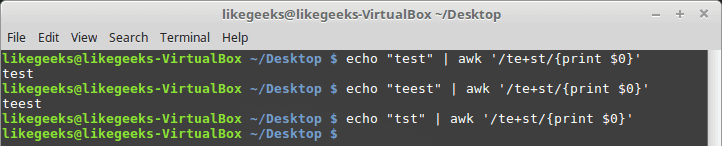
plus sign

If the “e” character not found, it fails.

You can use it with character classes like this:

echo "tst" | awk '/t[ae]+st/{print $0}'

echo "test" | awk '/t[ae]+st/{print $0}'

echo "teast" | awk '/t[ae]+st/{print $0}'

echo "teeast" | awk '/t[ae]+st/{print $0}'
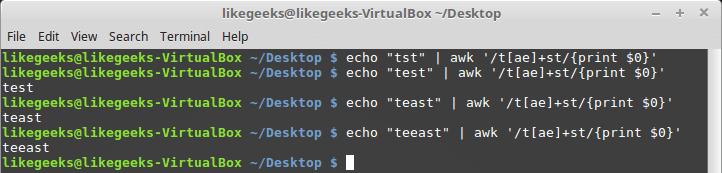
plus sign with character classes

if any character from the character class exists, it succeeds.

Curly Braces

Curly braces enable you to specify the number of existence for a pattern, it has two formats:

n: The regex appears exactly n times.

n,m: The regex appears at least n times, but no more than m times.

echo "tst" | awk '/te{1}st/{print $0}'

echo "test" | awk '/te{1}st/{print $0}'

curly braces

In old versions of awk, you should use –re-interval option for the awk command to make it read curly braces, but in newer versions you don’t need it.

echo "tst" | awk '/te{1,2}st/{print $0}'

echo "test" | awk '/te{1,2}st/{print $0}'

echo "teest" | awk '/te{1,2}st/{print $0}'

echo "teeest" | awk '/te{1,2}st/{print $0}'
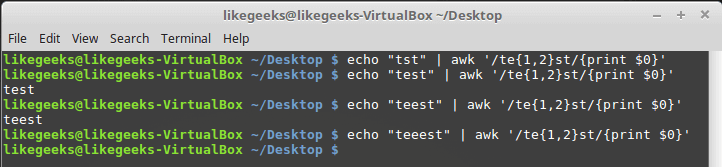
curly braces interval pattern

In this example, if the “e” character exists one or two times, it succeeds; otherwise, it fails.

You can use it with character classes like this:

echo "tst" | awk '/t[ae]{1,2}st/{print $0}'

echo "test" | awk '/t[ae]{1,2}st/{print $0}'

echo "teest" | awk '/t[ae]{1,2}st/{print $0}'

echo "teeast" | awk '/t[ae]{1,2}st/{print $0}'
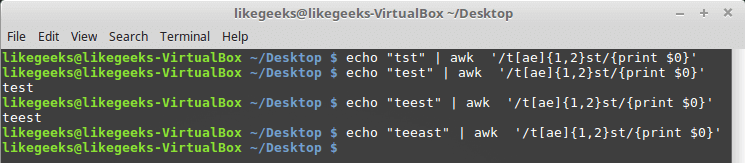
interval pattern with character classes

If there are one or two instances of the letter “a” or “e” the pattern passes, otherwise, it fails.

Pipe Symbol

The pipe symbol makes a logical OR between 2 patterns. If one of the patterns exists, it succeeds, otherwise, it fails, here is an example:

echo "Testing regex" | awk '/regex|regular expressions/{print $0}'

echo "Testing regular expressions" | awk '/regex|regular expressions/{print $0}'

echo "This is something else" | awk '/regex|regular expressions/{print $0}'
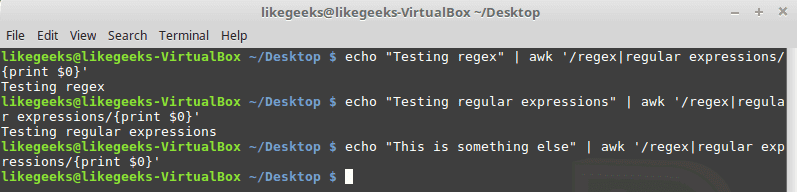
pipe symbol

Don’t type any spaces between the pattern and the pipe symbol.

Grouping Expressions

You can group expressions so the regex engines will consider them one piece.

echo "Like" | awk '/Like(Geeks)?/{print $0}'

echo "LikeGeeks" | awk '/Like(Geeks)?/{print $0}'

grouping expressions

The grouping of the “Geeks” makes the regex engine treats it as one piece, so if “LikeGeeks” or the word “Like” exist, it succeeds.

Practical examples

We saw some simple demonstrations of using regular expression patterns, it’s time to put that in action, just for practicing.

Counting Directory Files

Let’s look at a bash script that counts the executable files in a folder from the PATH environment variable.

echo $PATH

To get a directory listing, you must replace each colon with space.

echo $PATH | sed 's/:/ /g'

Now let’s iterate through each directory using the for loop like this:

mypath=$(echo $PATH | sed 's/:/ /g')

for directory in $mypath; do

done

Great!!

You can get the files on each directory using the ls command and save it in a variable.
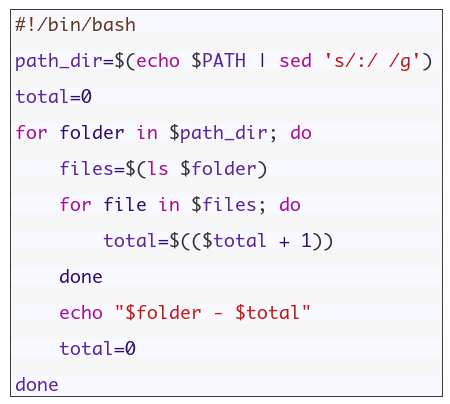
You may notice some directories doesn’t exist, no problem with this its OK.
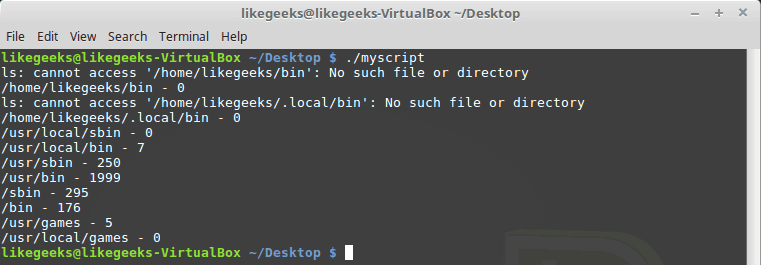
count files

Cool!! This is the power of regex. These few lines of code count all files in all directories. Of course, there is a Linux command to do that very easy, but here we discuss how to employ regex on something you can use. You can come up with some more useful ideas.

Validating E-mail Address

There are a ton of websites that offer ready to use regex patterns for everything including e-mail, phone number, and much more, this is handy but we want to understand how it works.

[email protected]

The username can use any alphanumeric characters combined with dot, dash, plus sign, underscore.

The hostname can use any alphanumeric characters combined with a dot and underscore.

For the username, the following pattern fits all usernames:

^([a-zA-Z0-9_\-\.\+]+)@

The plus sign means one character or more must exist followed by the @ sign.

Then the hostname pattern should be like this:

([a-zA-Z0-9_\-\.]+)

There are special rules for the TLDs or Top-level domains, and they must be not less than 2 and five characters maximum. The following is the regex pattern for the top-level domain.

\.([a-zA-Z]{2,5})$

Now we put them all together:

^([a-zA-Z0-9_\-\.\+]+)@([a-zA-Z0-9_\-\.]+)\.([a-zA-Z]{2,5})$

Let’s test that regex against an email:

echo "[email protected]" | awk '/^([a-zA-Z0-9_\-\.\+]+)@([a-zA-Z0-9_\-\.]+)\.([a-zA-Z]{2,5})$/{print $0}'

echo "[email protected]" | awk '/^([a-zA-Z0-9_\-\.\+]+)@([a-zA-Z0-9_\-\.]+)\.([a-zA-Z]{2,5})$/{print $0}'

validate email

Awesome!! Works great.

This was just the beginning of regex world that never ends. I hope after this post you understand these ASCII pukes 🙂 and use it more professionally.

I hope you like the post.

Thank you.

0

30 Examples for Awk Command in Text Processing

In the previous post, we talked about sed command and we saw many examples of using it in text processing and we saw how it is good in this, but it has some limitations. Sometimes you need something powerful, giving you more control to process data. This is where awk command comes in. The awk command or GNU awk in specific provides a scripting language for text processing. With awk scripting language, you can make the following: Define variables, use string and arithmetic operators, use control flow and loops, generate formatted reports, actually, you can process log files that contain maybe millions of lines to output a readable report that you can benefit from.

Continue Reading →

Awk Options

The awk command is used like this:

awk options program file

Awk can take the following options:

-F fs To specify a file separator.

-f file To specify a file that contains awk script.

-v var=value To declare a variable.

We will see how to process files and print results using awk.

Read AWK Scripts

To define an awk script, use braces surrounded by single quotation marks like this:

awk '{print "Welcome to awk command tutorial "}'

awk command

If you type anything, it returns the same welcome string we provide.

To terminate the program, press The Ctrl+D. Looks tricky, don’t panic, the best is yet to come.

Using Variables

With awk, you can process text files. Awk assigns some variables for each data field found:

  • $0 for the whole line.
  • $1 for the first field.
  • $2 for the second field.
  • $n for the nth field.

The whitespace character like space or tab is the default separator between fields in awk.

Check this example and see how awk processes it:

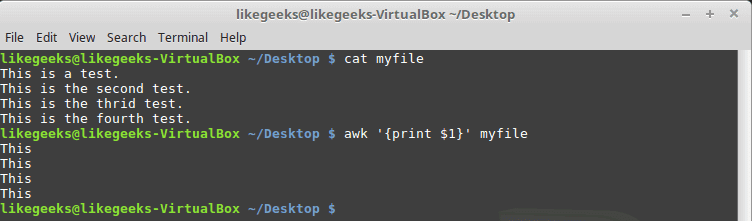
awk '{print $1}' myfile

awk command variables

The above example prints the first word of each line.

Sometimes the separator in some files is not space nor tab but something else. You can specify it using –F option:

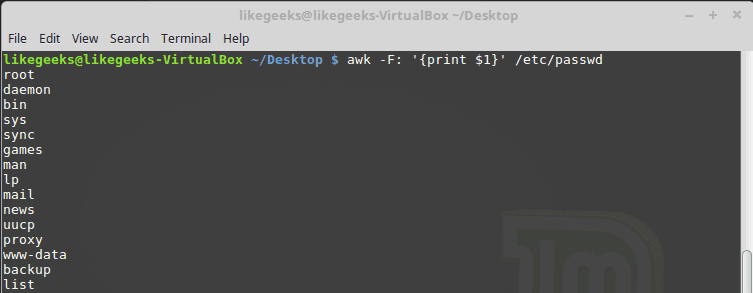
awk -F: '{print $1}' /etc/passwd

awk command passwd

This command prints the first field in the passwd file. We use the colon as a separator because the passwd file uses it.

Using Multiple Commands

To run multiple commands, separate them with a semicolon like this:

echo "Hello Tom" | awk '{$2="Adam"; print $0}'

awk multiple commands

The first command makes the $2 field equals Adam. The second command prints the entire line.

Reading The Script From a File

You can type your awk script in a file and specify that file using the -f option.

Our file contains this script:

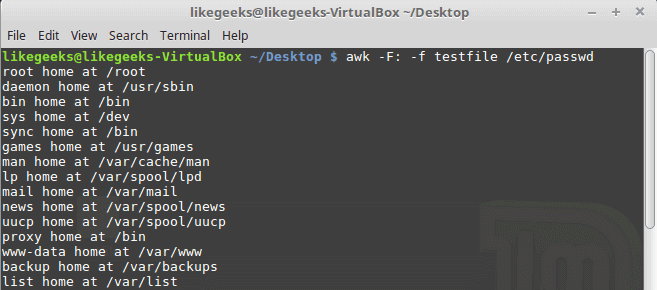
{print $1 " home at " $6}

awk -F: -f testfile /etc/passwd

read from file

Here we print the username and his home path from /etc/passwd, and surely the separator is specified with capital -F which is the colon.

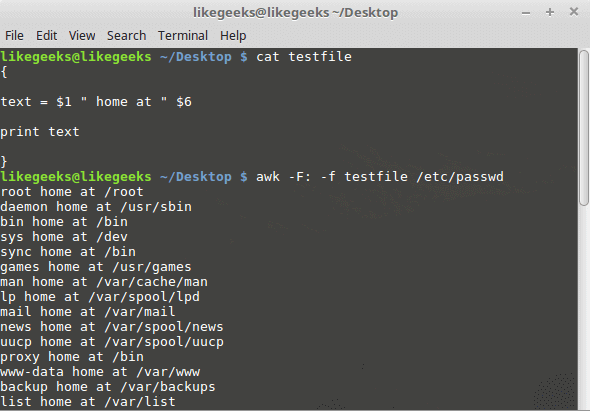
You can your awk script file like this:

{

text = $1 " home at " $6

print text

}

awk -F: -f testfile /etc/passwd

multiple commands

Awk Preprocessing

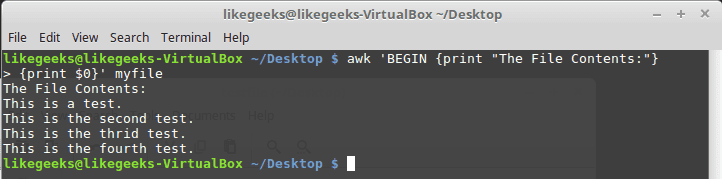
If you need to create a title or a header for your result or so. You can use the BEGIN keyword to achieve this. It runs before processing the data:

awk 'BEGIN {print "Report Title"}'

Let’s apply it to something we can see the result:

awk 'BEGIN {print "The File Contents:"}

{print $0}' myfile

begin command

Awk Postprocessing

To run a script after processing the data, use the END keyword:

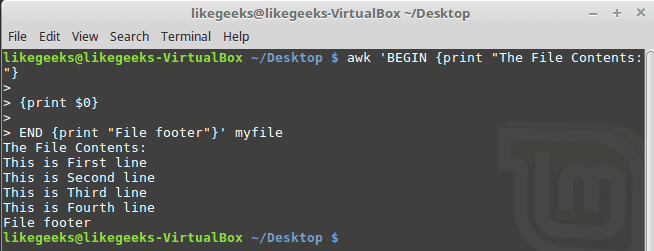
awk 'BEGIN {print "The File Contents:"}

{print $0}

END {print "File footer"}' myfile

end command

This is useful, you can use it to add a footer for example.

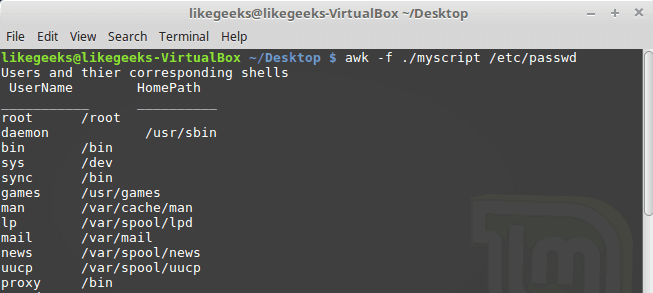
Let’s combine them together in a script file:

BEGIN {

print "Users and thier corresponding home"

print " UserName \t HomePath"

print "___________ \t __________"

FS=":"

}

{

print $1 " \t " $6

}

END {

print "The end"

}

First, the top section is created using BEGIN keyword. Then we define the FS and print the footer at the end.

awk -f myscript /etc/passwd

complete script

Built-in Variables

We saw the data field variables $1, $2 $3, etc are used to extract data fields, we also deal with the field separator FS.

But these are not the only variables, there are more built-in variables.

The following list shows some of the built-in variables:

FIELDWIDTHS     Specifies the field width.

RS     Specifies the record separator.

FS     Specifies the field separator.

OFS  Specifies the Output separator.

ORS  Specifies the Output separator.

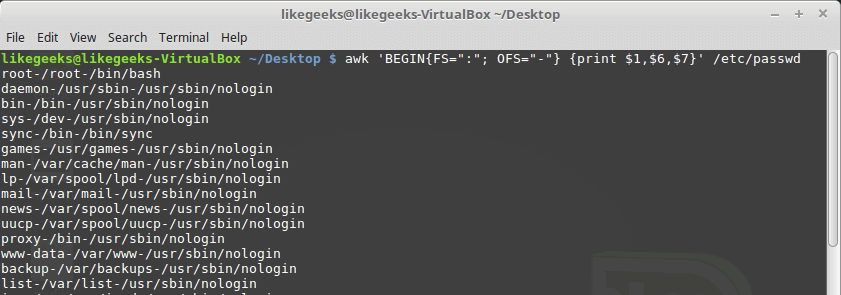
By default, the OFS variable is the space, you can set the OFS variable to specify the separator you need:

awk 'BEGIN{FS=":"; OFS="-"} {print $1,$6,$7}' /etc/passwd

builtin variables

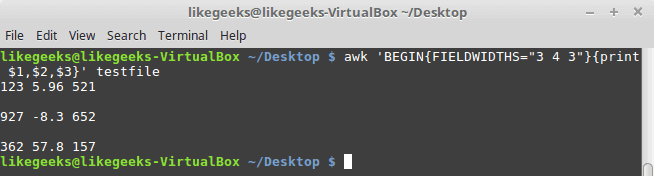
Sometimes, the fields are distributed without a fixed separator. In these cases, FIELDWIDTHS variable solves the problem.

Suppose we have this content:

1235.96521

927-8.3652

36257.8157

awk 'BEGIN{FIELDWIDTHS="3 4 3"}{print $1,$2,$3}' testfile

field width

Look at the output. The output fields are 3 per line and each field length is based on what we assigned by FIELDWIDTH exactly.

Suppose that your data are distributed on different lines like the following:

Person Name

123 High Street

(222) 466-1234

Another person

487 High Street

(523) 643-8754

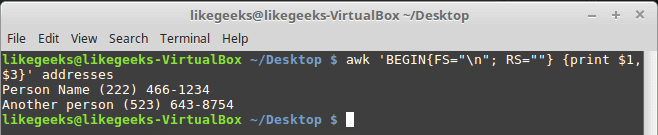
In the above example, awk fails to process fields properly because the fields are separated by newlines and not spaces.

You need to set the FS to the newline (\n) and the RS to a blank text, so empty lines will be considered separators.

awk 'BEGIN{FS="\n"; RS=""} {print $1,$3}' addresses

field separator

Awesome! we can read the records and fields properly.

More Variables

There are some other variables that help you to get more information:

ARGC     Retrieves the number of passed parameters.

ARGV     Retrieves the command line parameters.

ENVIRON     Array of the shell environment variables and corresponding values.

FILENAME    The file name that is processed by awk.

NF     Fields count of the line being processed.

NR    Retrieves total count of processed records.

FNR     The record which is processed.

IGNORECASE     To ignore the character case.

You can review the previous post shell scripting to know more about these variables.

Let’s test them.

awk 'BEGIN{print ARGC,ARGV[1]}' myfile

awk command arguments

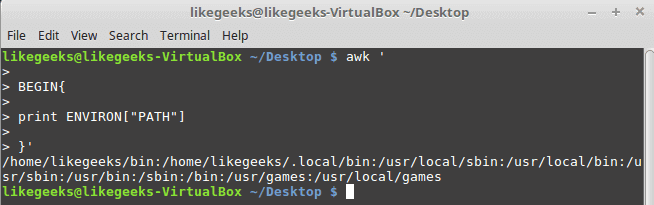
The ENVIRON variable retrieves the shell environment variables like this:

$ awk '

BEGIN{

print ENVIRON["PATH"]

}'

data variables

You can use bash variables without ENVIRON variables like this:

echo | awk -v home=$HOME '{print "My home is " home}'

awk shell variables

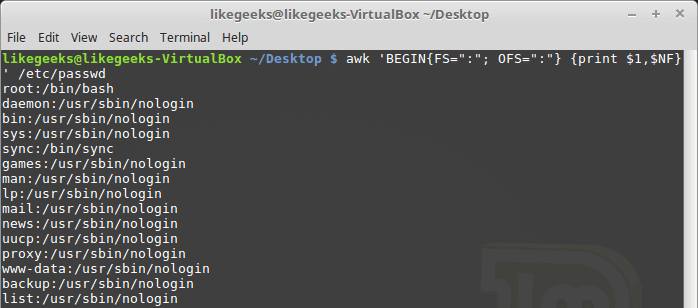
The NF variable specifies the last field in the record without knowing its position:

awk 'BEGIN{FS=":"; OFS=":"} {print $1,$NF}' /etc/passwd

awk command NF

The NF variable can be used as a data field variable if you type it like this: $NF.

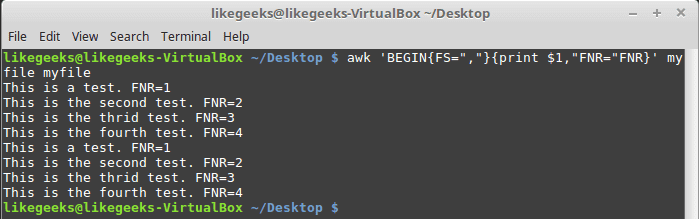
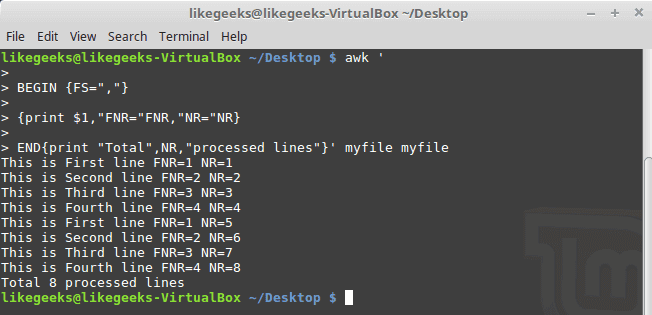
Let’s take a look at these two examples to know the difference between FNR and NR variables:

awk 'BEGIN{FS=","}{print $1,"FNR="FNR}' myfile myfile

awk command FNR

In this example, the awk command defines two input files. The same file, but processed twice. The output is the first field value and the FNR variable.

Now, check the NR variable and see the difference:

awk '

BEGIN {FS=","}

{print $1,"FNR="FNR,"NR="NR}

END{print "Total",NR,"processed lines"}' myfile myfile

awk command NR FNR

The FNR variable becomes 1 when comes to the second file, but the NR variable keeps its value.

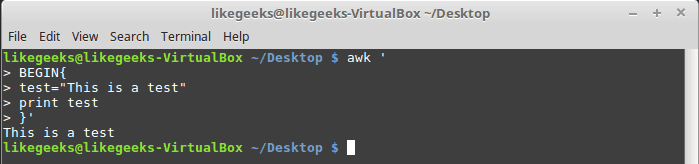
User Defined Variables

Variable names could be anything, but it can’t begin with a number.

You can assign a variable as in shell scripting like this:

awk '

BEGIN{

test="Welcome to LikeGeeks website"

print test

}'

user variables

Structured Commands

The awk scripting language supports if conditional statement.

The testfile contains the following:

10

15

6

33

45

awk '{if ($1 > 30) print $1}' testfile

if command

Just that simple.

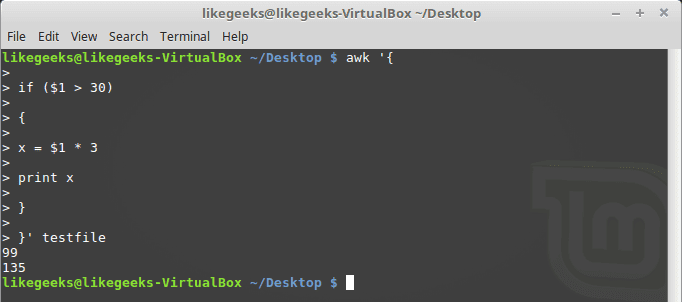
You should use braces if you want to run multiple statements:

awk '{

if ($1 > 30)

{

x = $1 * 3

print x

}

}' testfile

multiple statements

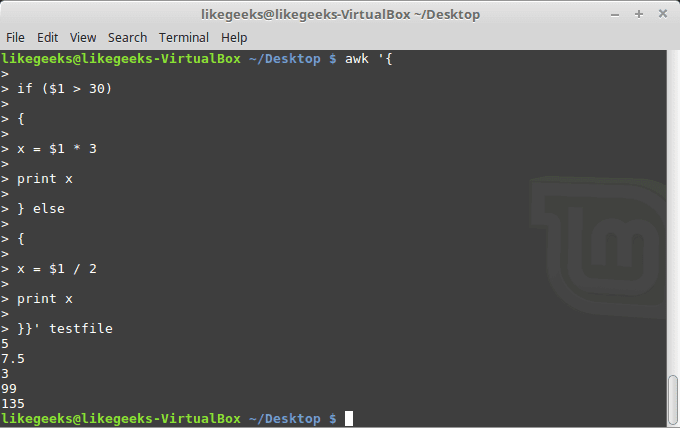
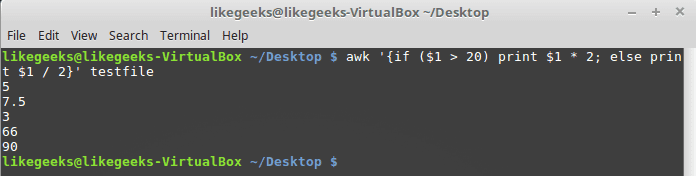
You can use else statements like this:

awk '{

if ($1 > 30)

{

x = $1 * 3

print x

} else

{

x = $1 / 2

print x

}}' testfile

awk command else

Or type them on the same line and separate the if statement with a semicolon like this:

else one line

While Loop

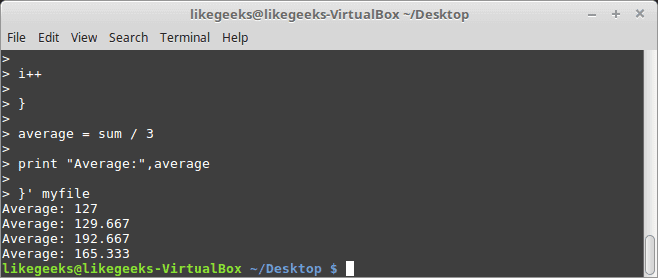
You can use the while loop to iterate over data with a condition.

cat myfile

124 127 130

112 142 135

175 158 245

118 231 147

awk '{

sum = 0

i = 1

while (i < 5)

{

sum += $i

i++

}

average = sum / 3

print "Average:",average

}' testfile

while loop

The while loop runs and every time it adds 1 to the sum variable until the i variable becomes 4.

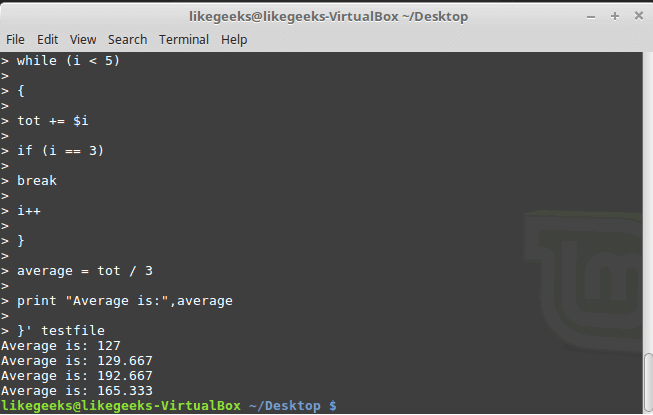
You can exit the loop using break command like this:

awk '{

tot = 0

i = 1

while (i < 5)

{

tot += $i

if (i == 3)

break

i++

}

average = tot / 3

print "Average is:",average

}' testfile

awk command break

The for Loop

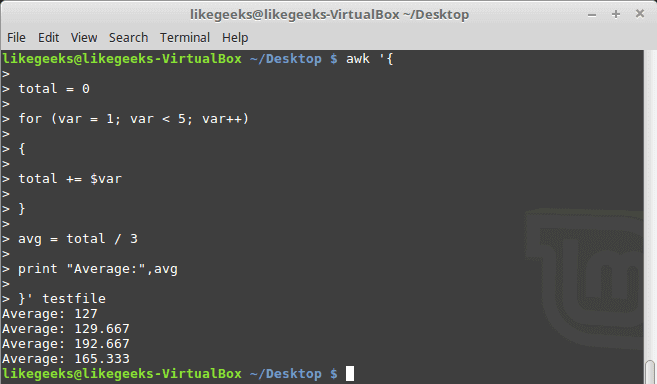
The awk scripting language supports the for loops:

awk '{

total = 0

for (var = 1; var < 5; var++)

{

total += $var

}

avg = total / 3

print "Average:",avg

}' testfile

for loop

Formatted Printing

The printf command in awk allows you to print formatted output using format specifiers.

The format specifiers are written like this:

%[modifier]control-letter

This list shows the format specifiers you can use with printf:

c              Prints numeric output as a string.

d             Prints an integer value.

e             Prints scientific numbers.

f               Prints float values.

o             Prints an octal value.

s             Prints a text string.

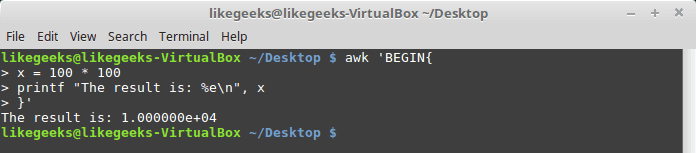
Here we use printf to format our output:

awk 'BEGIN{

x = 100 * 100

printf "The result is: %e\n", x

}'

awk command printf

Here is an example of printing scientific numbers.

We are not going to try every format specifier. You know the concept.

Built-In Functions

Awk provides several built-in functions like:

Mathematical Functions

If you love math, you can use these functions in your awk scripts:

sin(x) | cos(x) | sqrt(x) | exp(x) | log(x) | rand()

And they can be used normally:

awk 'BEGIN{x=exp(5); print x}'

math functions

String Functions

There are many string functions, you can check the list, but we will examine one of them as an example and the rest is the same:

awk 'BEGIN{x = "likegeeks"; print toupper(x)}'

string functions

The function toupper converts character case to upper case for the passed string.

User Defined Functions

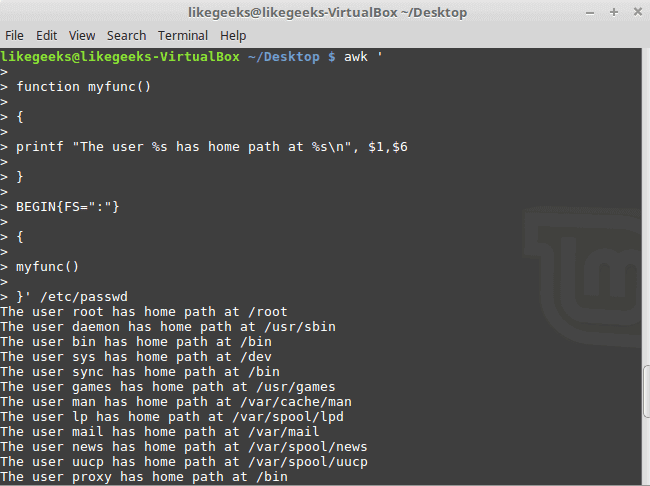
You can define your function and use them like this:

awk '

function myfunc()

{

printf "The user %s has home path at %s\n", $1,$6

}

BEGIN{FS=":"}

{

myfunc()

}' /etc/passwd

user defined functions

Here we define a function called myprint, then we use it in our script to print output using printf function.

I hope you like the post.

Thank you.

0

Debian 10 Buster’a GNU Octave nasıl yüklenir?

Özgür bir yazılım olan GNU Octave; çoğunlukla, ticari karşılığı olan MATLAB ile uyumlu bir dil kullanır. Doğrusal ve doğrusal olmayan matematiksel problemleri sayısal olarak çözmeye ve başka sayısal deneyler yapmaya elverişli bir komut satırı arayüzü sunar. Komut ekranı ve göresel arayüzleri destekleyen yazılım,  GNU Projesi kapsamında 1988 yılından beri geliştirilmektedir ve Batch-uyumlu bir dil olarak da kullanılabilir. GNU Genel Kamu Lisansı şartlarına uygun olarak yeniden dağıtımı yapılabilen ve/veya değiştirilebilen GNU Octave;  John W. Eaton ve başka pek çok kişi tarafından yazılmıştır. GNU Octave özgür bir yazılım olduğu için ek fonksiyonlar yazarak ve ekleyerek ya da yaşadığınız problemleri paylaşarak onu daha da kullanışlı hale getirmeye katkıda bulunmak mümkündür. Öncelikli olarak sayısal hesaplamalar için tasarlanmış yüksek seviyeli bir dil olan GNU Octave Debian 10 Buster’a nasıl yüklenir?

Continue Reading →

Öncelikle depolarımızı aşağıdaki komutla güncelleyelim:

sudo apt update

Artık GNU Octave’ı aşağıdaki komutla kurabilirsiniz:

sudo apt install octave

Kurulumu onaylamak için E tuşuna ve ardından <Enter> tuşuna basın. APT paket yöneticisi gerekli tüm paketleri indirip yükleyecektir. GNU Octave kurulduktan sonra, Debian 10’un uygulama menüsünde simgesini bulabilirsiniz. Bu yazının yazıldığı sırada GNU Octave’ın en son versiyonu, 5.1.0 idi. Ancak, resmi paket deposundaki GNU Octave sürümü daha eskidir. Dilerseniz, GNU Octave 5.1.0’ı Debian 10 için flathub flatpak deposundan indirebilirsiniz. Flatpak, varsayılan olarak Debian 10’da yüklü değildir. Ancak, Flatpak’ı Debian 10’a Debian 10’un resmi paket deposundan kolayca yükleyebilirsiniz. Bunun için yine önce depolarımızı aşağıdaki komutla güncelleyelim:

sudo apt update

Şimdi, Flatpak’ı aşağıdaki komutla kurun:

sudo apt install flatpak gnome-software-plugin-flatpak

Şimdi Debian 10’daki Flathub Flatpak deposunu aşağıdaki komutu kullanarak ekleyin:

sudo flatpak remote-add --if-not-exists flathub
https://flathub.org/repo/flathub.flatpakrepo

Şimdi, aşağıdaki komutu kullanarak bilgisayarınızı yeniden başlatın:

sudo reboot

Bilgisayarınız başladığında, GNU Octave’ın son sürümünü Flathub’dan yüklemek için aşağıdaki komutu çalıştırın:

flatpak install flathub org.octave.Octave

İşlemler biraz zaman alabilir. Ancak sorunsuzca tamamlanacaktır. Artık GNU Octave’ın en yeni sürümünü kullanabilirsiniz.

0

31+ Examples for sed Linux Command in Text Manipulation

In the previous post, we talked about bash functions and how to use them from the command line directly and we saw some other cool stuff. Today we will talk about a very useful tool for string manipulation called sed or sed Linux command. Sed is used to work with text files like log files, configuration files, and other text files. In this post, we are going to focus on sed Linux command which is used for text manipulation, which is a very important step in our bash scripting journey. Linux system provides some tools for text processing, one of those tools is sed. We will discuss the 31+ examples with pictures to show the output of every example.
Continue Reading →

Understand sed Linux Command

The sed command is a non-interactive text editor. Sed Linux command edits data based on the rules you provide, you can use it like this:

sed options file

You are not limited to use sed to manipulate files, you apply it to the STDIN directly like this:

echo "Welcome to LikeGeeks page" | sed 's/page/website/'

sed Linux command

The s command replaces the first text with the second text pattern. In this case, the string “website” was replaced with the word “page”, so the result will be as shown.

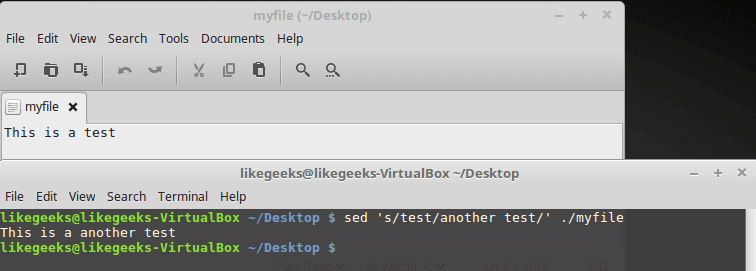
The above example was a very basic example to demonstrate the tool. We can use sed Linux command to manipulate files as well.

This is our file:

sed manipulate file

sed 's/test/another test/' ./myfile

The results are printed to the screen instantaneously, you don’t have to wait for processing the file to the end.

If your file is huge enough, you will see the result before the processing is finished.

Sed Linux command doesn’t update your data. It only sends the changed text to STDOUT. The file still untouched. If you need to overwrite the existing content, you can check our previous post which was talking about redirections.

Using Multiple sed Linux Commands in The Command Line

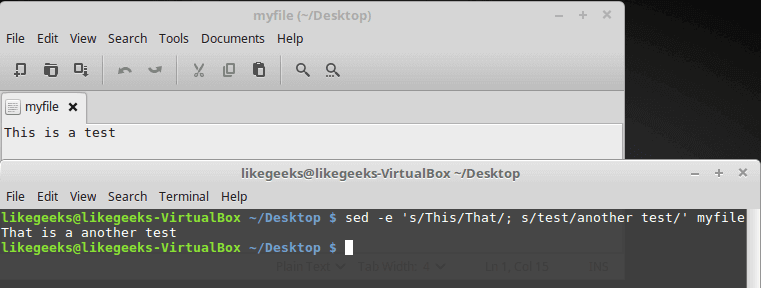
To run multiple sed commands, you can use the -e option like this:

sed -e 's/This/That/; s/test/another test/' ./myfile

sed multiple commands

Sed command must be separated by a semicolon without any spaces.

Also, you can use a single quotation to separate commands like this:

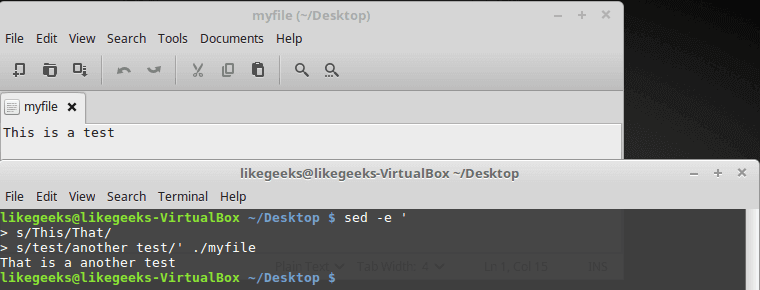
sed -e '

> s/This/That/

> s/test/another test/' myfile

sed separate commands

The same result, no big deal. 

Reading Commands From a File

You can save your sed commands in a file and use them by specifying the file using -f option.

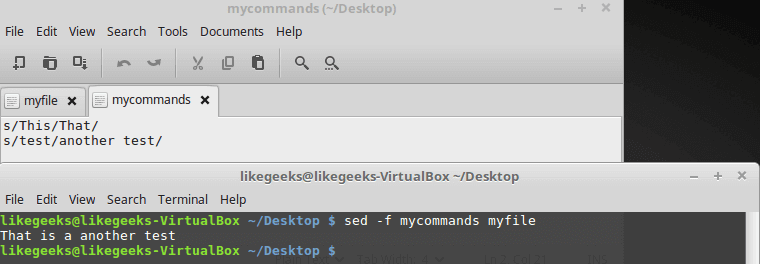
cat mycommands

s/This/That/

s/test/another test/

sed -f mycommands myfile

read commands from file

Substituting Flags

Look at the following example carefully:

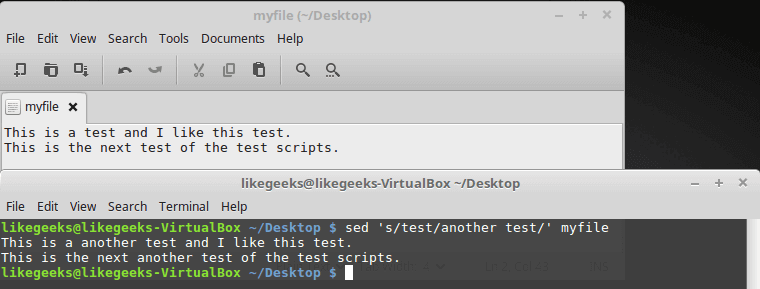
cat myfile

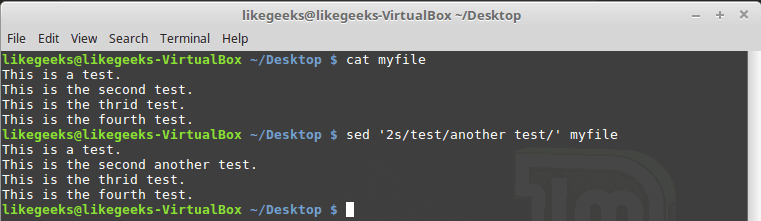
sed 's/test/another test/' myfile

sed substitute flag

The above result shows the first occurrence in each line is only replaced. To substitute all occurrences of a pattern, use one of the following substitution flags.

The flags are written like this:

s/pattern/replacement/flags

There are four types of substitutions:

  • g, replace all occurrences.
  • A number, the occurrence number for the new text that you want to substitute.
  • p, print the original content.
  • w file: means write the results to a file.

You can limit your replacement by specifying the occurrence number that should be replaced like this:

sed 's/test/another test/2' myfile

sed number flag

As you can see, only the second occurrence on each line was replaced.

The g flag means global, which means a global replacement for all occurrences:

sed 's/test/another test/g' myfile

sed global flag

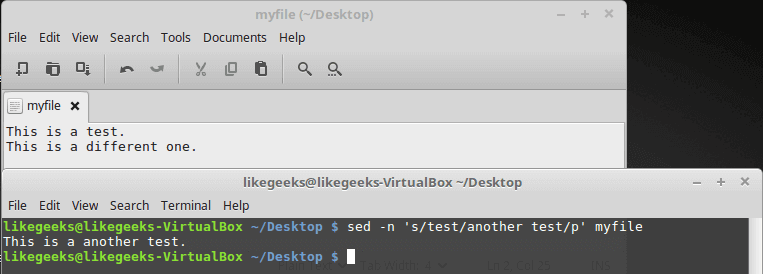
The p flag prints each line contains a pattern match, you can use the -n option to print the modified lines only.

cat myfile

sed -n 's/test/another test/p' myfile

sed supress lines

The w flag saves the output to a specified file:

sed 's/test/another test/w output' myfile

send output to file

The output is printed on the screen, but the matching lines are saved to the output file.

Replace Characters

Suppose that you want to search for bash shell and replace it with csh shell in the /etc/passwd file using sed, well, you can do it easily:

sed 's/\/bin\/bash/\/bin\/csh/' /etc/passwd

Oh!! that looks terrible.

Luckily, there is another way to achieve that. You can use the exclamation mark (!) as string delimiter like this:

sed 's!/bin/bash!/bin/csh!' /etc/passwd

Now it’s easier to read.

Limiting sed

Sed command processes your entire file. However, you can limit the sed command to process specific lines, there are two ways:

  • A range of lines.
  • A pattern that matches a specific line.

You can type one number to limit it to a specific line:

sed '2s/test/another test/' myfile

sed restricted

Only line two is modified.

What about using a range of lines:

sed '2,3s/test/another test/' myfile

replace range of lines

Also, we can start from a line to the end of the file:

sed '2,$s/test/another test/' myfile

sed replace to the end

Or you can use a pattern like this:

sed '/likegeeks/s/bash/csh/' /etc/passwd

sed pattern match

Awesome!!

You can use regular expressions to write this pattern to be more generic and useful.

Delete Lines

To delete lines, the delete (d) flag is your friend.

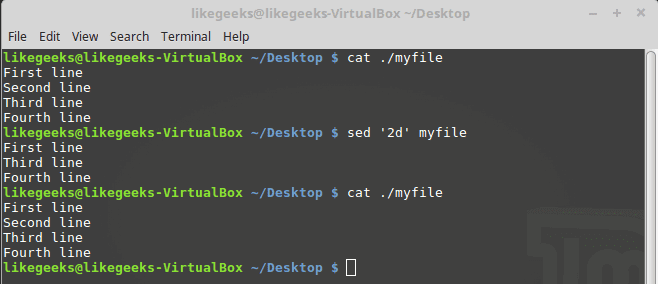
The delete flag deletes the text from the stream, not the original file.

sed '2d' myfile

sed delete line

Here we delete the second line only from myfile.

What about deleting a range of lines?

sed '2,3d' myfile

delete multiple line

Here we delete a range of lines, the second and the third.

Another type of ranges:

sed '3,$d' myfile

delete to the end

Here we delete from the third line to the end of the file.

All these examples never modify your original file.

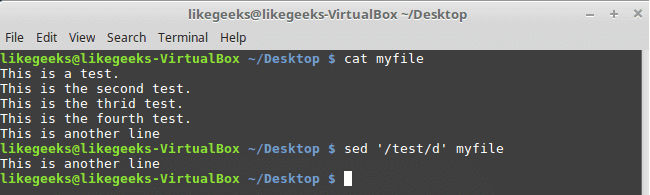
sed '/test 1/d' myfile

delete pattern match

Here we use a pattern to delete the line if matched on the first line.

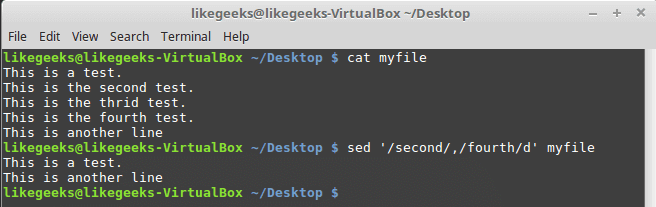
If you need to delete a range of lines, you can use two text patterns like this:

sed '/second/,/fourth/d' myfile

delete range of lines

From the second to the fourth line are deleted.

Insert and Append Text

You can insert or append text lines using the following flags:

  • The (i) flag.
  • The  (a) flag.

echo "Another test" | sed 'i\First test '

sed insert text

Here the text is added before the specified line.

echo "Another test" | sed 'a\First test '

sed append

Here the text is added after the specified line.

Well, what about adding text in the middle?

Easy, look at the following example:

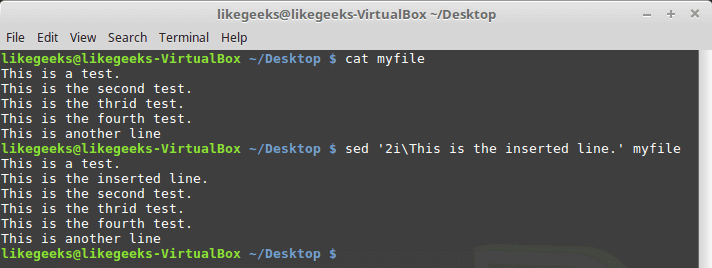
sed '2i\This is the inserted line.' myfile

sed insert line

And the appending works the same way, but look at the position of the appended text:

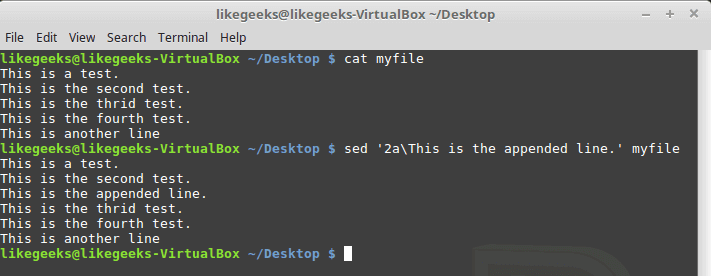
sed '2a\This is the appended line.' myfile

sed append line

The same flags are used but with a location of insertion or appending.

Modifying Lines

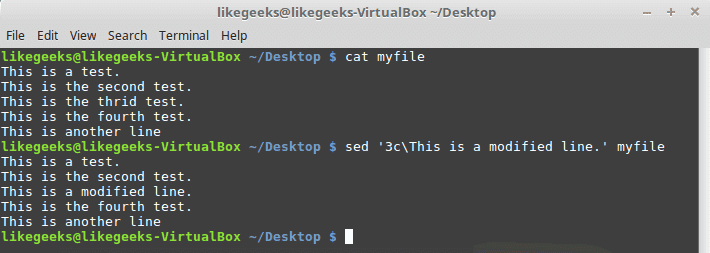
To modify a specific line, you can use the (c) flag like this:

sed '3c\This is a modified line.' myfile

sed modify line

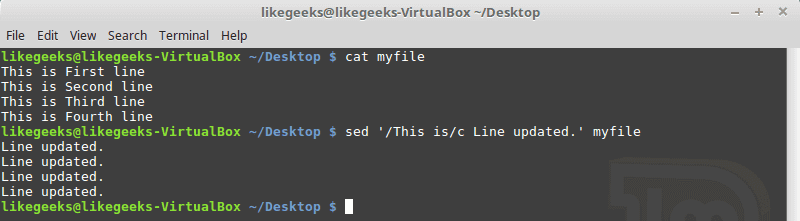
You can use a regular expression pattern and all lines match that pattern will be modified.

sed '/This is/c Line updated.' myfile

sed pattern match

Transform Characters

The transform flag (y) works on characters like this:

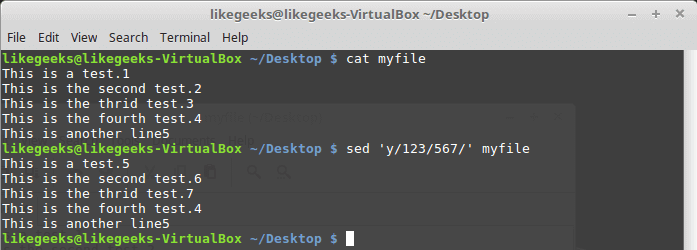
sed 'y/123/567/' myfile

sed transform character

The transformation is applied to all data and cannot be limited to a specific occurrence.

Print Line Numbers

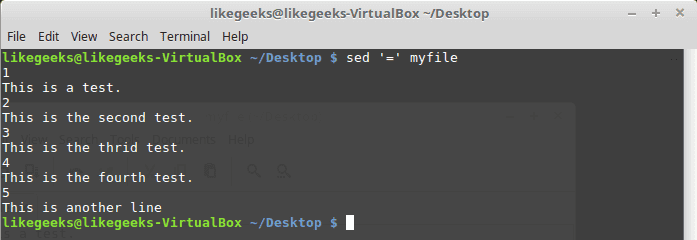
You can print line number using the (=) sign like this:

sed '=' myfile

sed line numbers

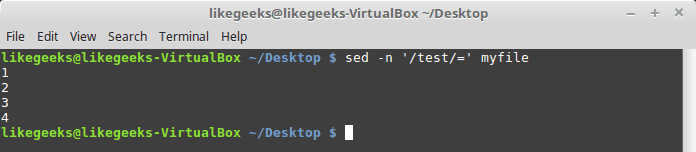
However, by using -n combined with the equal sign, the sed command displays the line number that contains matching.

sed -n '/test/=' myfile

hide lines

Read Data From a File

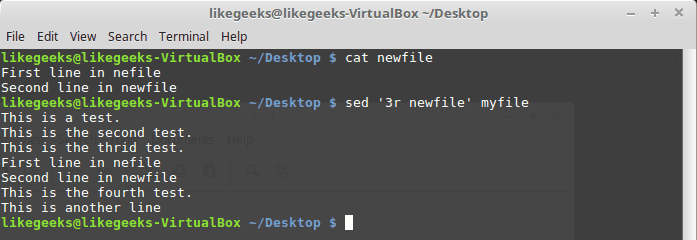
You can use the (r) flag to read data from a file.

You can define a line number or a text pattern for the text that you want to read.

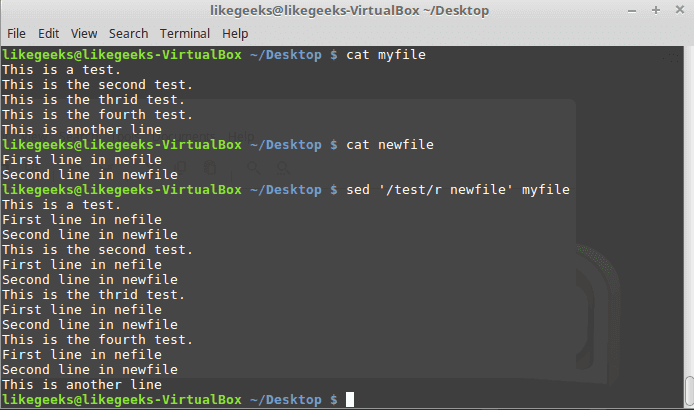
cat newfile

sed '3r newfile' myfile

read data from file

The content is just inserted after the third line as expected.

And this is using a text pattern:

sed '/test/r newfile' myfile

read match pattern

Cool right?

Useful Examples

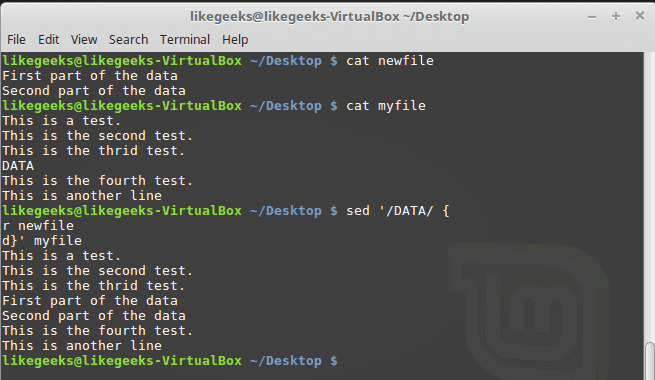
We have a file that contains text with a placeholder and we have another file that contains the data that will be filled in that placeholder.

We will use the (r) and (d) flags to do the job.

The word DATA in that file is a placeholder for a real content which is stored in another file called data.

We will replace it with the actual content:

Sed '/DATA>/ {

r newfile

d}' myfile

repalce placeholder

Awesome!! as you can see, the placeholder location is filled with the data from the other file.

This is just a very small intro about sed command. Actually, sed Linux command is another world by itself.

The only limitation is your imagination.

I hope you enjoy what’ve introduced today about the string manipulation using sed Linux command.

Thank you.

0

Python sürümü nasıl belirlenir?

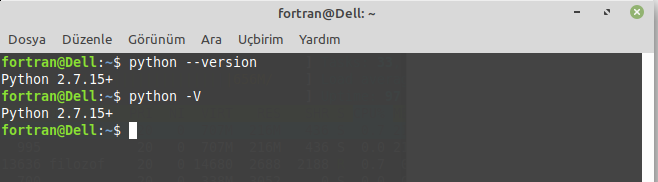
Dünyanın en popüler programlama dillerinden birisi olan Python; web siteleri geliştirmek, script yazmak, veri analizi ve daha pek çok şey için kullanılmaktadır. Python, çoğu GNU/Linux dağıtımında ve hatta macOS’ta önceden yüklenmiş olarak gelir. Hatta çoğu GNU/Linux dağıtımı, Python’un hem 2.x hem de 3x sürümünü içerir. Ama GNU/Linux dağıtımlarında öntanımlı Python sürümü ağırlıklı olarak Python2’dir. Bu çalışmamızda, sistemimizde hangi Python sürümünün bulunduğunu anlamak için terminali kullanacağız. Sistemimizde hangi Python sürümünün yüklü olduğunu bulmak için python --version veya python -V komutunu çalıştırabiliriz. Burada, sanırım dikkatinizi çekmiştir, her iki komut da 2.x sürümüne yönelik değerlendirme yapmaktadır.

Continue Reading →

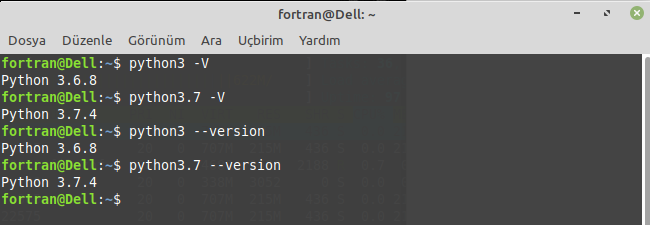
Kuşkusuz, sisteminizde kurulu python 3 sürümünü de öğrenmek isteyeceksinizdir. Bu durumda, python3 --version veya python3 -V komutunu vermeniz gerekiyor.

Bunun dışında, siz, daha güncel bir Python 3 sürümünü yüklemiş de olabilirsiniz. O halde, yukarıda gördüğünüz gibi, vereceğiniz komutu bu sürüme özgü hale getirmelisiniz. Mesela: python3.7 --version veya python3.7 -V. İşte, sizin yüklediğiniz sürüm de karşınızda.

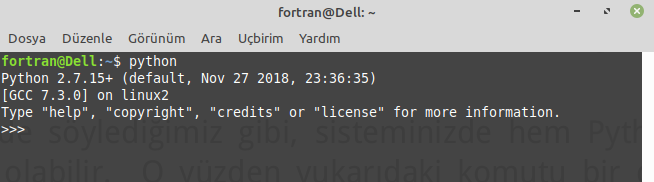
Şimdi olağan şartlarda, Python’u başlatmak için şu komutu vermeniz yeterlidir:

python

Ancak, hem Python2 hem de Python3 zaten kurulu durumdaysa, ihtimal Python2 başlayacaktır.


Bu nedenle başlat konutu olarak;

python3

kullanmalısınız. Ancak daha yeni bir sürüm yüklediyseniz, ona göre özelleştirmelisiniz:

python3.7

Kolaylık açısından /usr/bin/ dizini altına py3 adında bir sembolik bağ yerleştirmeniz durumunda, yalnızca py3 komutunu vererek kendi yüklediğiniz son sürümü kullanabilirsiniz. Bunun için /usr/local/bin/ dizini içindeki python 3.7 adlı dosyaya /usr/bin dizini altından, py3 adlı bir sembolik bağ oluşturacaksınız. Şöyle bir komut verebiliriz:

ln -s /usr/local/bin/python3.7 /usr/bin/py3

Tabii bu komutu yetkili kullanıcı olarak vermeniz gerektiğini söylemeye herhalde gerek yoktur. Bu komutu verdikten sonra artık sadece py3 komutu ile Python programlama dilini kendi sürümünüzle başlatabilirsiniz. Kolay gelsin.

0

Bash Scripting Part6 – Create and Use Bash Functions

Before we talk about bash functions, let’s discuss this situation. When writing bash scripts, you’ll find yourself that you are using the same code in multiple places. If you get tired of writing the same lines of code again and again in your bash script, it would be nice to write the block of code once and call it anywhere in your bash script. The bash shell allows you to do just that with Functions. Bash functions are blocks of code that you can reuse them anywhere in your code. Anytime you want to use this block of code in your script, you simply type the function name given to it. We are going to talk about how to create your own bash functions and how to use them in shell scripts.

Continue Reading →

Creating a function

You can define a function like this:

functionName() {

}

The brackets () is required to define the function.

Also, you can define the function using the function keyword, but this keyword is deprecated for POSIX portability.

function functionName() {

# Deprecated definition but still used and working

}

In the second definition, the brackets are not required.

Using Functions

#!/bin/bash

myfunc() {

echo "Using functions"

}

total=1

while [ $total -le 3 ]; do

myfunc

total=$(($total + 1))

done

echo "Loop finished"

myfunc

echo "End of the script"

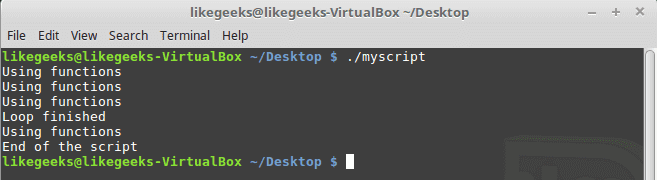
Here we’ve created a function called myfunc and in order to call it, we just typed its name.

bash functions

The function can be called many times as you want.

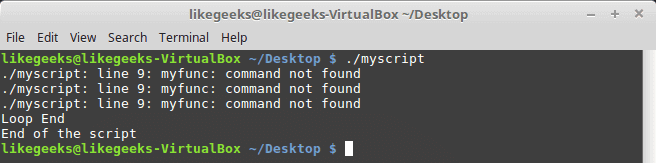
Notice: If you try to use a function which is not defined, what will happen?

#!/bin/bash

total=1

while [ $total -le 3 ]; do

myfunc

total=$(($total + 1))

done

echo "Loop End"

myfunc() {

echo "Using function ..."

}

echo "End of the script"

call before declare

Oh, it’s an error because there no such function.

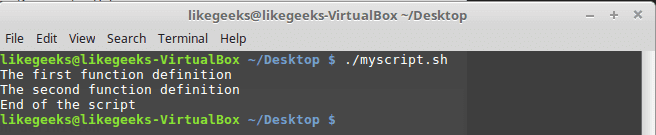
Another notice: bash function name must be unique. Otherwise, the new function will cancel the old function without any errors.

#!/bin/bash

myfunc() {

echo "The first function definition"

}

myfunc

function myfunc() {

echo "The second function definition"

}

myfunc

echo "End of the script"

override definition

As you can see, the second function definition takes control from the first one without any error so take care when defining functions.

Using the return Command

The return command returns an integer from the function.

There are two ways of using the return command; the first way is like this:

#!/bin/bash

myfunc() {

read -p "Enter a value: " value

echo "adding value"

return $(($value + 10))

}

myfunc

echo "The new value is $?"

return command

The myfunc function adds 10 to the  $value variable then show the sum using the $? Variable.

Don’t execute any commands before getting the value of the function, because the variable $? returns the status of the last line.

This return method returns integers. what about returning strings?

Using Function Output

The second way of returning a value from a bash function is command substitution. This way, you can return anything from the function.

#!/bin/bash

myfunc() {

read -p "Enter a value: " value

echo $(($value + 10))

}

result=$(myfunc)

echo "The value is $result"

bash functions output

Passing Parameters

We can deal with bash functions like small snippets that can be reused and that’s OK, but we need to make the function like an engine, we give it something and it returns a result based on what we provide.

You can use the environment variables to process the passed parameters to the function. The function name is declared as $0 variable, and the passed parameters are $1, $2, $3, etc.

You can get the number of passed parameters to the function using the ($#) variable.

We pass parameters like this:

myfunc $val1 10 20

The following example shows how to use the ($#) variable:

#!/bin/bash

addnum() {

if [ $# -gt 2 ]; then

echo "Incorrect parameters passed" # If parameters no equal 2

else

echo $(($1 + $2)) # Otherwise add them

fi

}

echo -n "Adding 10 and 15: "

value=$(addnum 10 15)

echo $value

echo -n "Adding three numbers: "

value=$(addnum 10 15 20)

echo $value

pass parameters

The addnum function gets the passed parameters count. If greater than 2 passed, it returns -1.

If there’s one parameter, the addnum function adds this parameter twice. If 2 parameters passed, the addnum function adds them together, and if you try to add three parameters it will return -1.

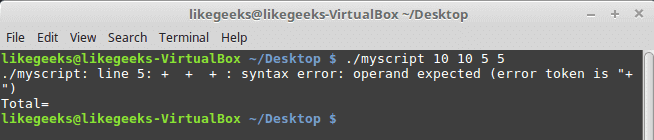
If you try to use the passed parameters inside the function, it fails:

#!/bin/bash

myfunc() {

echo $(($1 + $2 + $3 + $4))

}

if [ $# -eq 4 ]; then

value=$(myfunc)

echo "Total= $value"

else

echo "Passed parameters like this: myfunc a b c d"

fi

unknown parameters

Instead, you have to send them to the function like this:

#!/bin/bash

myfunc() {

echo $(($1 + $2 + $3 + $4))

}

if [ $# -eq 4 ]; then

value=$(myfunc $1 $2 $3 $4)

echo "Total= $value"

else

echo "Passed parameters like this: myfunc a b c d"

fi

bash functions parameters

Now it works!!

Processing Variables in Bash Functions

Every variable we use has a scope, the scope is variable visibility to your script.

You can define two types of variables:

  • Global
  • Local

Global Variables

They are visible and valid anywhere in the bash script. You can even get its value from inside the function.

If you declare a global variable within a function, you can get its value from outside the function.

Any variable you declare is a global variable by default. If you define a variable outside the function, you call it inside the function without problems:

#!/bin/bash

myfunc() {

input=$(($input + 10))

}

read -p "Enter a number: " input

myfunc

echo "The new value is: $input"

global variables

If you change the variable value inside the function, the value will be changed outside of the function.

So how to overcome something like this? Use local variables.

Local Variables

If you will use the variable inside the function only, you can declare it as a local variable using the local keyword  like this:

local tmp=$(( $val + 10 ))

So if you have two variables, one inside the function and the other is outside the function and they have the identical name, they won’t affect each other.

#!/bin/bash

myfunc() {

local tmp=$(($val + 10))

echo "The Temp from inside function is $tmp"

}

tmp=4

myfunc

echo "The temp from outside is $tmp"

local variables

When you use the $tmp variable inside the myfunc function, it doesn’t change the value of the $tmp which is outside the function.

Passing Arrays As Parameters

What will happen if you pass an array as a parameter to a function:

#!/bin/bash

myfunc() {

echo "The parameters are: $@"

arr=$1

echo "The received array is ${arr[*]}"

}

my_arr=(5 10 15)

echo "The old array is: ${my_arr[*]}"

myfunc ${my_arr[*]}

pass arrays

The function only takes the first value of the array variable.

You should disassemble the array into its single values, then use these values as function parameters. Finally, pack them into an array in the function like this:

#!/bin/bash

myfunc() {

local new_arr

new_arr=("$@")

echo "Updated value is: ${new_arr[*]}"

}

my_arr=(4 5 6)

echo "Old array is ${my_arr[*]}"

myfunc ${my_arr[*]}

pass arrays solution

The array variable was rebuilt thanks to the function.

Recursive Function

This feature enables the function to call itself from within the function itself.

The classic example of a recursive function is calculating factorials. To calculate the factorial of 3, use the following equation:

3! = 1 * 2 * 3

Instead, we can use the recursive function like this:

x! = x * (x-1)!

So to write the factorial function using bash scripting, it will be like this:

#!/bin/bash

fac_func() {

if [ $1 -eq 1 ]; then

echo 1

else

local tmp=$(($1 - 1))

local res=$(fac_func $tmp)

echo $(($res * $1))

fi

}

read -p "Enter value: " val

res=$(fac_func $val)

echo "The factorial of $val is: $res"

bash recursive function

Using recursive bash functions is so easy!

Creating Libraries

Now we know how to write functions and how to call them, but what if you want to use these bash functions or blocks of code on different bash script files without copying and pasting it on your files.

You can create a library for your functions and point to that library from any file as you need.

By using the source command, you can embed the library file script inside your shell script.

The source command has an alias which is the dot. To source a file in a shell script, write the following line:

. ./myscript

Let’s assume that we have a file called myfuncs that contains the following:

addnum() {

echo $(($1 + $2 + $3 + $4))

}

Now, we will use it in another bash script file like this:

#!/bin/bash

. ./myfuncs

result=$(addnum 10 10 5 5)

echo "Total = $result"

source command

Awesome!! We’ve used the bash functions inside our bash script file, we can also use them in our shell directly.

Use Bash Functions From Command Line

Well, that is easy, if you read the previous post which was about the signals and jobs you will have an idea about how to source our functions file in the bashrc file and hence we can use the functions directly from the bash shell. Cool

Edit the bashrc file at /home/username and add this line:

. /home/likegeeks/Desktop/myfuncs

Make sure you type the correct path.

Now the function is available for us to use in the command line directly:

addnum 10 20

use from shell

Note: you may need to log out and log in to use the bash functions from the shell.

Another note: if you make your function name like any of the built-in commands you will overwrite the default command so you should take care of that.

I hope you like the post. Keep coming back.

Thank you.

0